Add Tags
Step-by-step tutorial for adding one or more tags to a single anomaly. To take a tag off an anomaly, see Remove Tags. To apply the same set of tags to many anomalies at once, see Bulk-Edit Tags. For the platform-level tag catalog, see Tags. For programmatic access, see the Anomalies API.
Info
Adding or removing tags on an anomaly requires the Author team permission (or higher) on the anomaly's datastore. Archived anomalies cannot have their tags changed. Restore the anomaly first.
Current assignees (except yourself) are notified about the change as part of the same update event. See Deep Dive · Anomaly Assignees · Notifications.
Tags are managed at the platform level. To create or delete tags from the catalog, see Tags.
Create a tag you don't have yet
If you have the Manager role or above, an Add tag icon appears next to the search box at the top of the tag picker. The tag you create is pinned to the top of the picker, above the selected tags, with a icon. It is not applied until you select it. See Create a Tag From a Tag Picker.
You can add tags from two places, and the flow is identical because both views use the same tag picker. Pick the tab that matches where you start from.
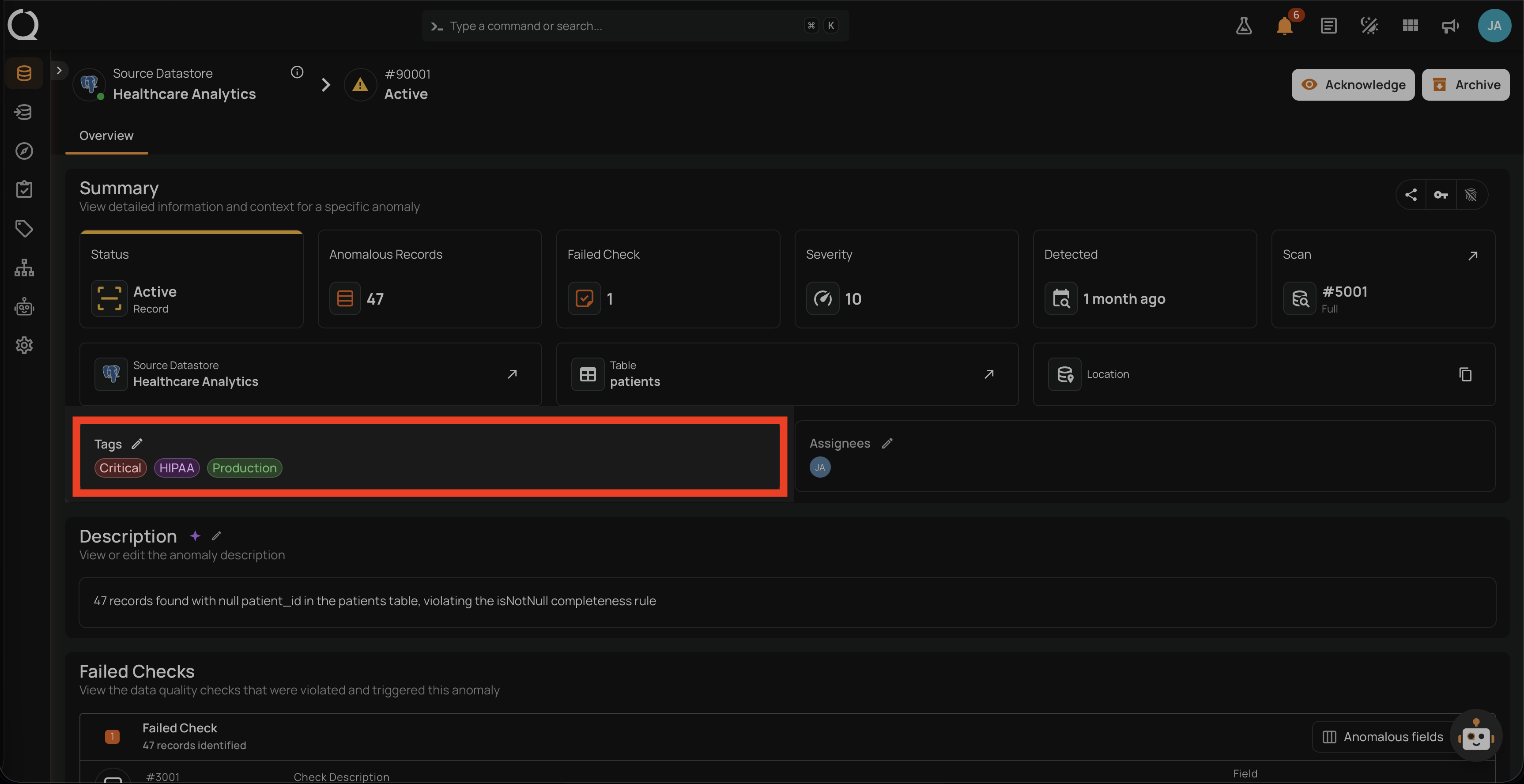
Step 1: Open the anomaly from the per-datastore Anomalies tab. In the Summary section, locate the Tags field.
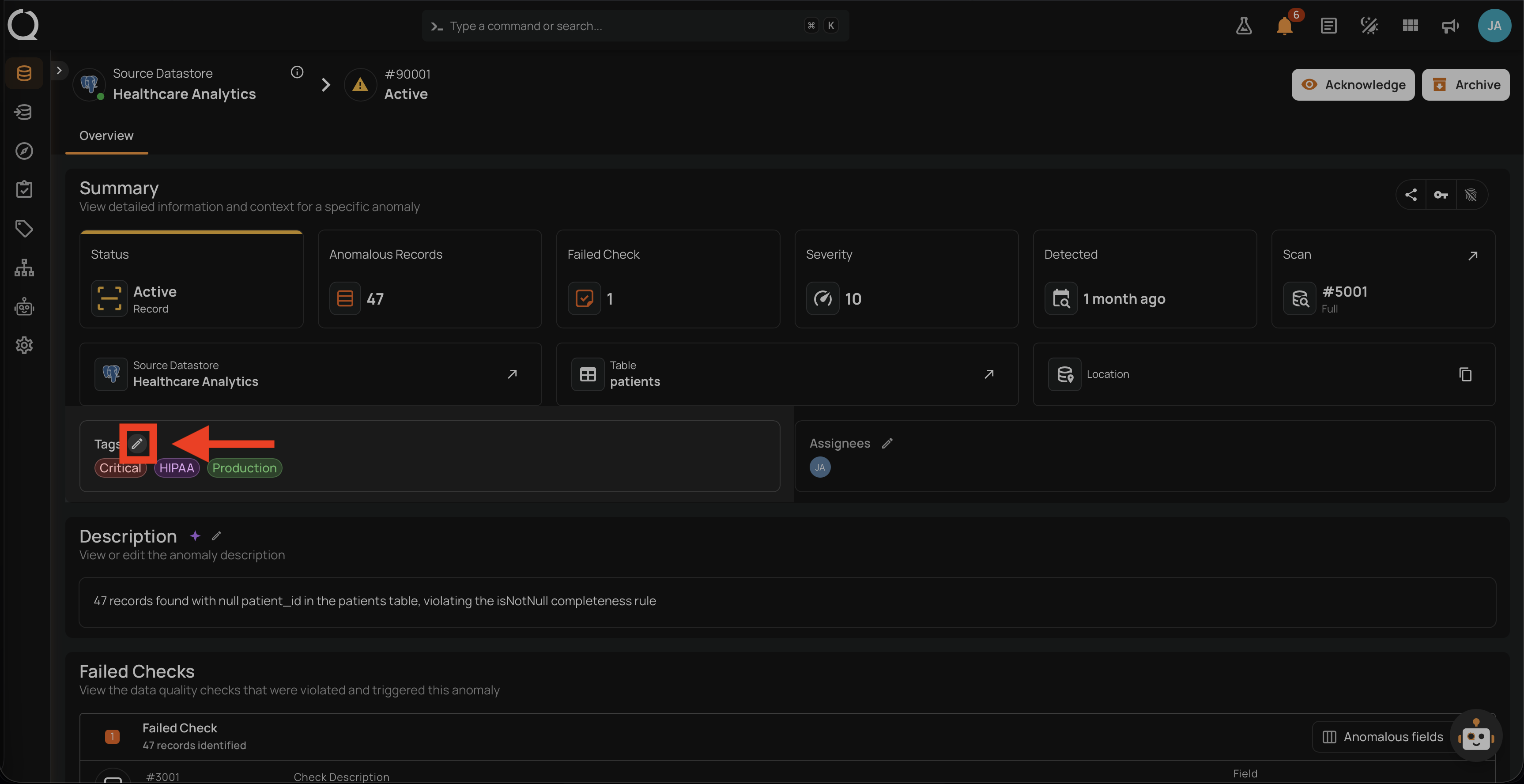
Step 2: Click the Edit button next to the Tags label to open the tag picker. When no tags are applied yet, the same button shows a + icon instead.
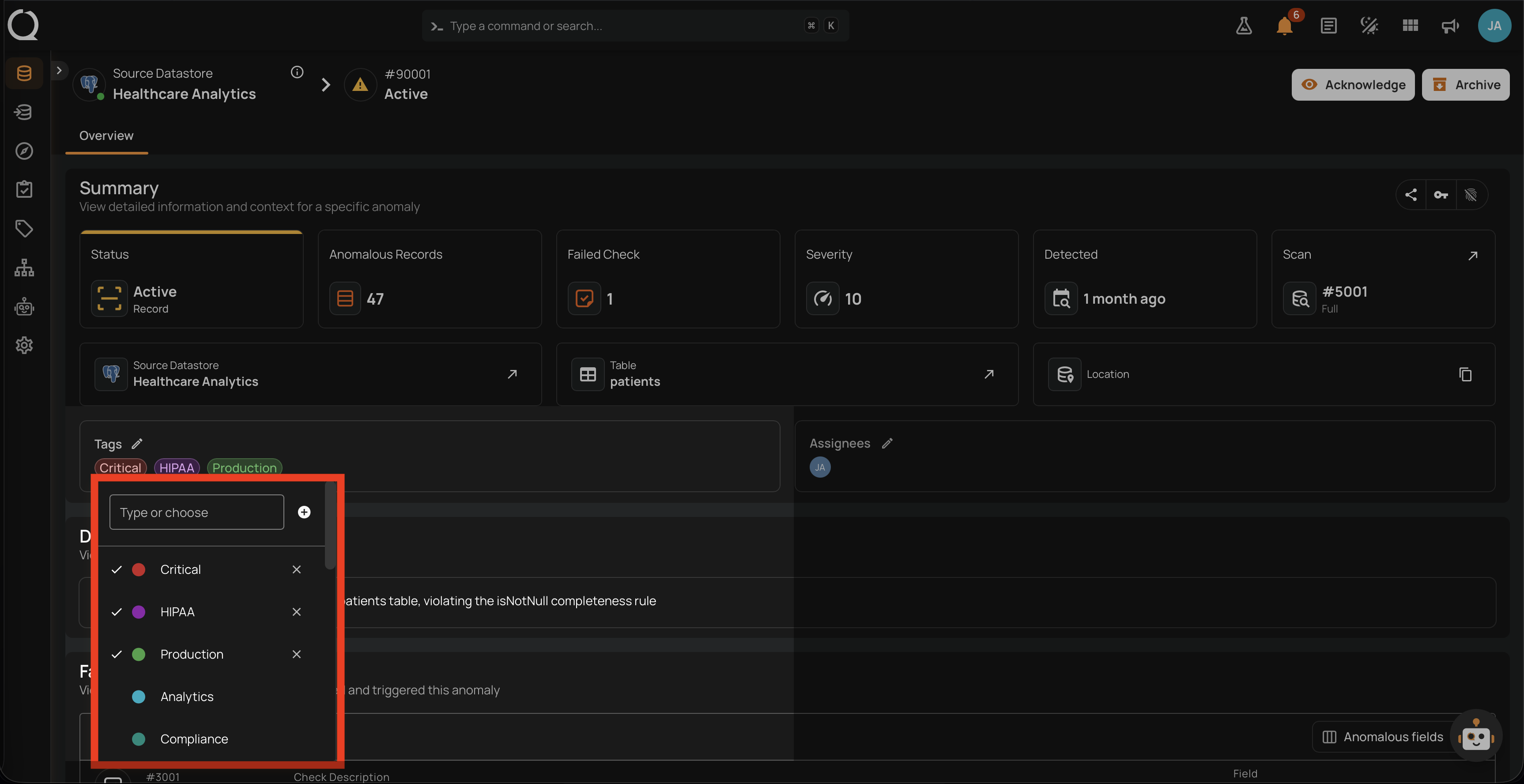
Step 3: The tag picker opens, listing every tag from the platform catalog. Start typing to narrow the list.
Step 4: Select one or more tags from the list to apply them to the anomaly.
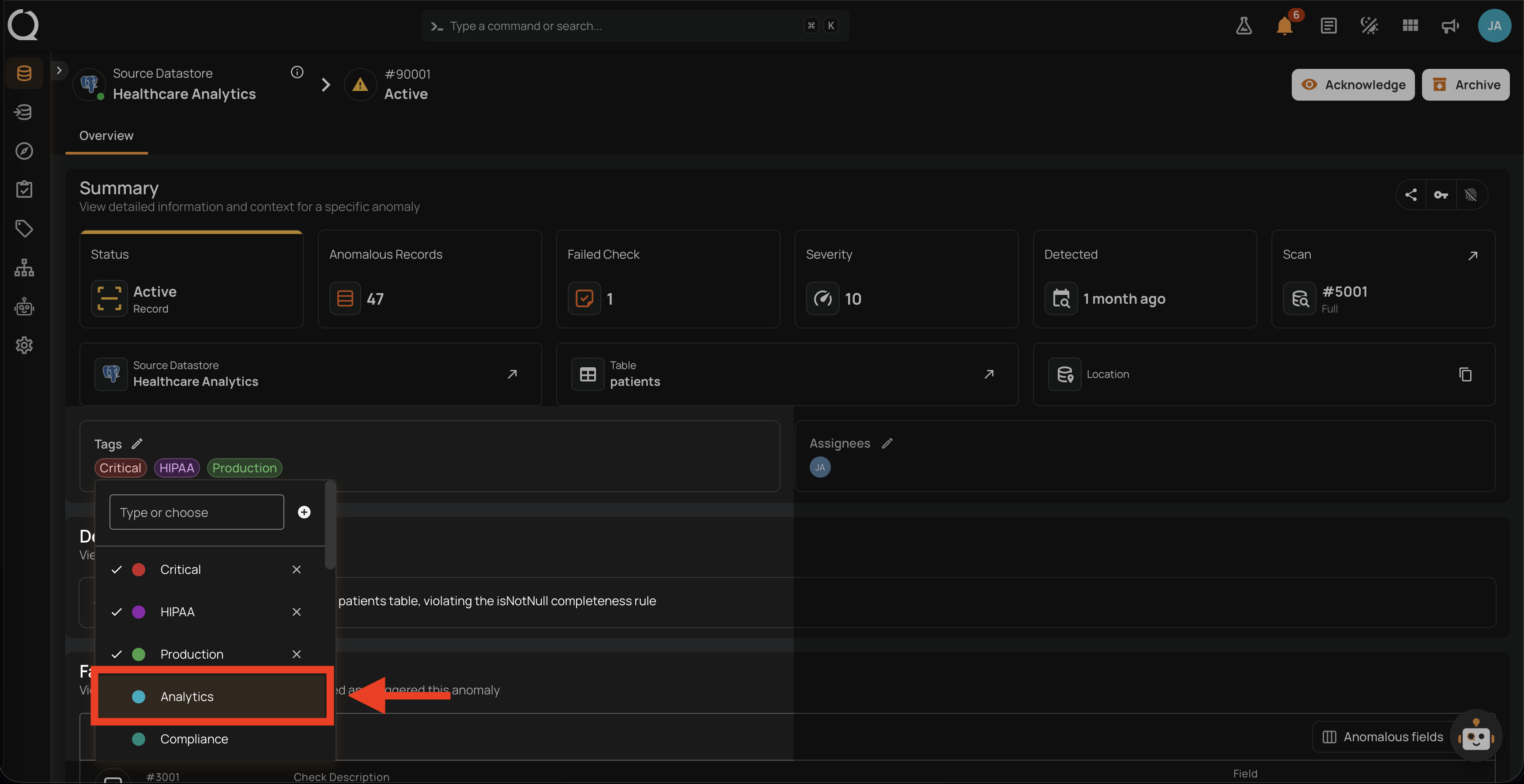
Step 5: The selected tags appear at the top of the list with a check icon, confirming they are now applied.
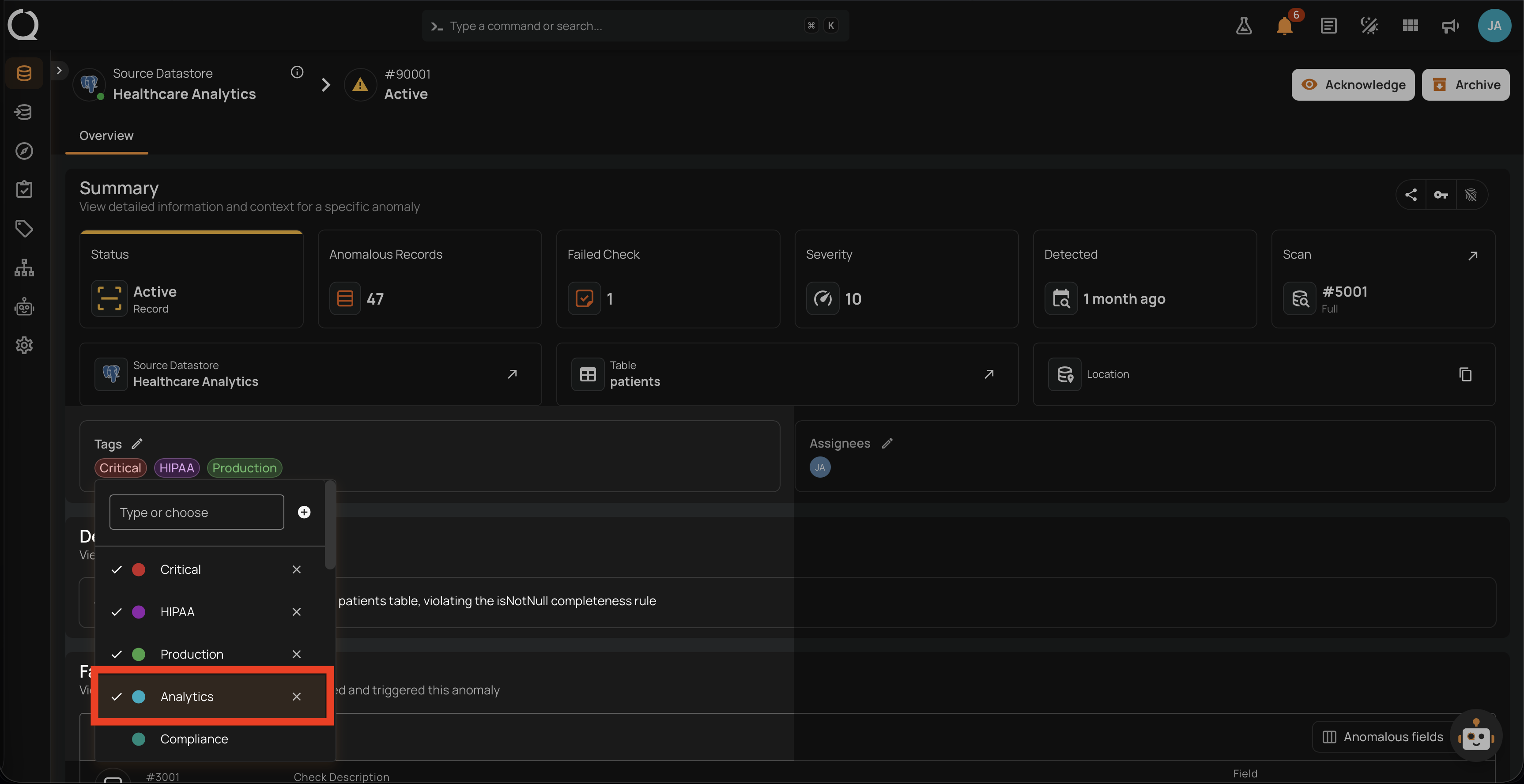
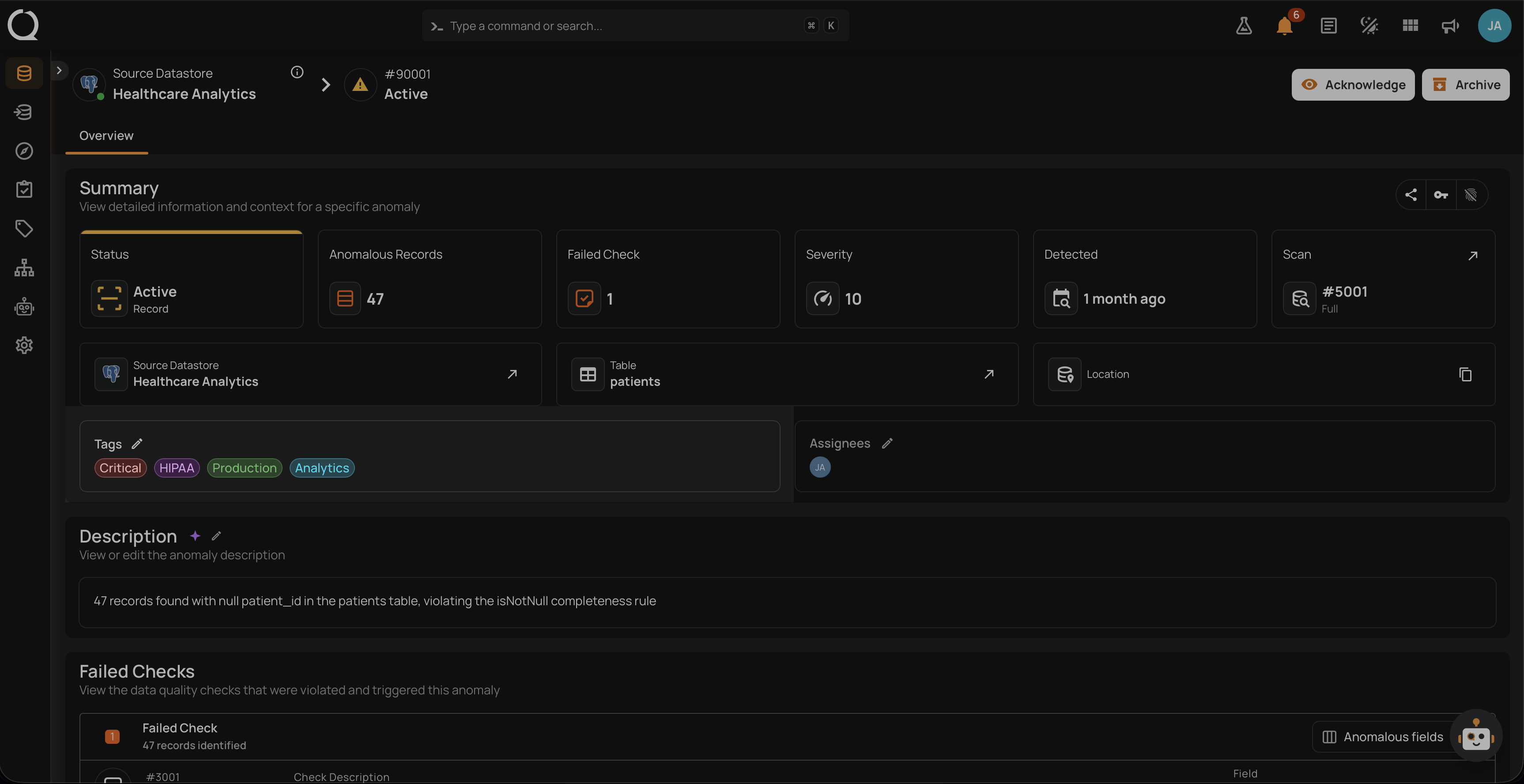
Step 6: Click anywhere outside the picker to close it. The Tags field updates with the new chips, and the change is recorded in the Timeline section.
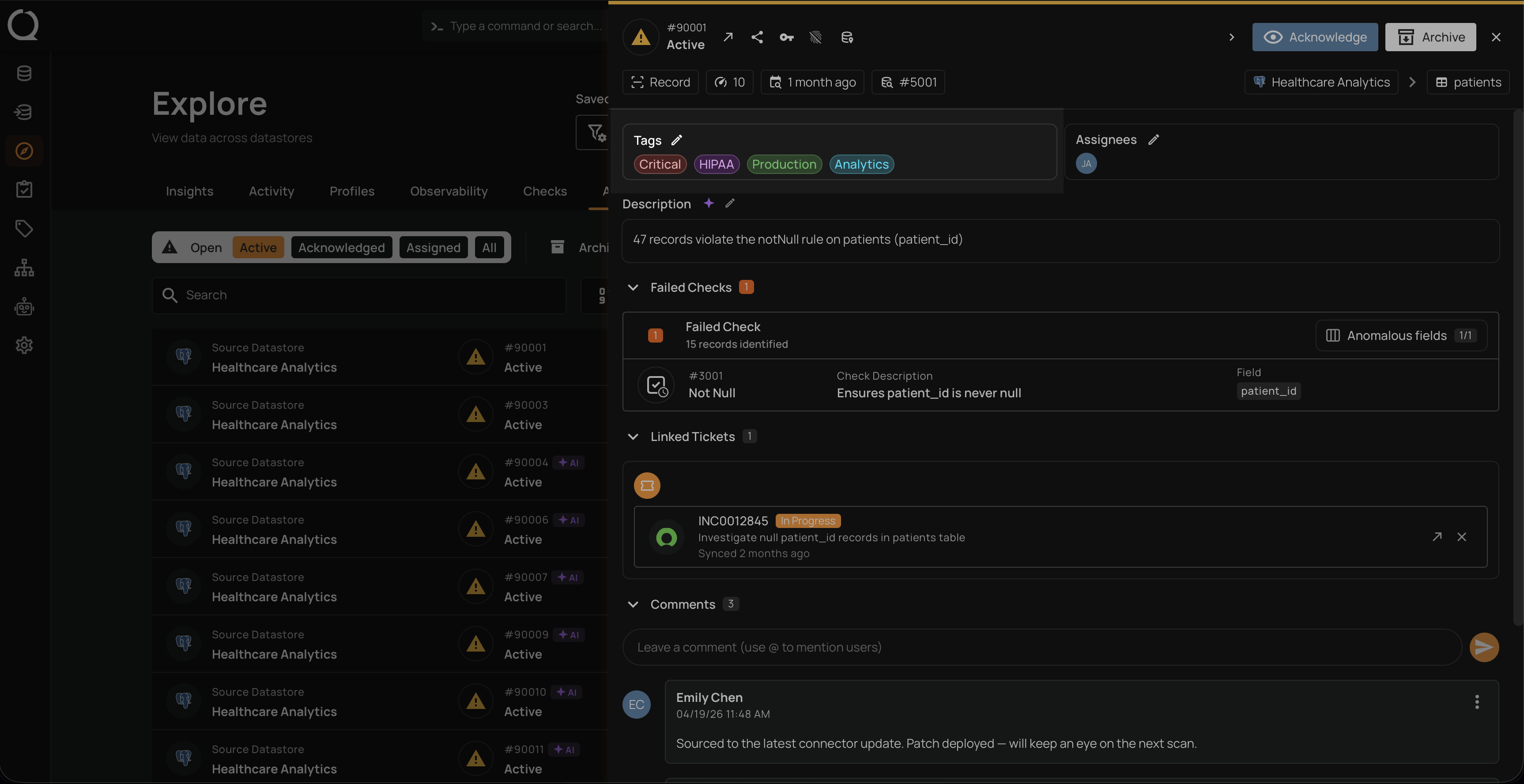
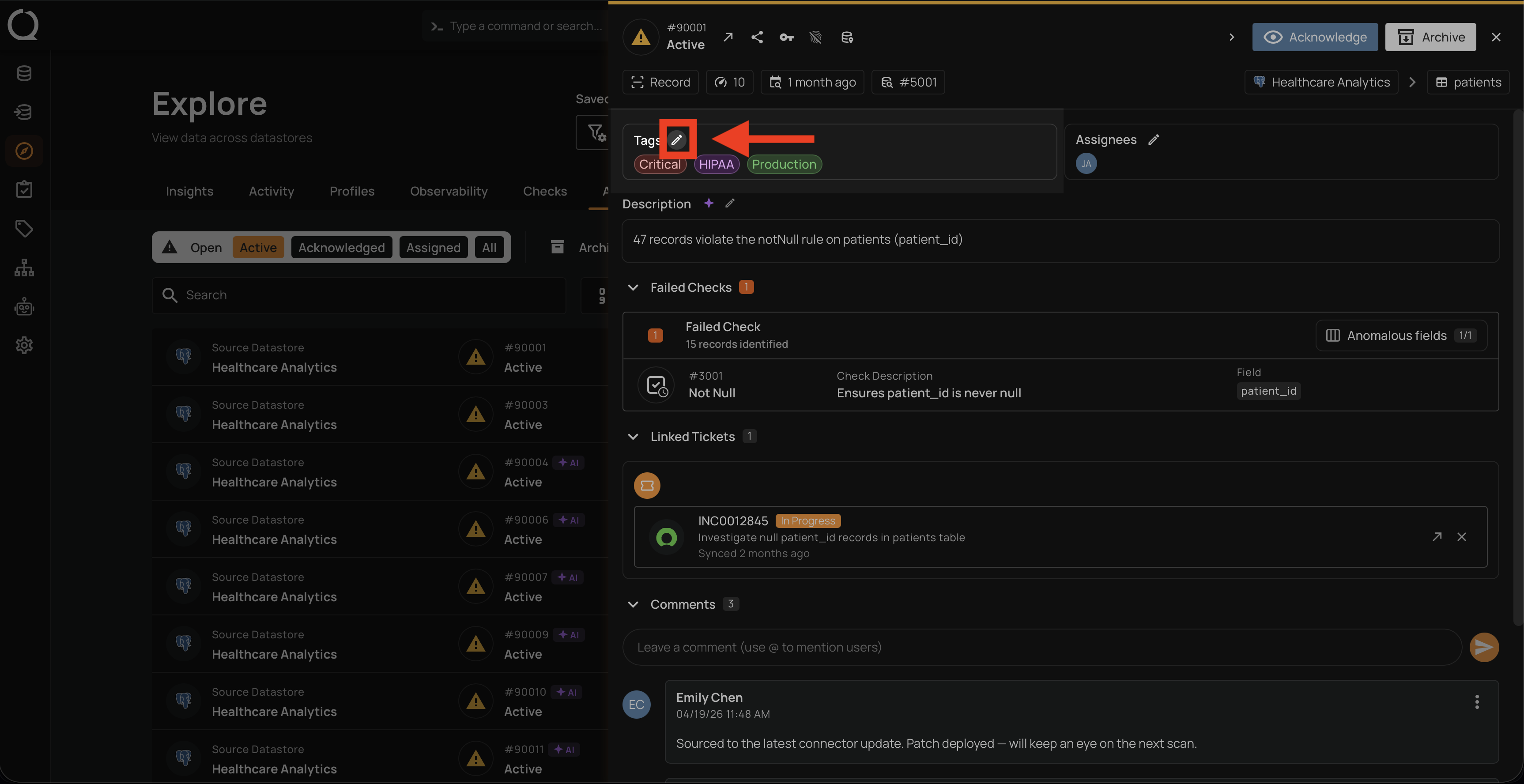
Step 1: Open the anomaly from Explore > Anomalies. In the right-side details panel, locate the Tags field.
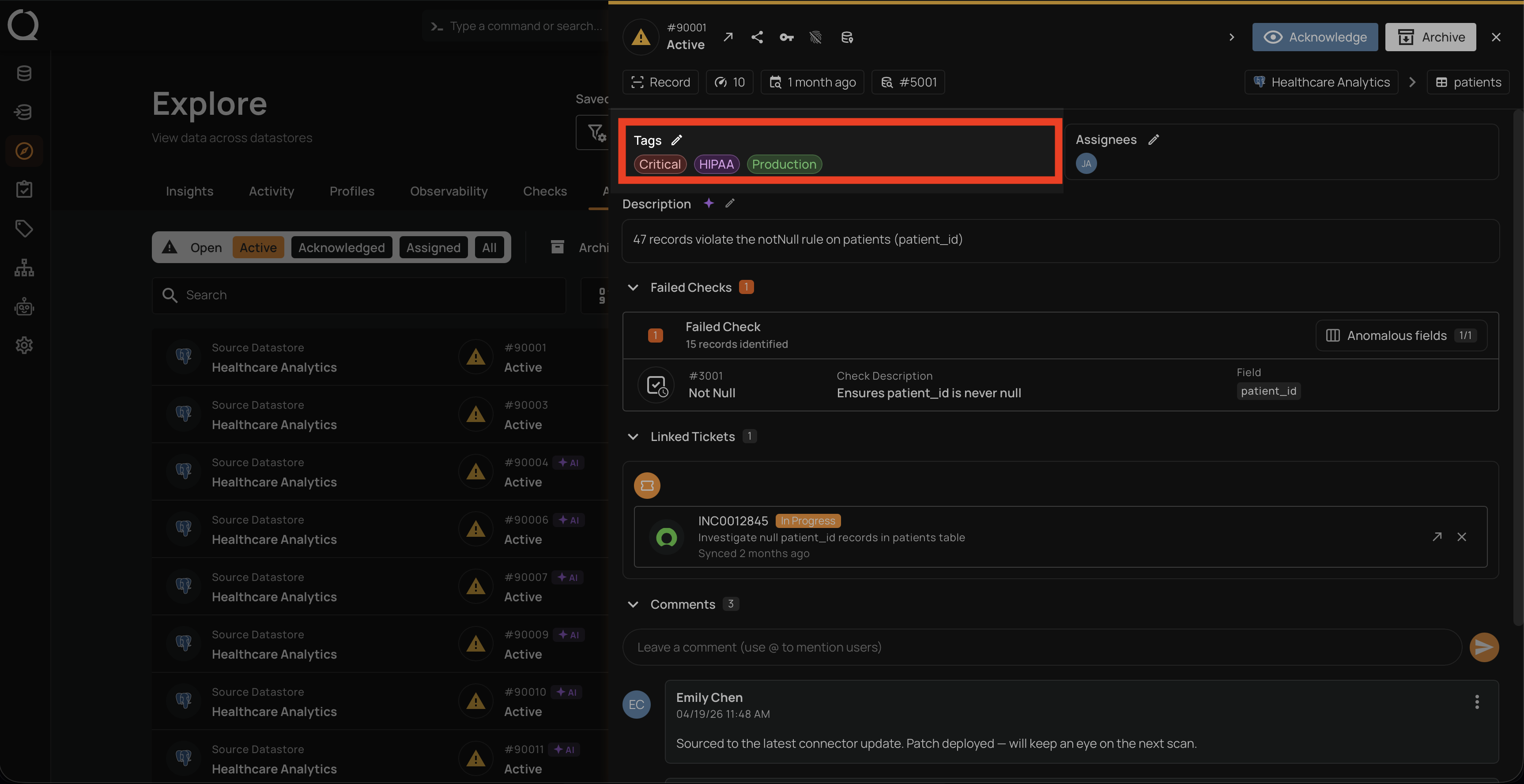
Step 2: Click the Edit button next to the Tags label to open the tag picker. When no tags are applied yet, the same button shows a + icon instead.
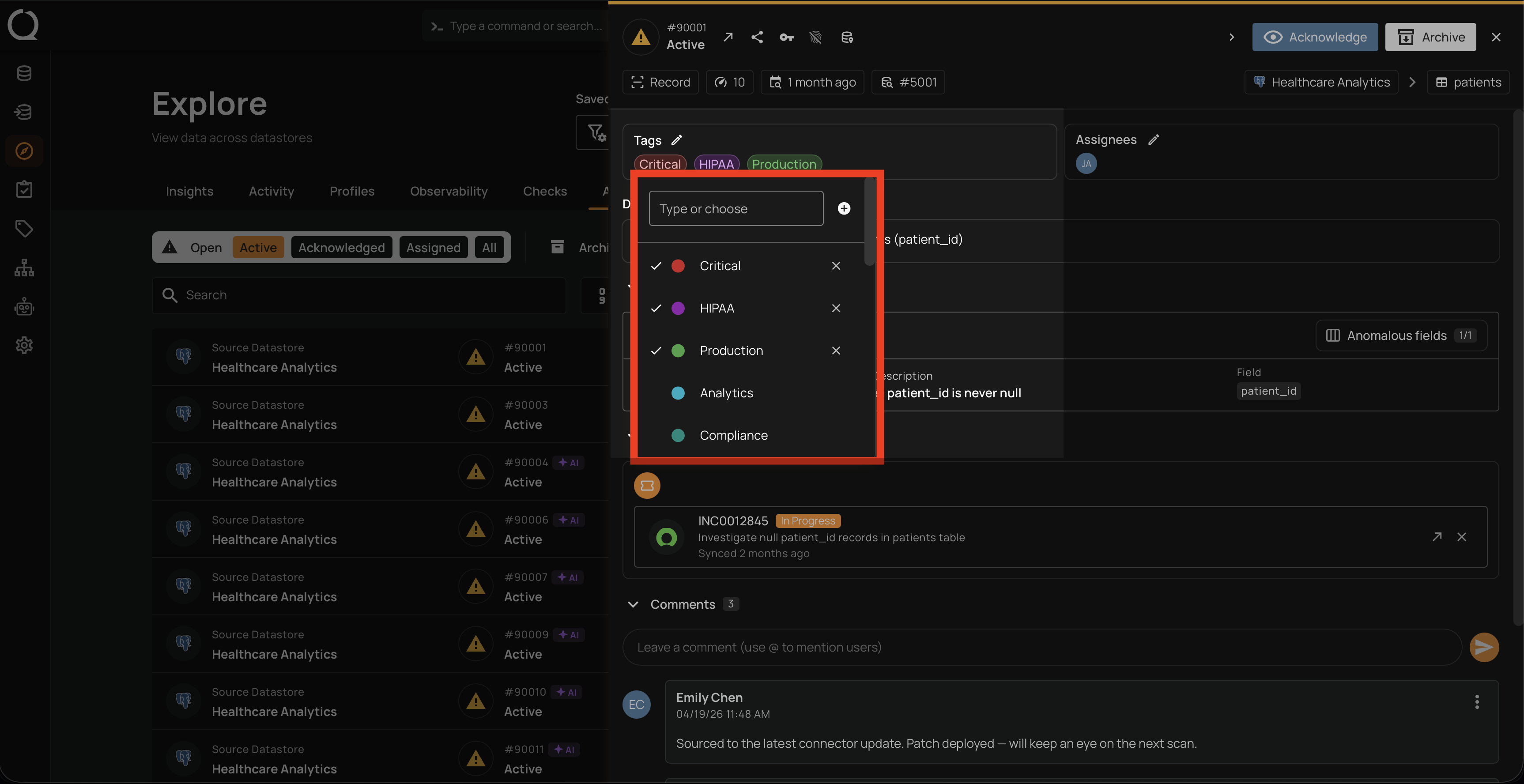
Step 3: The tag picker opens, listing every tag from the platform catalog. Start typing to narrow the list.
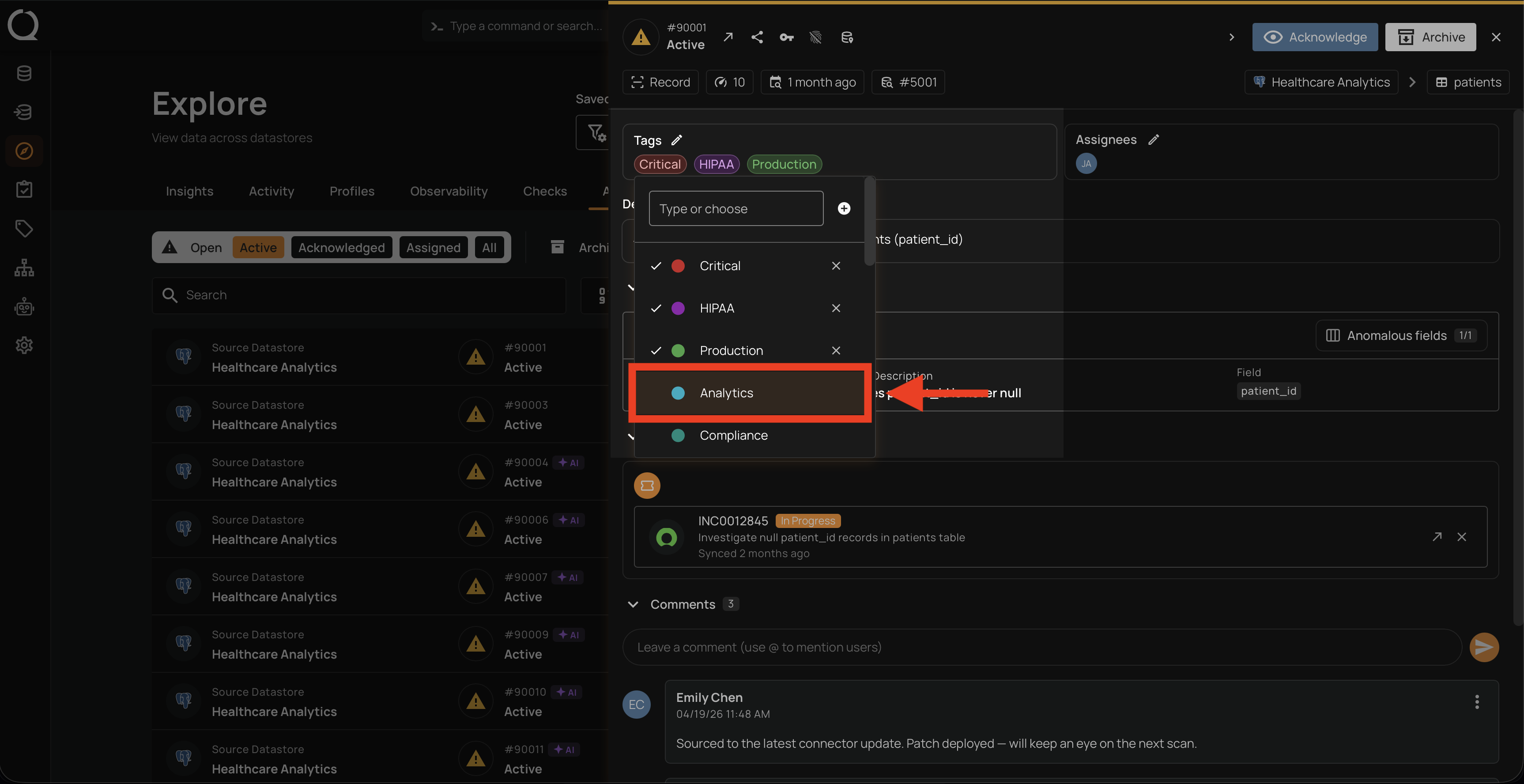
Step 4: Select one or more tags from the list to apply them to the anomaly.
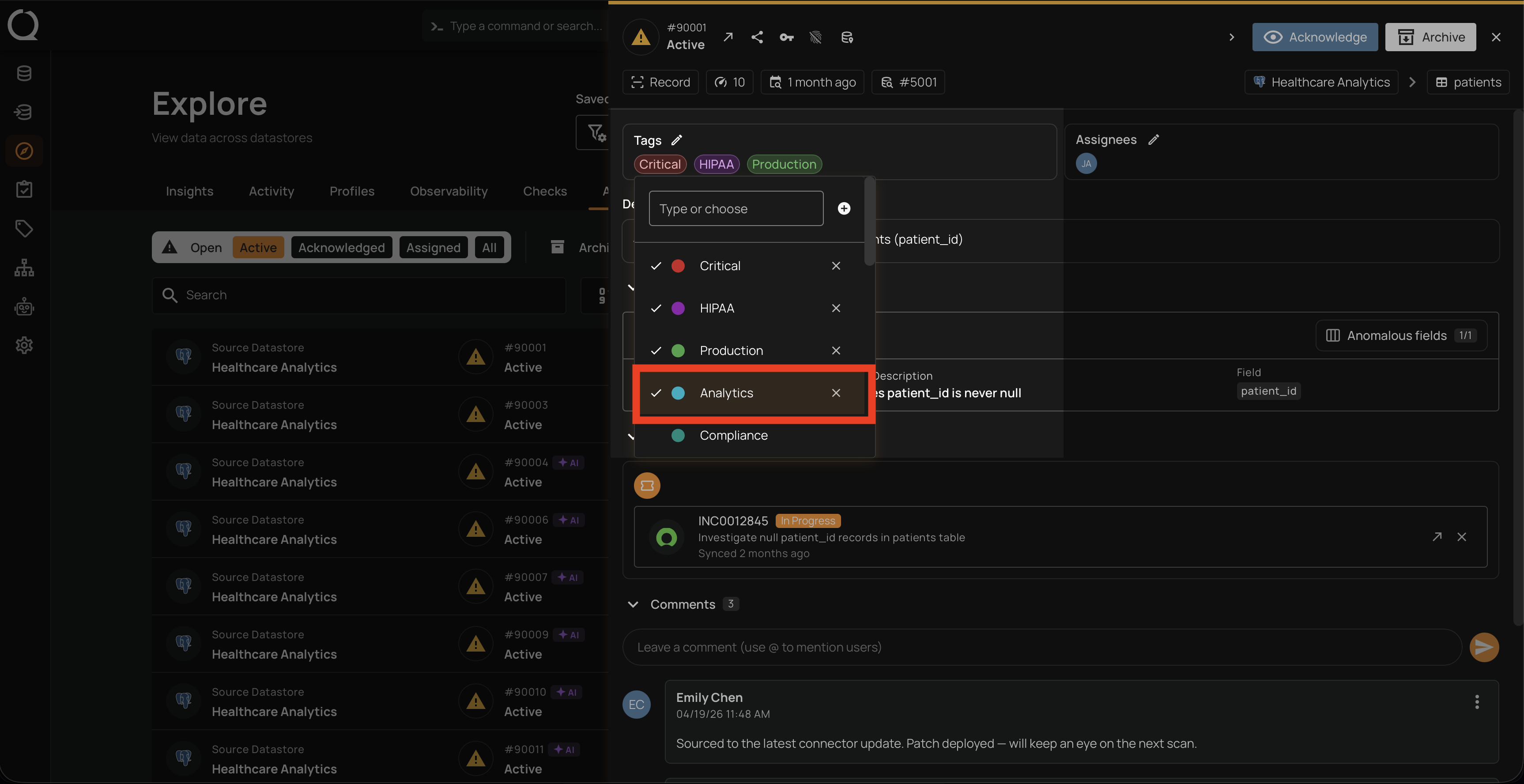
Step 5: The selected tags appear at the top of the list with a check icon, confirming they are now applied.
Step 6: Click anywhere outside the picker to close it. The Tags field updates with the new chips, and the change is recorded in the Timeline section.