Configure Jira
Complete these steps in your Jira account to generate an API token and gather the values needed to connect the integration in Qualytics.
Prerequisites
Before starting, review the Jira account requirements and permissions to ensure you have everything you need.
Permissions
These steps are performed in your Jira account, not in Qualytics. Any Jira user with permission to manage their own API tokens and access to the target project can complete this configuration. To connect the integration in Qualytics afterward, you'll need the Manager or Admin role in Qualytics.
Steps
Step 1: Access Account Settings
- Log in to your Jira account
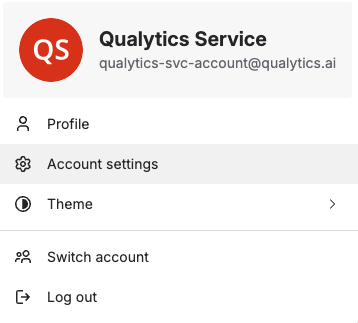
- Click on your profile icon in the top-right corner
- Select Account settings (or Manage account)
Step 2: Navigate to Security Settings
- In your account settings, click on the Security tab

Step 3: Create an API Token
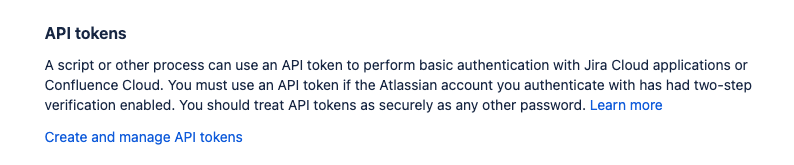
- Scroll down to find the API token section
- Click on Create and manage API tokens
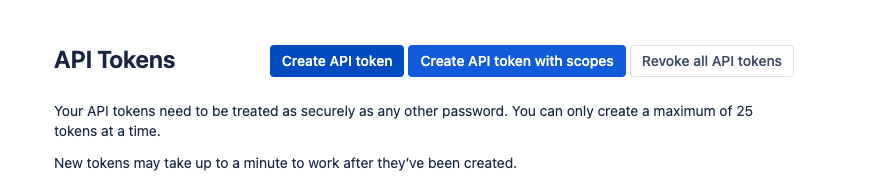
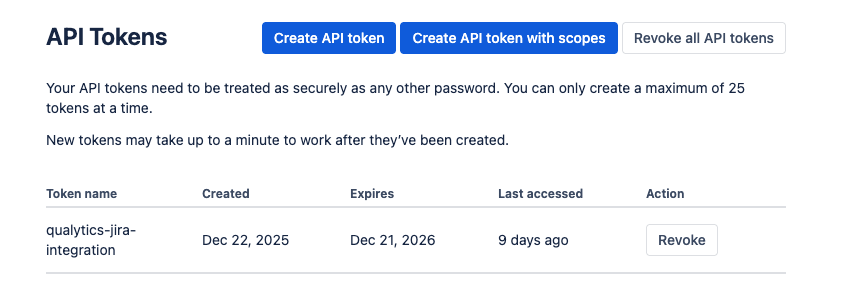
- Click on Create API token
- Enter a label for your token (e.g.,
Qualytics Integration) - Click Create
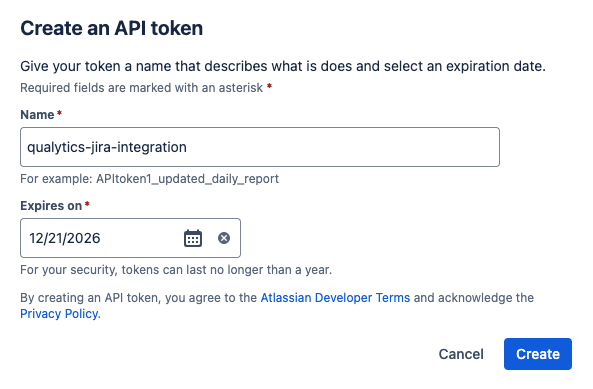
- Copy the generated API token from the modal.
Warning
Copy the generated API token immediately and store it securely (e.g., in a password manager or secrets vault). You won't be able to see it again — Atlassian shows the token only once.
Step 4: Gather Configuration Values
Collect the following values needed for Qualytics configuration:
| Value | How to Find | Example |
|---|---|---|
| Instance URL | Your Jira instance URL | https://your-domain.atlassian.net |
| Credentials | Email and API token combined with a colon | user@company.com:your_api_token |
| Default Project Key | The key of the Jira project where new tickets will be created. Found in Jira → Project Settings → Details, or in the URL when viewing a project (e.g., /projects/QUAL/) |
QUAL or DATAQ |
Next Step
With the API token, instance URL, and default project key in hand, you can now connect the integration on the Qualytics side. See the Add Connection guide.