Update License
- Self-hosted
The Update License action applies a new or renewed signed license returned by Qualytics after processing a license request. The signed license is separate from the deployment identifier in your Helm values.
Permissions
Only users with the Admin role can update the license. See the Permissions page for details.
Steps
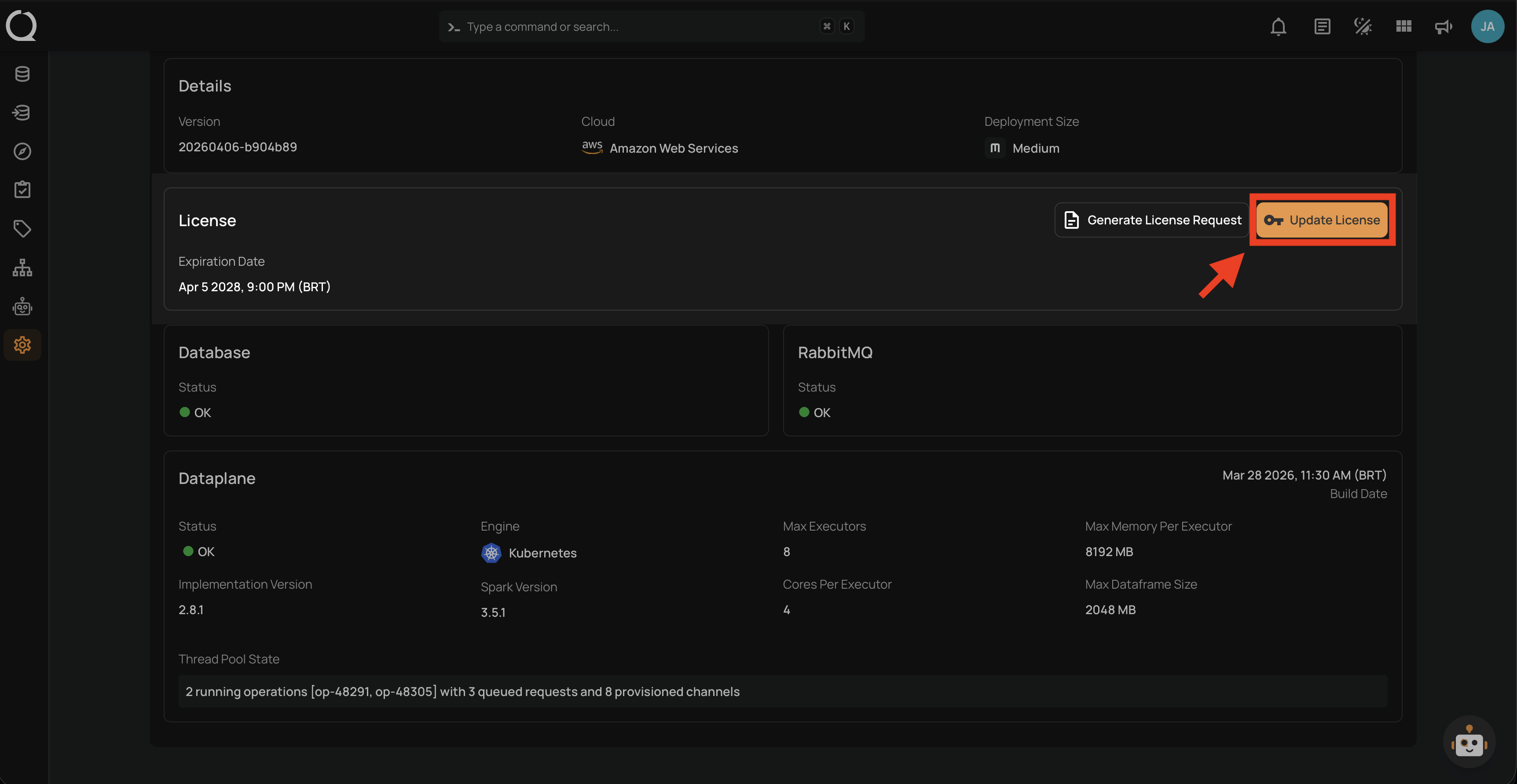
Step 1: In the License section of the Platform Status page, click the Update License button.
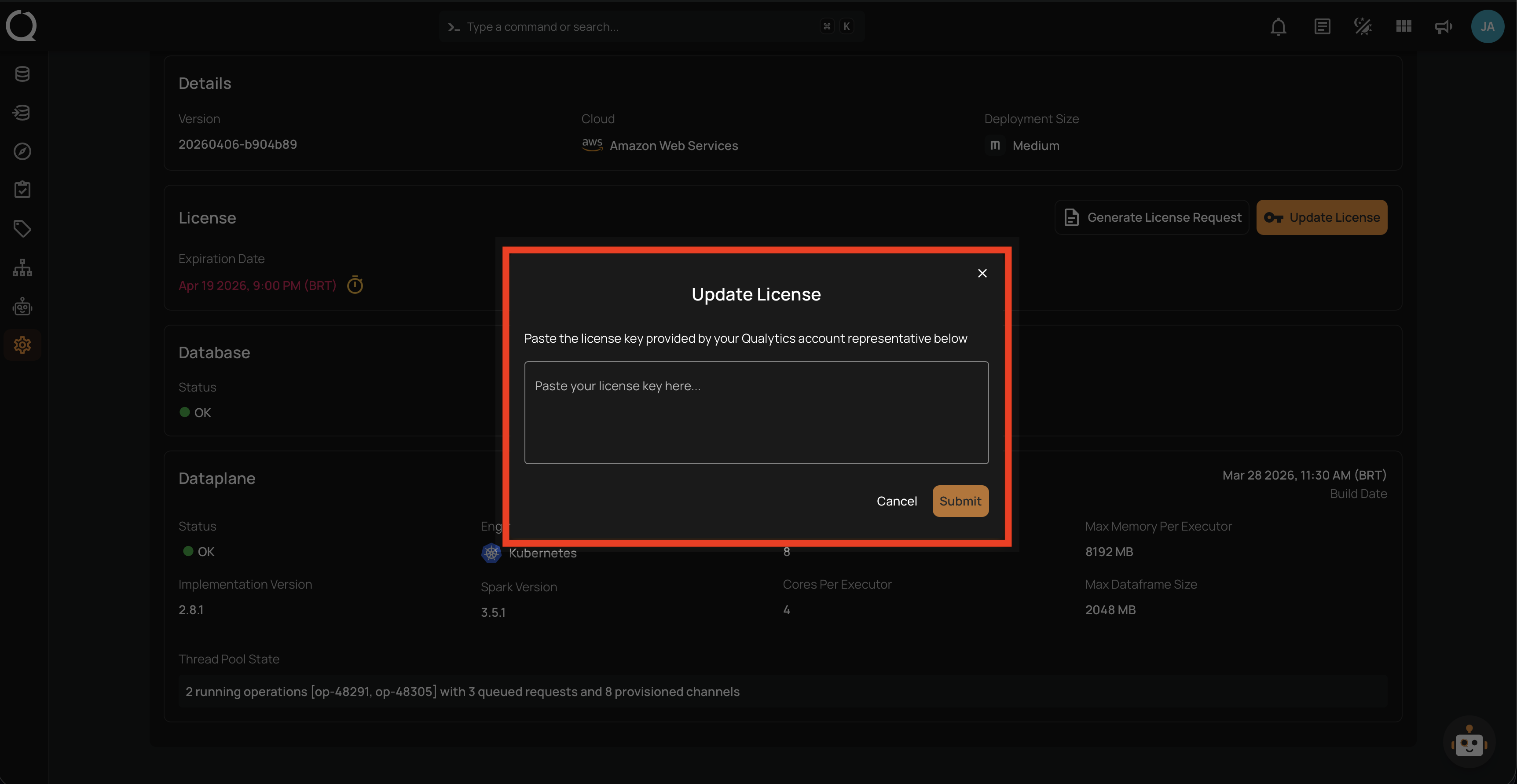
Step 2: An Update License modal appears. Paste the signed license provided by Qualytics through the agreed secure transfer method into the input field.
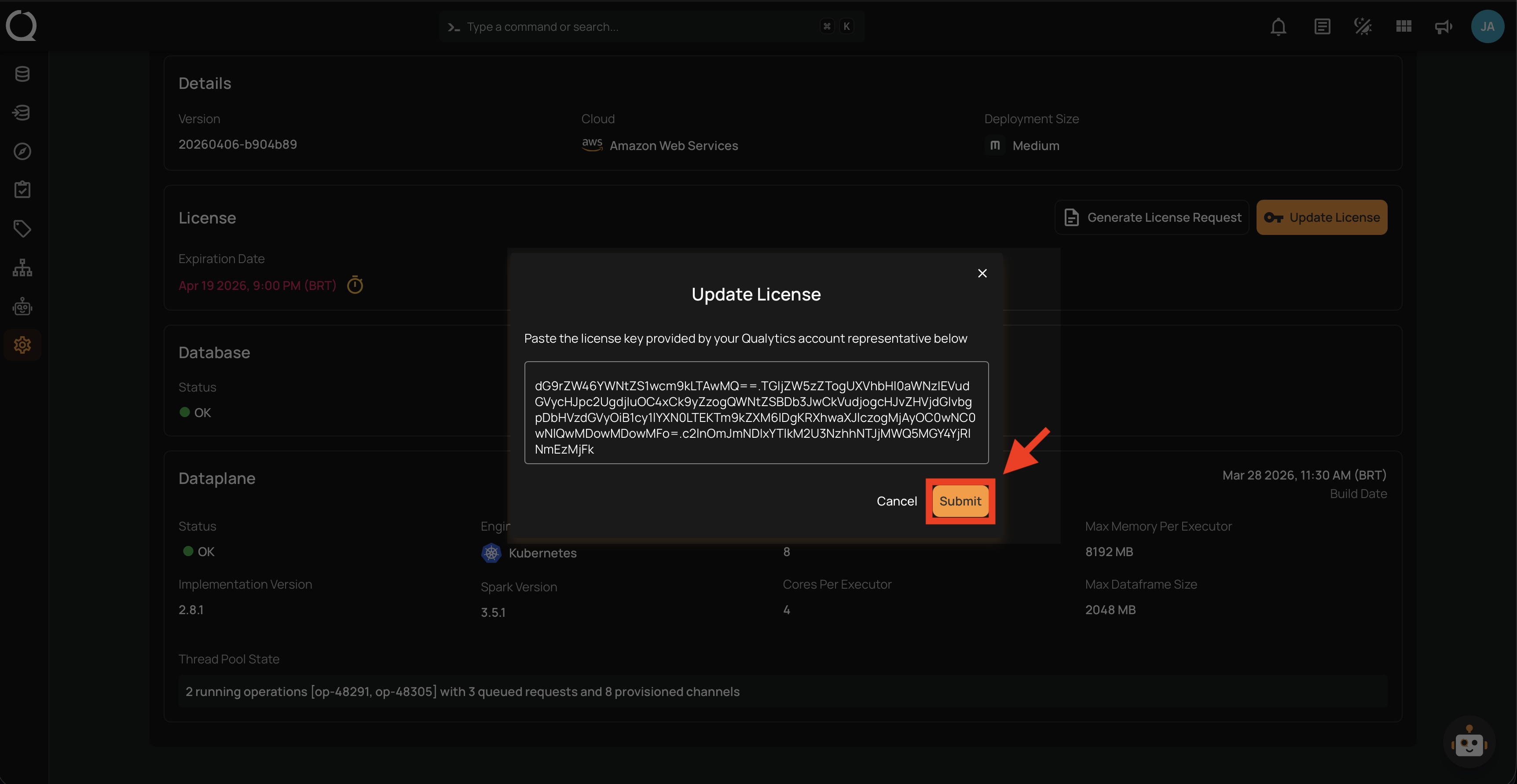
Step 3: After pasting the signed license, click the Submit button to apply it.
Note
If the signed license is invalid, expired, or was generated for a different deployment, an error message appears at the top of the modal (for example, "Invalid license signature" or "License is invalid due to fingerprint mismatch"). The modal stays open so you can correct the value and try again. See the License API Error Responses for all possible error messages.
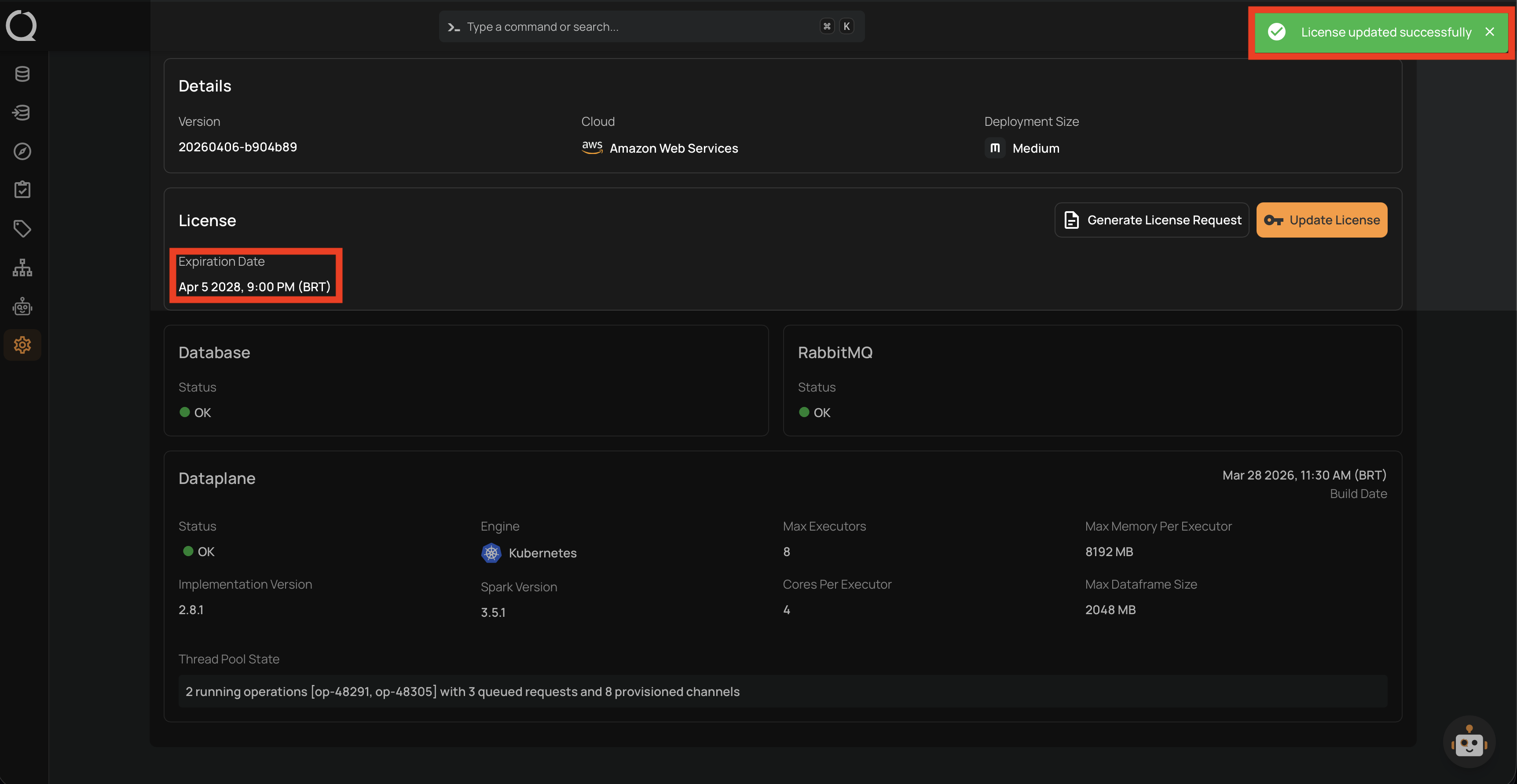
Step 4: A success notification appears confirming "License updated successfully". The License section now displays the updated expiration date.
Tip
If you do not have a signed license, first use Generate License Request. Contact your Qualytics account team or support team to arrange an approved secure transfer method for the request and signed license. Do not place either value in ordinary email.