Skip to content

Getting Started with Computed Tables

Hub in progress

This page is the Getting Started landing for Computed Tables. It will be expanded into a full hub (Deep Dive, How-tos, API, FAQ, Troubleshooting) following the same pattern as the Computed Join hub.

Use Computed Tables when you want to perform the following operations on your selected source datastores:

  • Data Preparation and Transformation: Clean, shape, and restructure raw data from JDBC source datastores.
  • Complex Calculations and Aggregations: Perform calculations not easily supported by standard containers.
  • Data Subsetting: Extract specific data subsets based on filters using SQL's WHERE clause.
  • Joining Data Across Source Datastores: Combine data from multiple JDBC source datastores using SQL joins.

Note

Computed Tables can only reference base containers (physical tables or views) from the datastore. They cannot reference other Computed Tables or Computed Files.

Add Computed Tables

Step 1: Log in to your Qualytics account and select a JDBC-type source datastore from the side menu on which you would like to add a computed table.

select-datastore

Step 2: After selecting your preferred source datastore, you will be redirected to the source datastore operations page. From this page, click on the Add button and select the Computed Table option from the dropdown menu.

computed-table

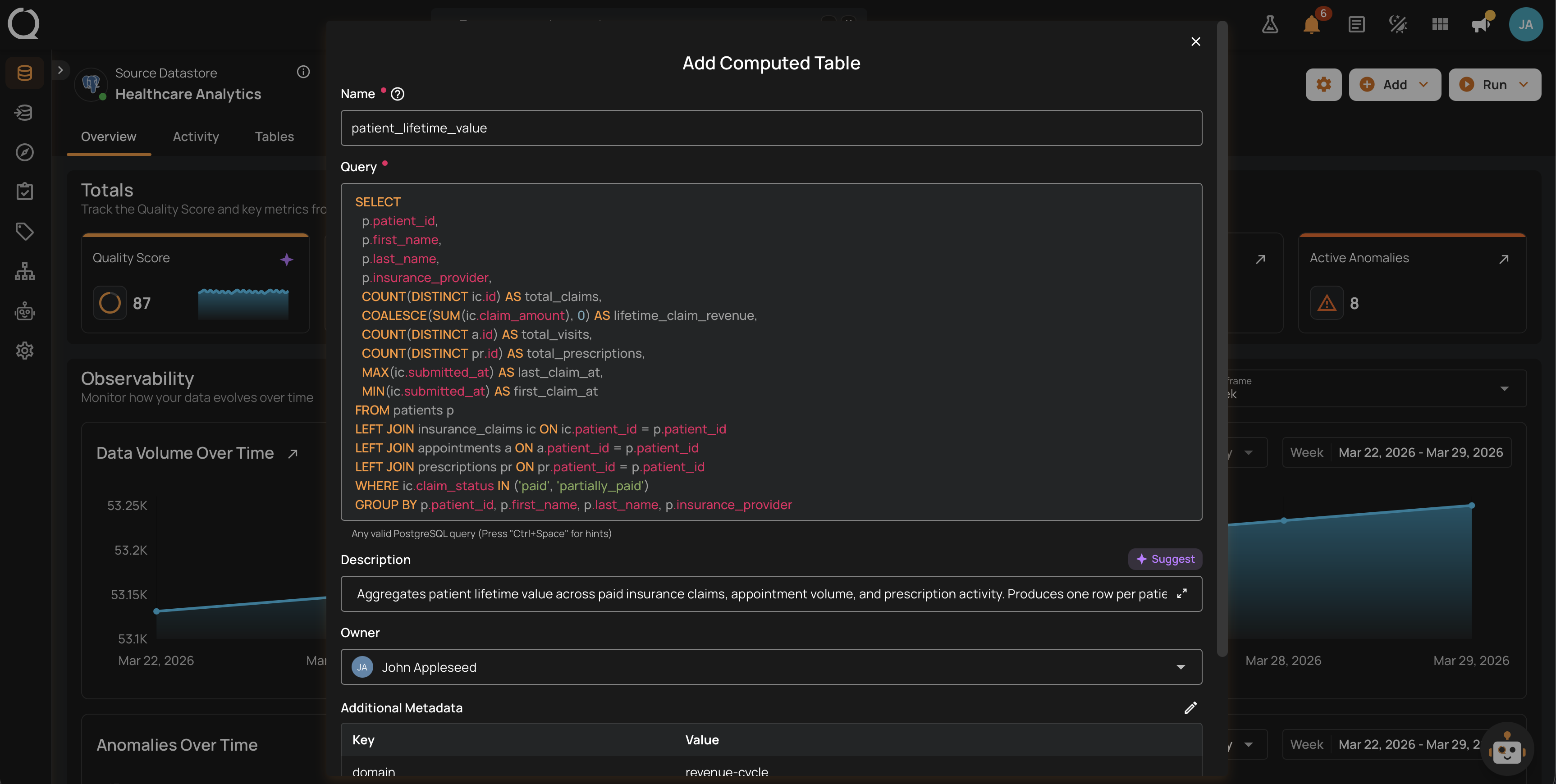
Step 3: A modal window will appear prompting you to enter a name for your computed table, a valid SQL query that supports your selected source datastore, and optionally, additional metadata.

REF. FIELDS ACTIONS
1 Name (Required) Enter a name for your computed table. The name should be descriptive and meaningful to help you easily identify the table later (e.g., add a meaningful name like Customer_Order_Statistics).
2 Query (Required) Write a valid SQL query that supports your selected source datastore. The query helps to perform joins and aggregations on your selected source datastore.
3 Additional Metadata (Optional) Add custom metadata to enhance the definition of your computed table. Click the plus icon (+) next to this section to open the metadata input form, where you can add key-value pairs.

Warning

When creating a Computed Table for SQL Server, Oracle, or Redshift datastores, you must specify the table using a fully qualified name (SCHEMA.TABLE).
The table selection field displays schema-prefixed table names to help you select the correct table.

add-computed-table

Step 4: Click on the Validate button to instantly check the syntax and semantics of your SQL query. This ensures your query runs successfully and prevents errors before saving.

validate-computed-table

Step 5: Once validation is successful, click on the Save button to add the computed table to your selected source datastore.

click-add

Query Diff for Computed Tables

Computed Tables now include a side-by-side query diff view in the History panel, allowing you to compare previous and updated SQL versions. This makes it easy to identify changes, troubleshoot issues, and maintain better audit visibility of query modifications.

query-diff

Limitations

Referencing Other Computed Tables

A computed table cannot directly reference another computed table in its SQL query. For example, attempting to write a query like this will fail:

SELECT * FROM my_computed_table JOIN another_computed_table ON ...

Why this happens: Computed tables are defined and stored within Qualytics, but they are not created as actual database objects (like views or tables) in your data warehouse. When your SQL query runs, the database engine cannot find my_computed_table because it doesn't exist as a named object in the warehouse catalog.

Workarounds

If you need to combine logic from multiple computed tables, you have several options:

Option 1: Combine Logic Using CTEs

Merge the SQL logic into a single computed table using Common Table Expressions (CTEs):

WITH dataset_a AS (
    SELECT id, name, amount
    FROM source_table_1
    WHERE status = 'active'
),
dataset_b AS (
    SELECT id, category, region
    FROM source_table_2
    WHERE year = 2024
)
SELECT
    a.id,
    a.name,
    a.amount,
    b.category,
    b.region
FROM dataset_a a
JOIN dataset_b b ON a.id = b.id

This approach works because the entire query is executed as a single unit by the database engine.

Option 2: Create a View in Your Data Warehouse

If you need to reuse intermediate results across multiple computed tables:

  1. Create a view or table directly in your data warehouse (e.g., using your warehouse's SQL interface or a tool like dbt).
  2. Catalog that view or table in Qualytics.
  3. Reference the cataloged object in your computed table queries.

This works because the intermediate result becomes a real, queryable object in your warehouse.

Using Computed Tables in Computed Joins

Computed Tables can be used as the left side, the right side, or both sides of a Computed Join, alongside base tables, views, DFS files, and Computed Files. This lets you reuse SQL-defined logic (filters, aggregations, transformations) across multiple joins without re-expressing it in each Select Expression. The only restriction is that another Computed Join cannot be used as a join input. For the full list of supported inputs, see Computed Join Supported Inputs.

Computed Tables vs Computed Files

Computed Tables and Computed Files both let you generate transformed datasets, but they differ in how the output is stored, processed, and consumed:

Feature Computed Table (JDBC) Computed File (DFS)
Source data JDBC source datastores DFS source datastores
Query language SQL (database-specific functions) Spark SQL
Supported operations Joins, where clauses, and database functions Column transforms, where clauses (no joins), Spark SQL functions

Note

Computed tables and files function like regular tables. You can profile them, create checks, and detect anomalies.

  • Updating a computed table's query triggers a profiling operation.
  • Updating a computed file's select or where clause triggers a profiling operation.
  • When you create a computed table or file, a basic profile of up to 1000 records is automatically generated.

For Computed Files, see Getting Started with Computed Files.

Editing from Checks

Computed tables and files can also be edited directly from check interfaces. This lets you quickly update computed logic when resolving check failures.

Note

Learn more about editing computed assets from checks.

View Assigned Teams

Hover over the information icon to view the teams assigned to this computed asset.

team