How Service Tokens Work
This page explains how Service Tokens work in Qualytics — from generation and authentication to expiration, states, and usage tracking.
Prerequisite: Service User
Service Tokens are always tied to a Service User. You must create a Service User before generating a Service Token. See the Service Users page for details.
Token Generation
When an administrator generates a Service Token, the platform creates a signed JWT (JSON Web Token) — the same mechanism used for Personal Access Tokens. The token contains claims that identify the Service User (user ID, email, name) along with metadata like the creation timestamp and expiration date.
The token is returned only once at creation time. Internally, the platform stores a one-way hash of the token — the plaintext value is never persisted. This means if the token is lost, it cannot be retrieved and a new one must be generated.
Info
For step-by-step instructions on generating a Service Token, see the Generate Service Token page.
Authentication Flow
When a Service Token is included in an API request, the platform validates it through the following steps:
- Extract — The token is extracted from the
Authorization: Bearer <token>header. - Decode — The JWT signature is verified and claims are decoded.
- Validate — The issuer, Service User ID, and expiration are checked.
- Revocation check — The token's hash is compared against the stored hash in the database to confirm it is still active (not revoked).
- Access granted — The request proceeds with the permissions of the Service User (role + team memberships).
The platform tracks when the token was last used, updating the Last Used timestamp on each successful authentication.
Token Properties
Each Service Token displays the following properties in the token list:
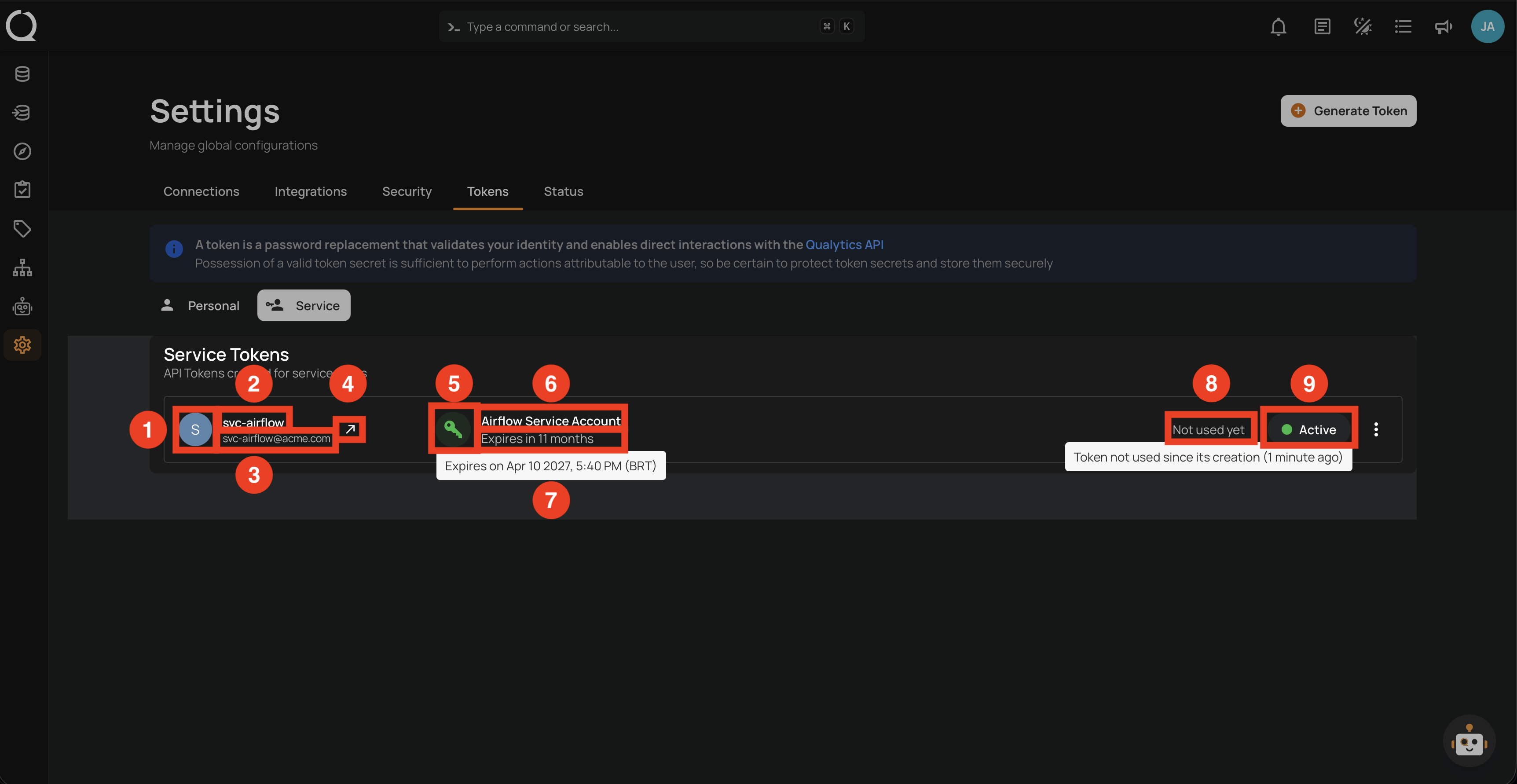
| REF. | Property | Description |
|---|---|---|
| 1 | Service User Icon | The avatar of the Service User the token belongs to. |
| 2 | Service User Name | The name and email of the Service User. |
| 3 | Service User Link | A link to view the Service User in Access settings. |
| 4 | View Service User | A navigation button to the Service User's user profile. |
| 5 | Token Icon | A key icon with a colored background indicating the token's state: green (Active), orange (Revoked), or red (Expired). |
| 6 | Token Name | An administrator-defined label to identify the token. Must be unique per Service User — creating a token with a duplicate name returns a 409 Conflict error. |
| 7 | Expiration | The date and time when the token becomes invalid, shown as relative time. Hover to see the exact date. See Expiration Options below. |
| 8 | Last Used | The timestamp of the last successful API request made with this token, shown as relative time. Hover to see the exact date. |
| 9 | Status Badge | The current state of the token: Active (green), Revoked (orange), or Expired (red). |
Expiration Options
Service Tokens include an expiration period that defines how long they remain valid. When a token reaches its expiration date, it automatically stops working and a new one must be generated.
| No. | Expiration |
|---|---|
| 1. | 30 Days |
| 2. | 60 Days |
| 3. | 90 Days |
| 4. | 1 Year |
| 5. | Never |
Warning
Avoid using the Never expiration option for production tokens. Implement periodic token rotation to minimize security risks.
Token States
Each token exists in one of three states, visually represented by a colored badge and icon:
| State | Color | Description |
|---|---|---|
| Active | Green | The token is valid and can be used for API authentication. |
| Revoked | Amber | The token has been explicitly deactivated by an administrator. API requests are rejected. |
| Expired | Red | The token's expiration date has passed. API requests are rejected automatically. |
stateDiagram-v2
    [*] --> Active: Generate
    Active --> Revoked: Revoke
    Active --> Expired: Expiration date reached
    Revoked --> Active: Restore
    Revoked --> [*]: Delete
    Expired --> [*]: Delete
Each state determines which actions are available:
| State | Available Actions |
|---|---|
| Active | Revoke |
| Revoked | Restore, Delete |
| Expired (not yet revoked) | Revoke |
| Expired (already revoked) | Delete |
Note
A token can expire without being revoked — in this case, the UI shows Revoke as the available action. Once revoked, an expired token can only be deleted. The UI hides the Restore option for expired tokens.
Token Usage Tracking
The platform tracks when each token was last used for an API request. The Last Used timestamp is updated on each successful authentication.
This tracking helps administrators:
- Identify tokens that are actively in use by automation systems.
- Find unused tokens that may need to be revoked.
- Audit when automated workflows last communicated with the API.
Info
For details on how usage status is displayed in the interface, see the List Columns page.
SCIM Administration Token
SCIM (System for Cross-domain Identity Management) is a standard for automating user provisioning between identity providers and applications.
The SCIM Administration Token option restricts a Service Token to SCIM-related operations only, such as user provisioning and identity management via directory sync. When this option is enabled, the token cannot be used to access any other API endpoints.
Only users with the Admin role can create SCIM Administration Tokens.
Security Considerations
Info
For comprehensive security guidelines — including token storage, rotation, monitoring, incident response, and compliance — see the Best Practices page.