Deactivate a Service User
Use the Deactivate action to soft-delete a Service User. Deactivating disables the account without permanently removing it — the account can be reactivated later if needed.
Permissions
Only users with the Admin role can deactivate Service Users. See the Permissions page for details.
Active Tokens Must Be Revoked First
A Service User cannot be deactivated while it has active tokens. The confirmation modal lists them, each with a Revoke button, and keeps the deactivate button disabled until none are left. Revoking takes effect immediately, so check that no automation still depends on these tokens. See Revoke Service Token.
Steps
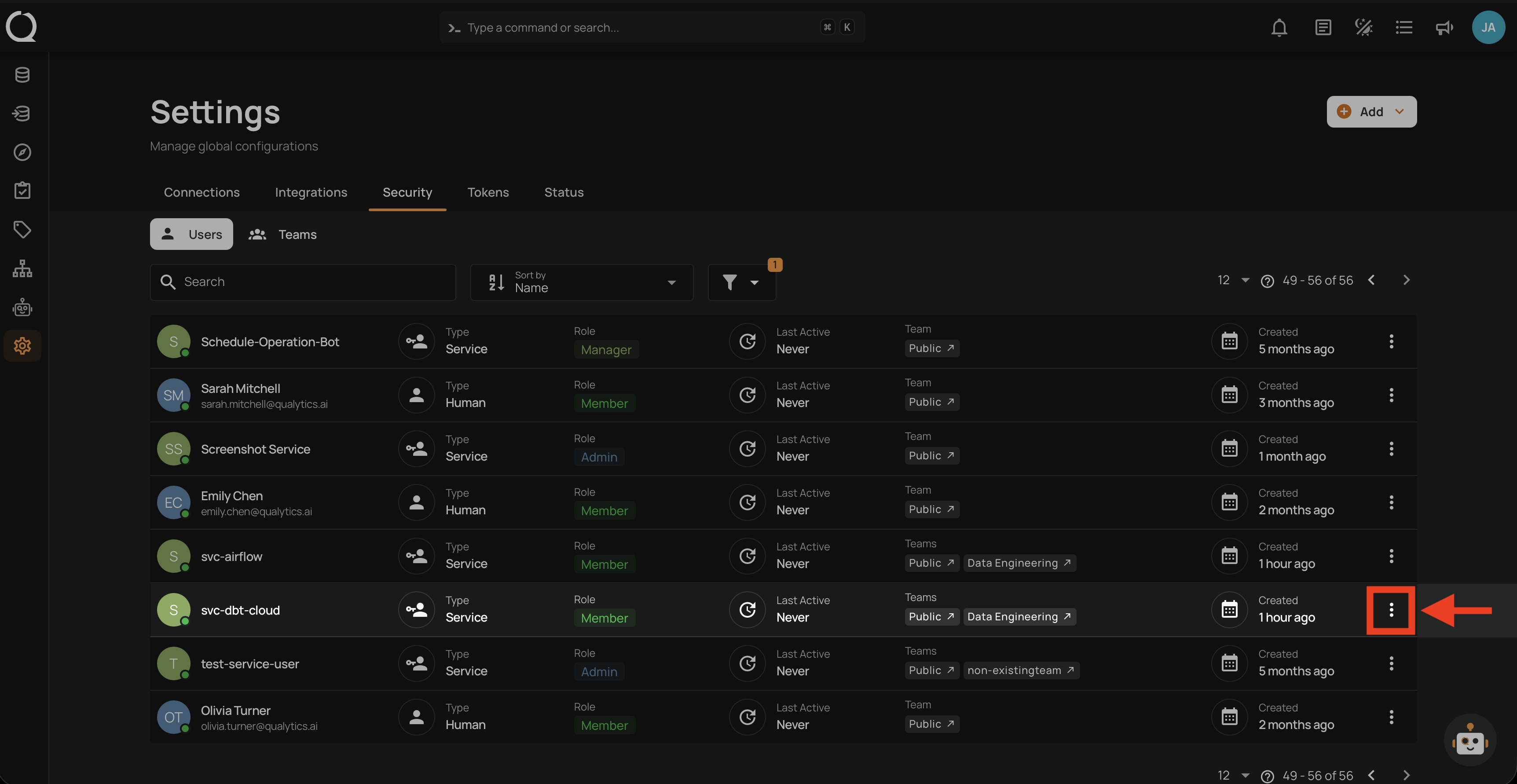
Step 1: Click the vertical ellipsis next to the Service User you want to deactivate.
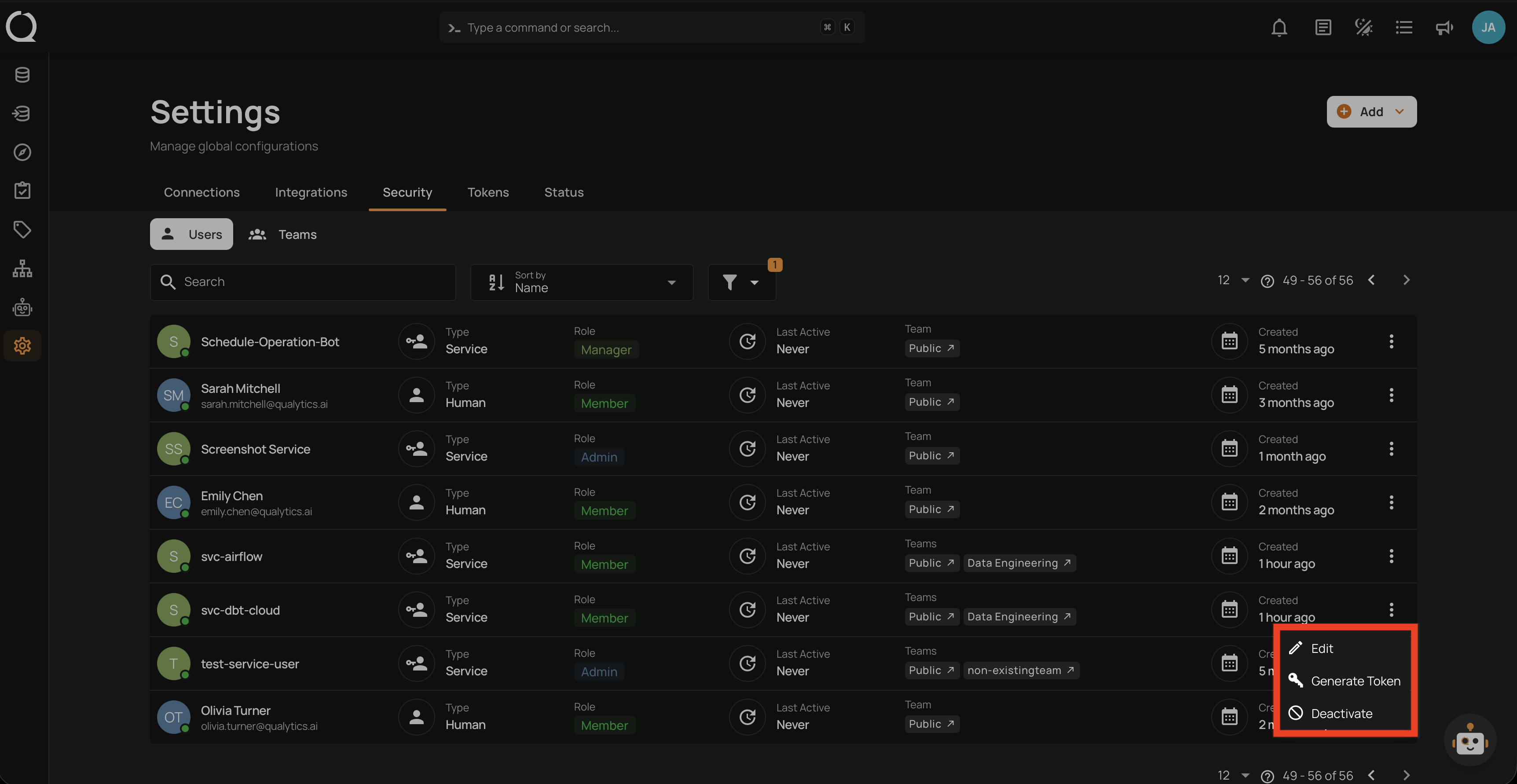
Step 2: A dropdown menu appears with the available actions.
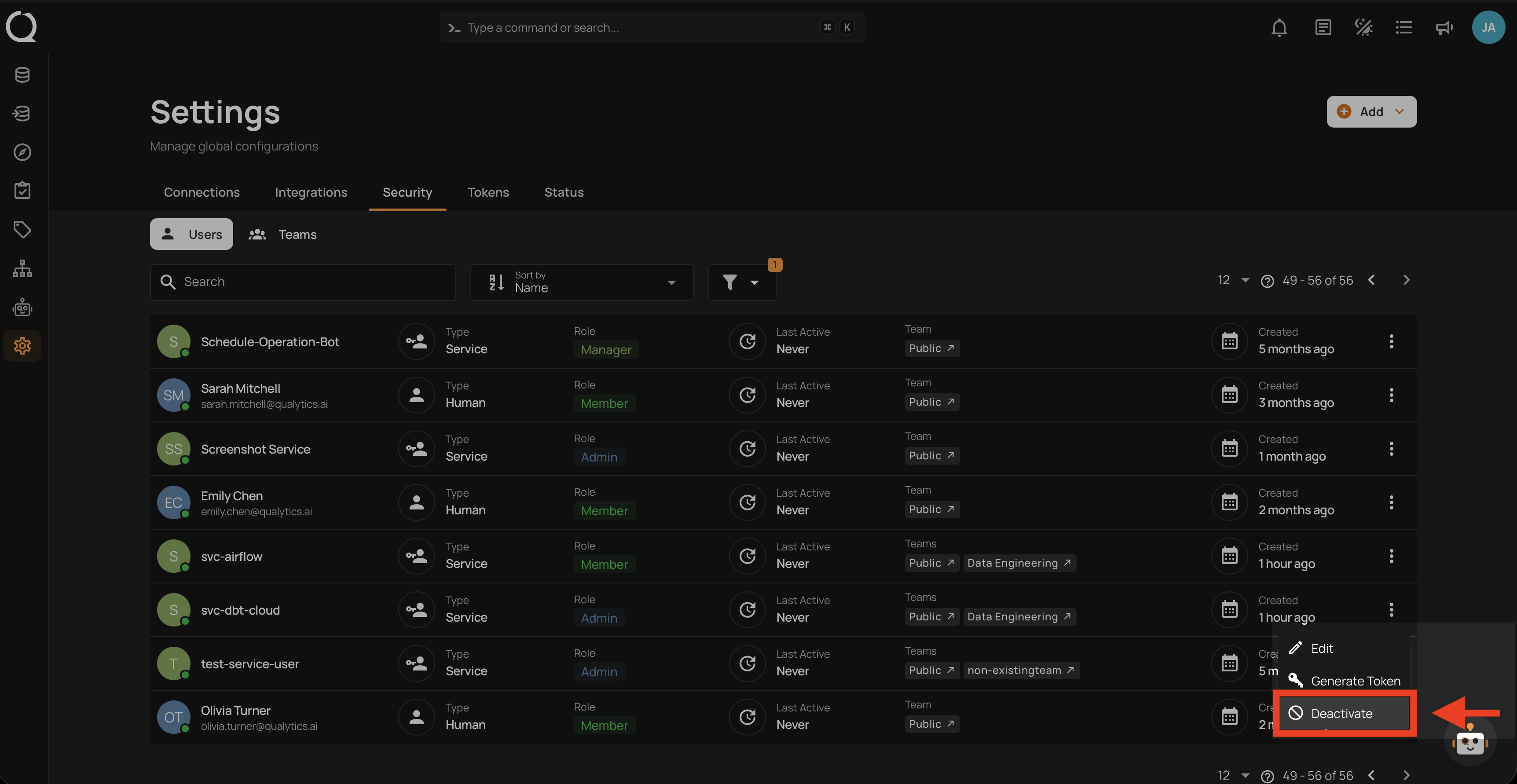
Step 3: Click Deactivate from the dropdown menu.
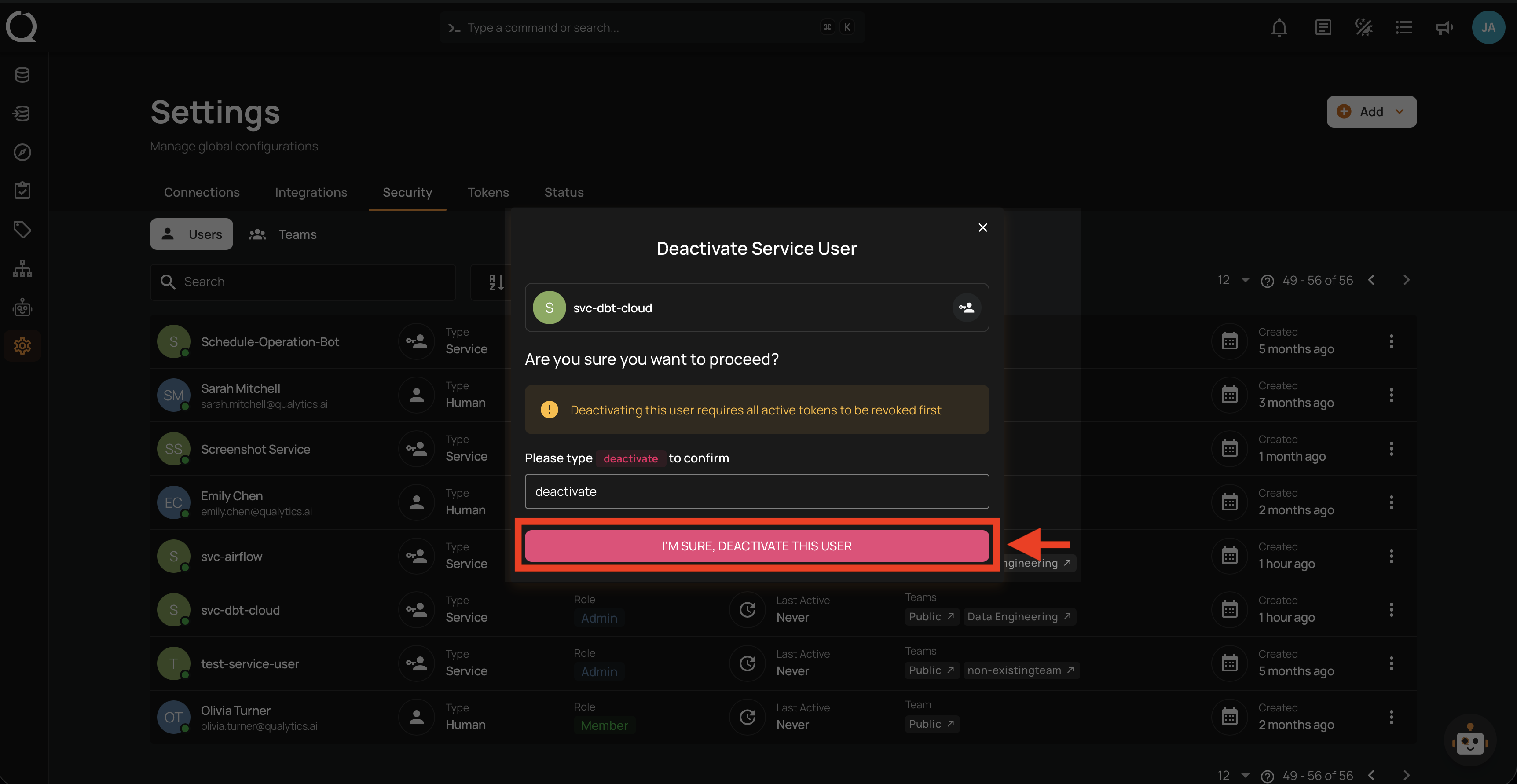
Step 4: A confirmation modal appears. If the Service User still has active tokens, click Revoke next to each one. Then type deactivate in the confirmation field.
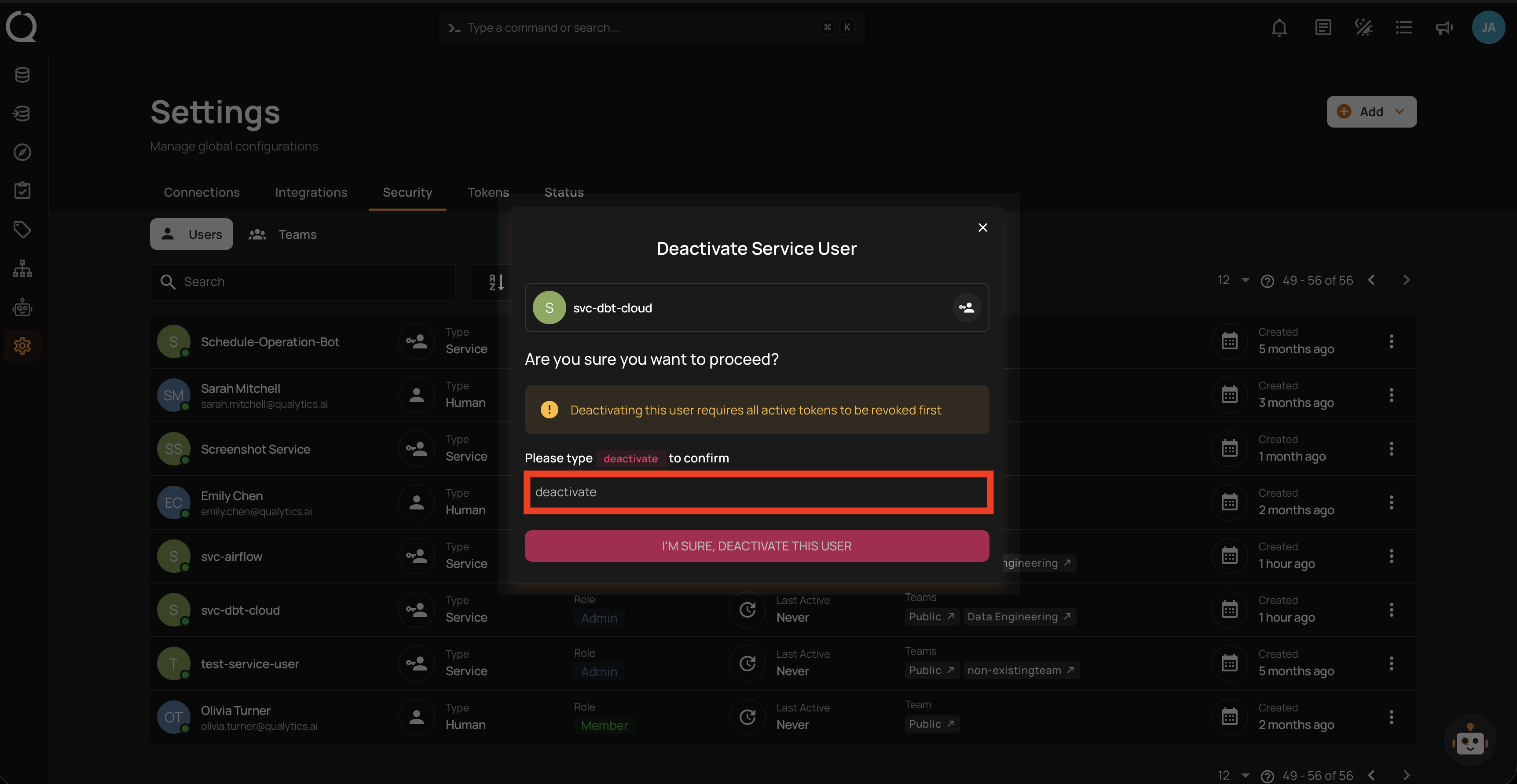
Step 5: Click the I'm sure, deactivate this user button to confirm.
Tip
To view deactivated Service Users, set the Account status filter to Inactive or All in the users list. Deactivated accounts can be reactivated at any time.