 Create a BigQuery Temp Dataset
The BigQuery connection accepts an optional Temp Dataset ID for intermediate query results. This dataset is separate from your source data and any enrichment destination. Creating it with a short table expiration keeps intermediate data from accumulating.
Create it in the datastore's Project ID, the data project, whether or not the connection sets a Billing Project ID. Queries still run in the billing project, but their intermediate results are written to this dataset.
Before you start
Ask a Google Cloud administrator to create the dataset and grant the service account roles/bigquery.dataEditor on it. If the driver must create a missing dataset instead, the account needs bigquery.datasets.create on the project. Query permissions alone do not provide that access. See Permissions.
Steps
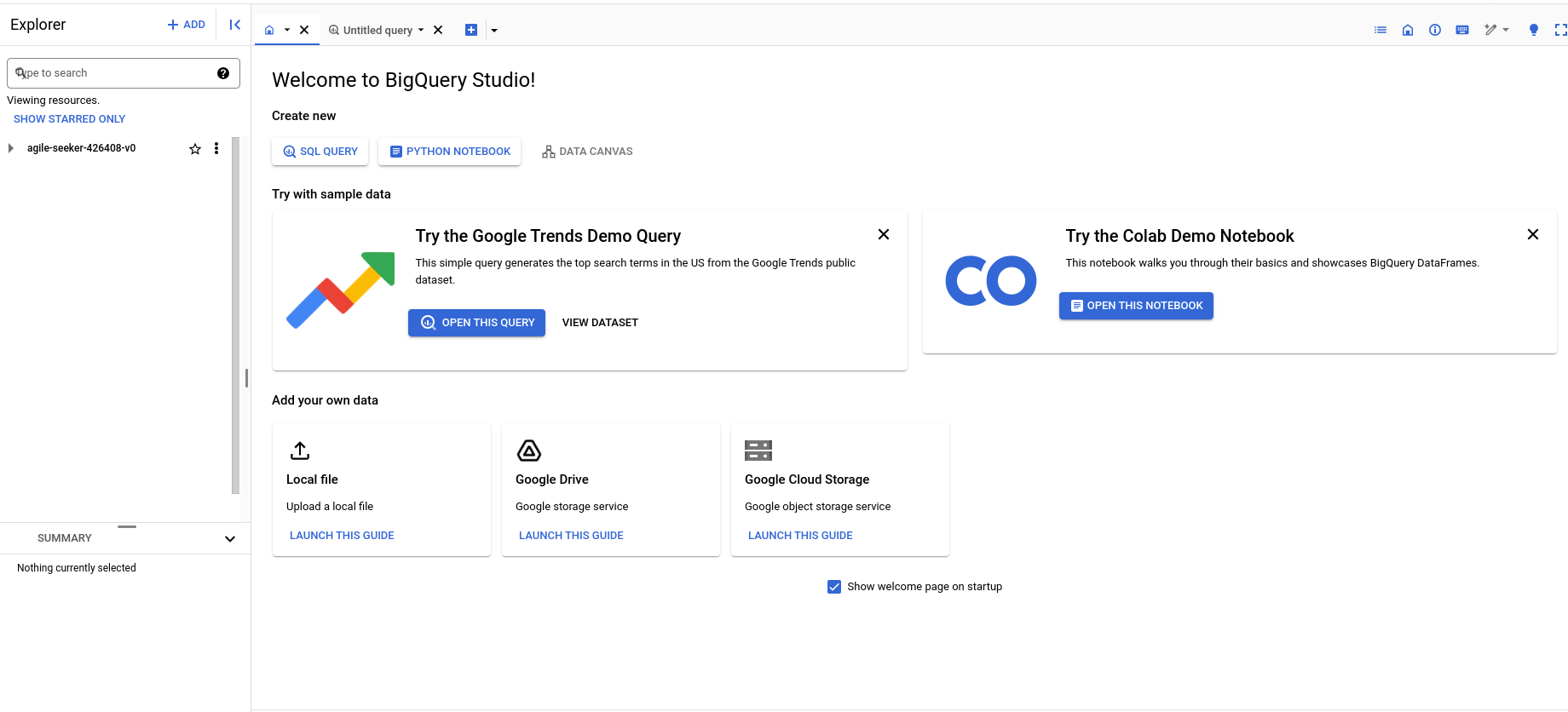
Step 1: Navigate to the BigQuery console within your Google Cloud Platform (GCP) account.
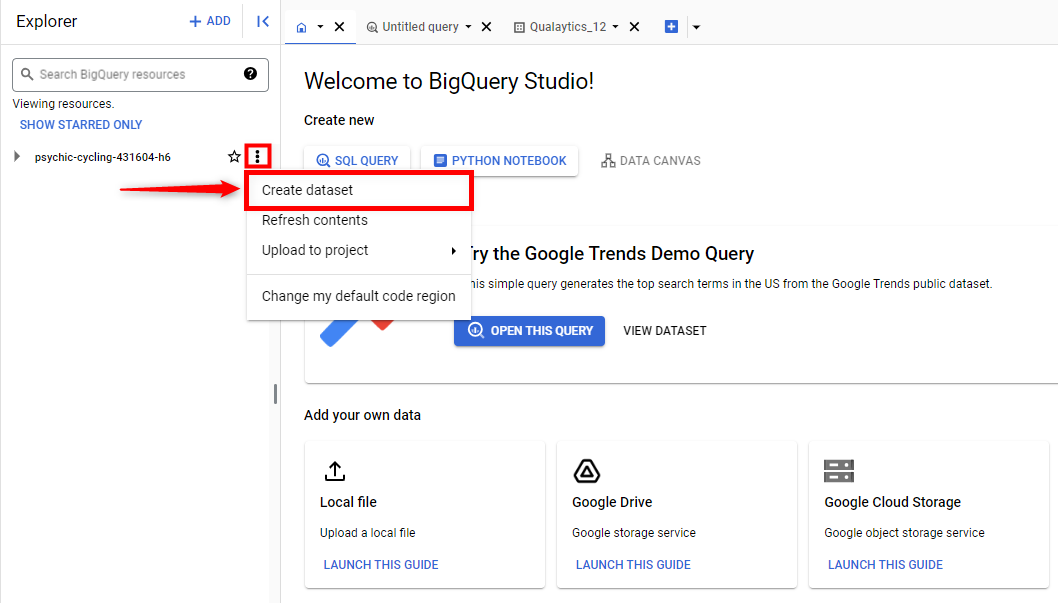
Step 2: Find the datastore's data project in the Explorer, open its actions menu, and click Create dataset.
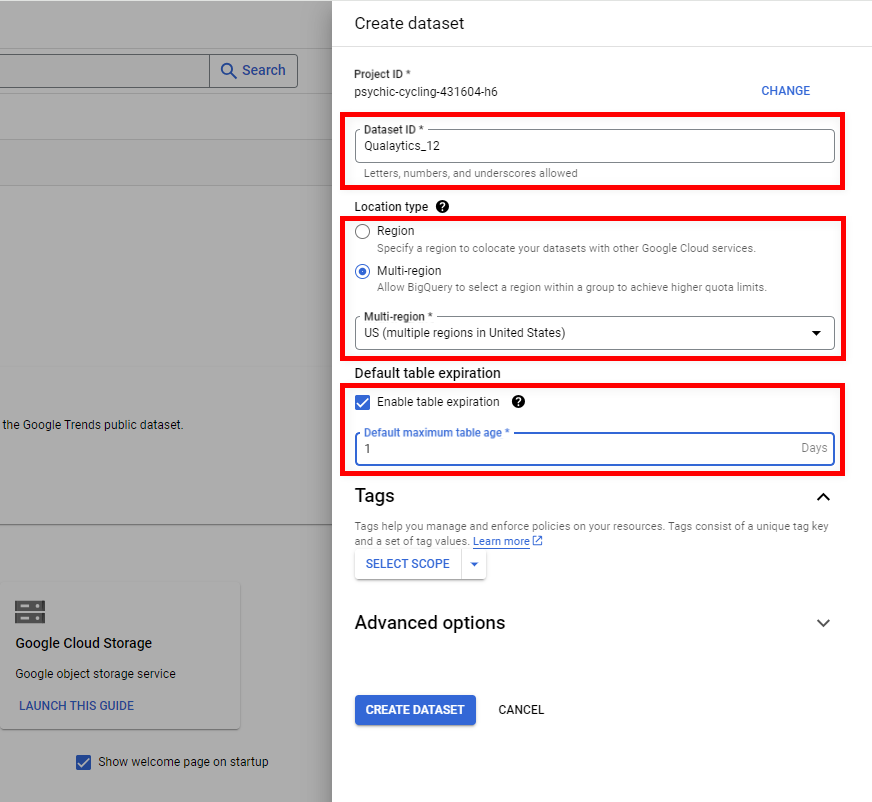
Step 3: Fill in the details to create the new dataset.
Info
- Dataset ID: choose a name for the temp dataset. The example below uses
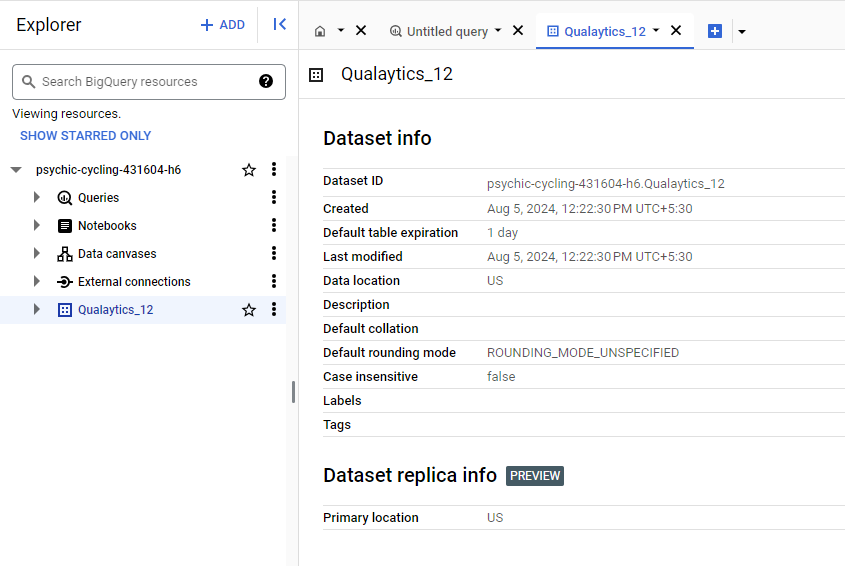
Qualytics_12. - Dataset Location: select the same location as the data Qualytics will query. For example, a source dataset in the
USmulti-region requires a temp dataset inUS; a different region is not interchangeable. - Default Table Expiration: set the expiration to
1 dayto ensure any table created in this dataset is automatically deleted one day after its creation.
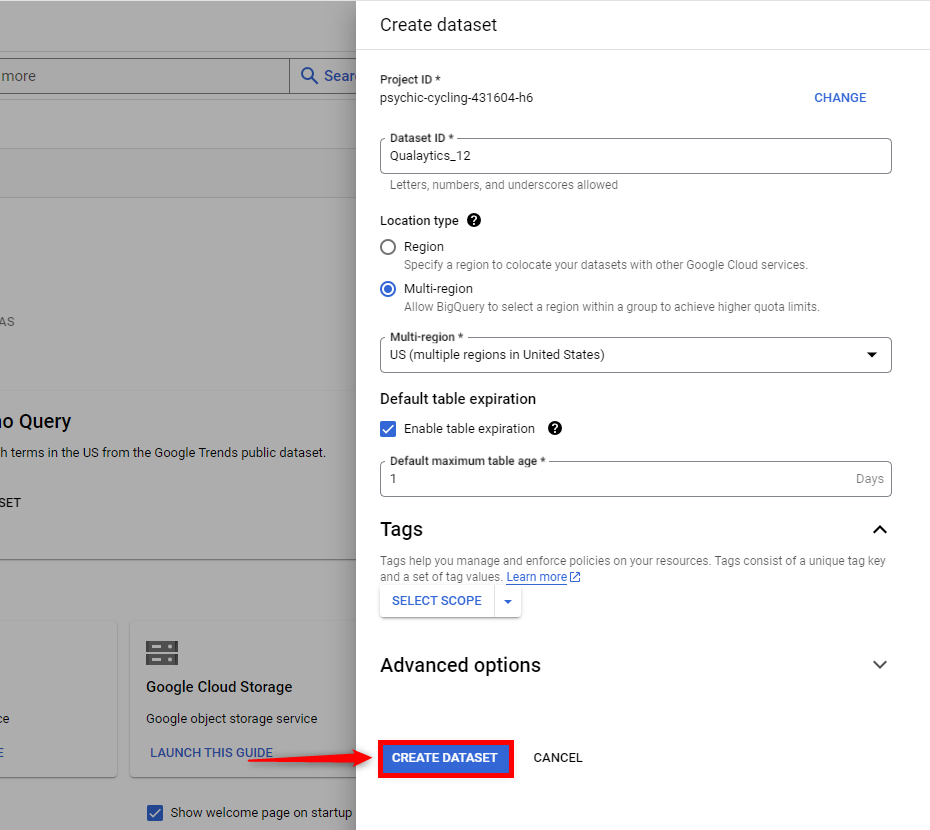
Step 4: Click the Create Dataset button to apply the configuration and create the dataset.
Step 5: Grant the Qualytics service account roles/bigquery.dataEditor on the created dataset, then open Dataset info. Enter only the dataset name (Qualytics_12 in this example) in the connection's Temp Dataset ID field, without the project prefix shown by Google. Test the connection with the selected data project and dataset.
Where the field lives
The Temp Dataset ID field is part of the connection's properties; see the Add Source Datastore field reference. Changing or clearing Billing Project ID does not change where that temp dataset name is resolved: it always refers to a dataset in the datastore's data project. A connection shared by datastores in several data projects needs the dataset in each of them.