Notifications Introduction
Overview
Notifications keep you informed of activity that involves you or the data assets you care about: flow executions, anomalies you're assigned to, checks you own, and comments that mention you. The bell icon in the top-right toolbar surfaces these events without requiring you to set up email, Slack, or other external channels.
This section walks through what notifications look like, how to read them, and how to manage them in bulk.
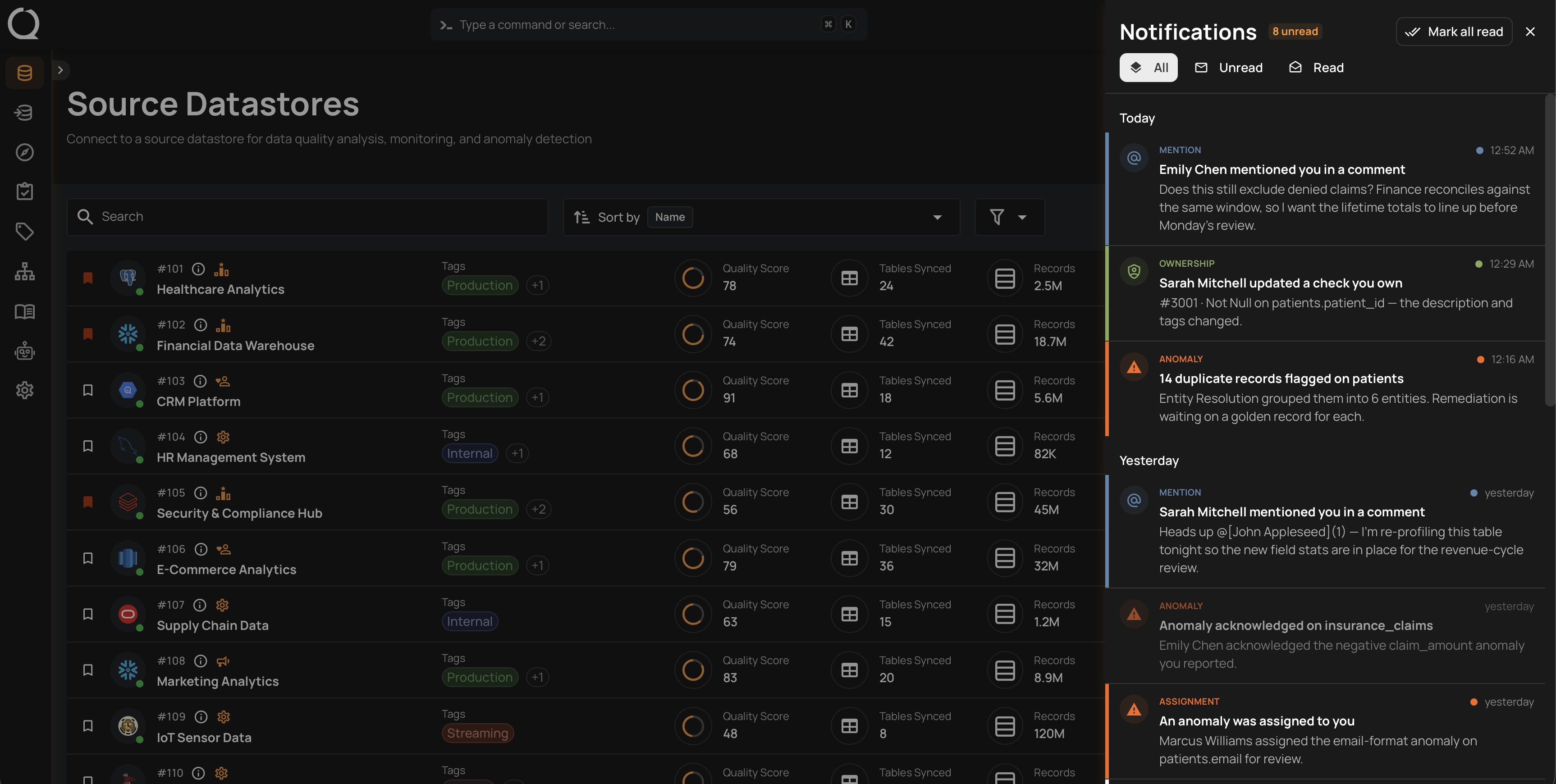
Nothing is discarded when you read it. The panel keeps a full history behind its Read and All tabs, so an item you have already acknowledged is always one tab away.
What Triggers a Notification
Every notification carries a type, shown as a colored label on the item. The type is not a setting: the platform derives it from what the notification is about, and each one behaves a little differently in how its headline is built and where it takes you.
Each notification is addressed to you rather than broadcast: mentions, ownership updates, and assignments reach only the people involved, while flow-delivered notifications reach the users responsible for the affected datastore (Admins and the members of its assigned teams).
Personal notifications vs. flow notifications
The bell icon surfaces activity for you, the signed-in user. To send notifications to external channels such as Slack, Email, Microsoft Teams, or PagerDuty as part of a flow, configure a notification action inside the flow itself. See the Flow Notifications documentation.
Deep Dive
Start with the panel itself, then read the page for the type you are looking at.
-
How Notifications Work
The panel itself: tabs, date grouping, every field and action on an item, and how new activity reaches you.
-
Notification Items
A single item up close: every field, what clicking does, and the actions it carries.
-
Mention Notification
Someone tagged you in a comment on a container, check, template, anomaly, or partition.
-
Ownership Notification
Something you own was updated, or ownership moved to you.
-
Anomaly Notification
A flow or a partition scan surfaced an anomaly relevant to you.
-
Assignment Notification
An anomaly you are assigned to was updated directly.
-
Operation Notification
A Sync, Profile, Scan, or other operation finished.
-
Flow Notification
A flow's in-app notification action reported its run.
How-tos
-
Navigate
Open the panel, filter by read status, and find your way around the list.
-
Mark as Read
Clear the unread state on every notification in one action.
-
Bulk Mark as Read
Select a subset of notifications and mark just those as read.
-
Mark as Unread
Put a notification back on your to-do list, one at a time.
-
Right Click Options
The right-click context menu: manage an item or grab its link without opening it.