Reactivate a Service User
Use the Reactivate action to restore a previously deactivated Service User. This is useful if a Service User was deactivated by mistake or if an integration needs to be re-enabled.
Permissions
Only users with the Admin role can reactivate Service Users. See the Permissions page for details.
Before You Reactivate
Warning
Reactivating a Service User restores the account but does not automatically restore its previously revoked tokens. You can either:
- Restore individual tokens to reactivate them, or
- Generate new tokens for the account.
Steps
Step 1: Click the filter icon at the top of the users list, select Account status on the left side of the panel, choose Inactive on the right, and click Apply. The list now shows only deactivated accounts. See Filter Users for details.
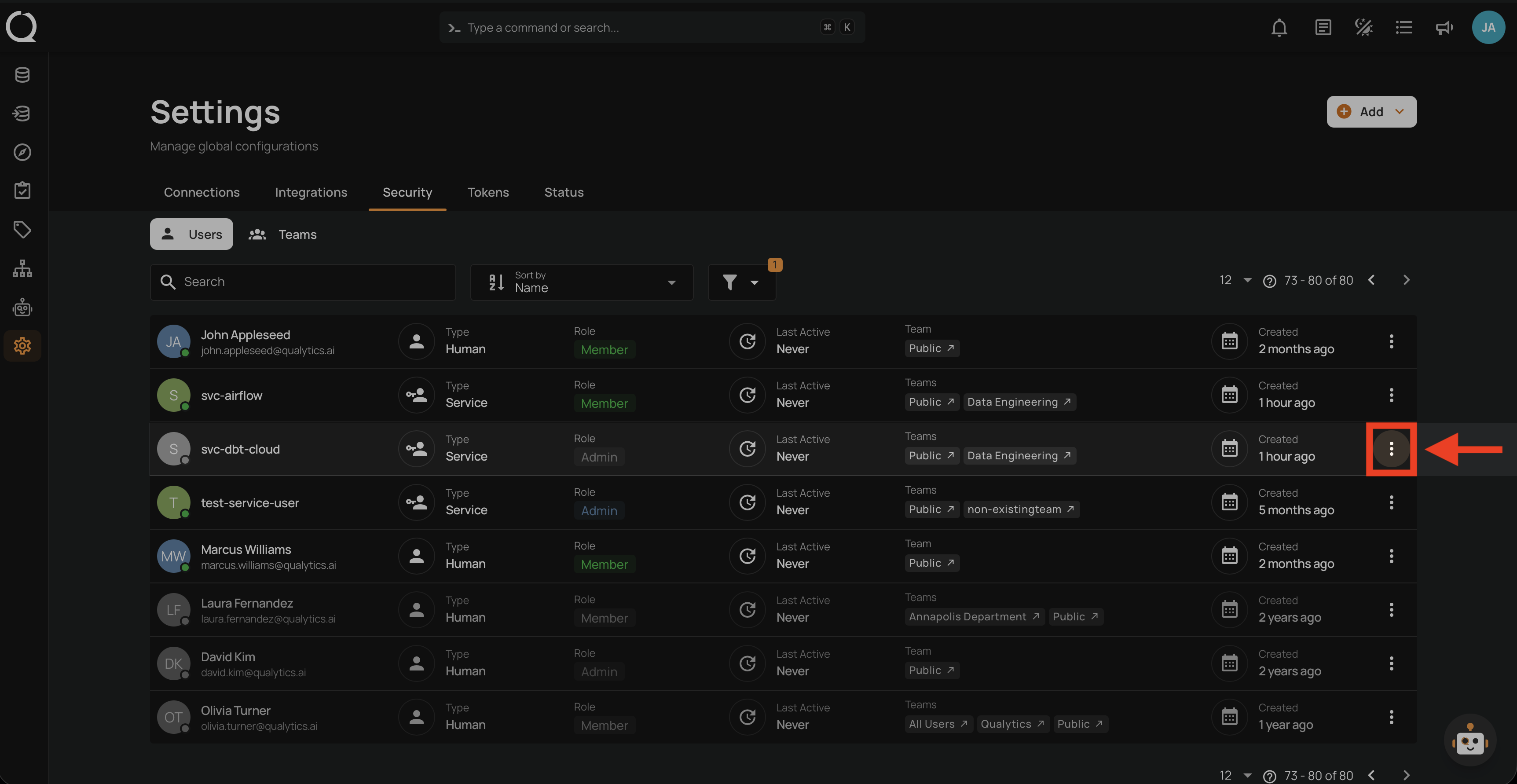
Step 2: Click the vertical ellipsis next to the deactivated Service User you want to restore.
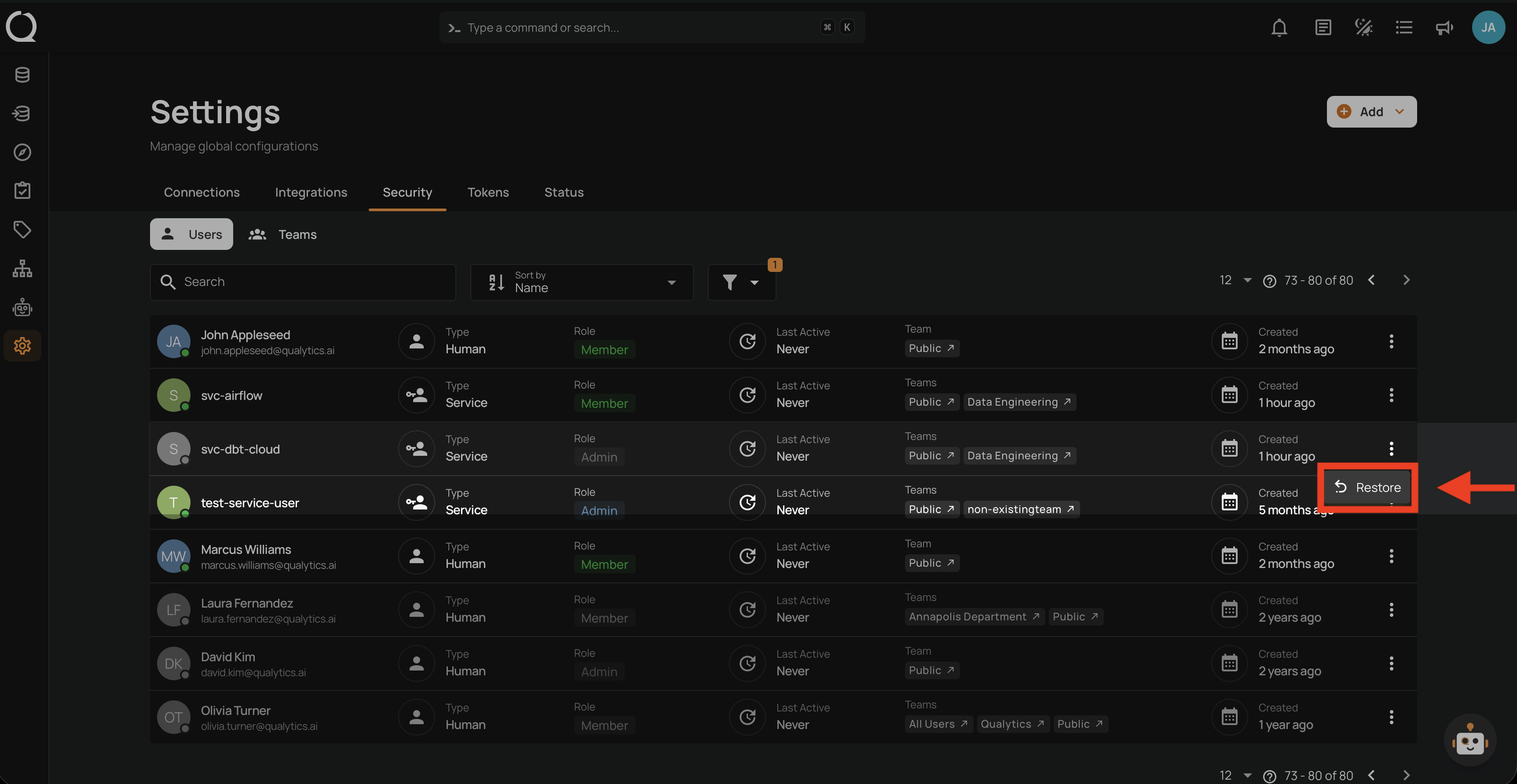
Step 3: Click Restore from the dropdown menu.
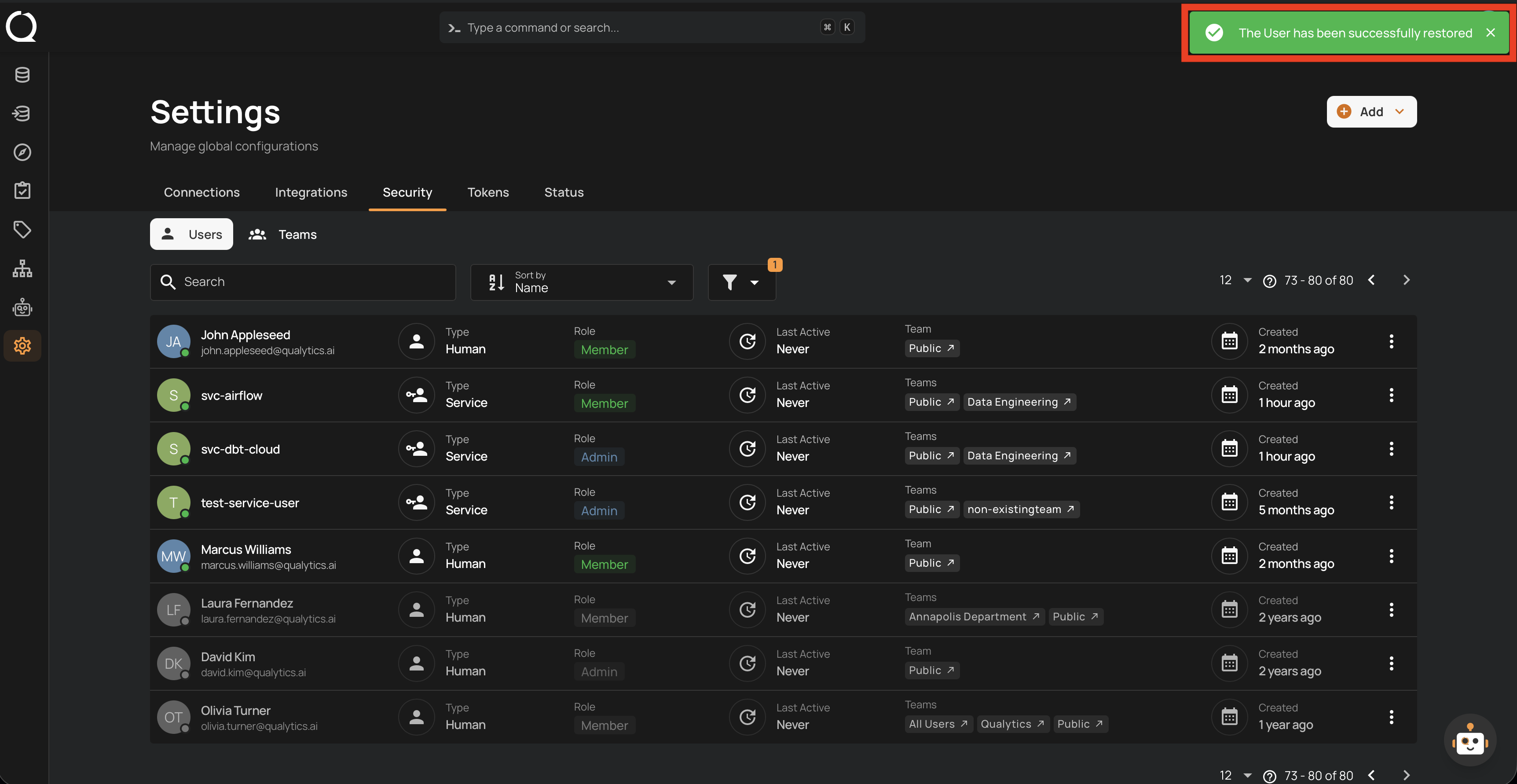
Step 4: A success message appears. Because the list is still filtered to inactive accounts, the Service User disappears from it. Set Account status back to Active or All to see it again.
Tip
After reactivating a Service User, review its role and team membership to ensure they still match the intended use case. Update them if necessary using the Edit action.