Set Up Email & Password Sign-In
Email and password sign-in lets users authenticate with credentials managed by Qualytics. Every deployment already includes one Email & Password provider in the Providers tab, listed as Database Identity Provider until you rename it, so setting it up means adjusting the provider that is already there. While it is enabled, the sign-in page shows the email and password form, self-service password reset is available, and administrators can invite new users by email.
Permissions
Only users with the Admin role can manage sign-in providers. See the Permissions page for details.
Note
Only one Email & Password provider can exist, so while one is enabled the Email & Password option in the Add Provider modal is greyed out and cannot be selected. You adjust the existing provider instead of adding a new one.
Fields
General
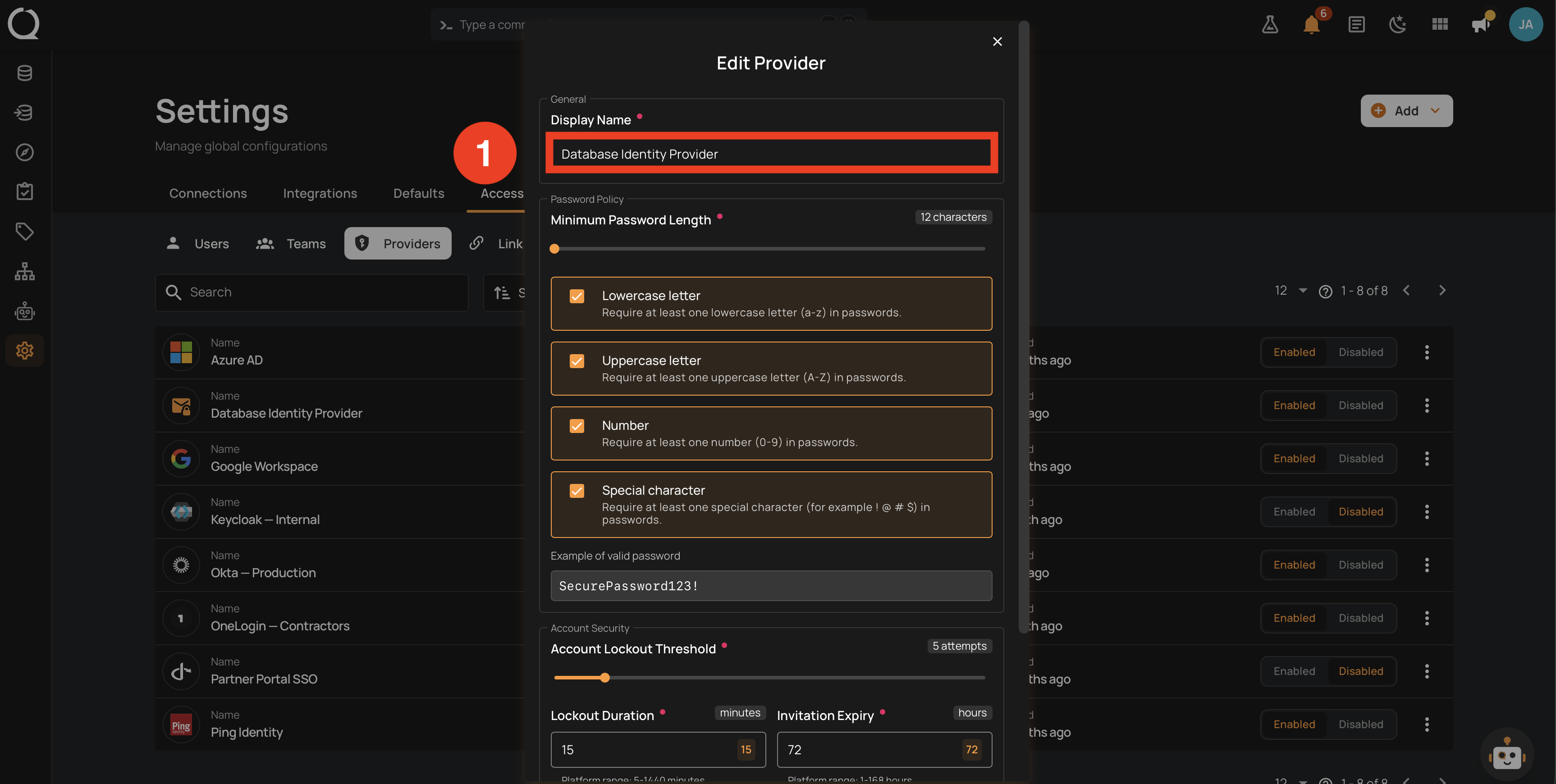
| REF. | FIELD | DESCRIPTION |
|---|---|---|
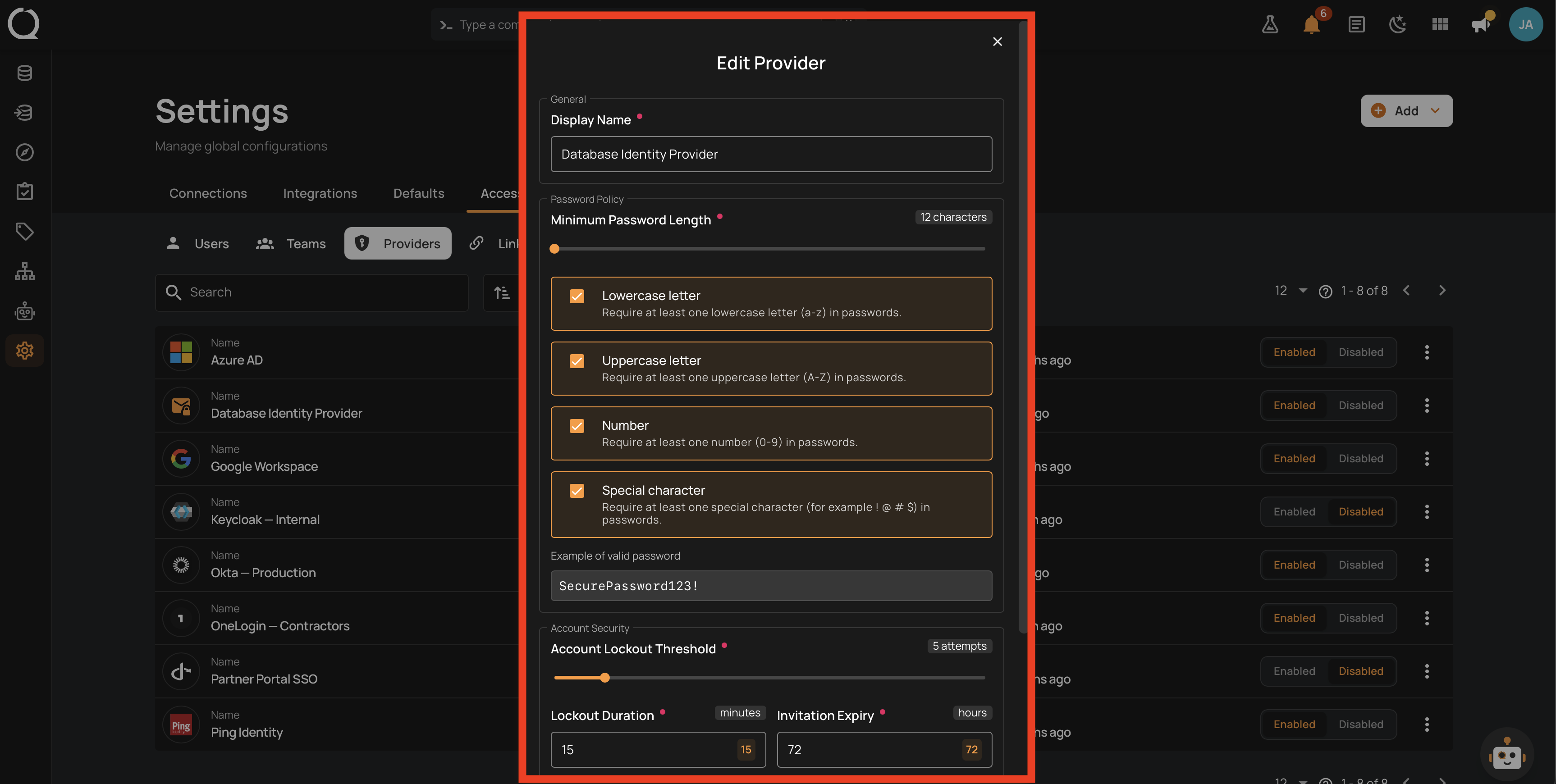
| 1 | Display Name | Required. The name that identifies this provider in the Providers tab. Unlike the identity provider types, it is not shown on the sign-in page, which presents the email and password form instead of a named button. |
Password Policy
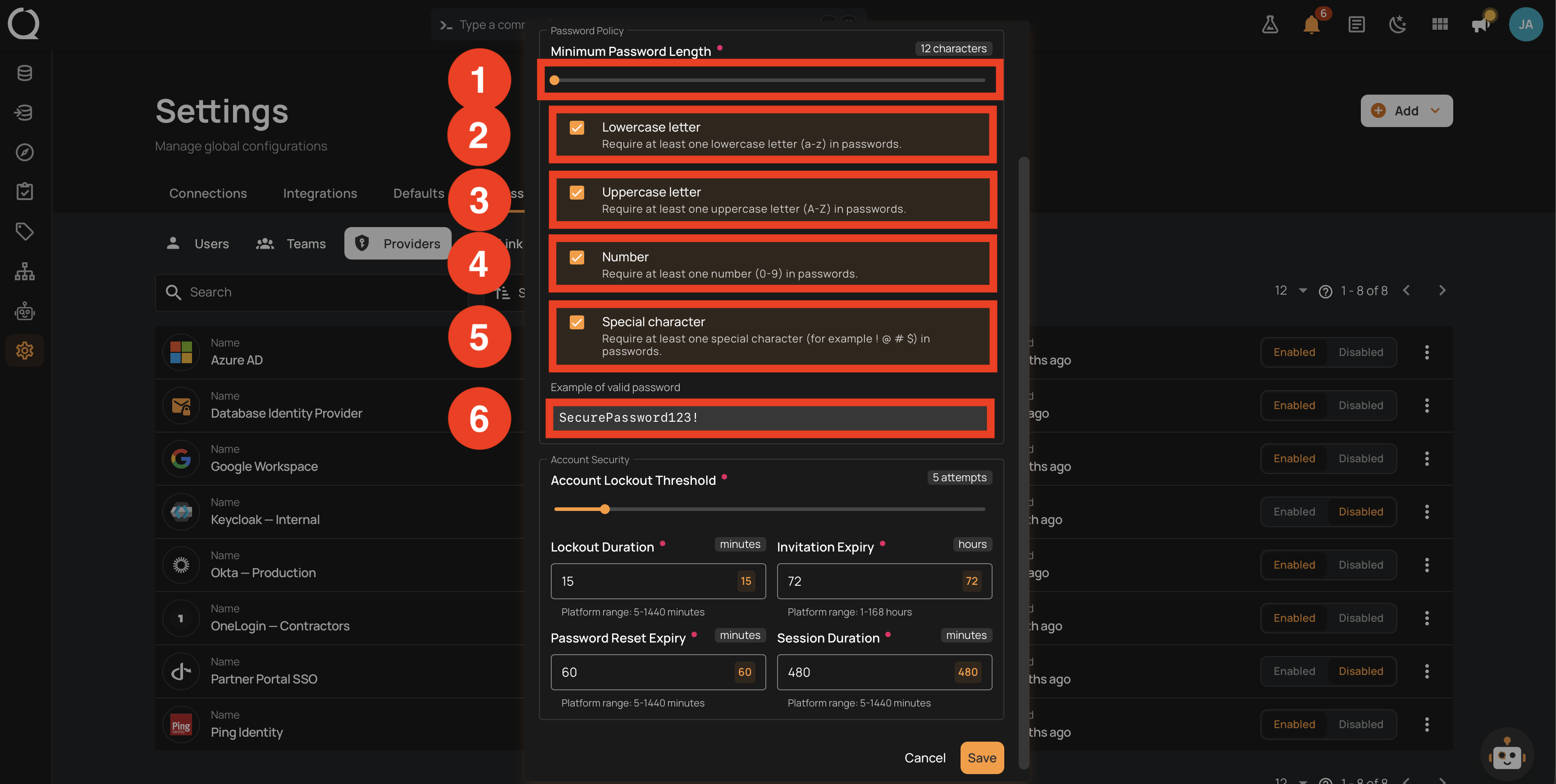
| REF. | FIELD | DESCRIPTION |
|---|---|---|
| 1 | Minimum Password Length | Required. Minimum number of characters, between 8 and 128 (default 12). |
| 2 | Lowercase letter | Require at least one lowercase letter. On by default. |
| 3 | Uppercase letter | Require at least one uppercase letter. On by default. |
| 4 | Number | Require at least one number. On by default. |
| 5 | Special character | Require at least one special character (for example !, @, #, $). On by default. |
| 6 | Example of valid password | A sample password that satisfies the current policy, updated as you adjust the settings above. |
Passwords are also checked against a list of commonly used passwords, regardless of the policy settings. Deployments with outbound internet access can additionally have passwords checked against known-breached password lists.
Account Security
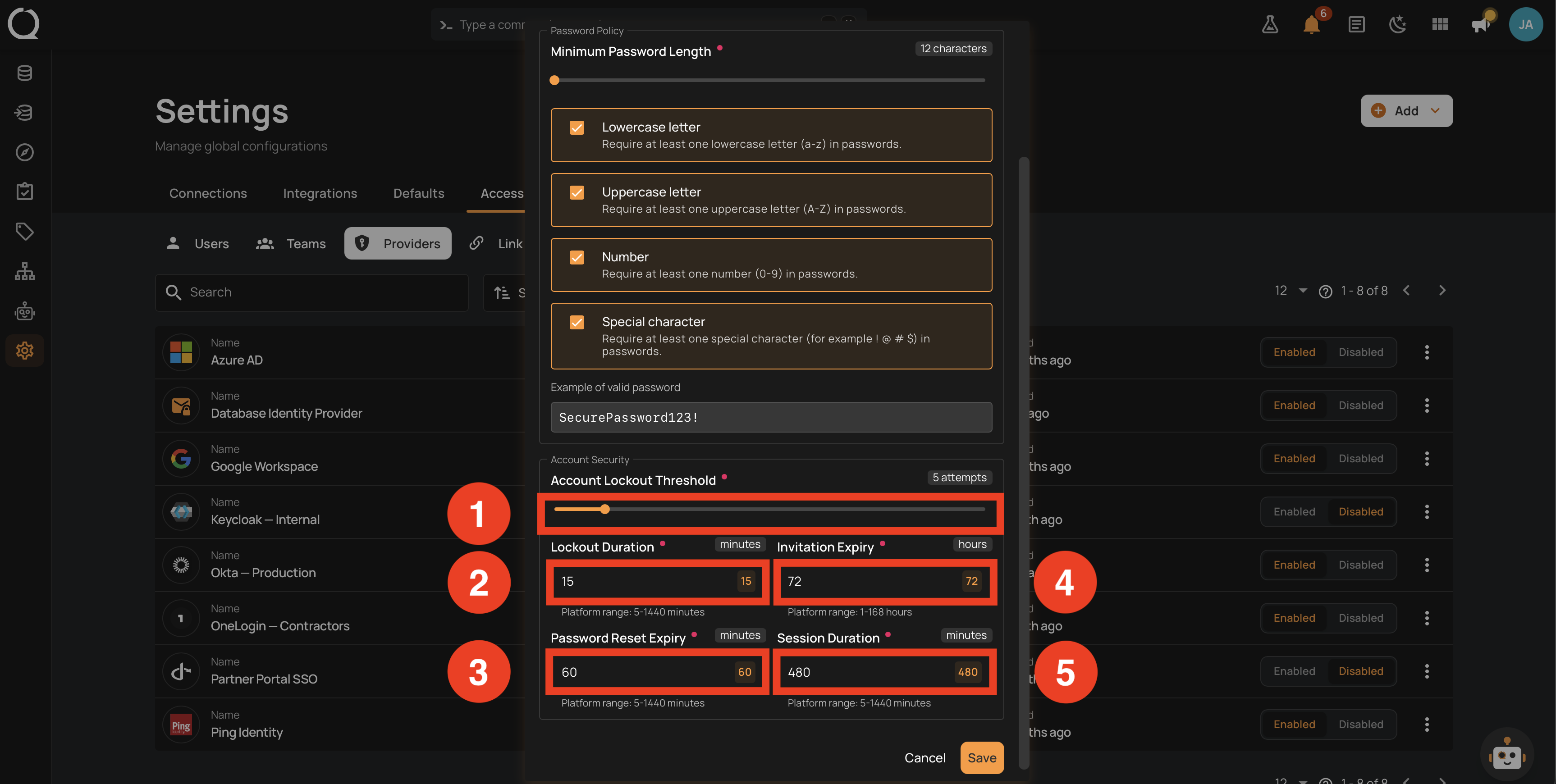
| REF. | FIELD | DESCRIPTION |
|---|---|---|
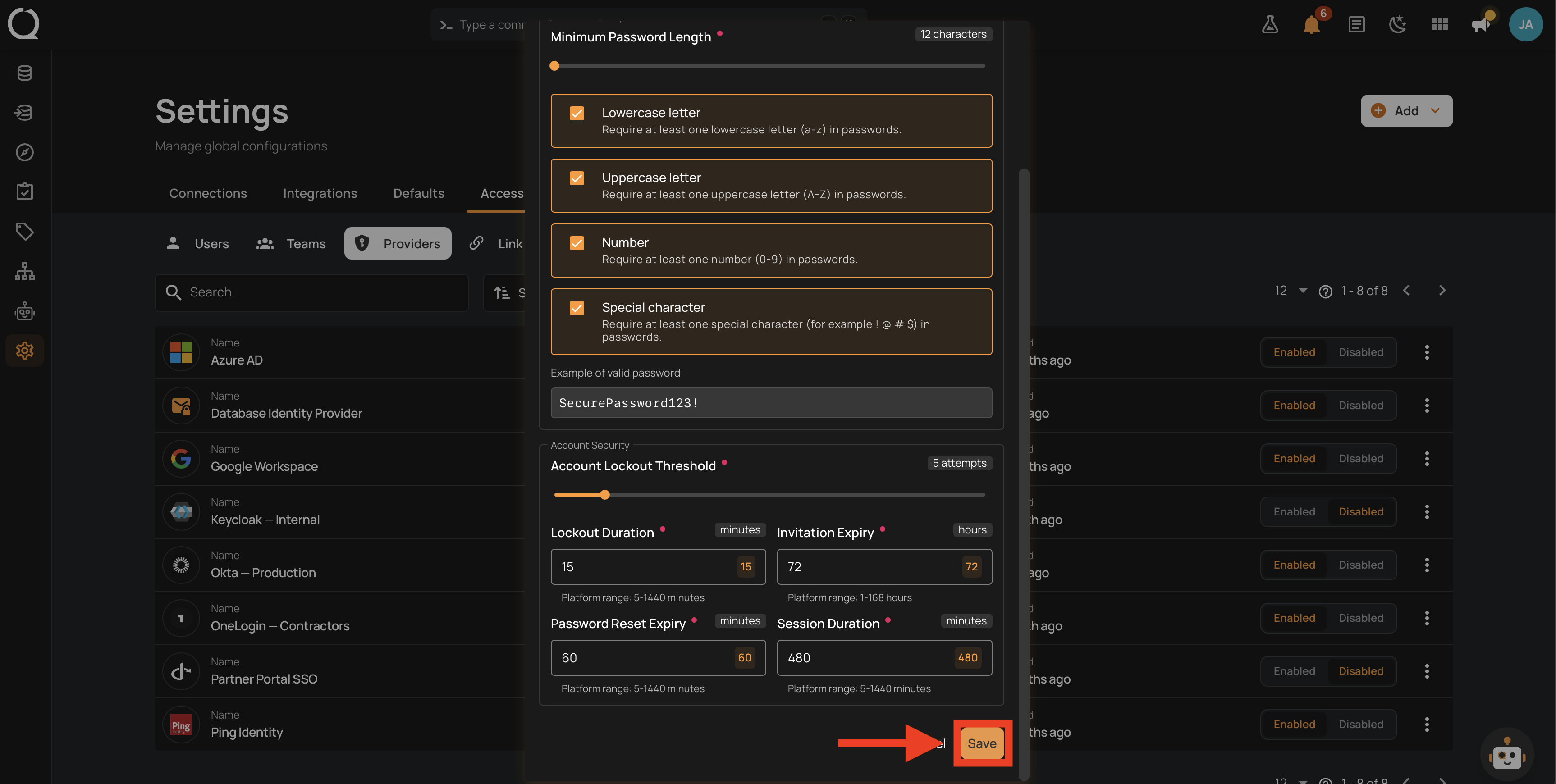
| 1 | Account Lockout Threshold | Required. Failed sign-in attempts before the account is temporarily locked, between 3 and 20 (default 5). |
| 2 | Lockout Duration | Required. How long a locked account stays locked, in minutes, between 5 and 1440 (default 15). |
| 3 | Password Reset Expiry | Required. How long a password reset link stays valid, in minutes, between 5 and 1440 (default 60). |
| 4 | Invitation Expiry | Required. How long an invitation link stays valid, in hours, between 1 and 168 (default 72). |
| 5 | Session Duration | Required. How long a Qualytics session remains valid after sign-in, in minutes, between 5 and 1440 (default 480, which is 8 hours). |
Each field shows its accepted range under the input, and values outside it are refused when you save.
Steps
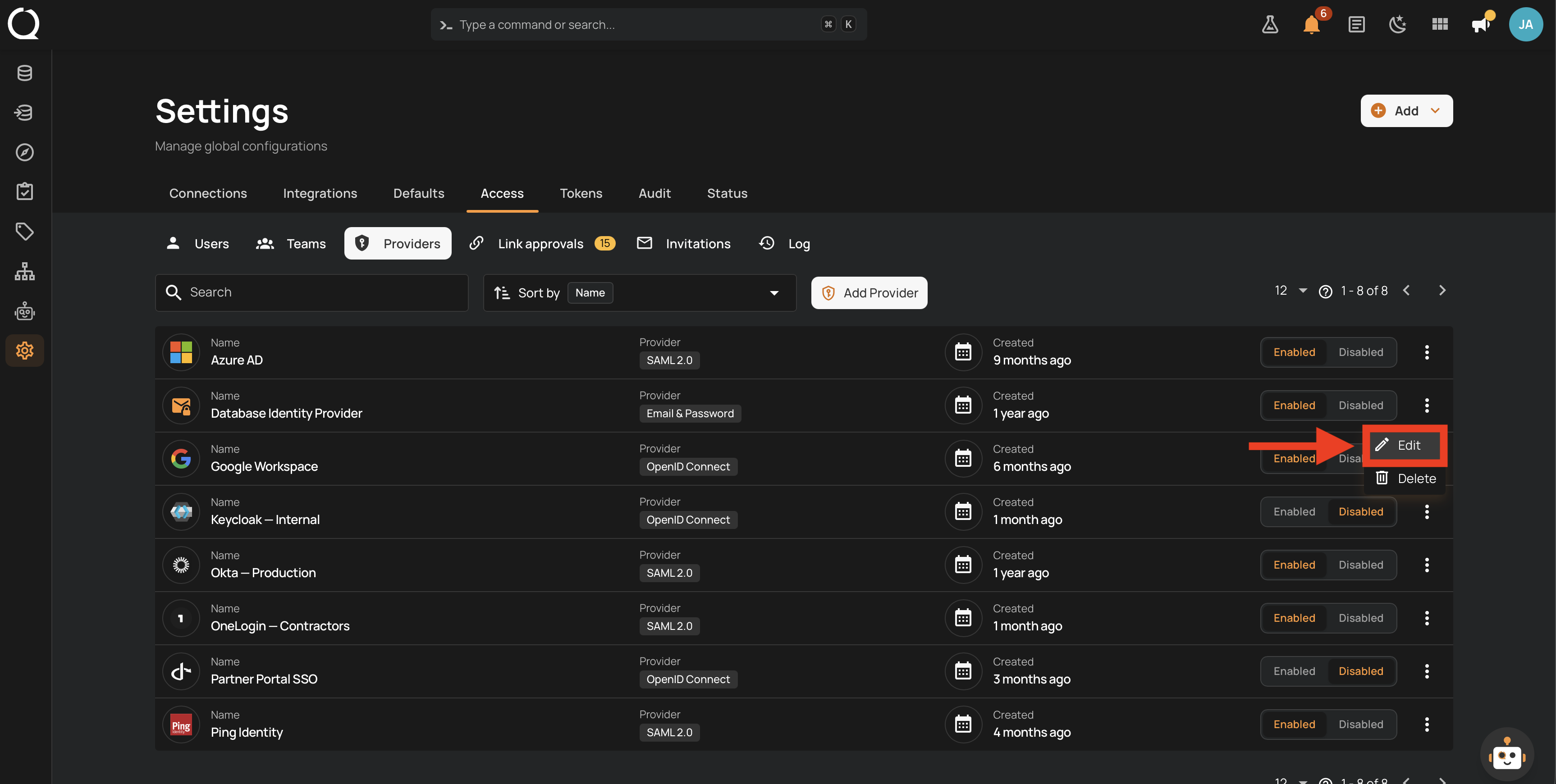
Step 1: Click the vertical ellipsis next to the provider whose type is Email & Password in the Providers tab.
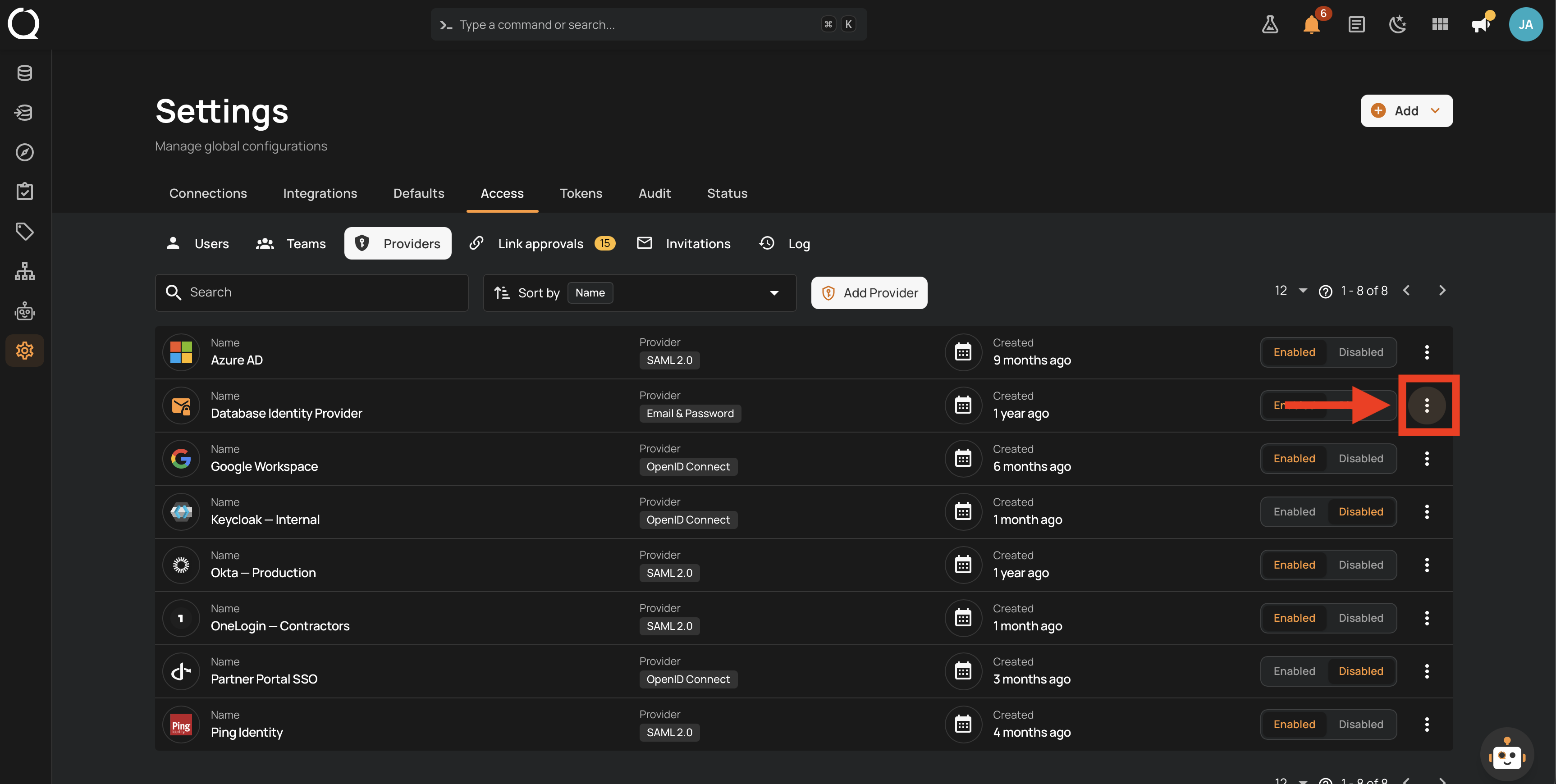
Step 2: A menu appears with the available actions. Click Edit .
Step 3: The Edit Provider modal appears. Adjust the fields as needed (see Fields above).
Step 4: Click the Save button.
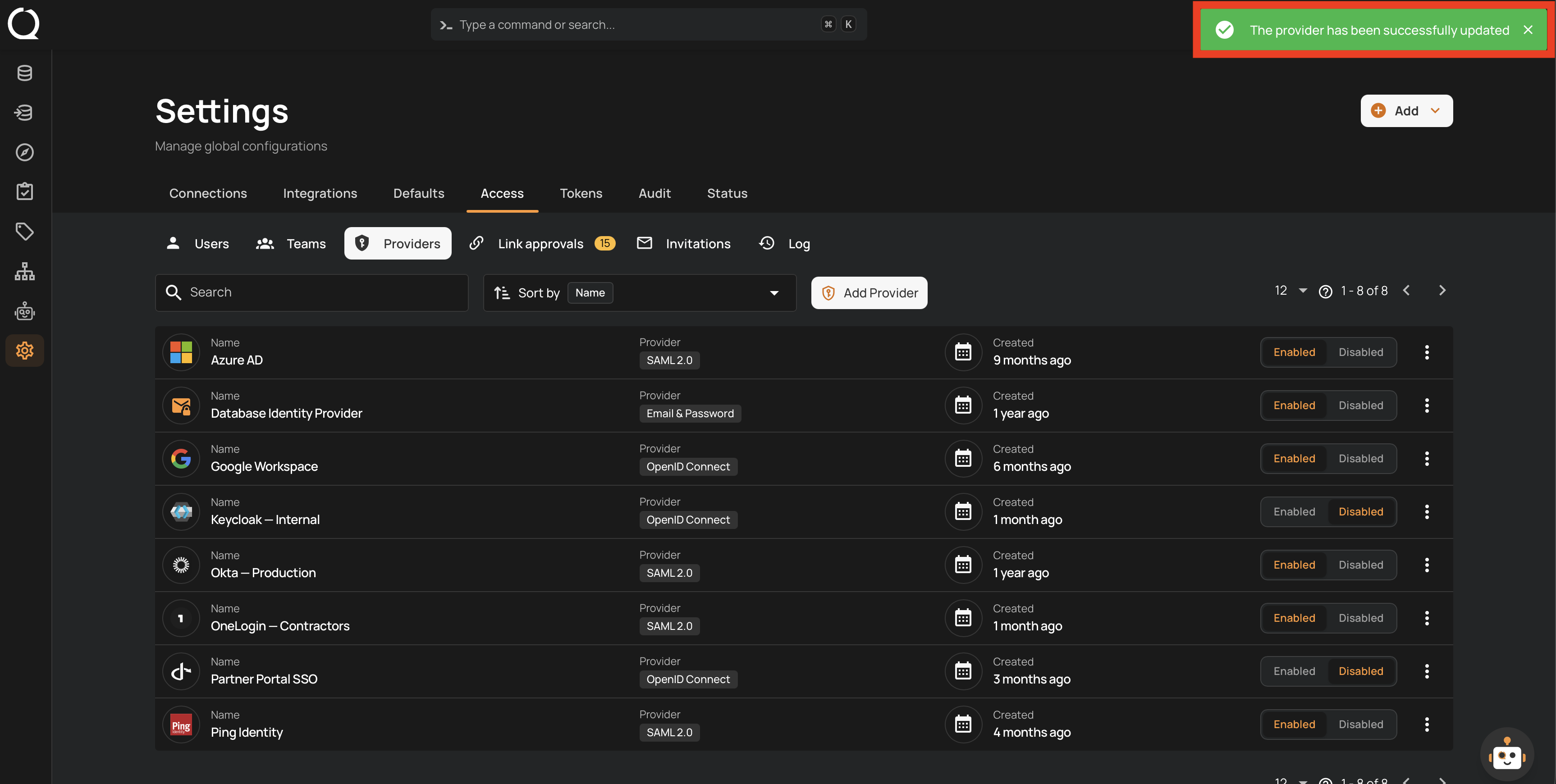
Step 5: A success message appears.
Note
Only brand new deployments start with the provider enabled. On deployments upgraded from an earlier version, or migrated from an identity-provider-only setup, the built-in Email & Password provider starts disabled. To offer password sign-in, enable it from its row in the Providers list; see Manage Providers.
What Users Experience
- The sign-in page shows Email and Password fields alongside the buttons of your other enabled providers.
- The Reset Password link on the sign-in page lets users request a reset link by email. The confirmation message is the same whether or not the email has an account, and the link expires after the configured reset expiry.
- After too many failed attempts, the account is locked for the configured duration and the sign-in page says when to try again.