Update License
The Update License action allows you to apply a new or renewed license key to your deployment.
Warning
This feature is only available for self-hosted deployments.
Permissions
Only users with the Admin role can update the license. See the Permissions page for details.
Steps
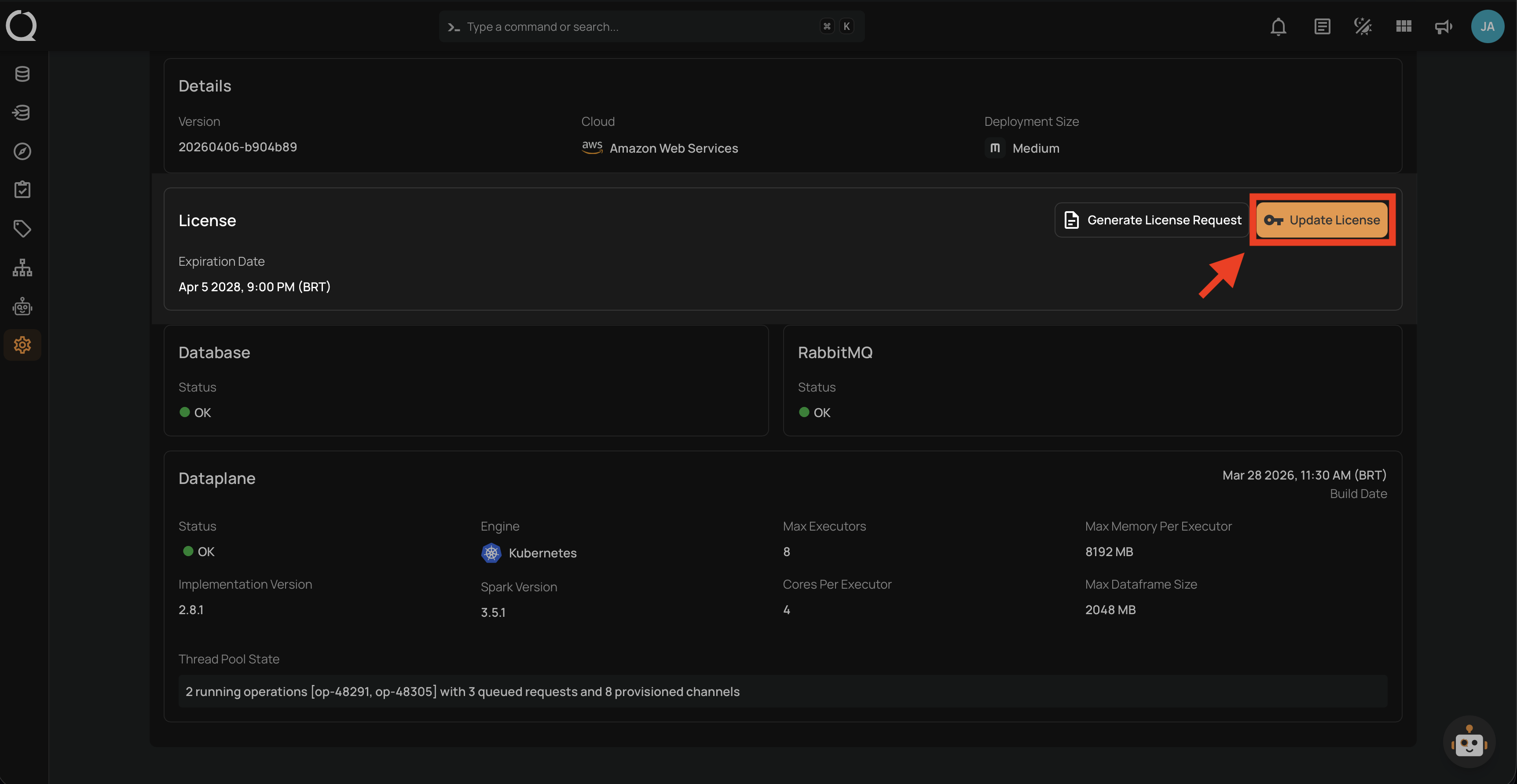
Step 1: In the License section of the Platform Status page, click the Update License button.
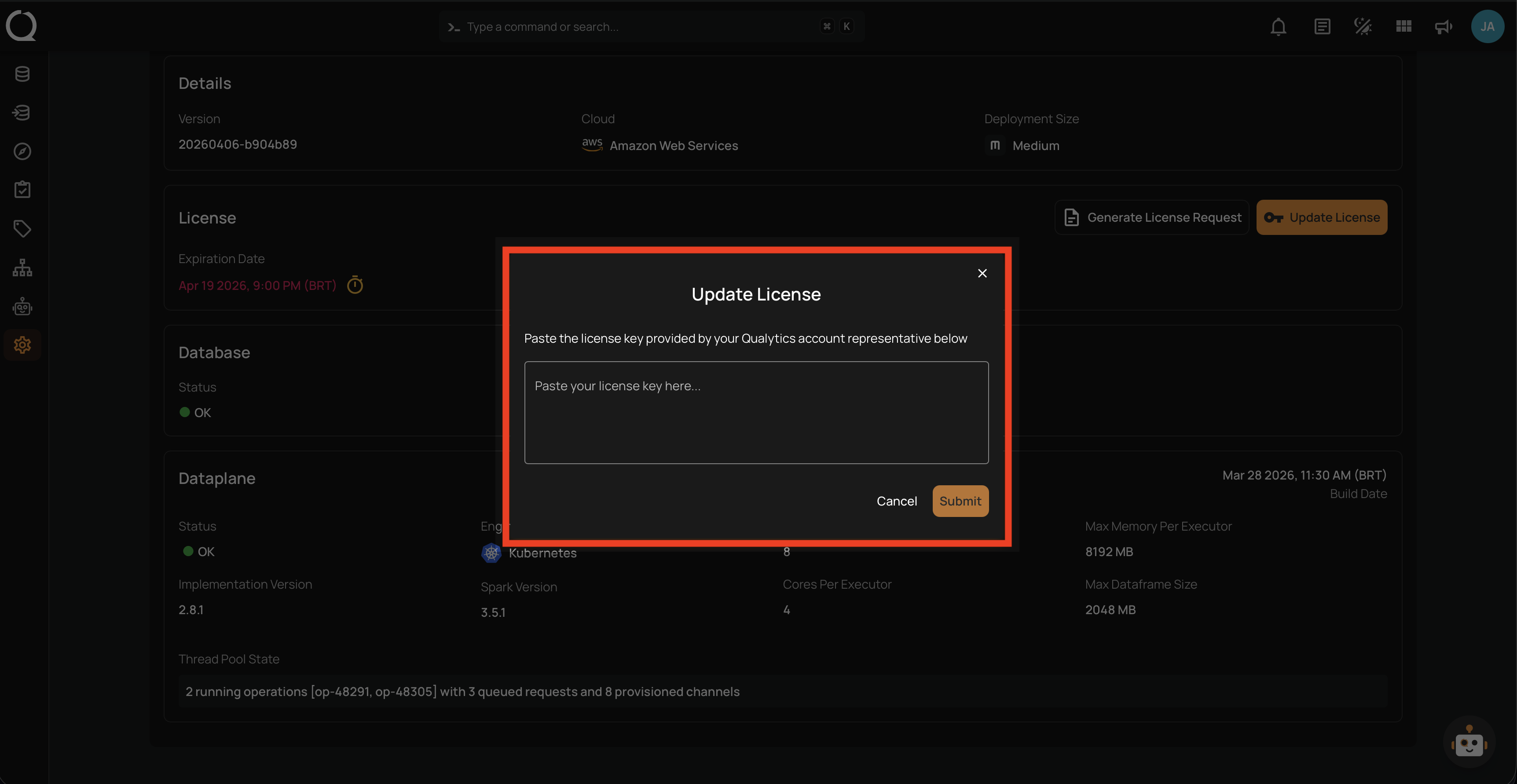
Step 2: An Update License modal will appear. Paste the license key provided by the Qualytics support team into the input field.
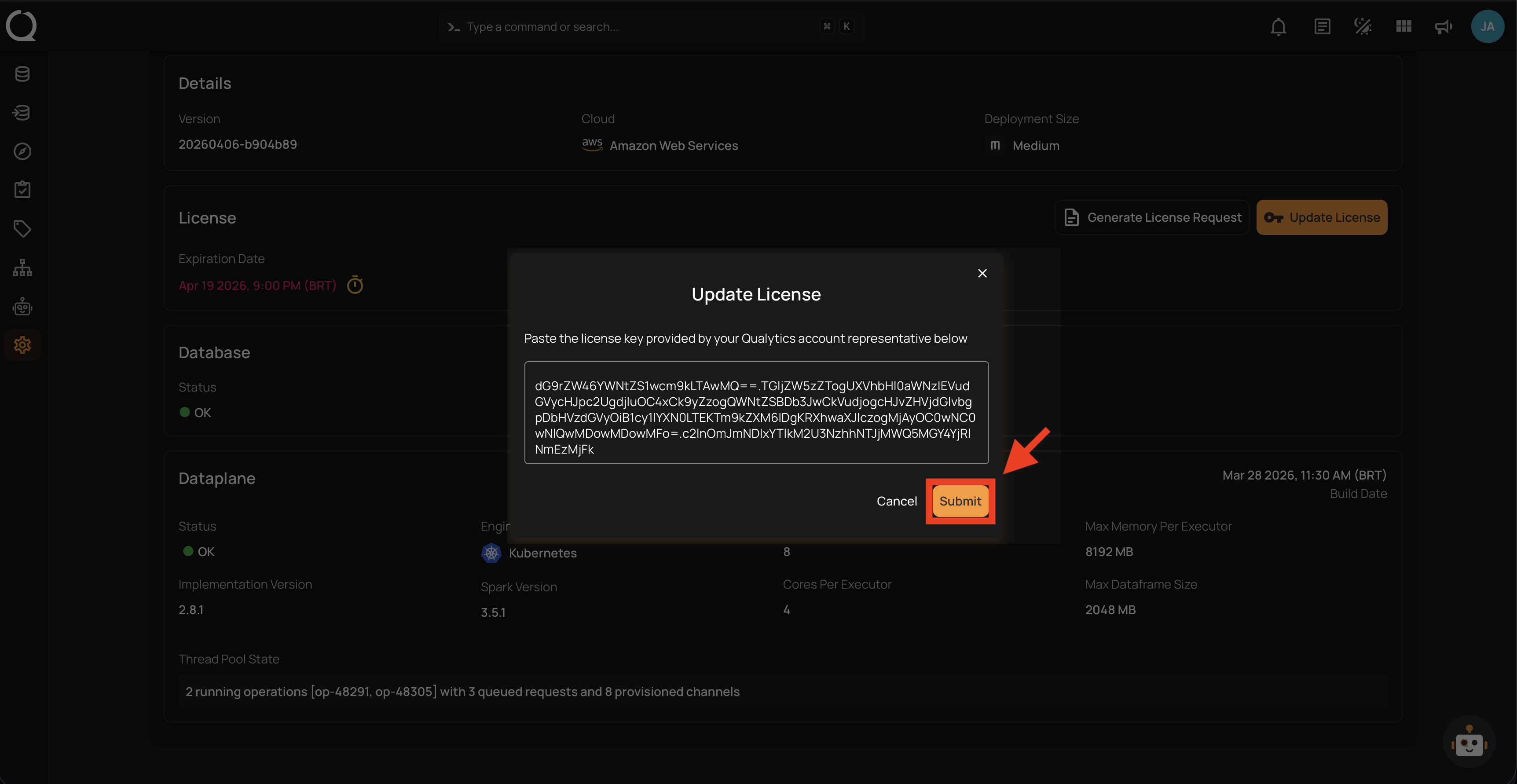
Step 3: After pasting the license key, click the Submit button to apply it.
Note
If the license key is invalid, expired, or was generated for a different deployment, an error message appears at the top of the modal (e.g., "Invalid license signature" or "License is invalid due to fingerprint mismatch"). The modal stays open so you can correct the key and try again. See the License API — Error Responses for all possible error messages.
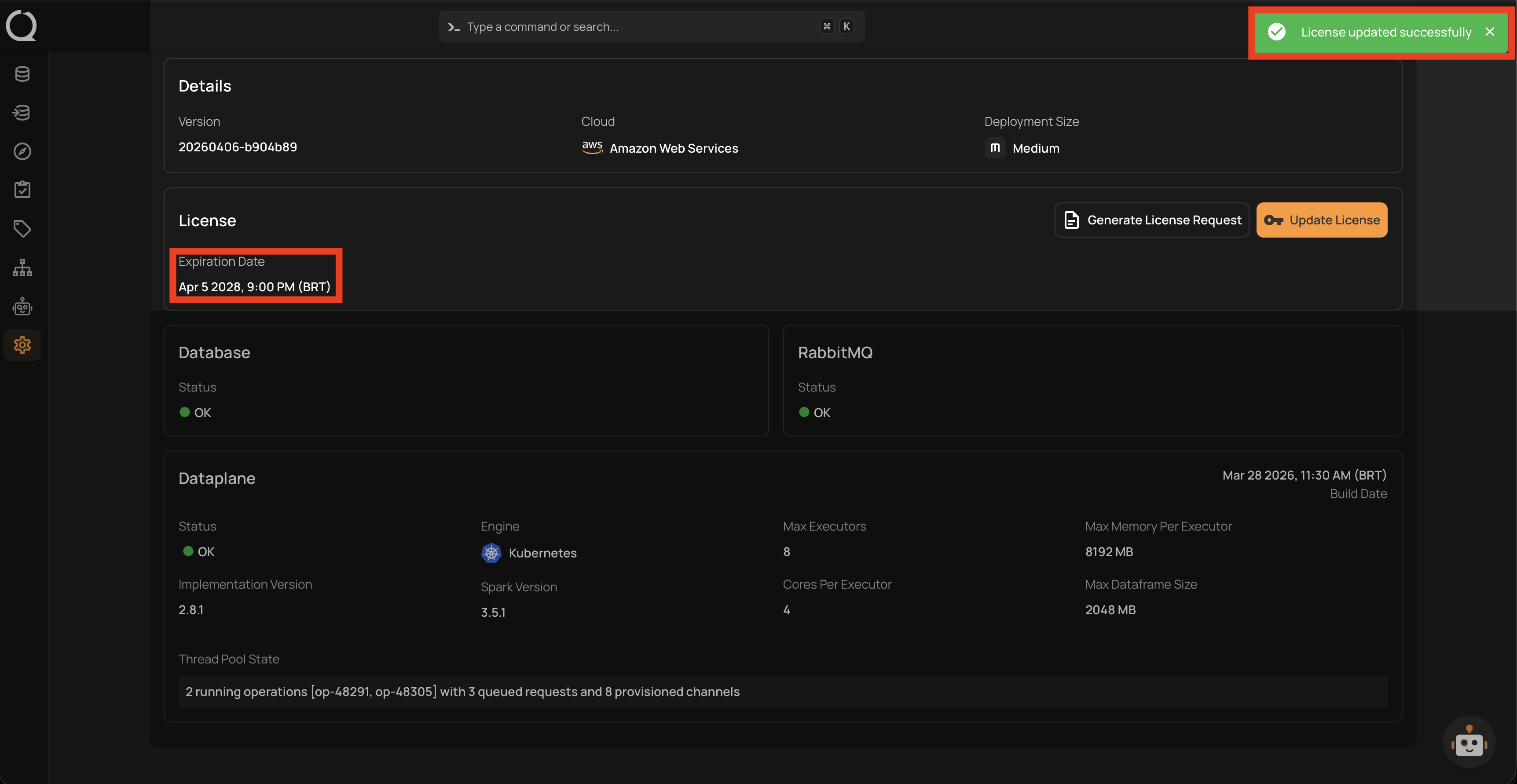
Step 4: A success notification appears confirming "License updated successfully". The License section now displays the updated expiration date.
Tip
If you don't have a license key yet, first generate a license request code using the Generate License Request action and send it to the Qualytics support team.