Update AgentQ Integration
A Manager or Admin can change the LLM provider, model, or API key at any time without losing conversation history. This change applies to the entire deployment — all users will use the updated configuration.
Steps
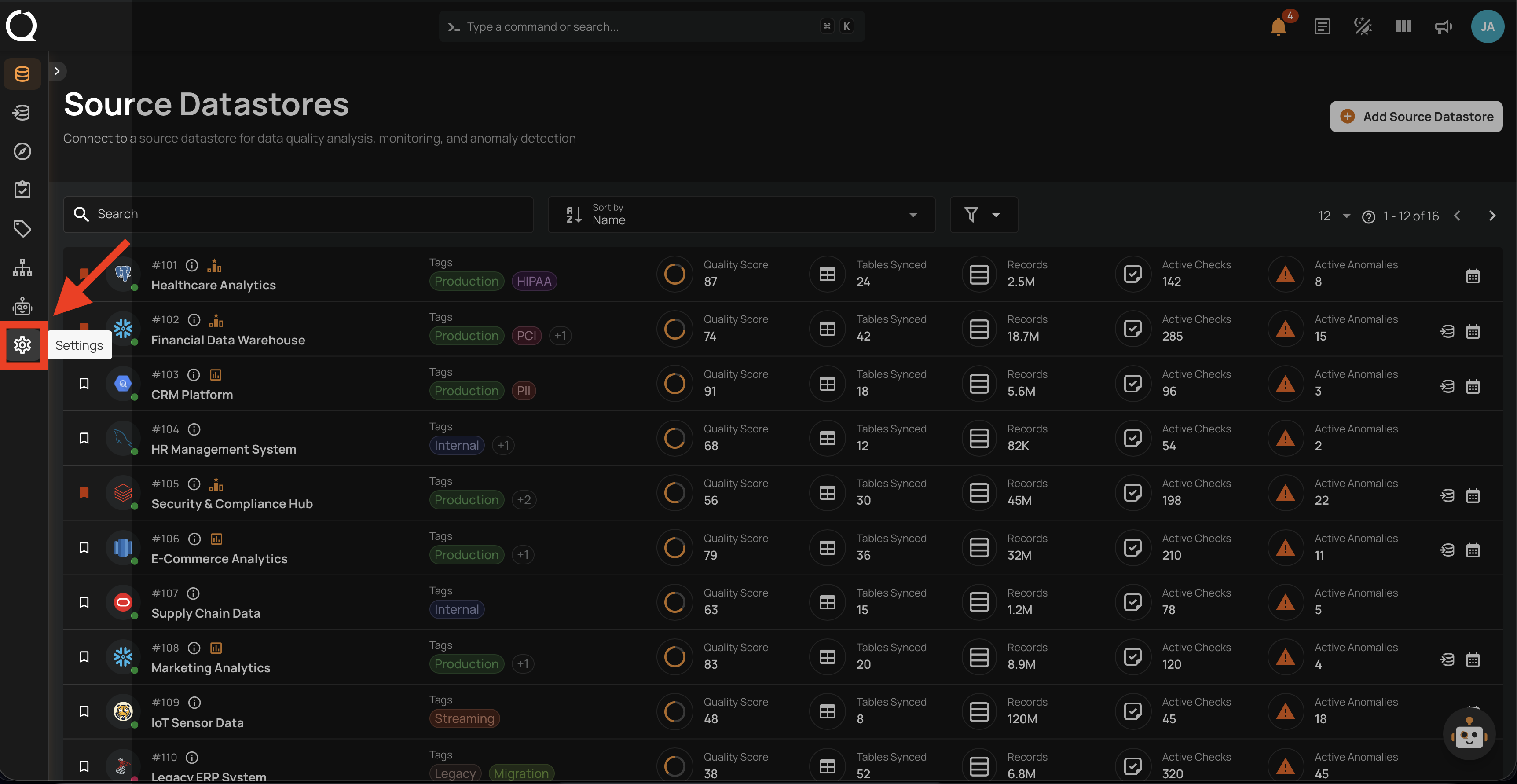
Step 1: After logging in, click the Settings icon in the bottom-left sidebar.
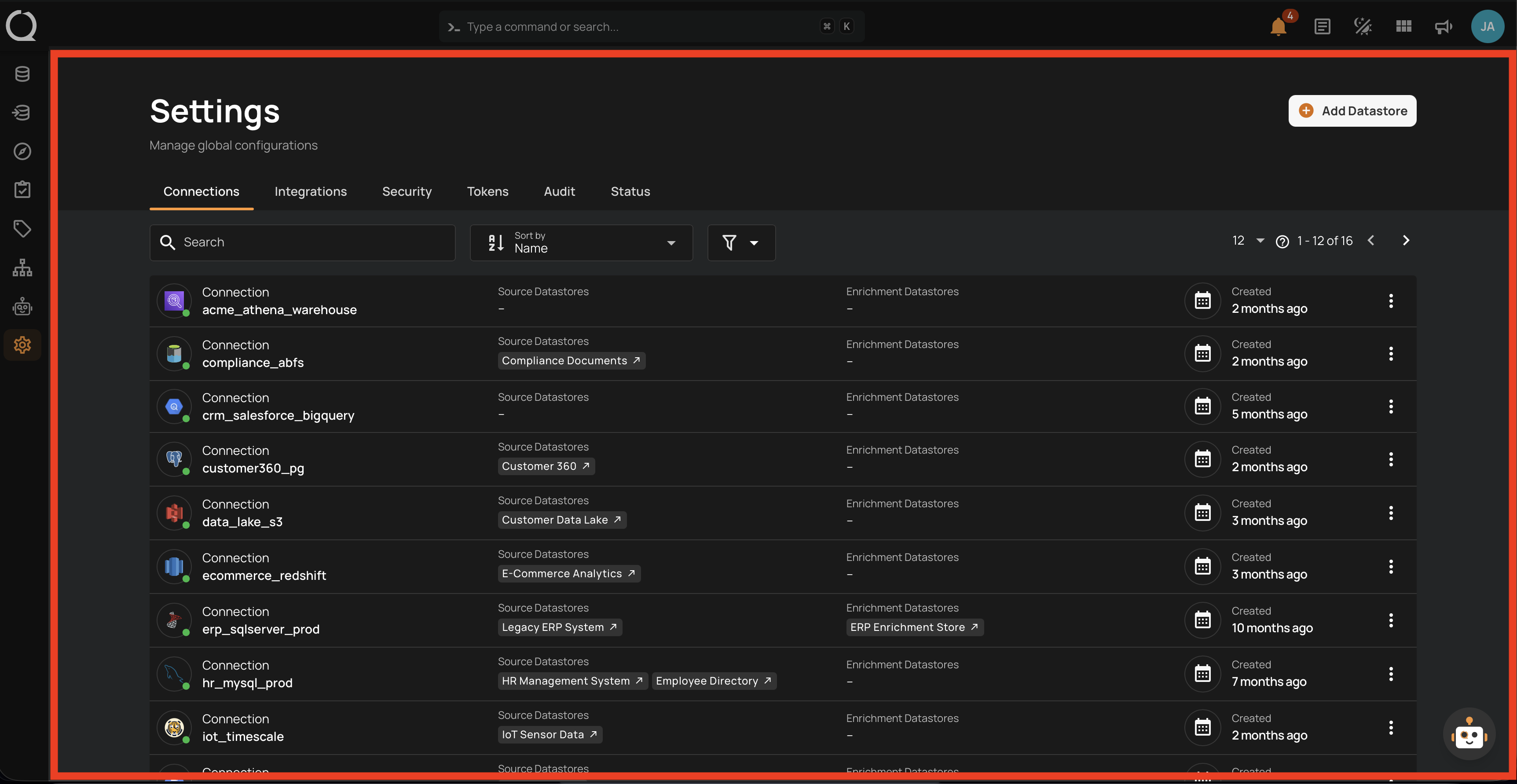
Step 2: The Settings page opens on the Connections tab by default. Click the Integrations tab.
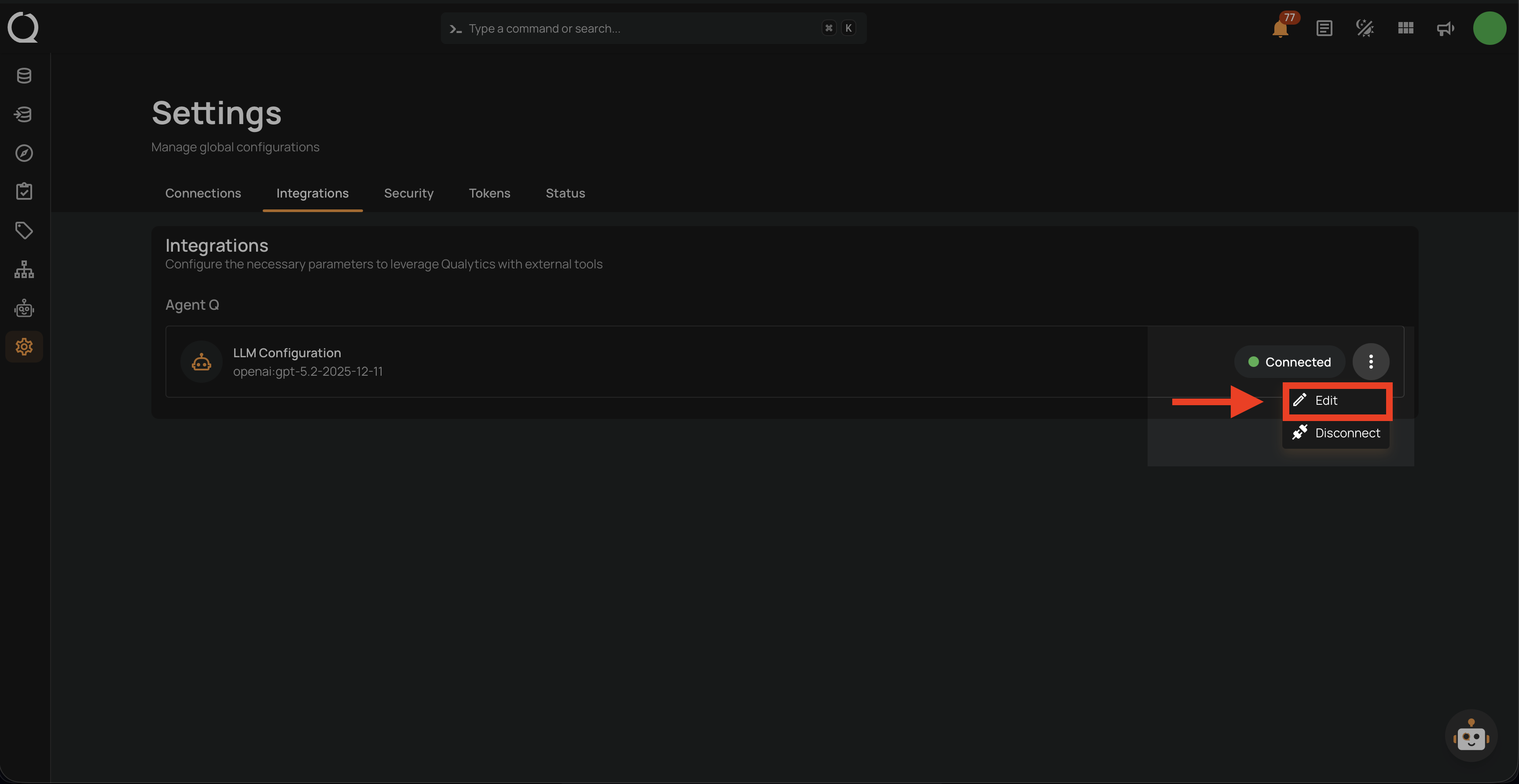
Step 3: Under the AgentQ section, click the More options menu next to LLM Configuration and select Edit.
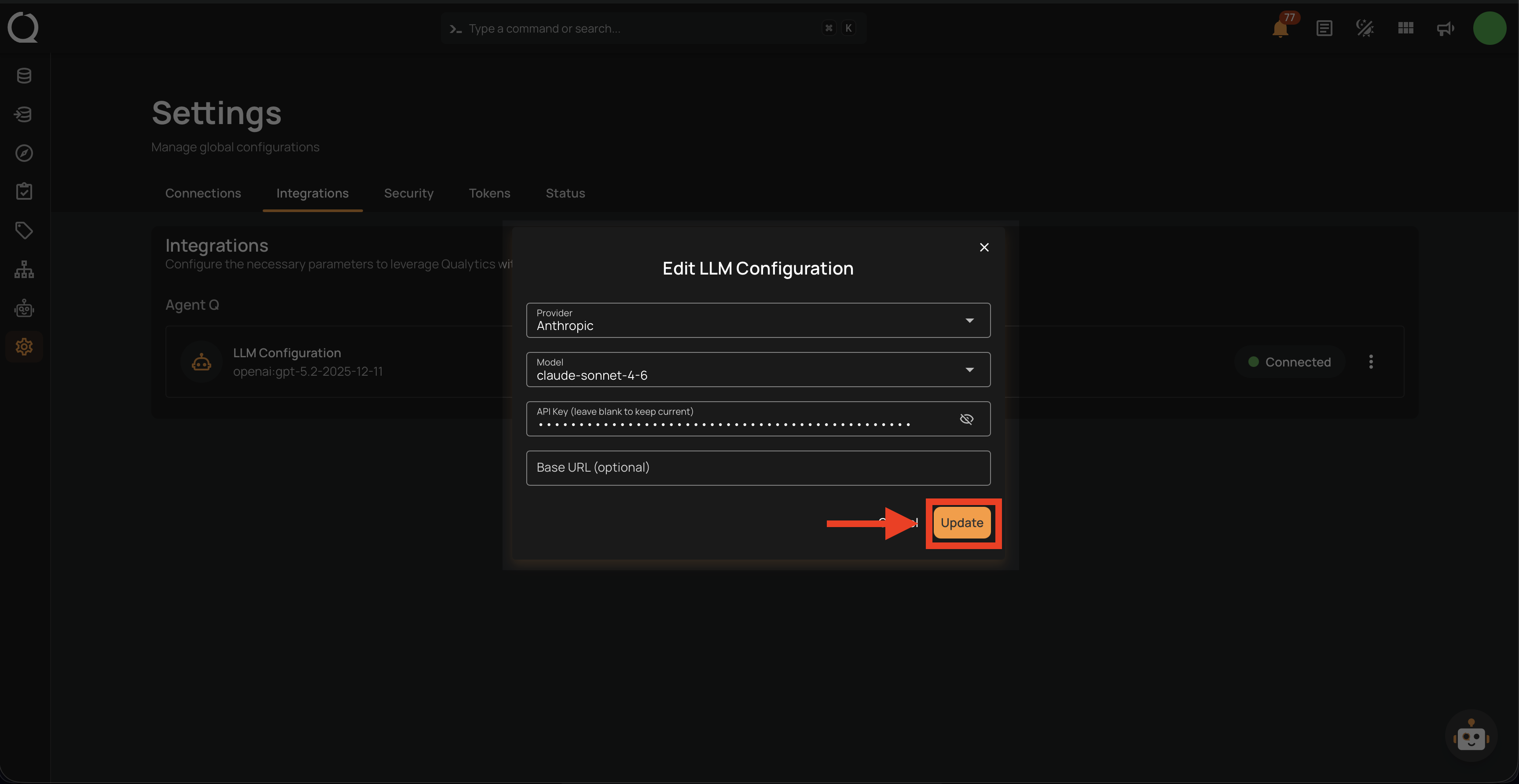
Step 4: The Edit LLM Configuration modal opens with your current settings pre-filled. Update any field you want to change:
| Field | Description |
|---|---|
| Provider (required) | Select a different LLM provider. |
| Model (required) | Choose a different model or type a custom model name. |
| API Key (required) | Enter a new API key. Leave blank to keep the current key unchanged. |
| Base URL (optional) | Update the custom endpoint URL, or clear it to use the provider's default. |
| Business Context (required) | Update the description of your organization's data quality focus, responsibilities, and domain. Up to 2000 characters. |
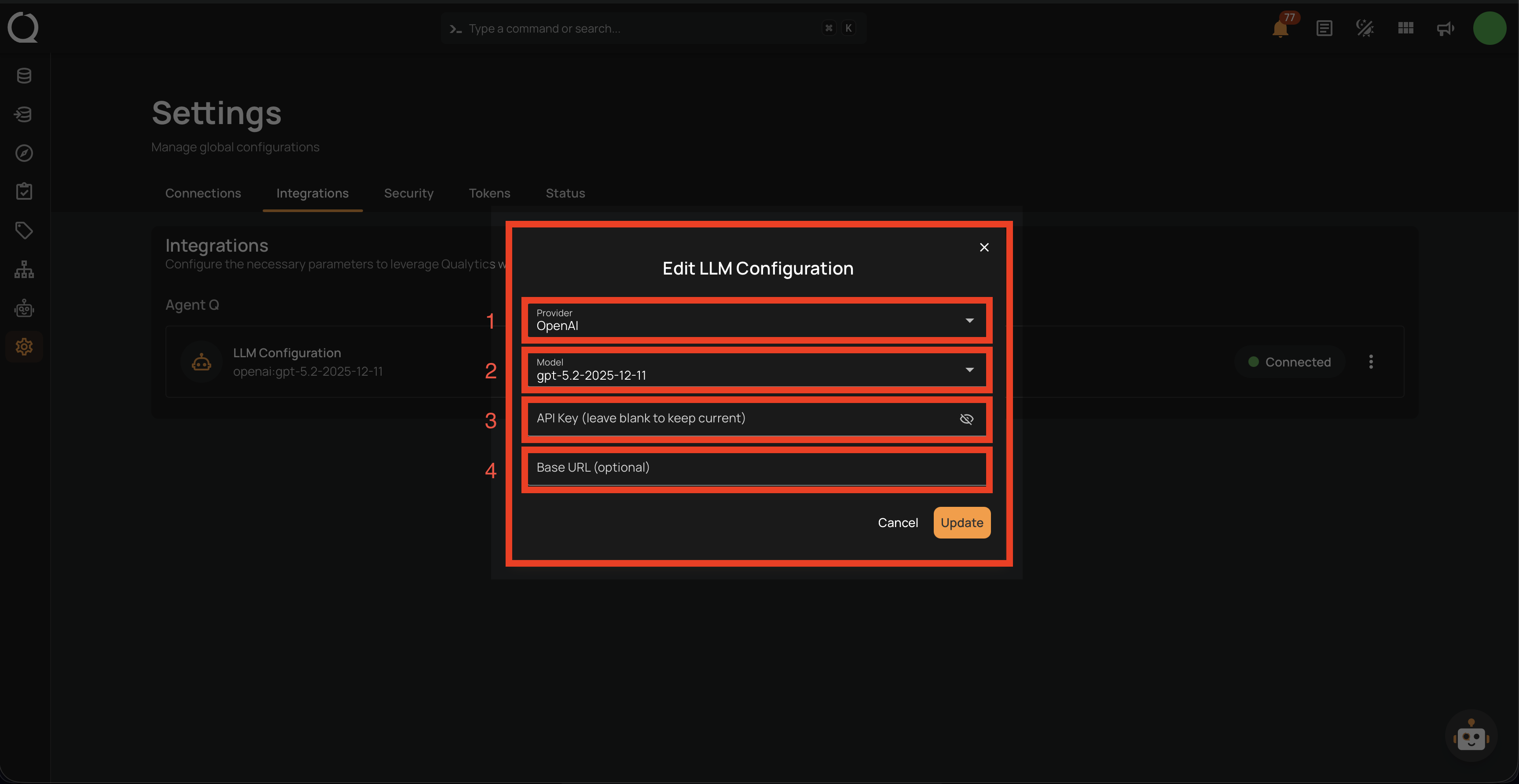
Step 5: Make your changes and click Update to apply them.
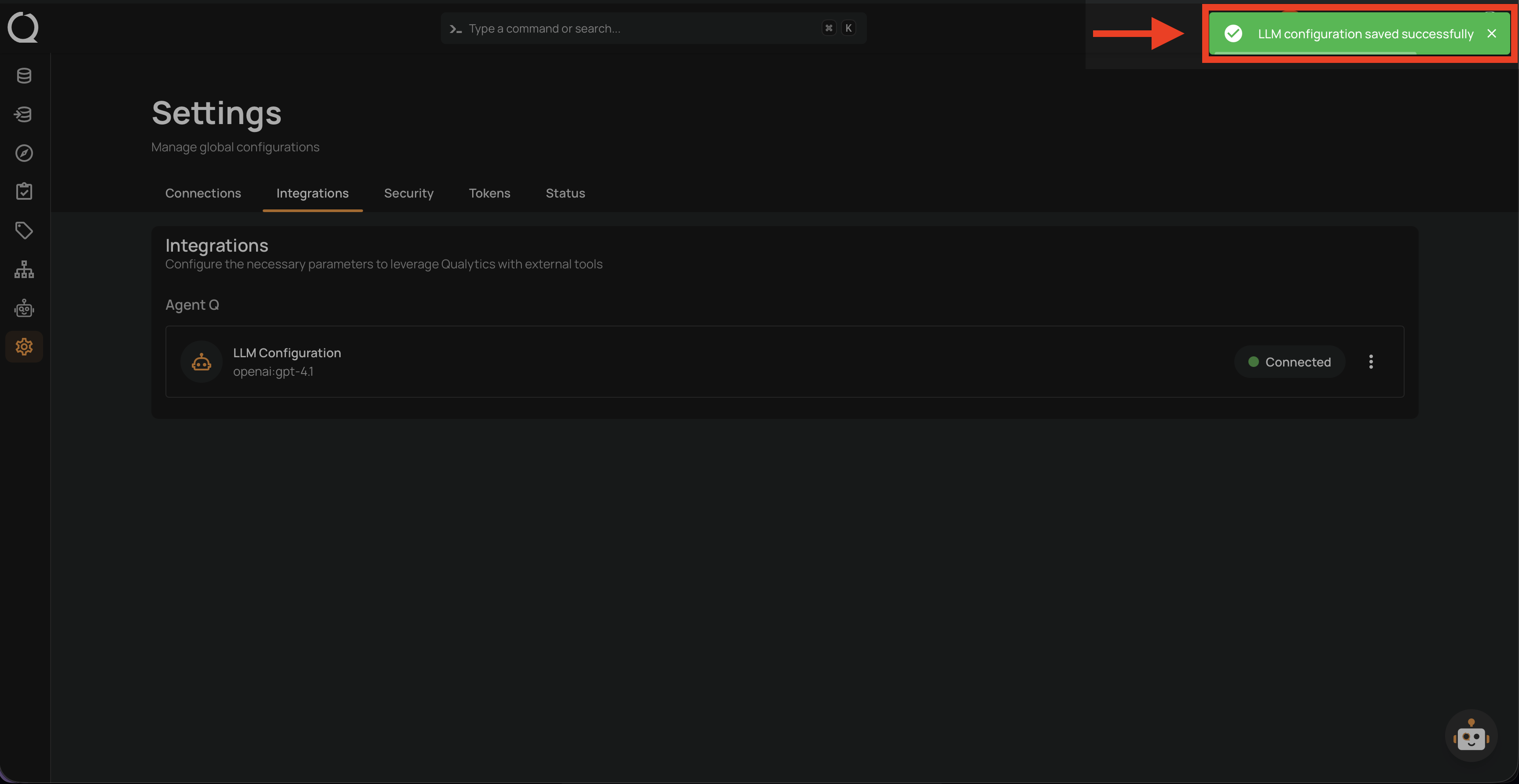
Step 6: A success message appears and the LLM Configuration row updates to reflect the new provider and model.
Info
Qualytics re-validates your API key on every save. If the new key is invalid or the provider is unreachable, the update will not be applied and you will see an error.