Add AgentQ Integration
AgentQ requires an LLM (Large Language Model) provider to power its AI capabilities. This guide walks you through the full setup from the moment you log in to Qualytics.
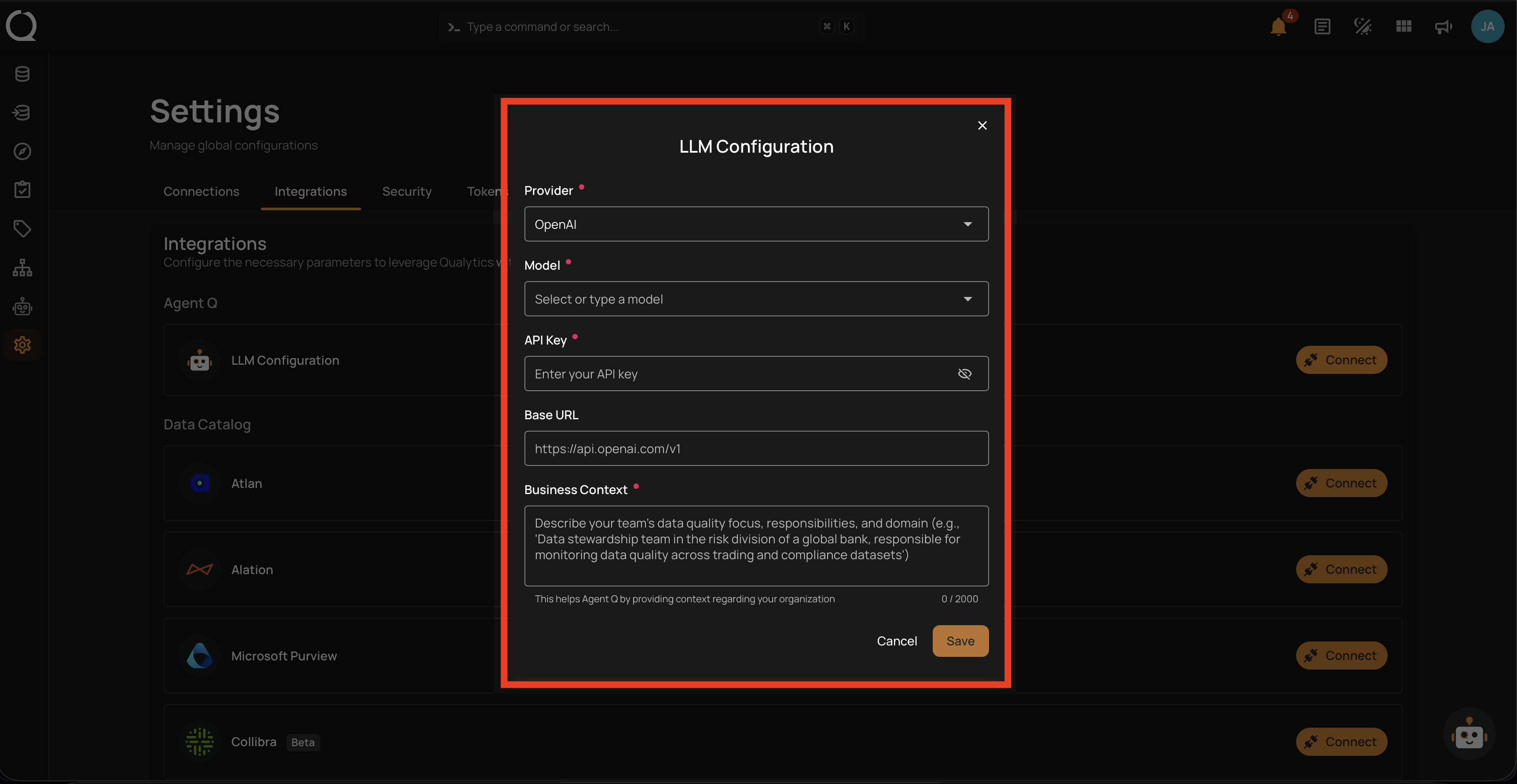
LLM Configuration Fields
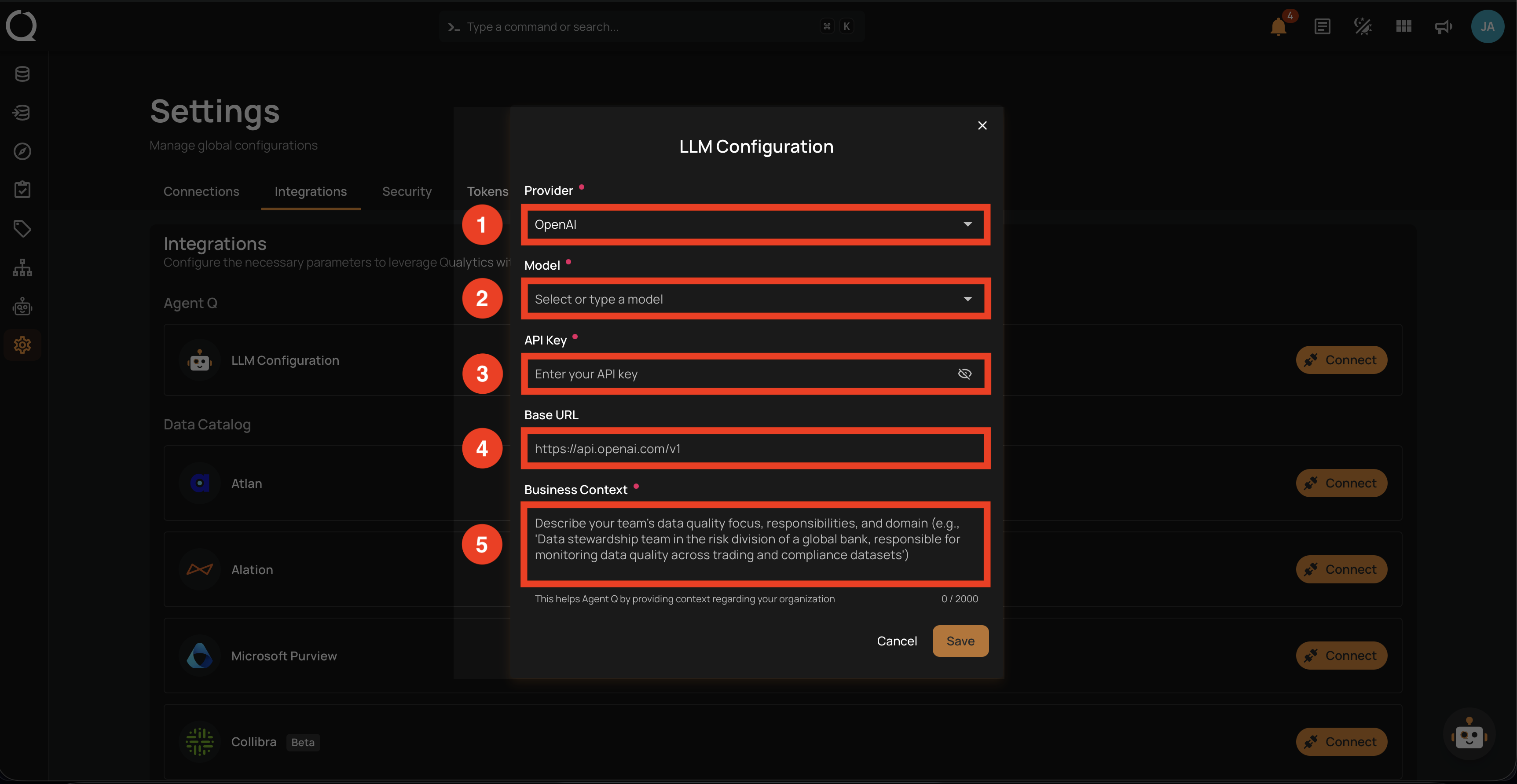
The setup below opens the LLM Configuration modal. Use this reference to understand what each field expects before going through the steps:
| # | Field | Description |
|---|---|---|
| 1 | Provider (required) | Select your LLM provider from the list (e.g., OpenAI, Anthropic, Google Gemini). |
| 2 | Model (required) | Choose a model available under the selected provider. You can also type a custom model name if your provider supports it. |
| 3 | API Key (required) | Enter the API key from your LLM provider. This is stored securely and never returned by the API. |
| 4 | Base URL (optional) | Provide a custom endpoint URL for OpenAI-compatible providers (e.g., Ollama, OpenRouter, LiteLLM). Leave blank for standard providers. |
| 5 | Business Context (required) | Describe your organization's data quality focus, responsibilities, and domain. This text is injected into AgentQ's system prompt so its suggestions and answers reflect your organization. Up to 2000 characters. |
Prerequisites
- A Qualytics account with Manager role or higher to configure the LLM integration.
- An API key from a supported LLM provider.
Setup
The LLM Configuration modal can be opened from two places. Both paths lead to the same form — pick the one that matches where you are in the app.
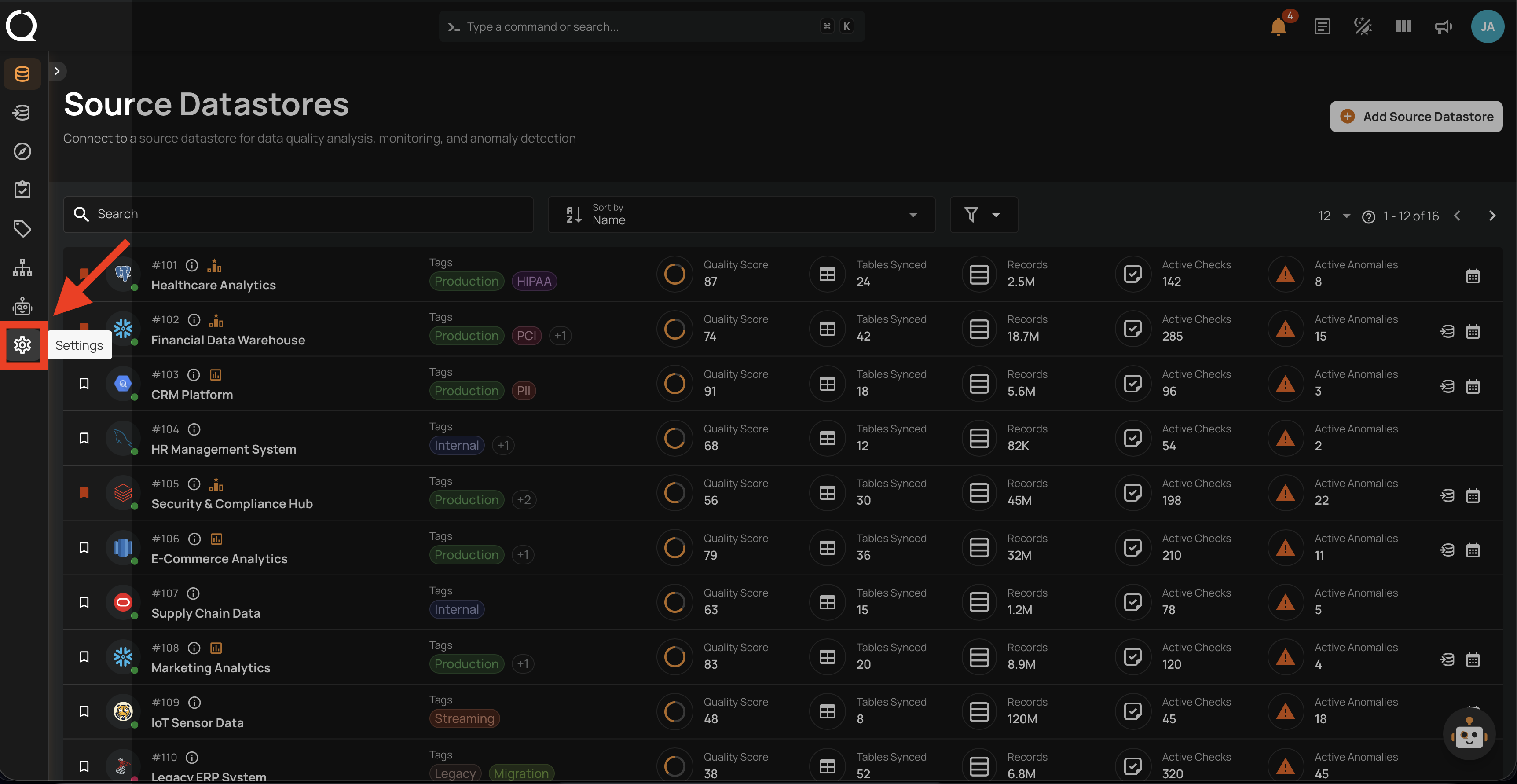
Step 1: Click the Settings icon in the bottom-left sidebar.
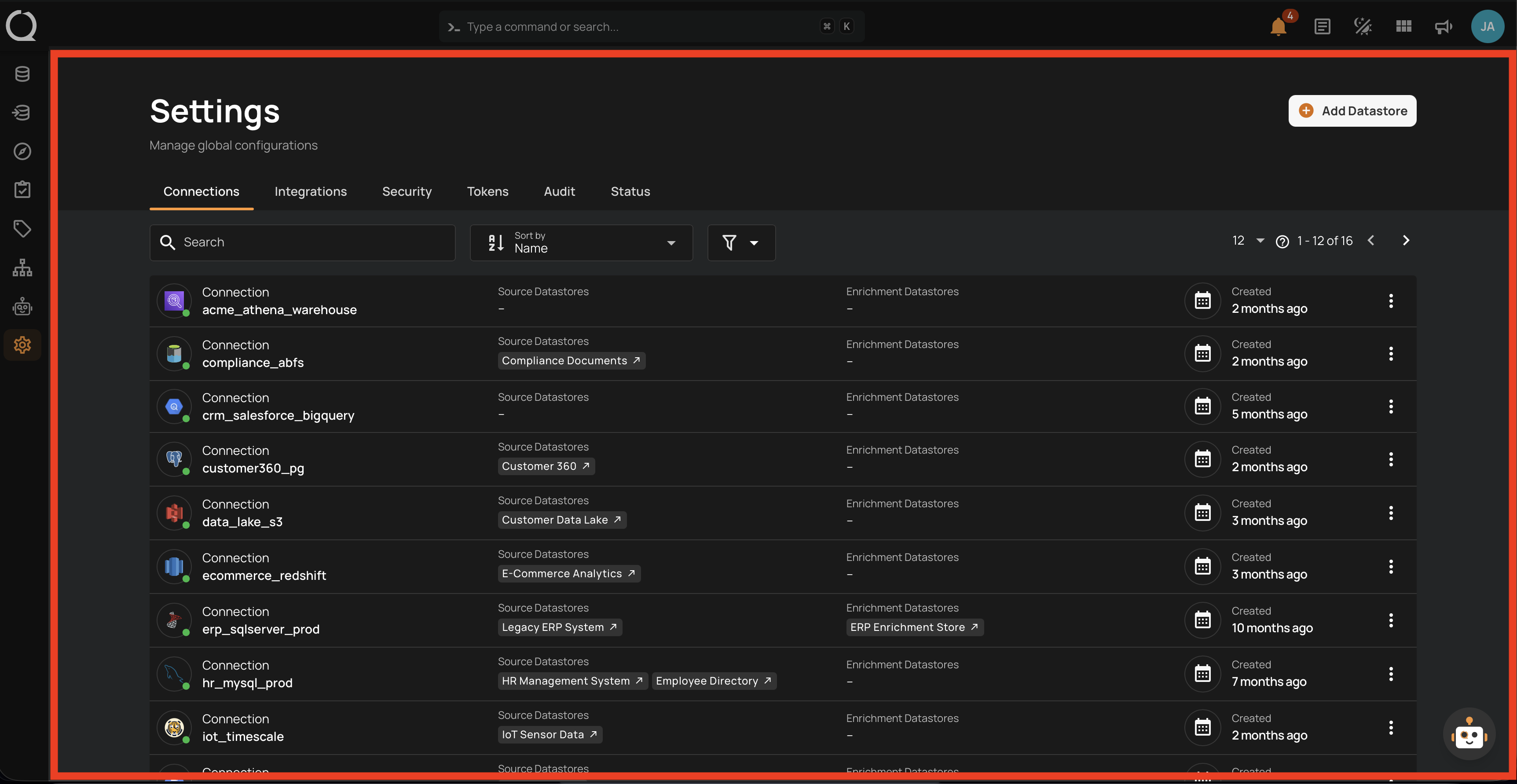
Step 2: The Settings page opens on the Connections tab.
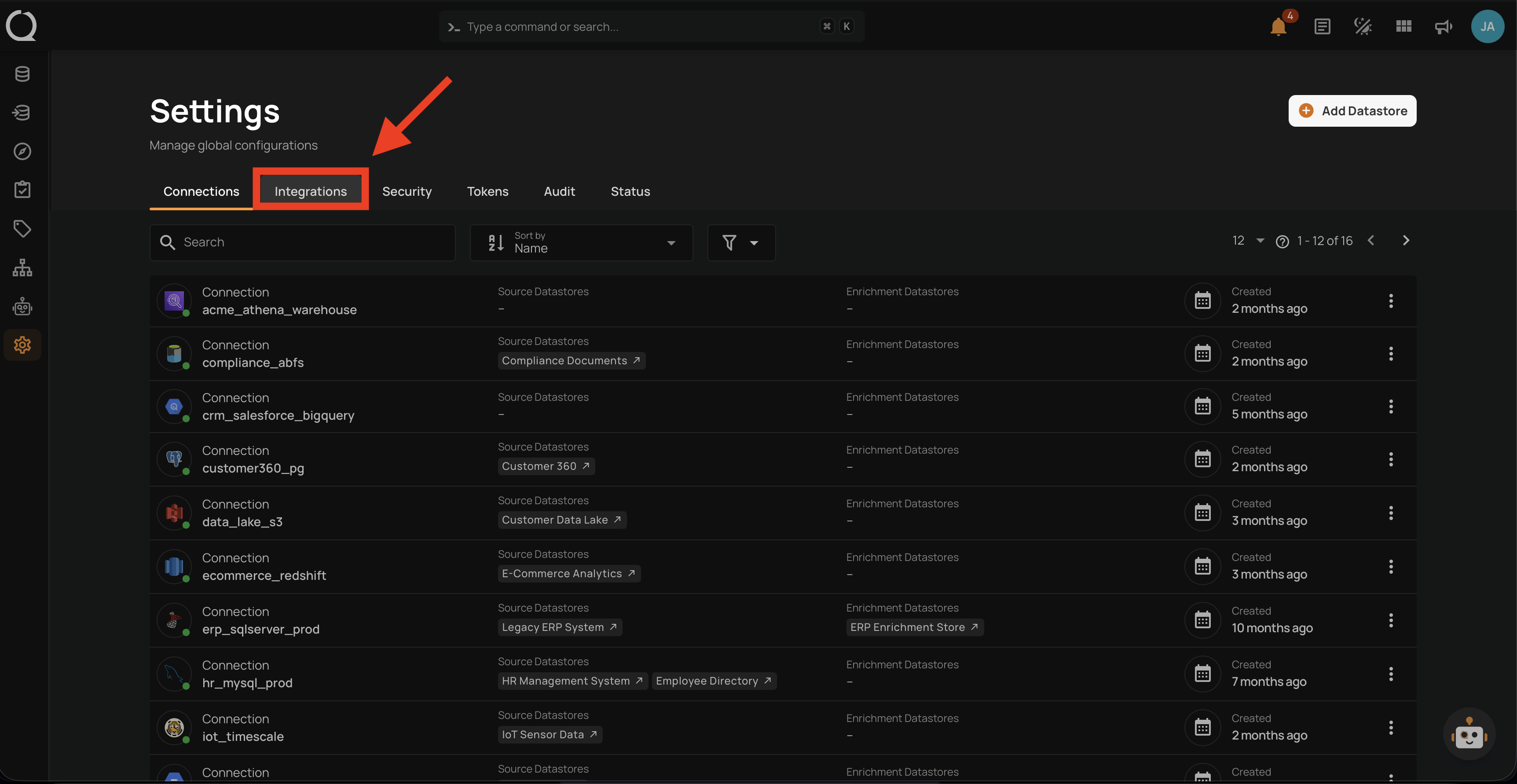
Step 3: Click the Integrations tab.
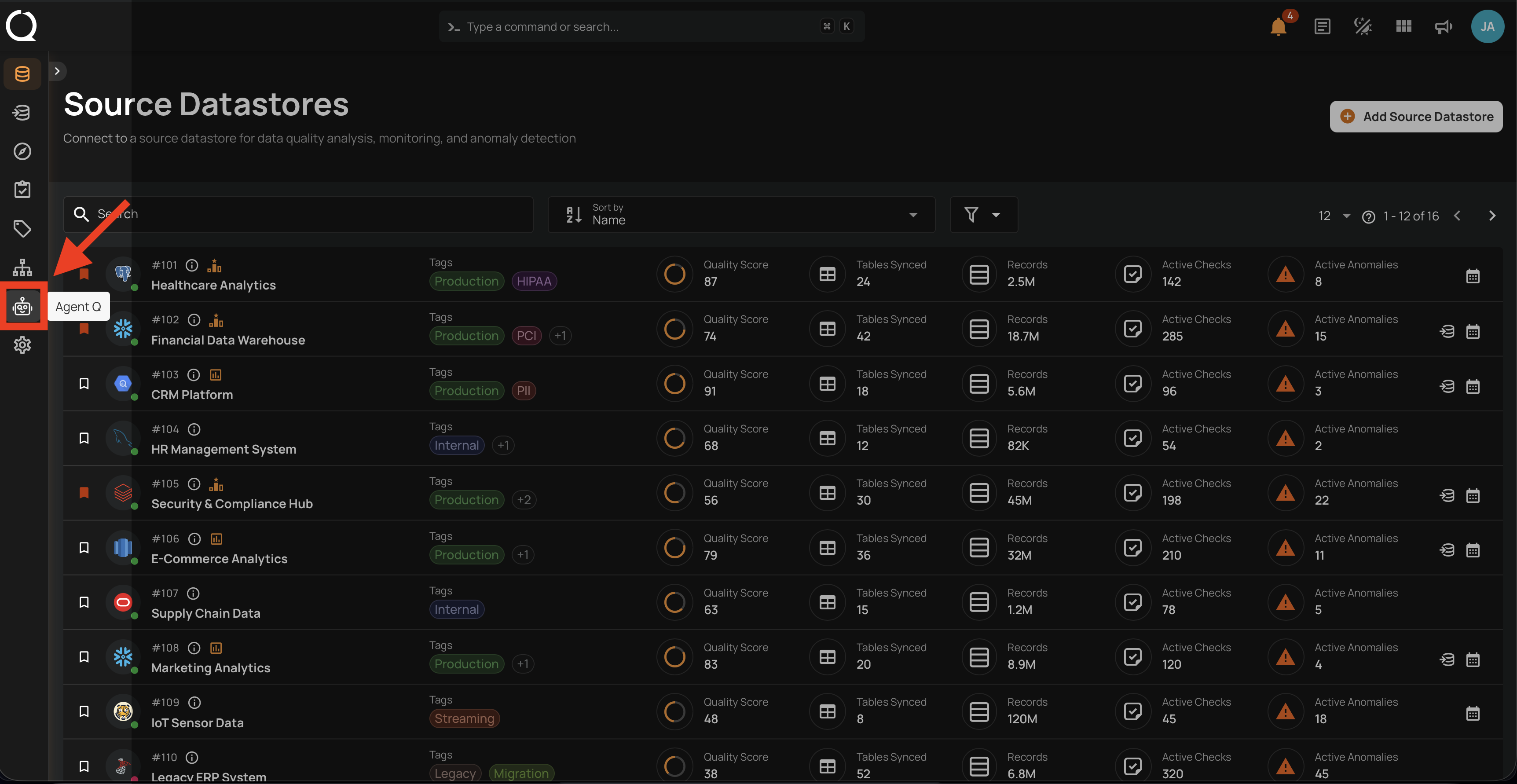
Step 1: Click AgentQ in the left sidebar to open the AgentQ page.
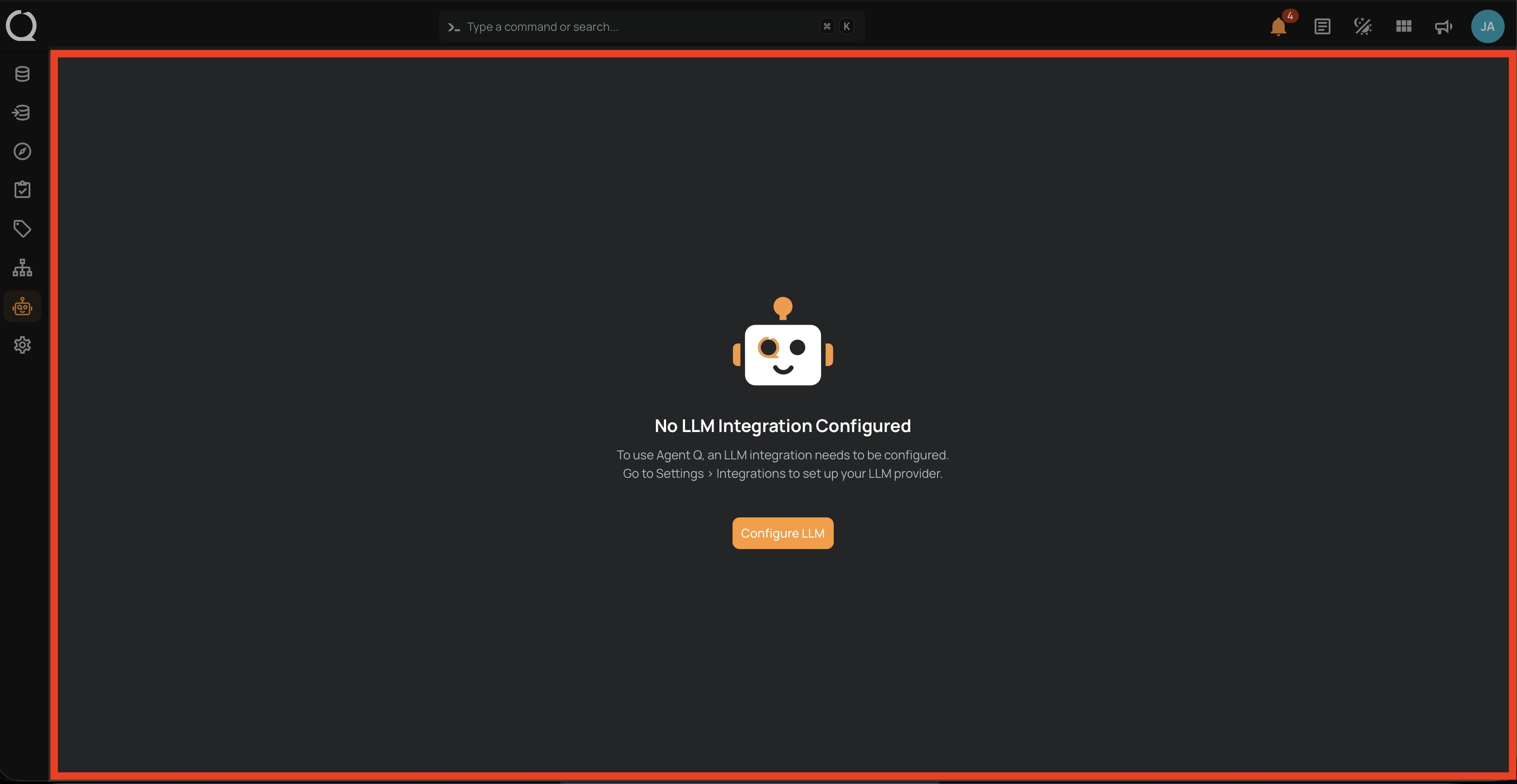
Step 2: The No LLM Integration Configured page appears.
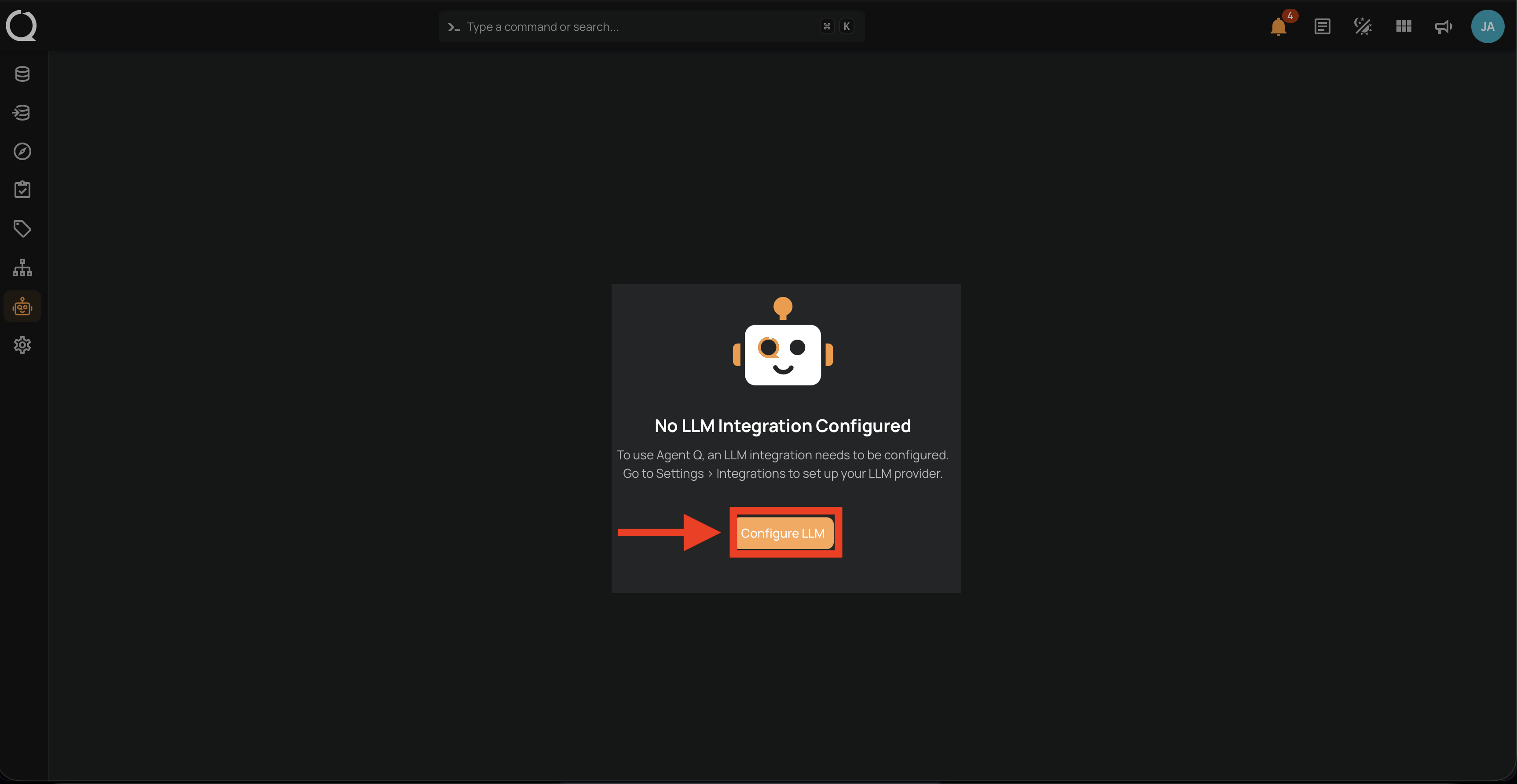
Step 3: Click Configure LLM. You are redirected to Settings > Integrations.
Configure the LLM Provider
Once you are on the Integrations tab, continue from this step regardless of which path you took above.
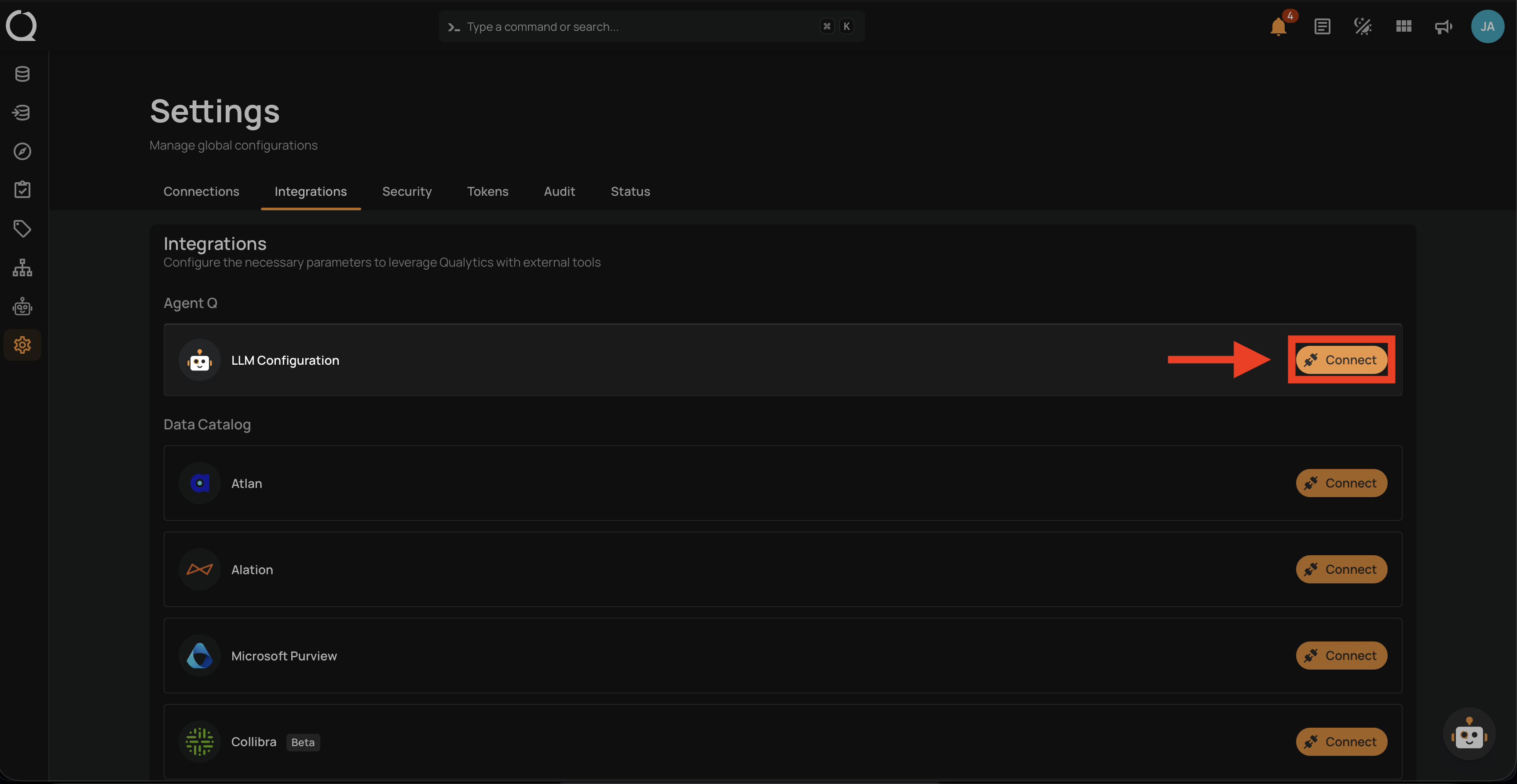
Step 4: The Integrations page lists every integration available in Qualytics, grouped by category. The AgentQ section is at the top with the LLM Configuration entry.
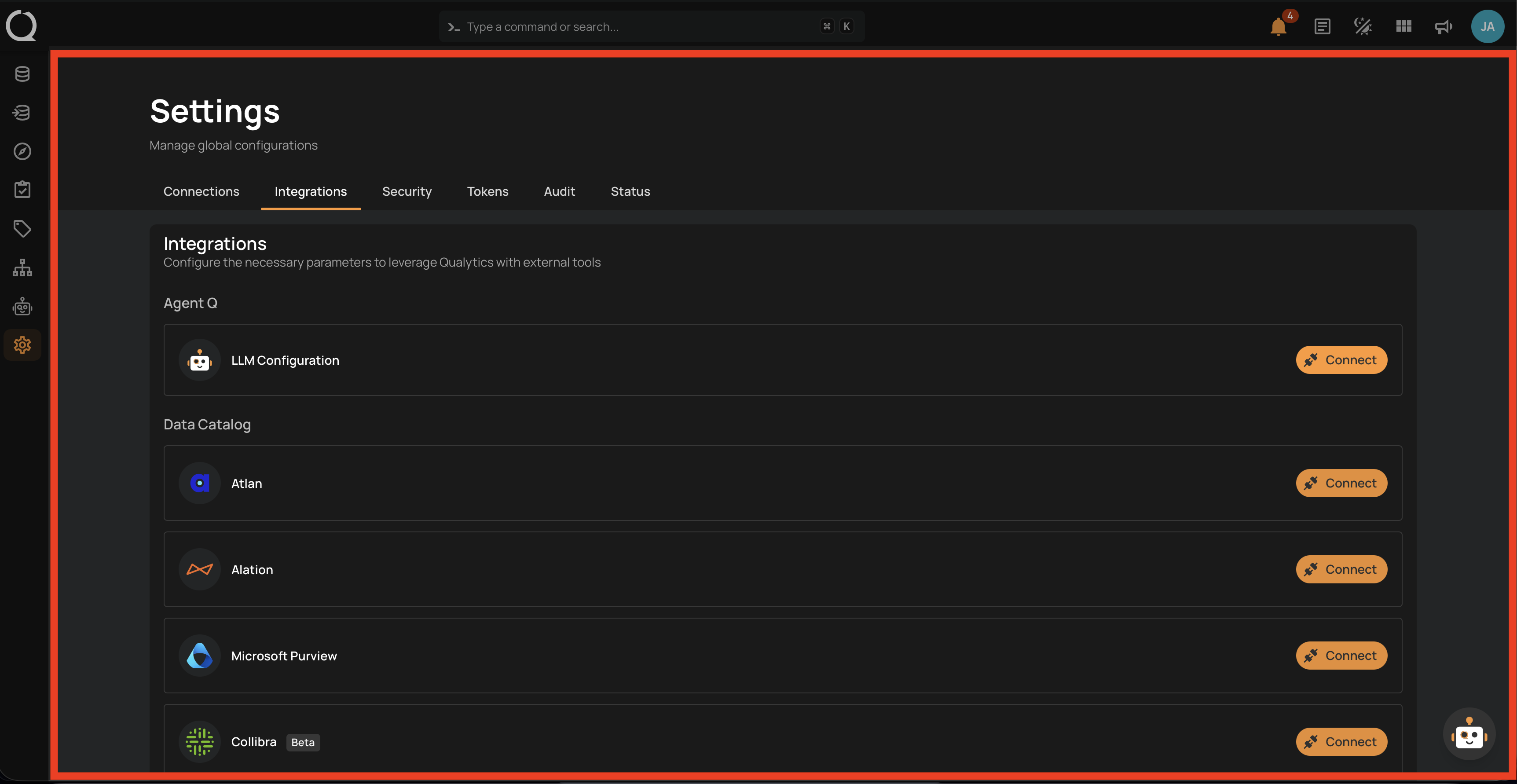
Step 5: Click Connect next to LLM Configuration.
Step 6: The LLM Configuration modal opens. Fill in the fields described in LLM Configuration Fields above.
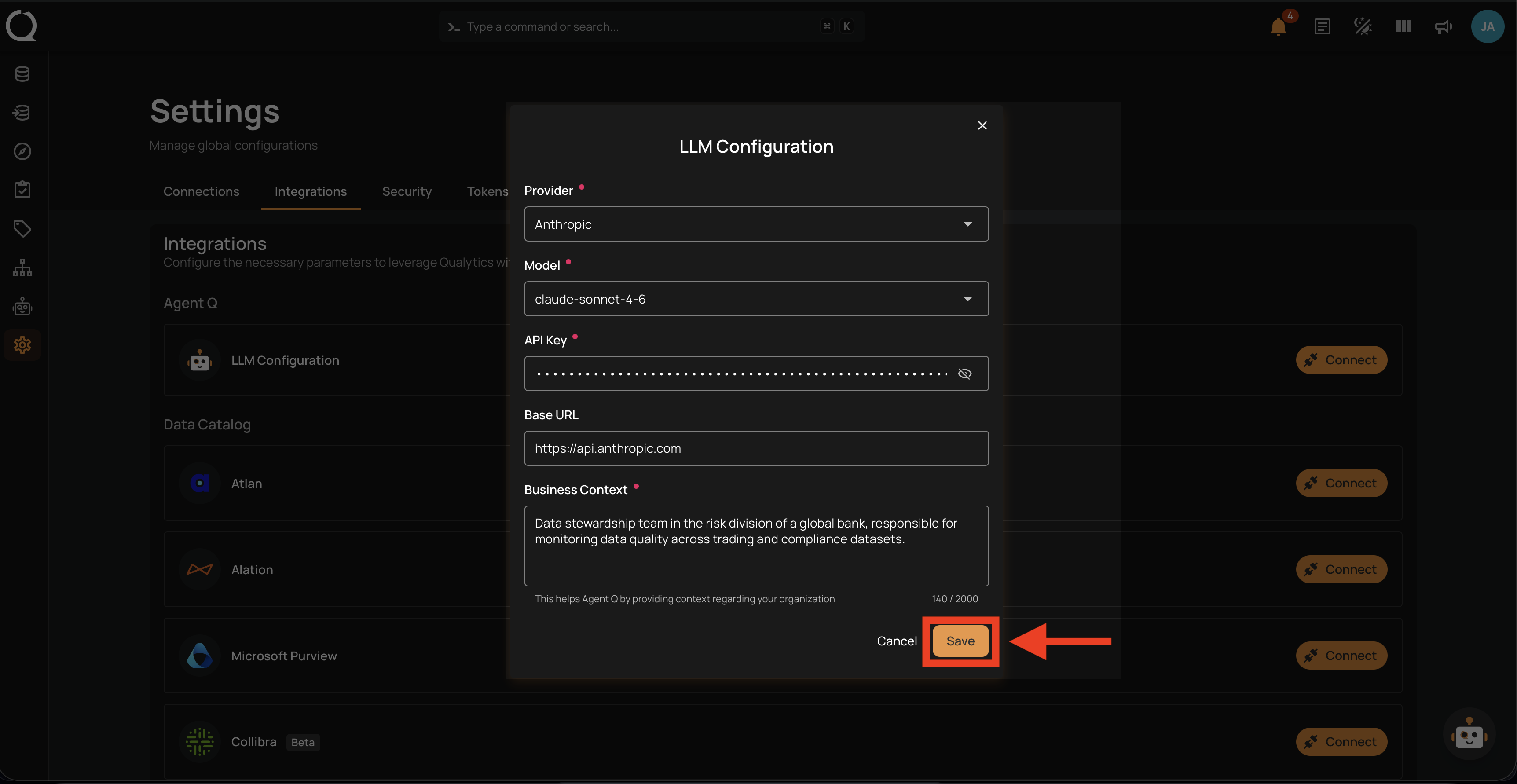
Step 7: Click Save to complete the configuration.
Info
When you save, Qualytics automatically validates your API key and tests the connection to the provider. If the key is invalid or the provider is unreachable, you will see an error before the configuration is stored. Qualytics also checks whether your provider supports web search — if it does, AgentQ can optionally search the Qualytics documentation to answer platform-related questions.
Step 8: A confirmation message appears and the LLM Configuration entry now shows a Connected badge with the active provider and model.
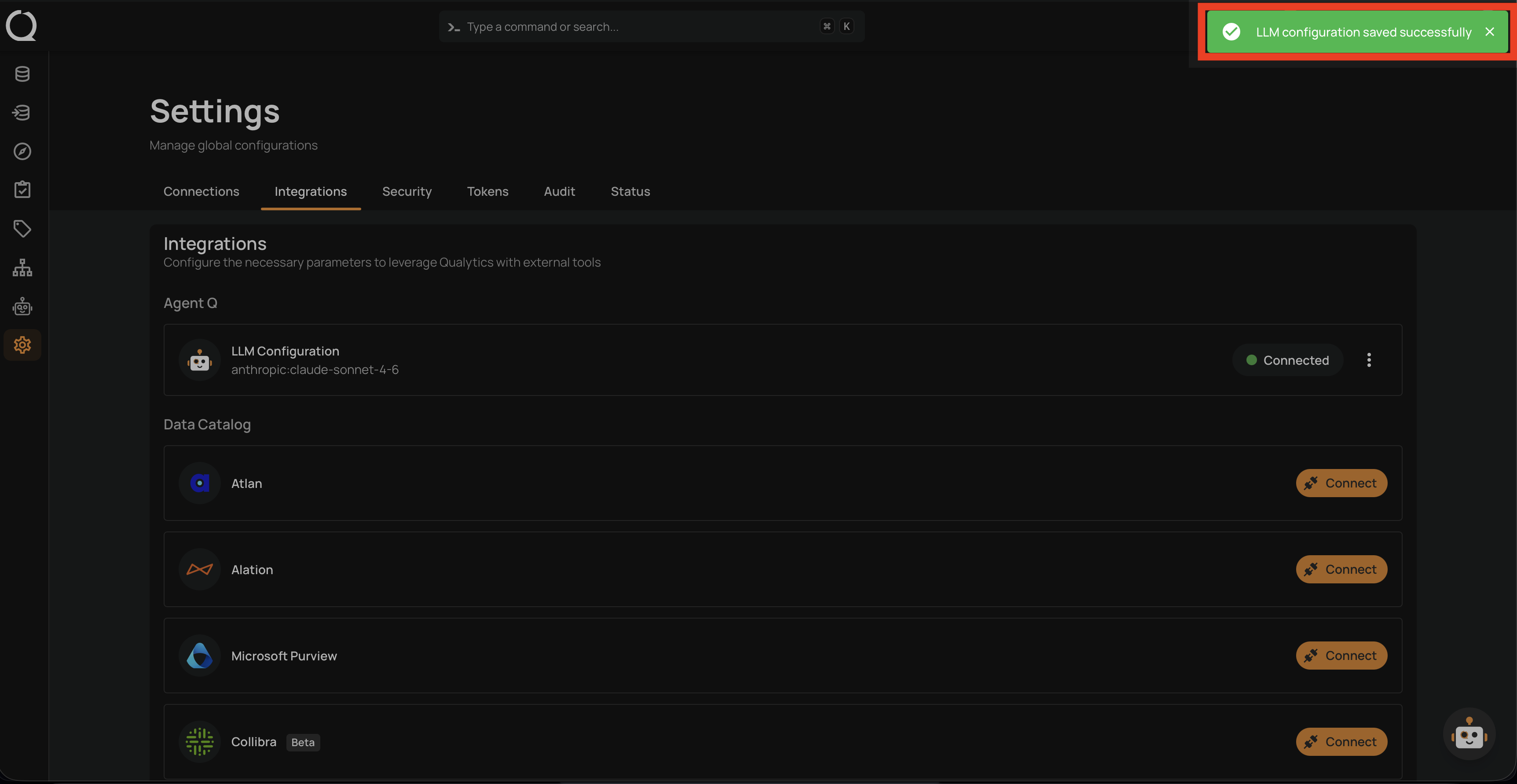
Once saved, AgentQ is ready to use. See AgentQ Overview for next steps.
How It Works
The LLM configuration is a single, deployment-wide setting — not per-user. A Manager (or Admin) configures the LLM provider and API key once, and AgentQ becomes available to all users with Member role or higher. There is only one active LLM configuration at a time, shared across the entire deployment.
The Business Context you provide is combined with each user's recent chat session summary and injected into AgentQ's system prompt. This personalizes responses and suggestions to your organization's domain without requiring each user to repeat the same context every conversation.
Supported LLM Providers
| Provider | Example Models |
|---|---|
| OpenAI | gpt-4o, gpt-4-turbo, o1, o3-mini |
| Anthropic | claude-sonnet-4, claude-opus-4, claude-3-5-sonnet |
| Google Gemini | gemini-2.0-flash, gemini-1.5-pro, gemini-1.5-flash |
| Google Vertex AI | gemini-2.0-flash, gemini-1.5-pro (via Google Cloud Vertex AI) |
| Amazon Bedrock | Region-specific model IDs |
| Azure OpenAI | OpenAI models via Azure deployments |
| Groq | llama-3.3-70b, llama-3.1-8b, mixtral-8x7b |
| Mistral | mistral-large, mistral-medium, codestral |
| Cohere | command-r-plus, command-r |
| DeepSeek | deepseek-chat, deepseek-coder |
| xAI | grok-2, grok-beta |
| Ollama | Any locally-hosted model (requires Base URL) |
| OpenRouter | Any model via OpenRouter (requires Base URL) |
| LiteLLM | Any model via LiteLLM proxy (requires Base URL) |
| Perplexity | sonar-pro, sonar |
| Heroku | Anthropic Claude models via Heroku Managed Inference |
| Fireworks | Any Fireworks-hosted model |
| GitHub Models | GitHub-hosted models |
| Hugging Face | Inference endpoint models |
| Together AI | Any Together AI model |
| Cerebras | llama-3.3-70b, llama-3.1-8b |
| Moonshot AI | moonshot-v1-32k, kimi-k2 |
Note
Qualytics does not supply LLM API keys. The Manager or Admin who configures the integration provides the API key and controls the provider choice and associated costs for the deployment.
File Uploads in Chat
When the active provider supports binary content, the chat input shows an Attach icon for sending PDFs, Word, Excel, CSV, JSON, XML, plain text, and Markdown files. The button is shown for Anthropic, Google Gemini, Amazon Bedrock (Claude models), OpenAI, Azure OpenAI, and Heroku. Other providers can still receive document content via the Paste Large Content flow. See Attach a File for limits and supported formats.
What's Next?
Want to connect external AI clients like ChatGPT, Claude Desktop, Cursor, or VS Code directly to the Qualytics MCP server? See Connecting External AI Clients for step-by-step setup guides.