Unassign a Datastore from a Group
This guide walks you through the steps to unassign a datastore from its current group. The datastore is not deleted — it simply moves to the Ungrouped section of the tree view.
Note
You need the Member user role and Editor team permission on the datastore to unassign it from a group. See the Permissions page for details.
Shared Button
Assigning and unassigning use the same Assign to group button and dropdown in the UI. To assign, you select a group; to unassign, you click the Close button on the currently selected group.
Steps
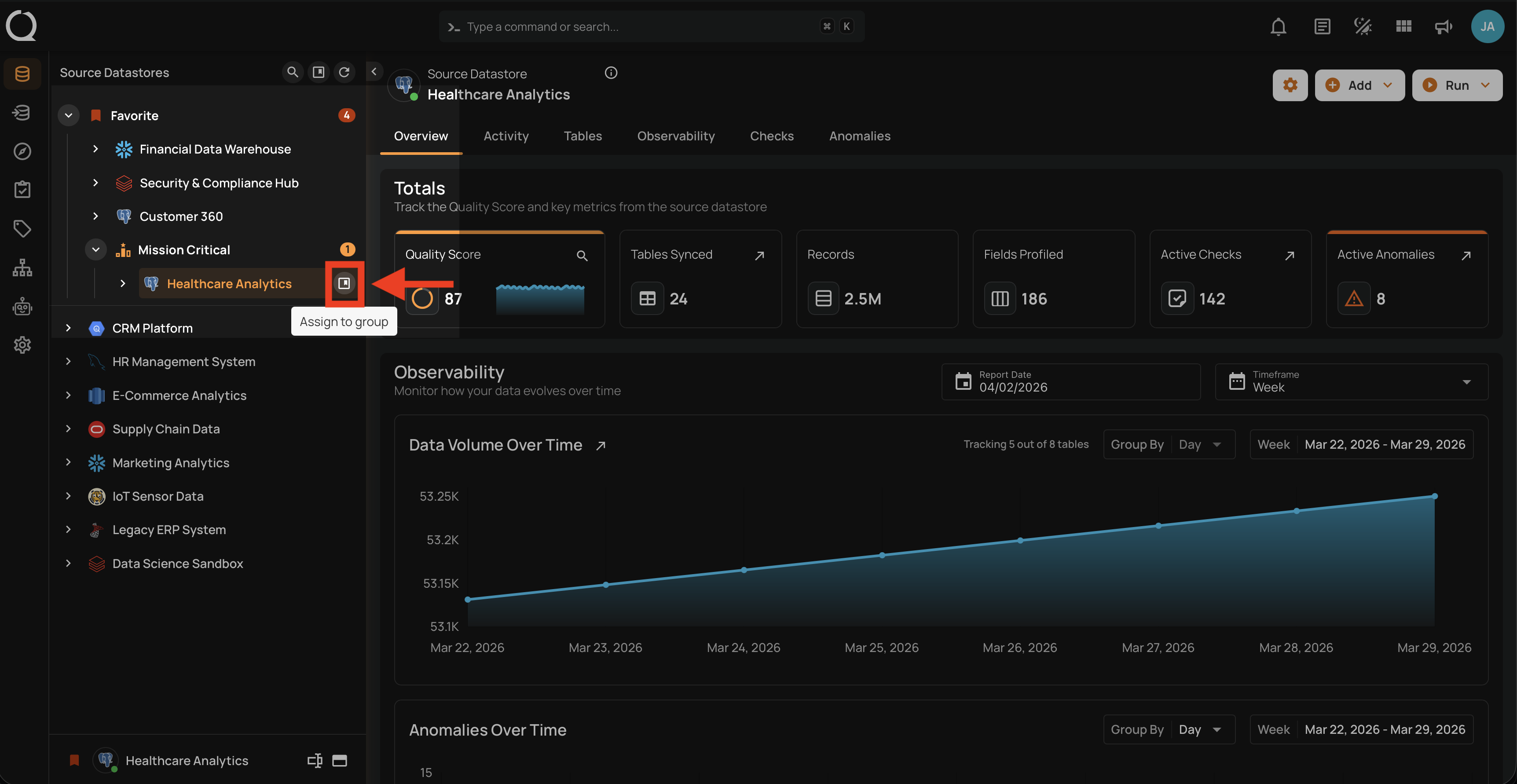
Step 1: In the tree view, hover over the datastore you want to unassign from its group. The Assign to group button will appear on the right side of the datastore row.
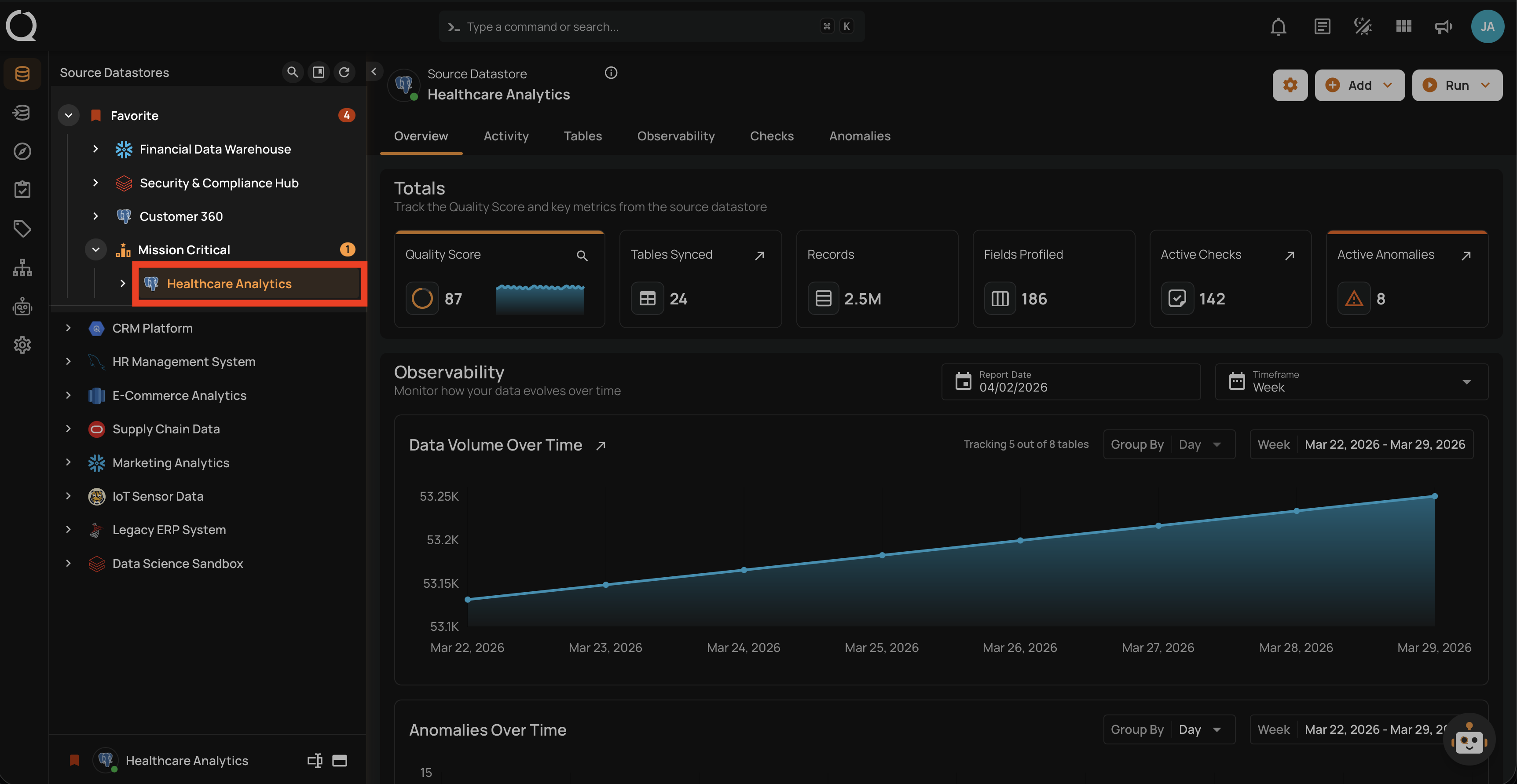
Step 2: Click the Assign to group button.
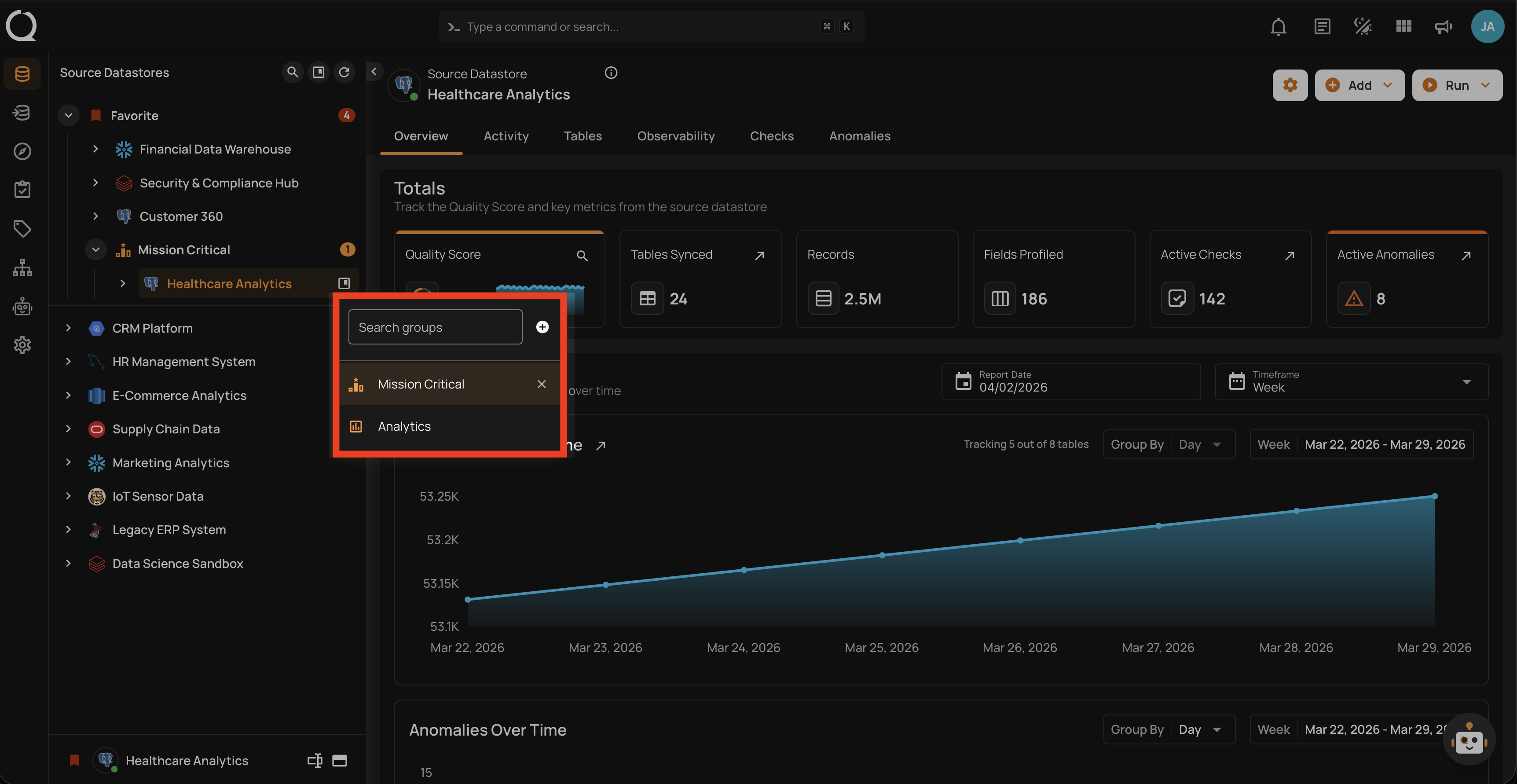
Step 3: A dropdown will appear showing the available groups. The currently assigned group is highlighted. Use the search field to find groups by name.
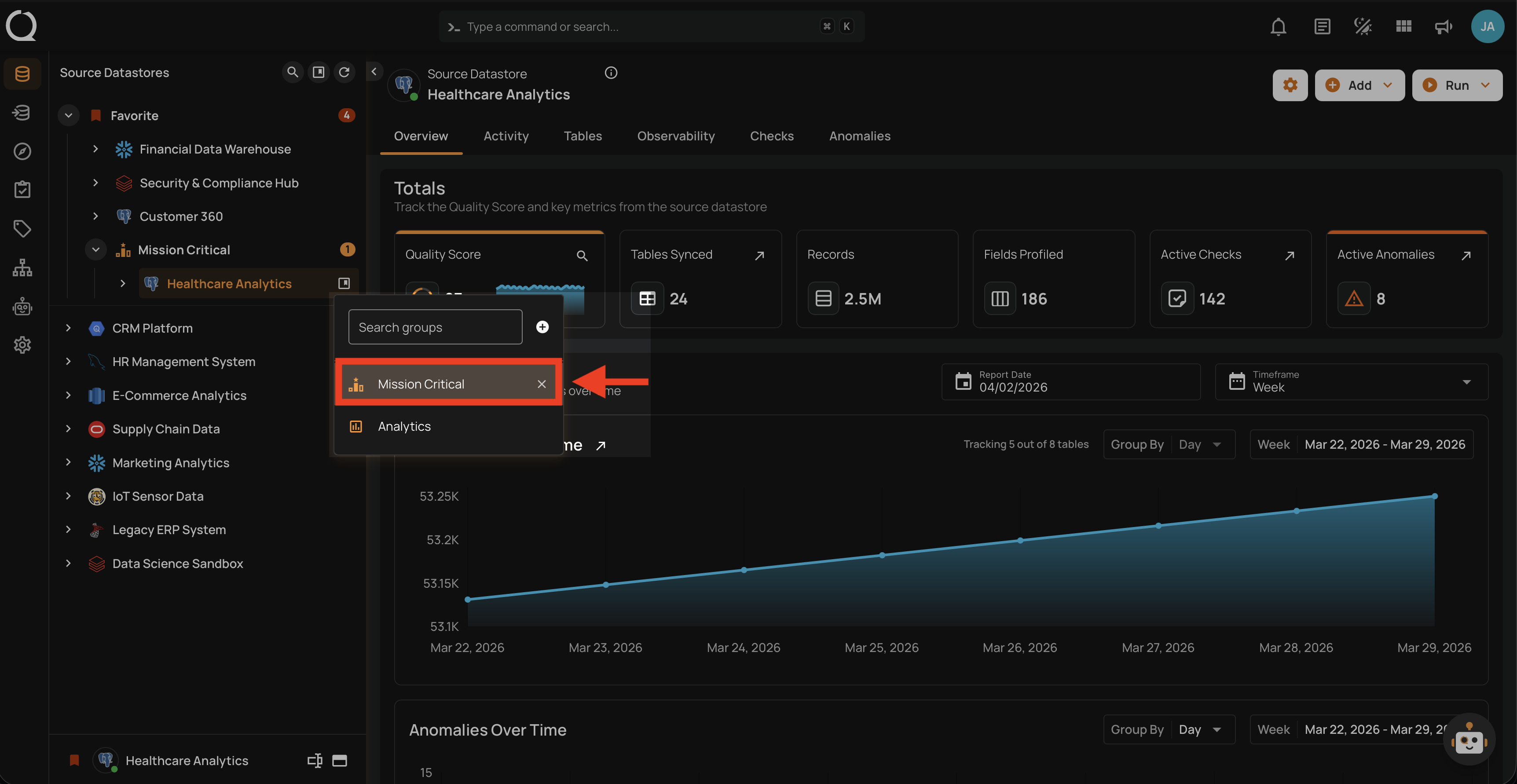
Step 4: Click the Close button on the right side of the currently assigned group to unassign the datastore from it. The removal is immediate — no confirmation is required.
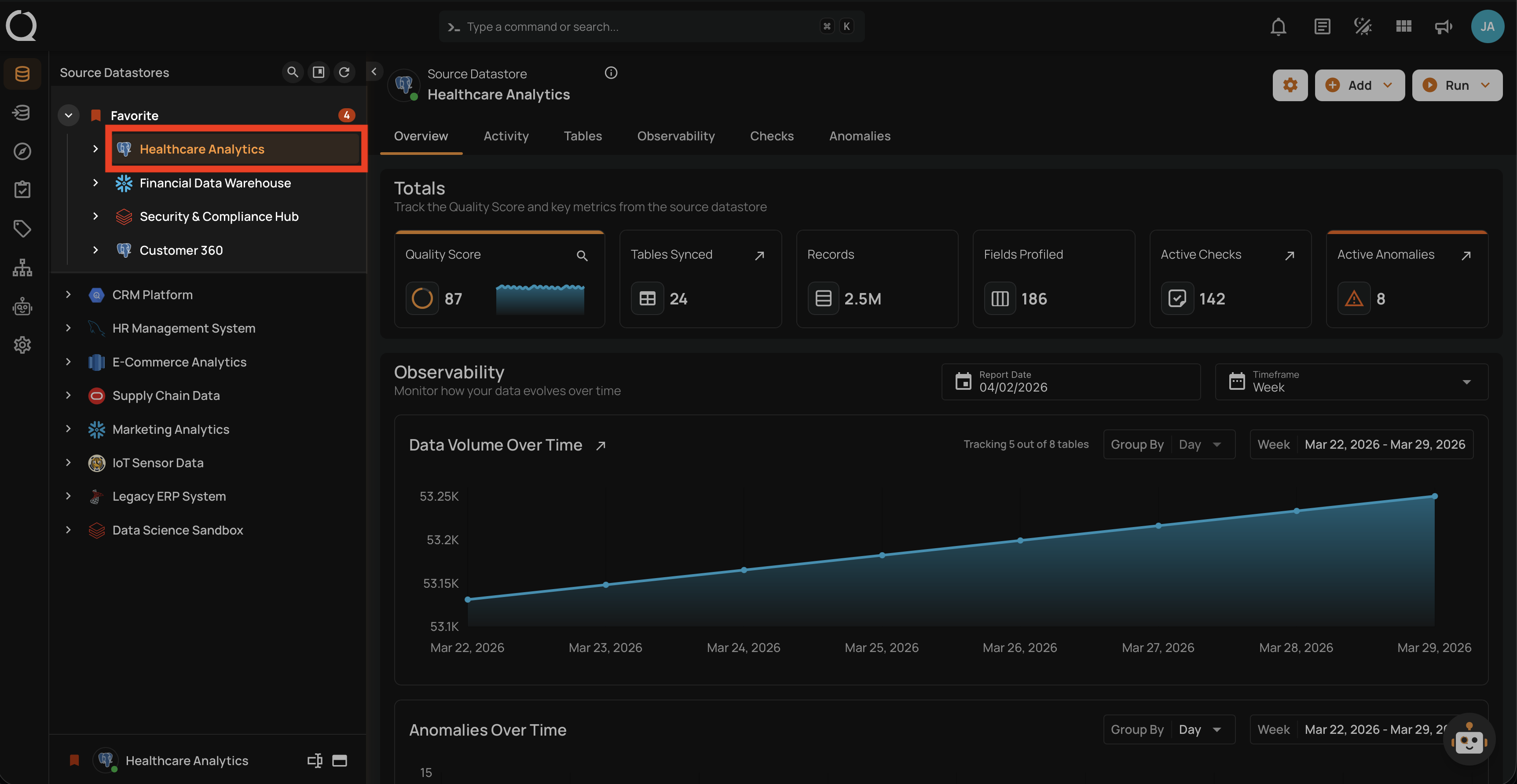
Step 5: The datastore moves to the Ungrouped section of the tree view (or to the Favorites section if it is favorited).
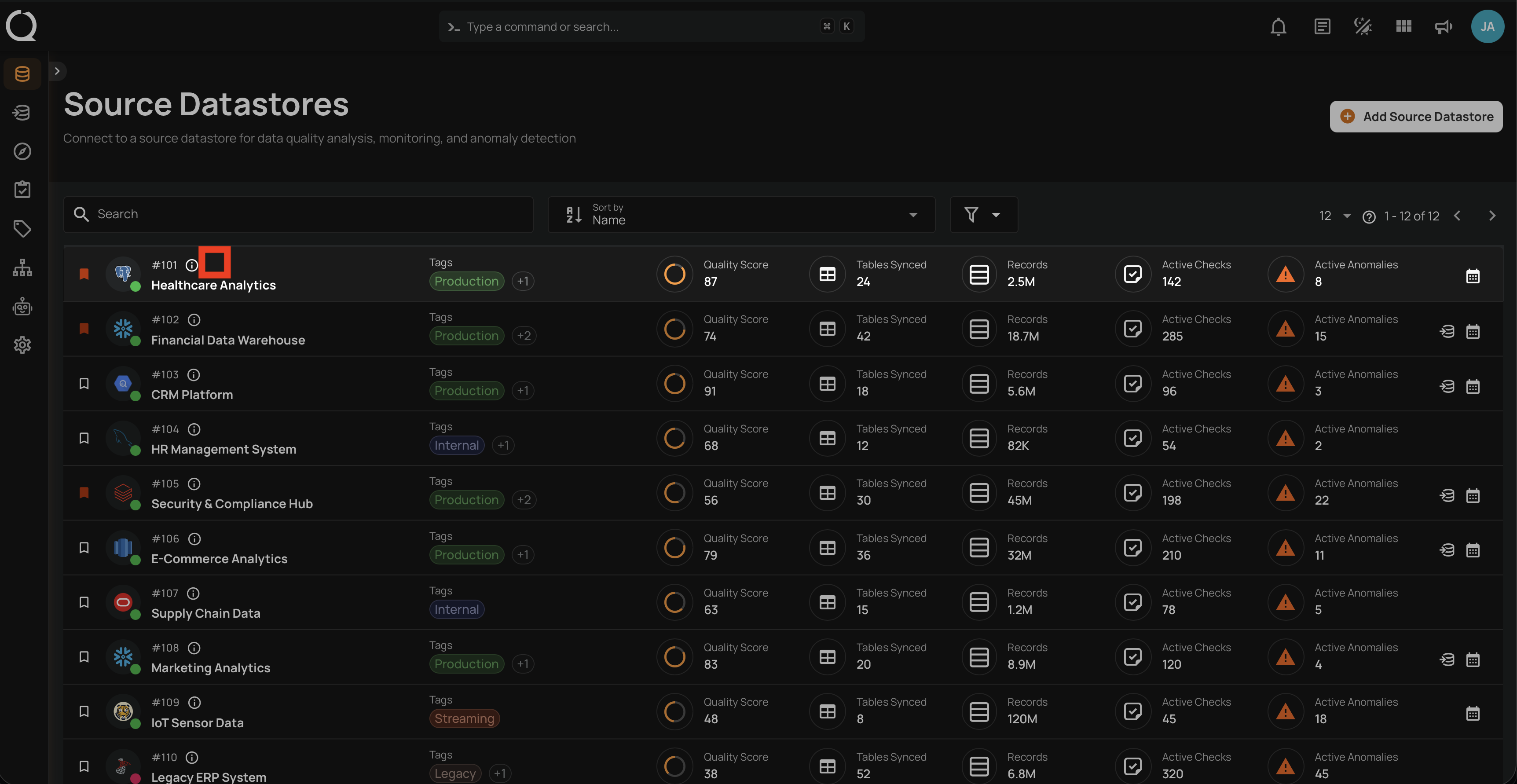
Step 6: The group icon is no longer displayed next to the datastore in the Source Datastores listing page.
Tip
To move a datastore to a different group instead of ungrouping it, simply select the new group from the dropdown — no need to unassign from the current group first.
Assign a Datastore to a Group
To assign a datastore to a group, see the Assign a Datastore to a Group documentation.