Assign a Datastore to a Group
This guide walks you through the steps to assign a datastore to an existing group.
Note
You need the Member user role and Editor team permission on the datastore to assign it to a group. See the Permissions page for details.
Steps
Step 1: In the tree view, hover over the datastore you want to assign. The Assign to group button will appear on the right side of the datastore row.
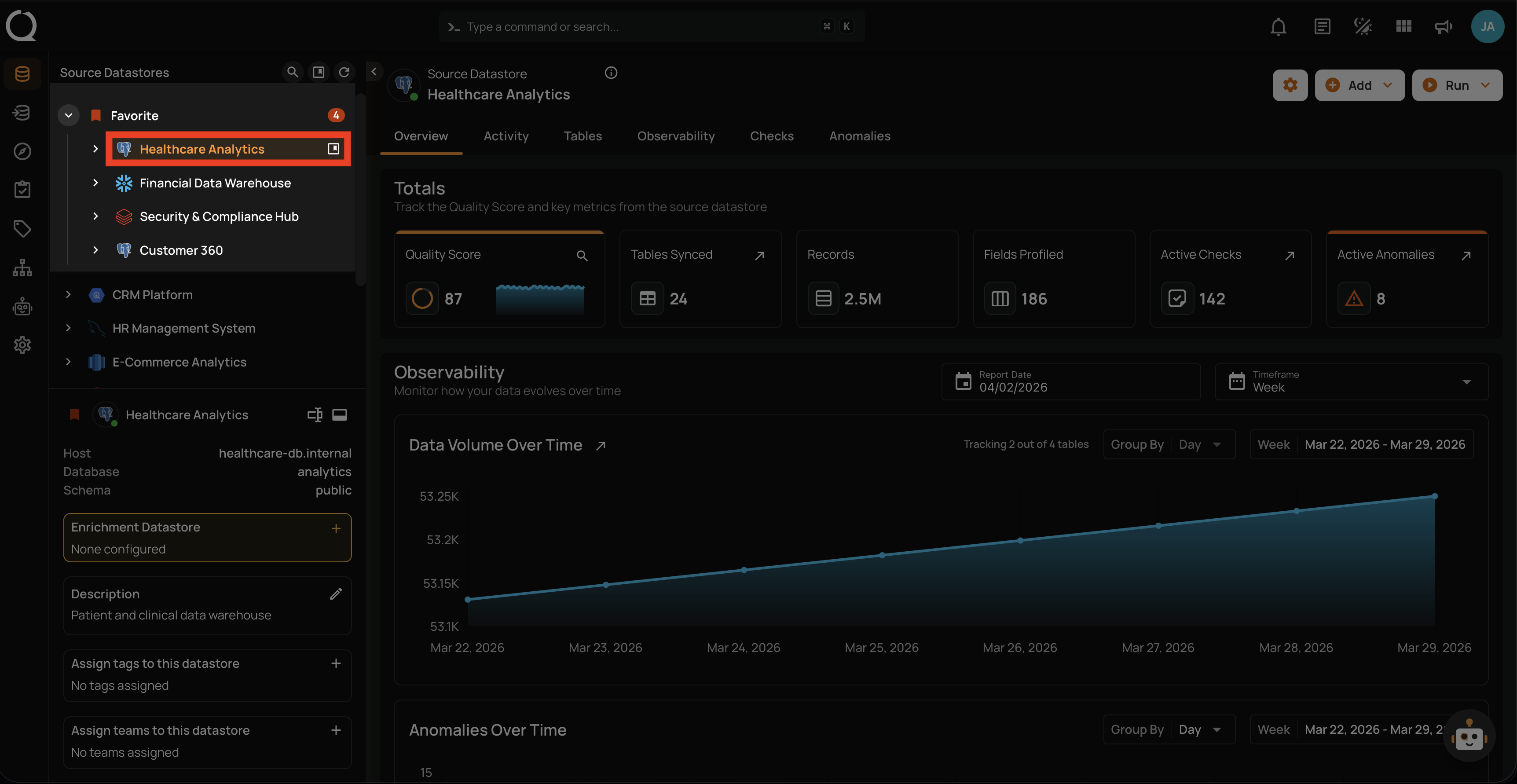
Step 2: Click the Assign to group button.
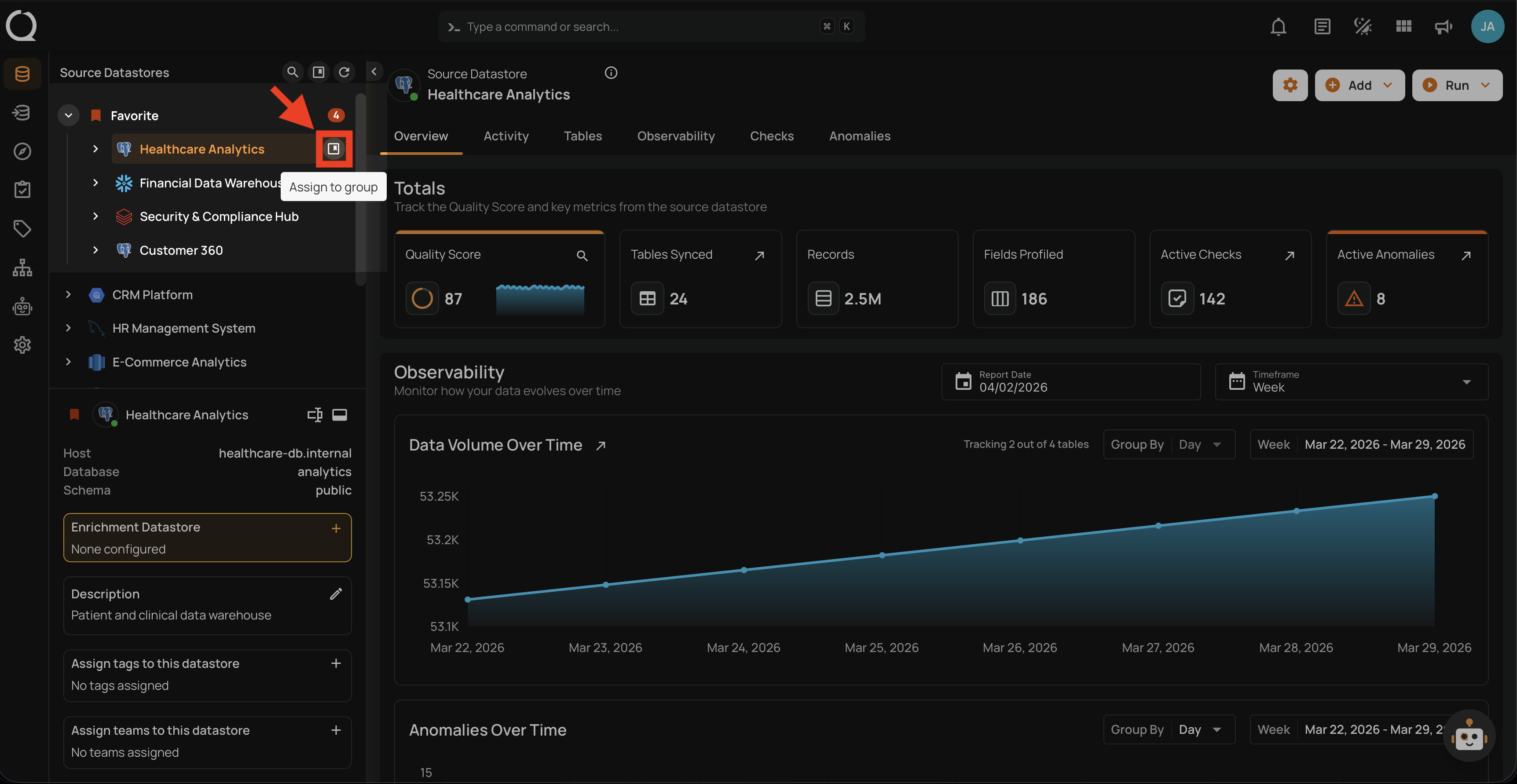
Step 3: A dropdown will appear with the list of available groups. Use the search field to find a group by name.
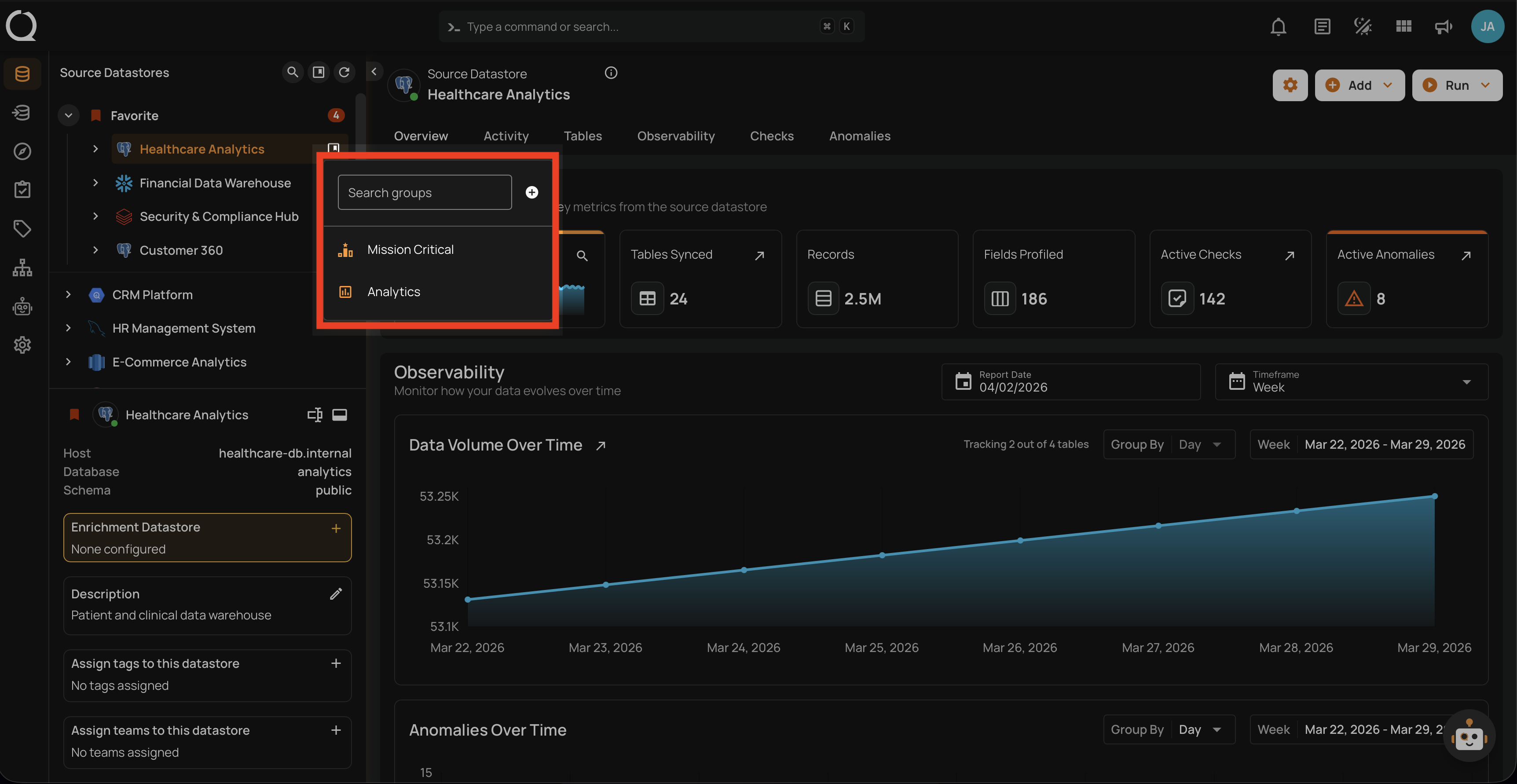
No Groups Available?
If the dropdown is empty, no groups have been created yet. Creating groups requires the Manager role — see the Permissions page for details.
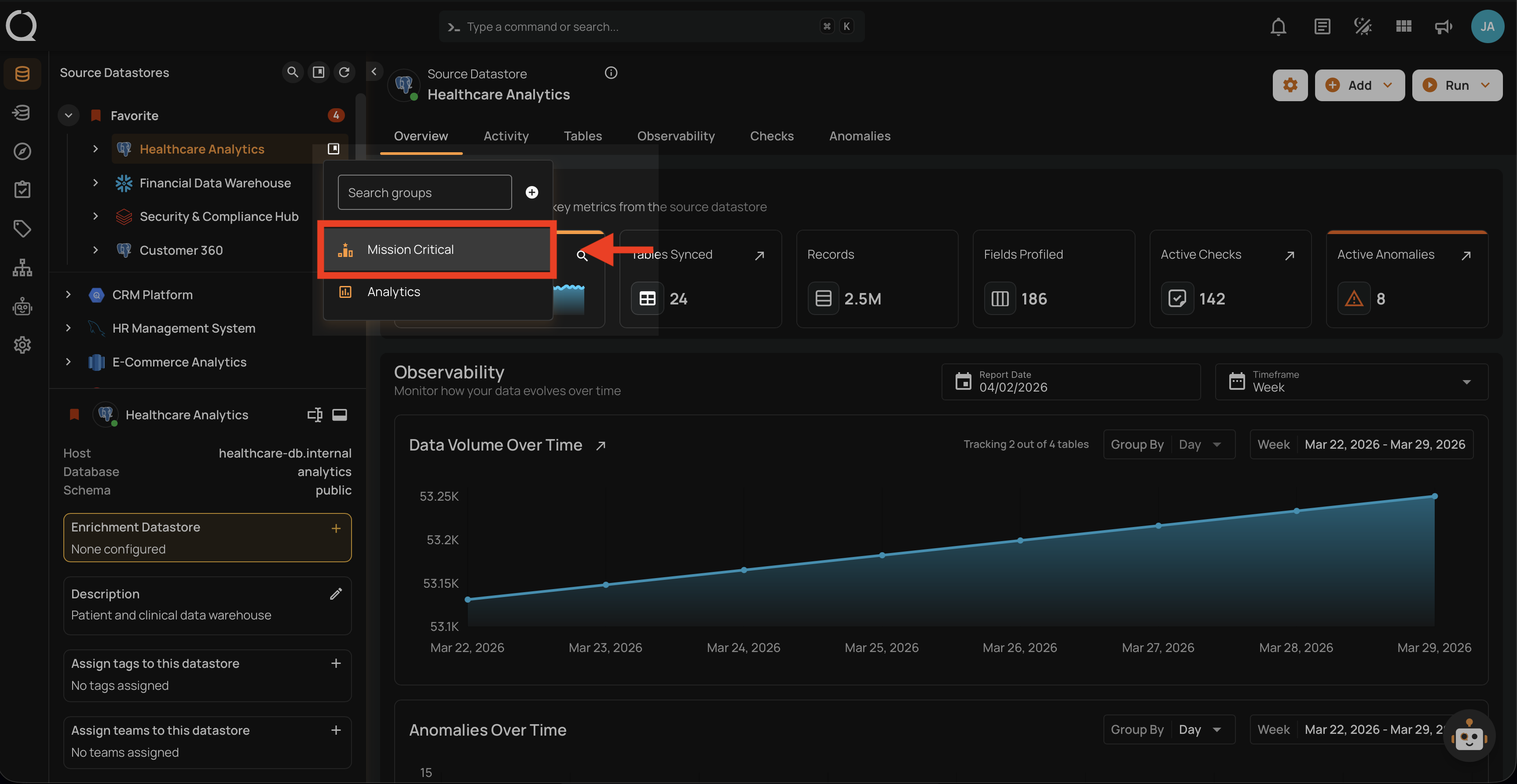
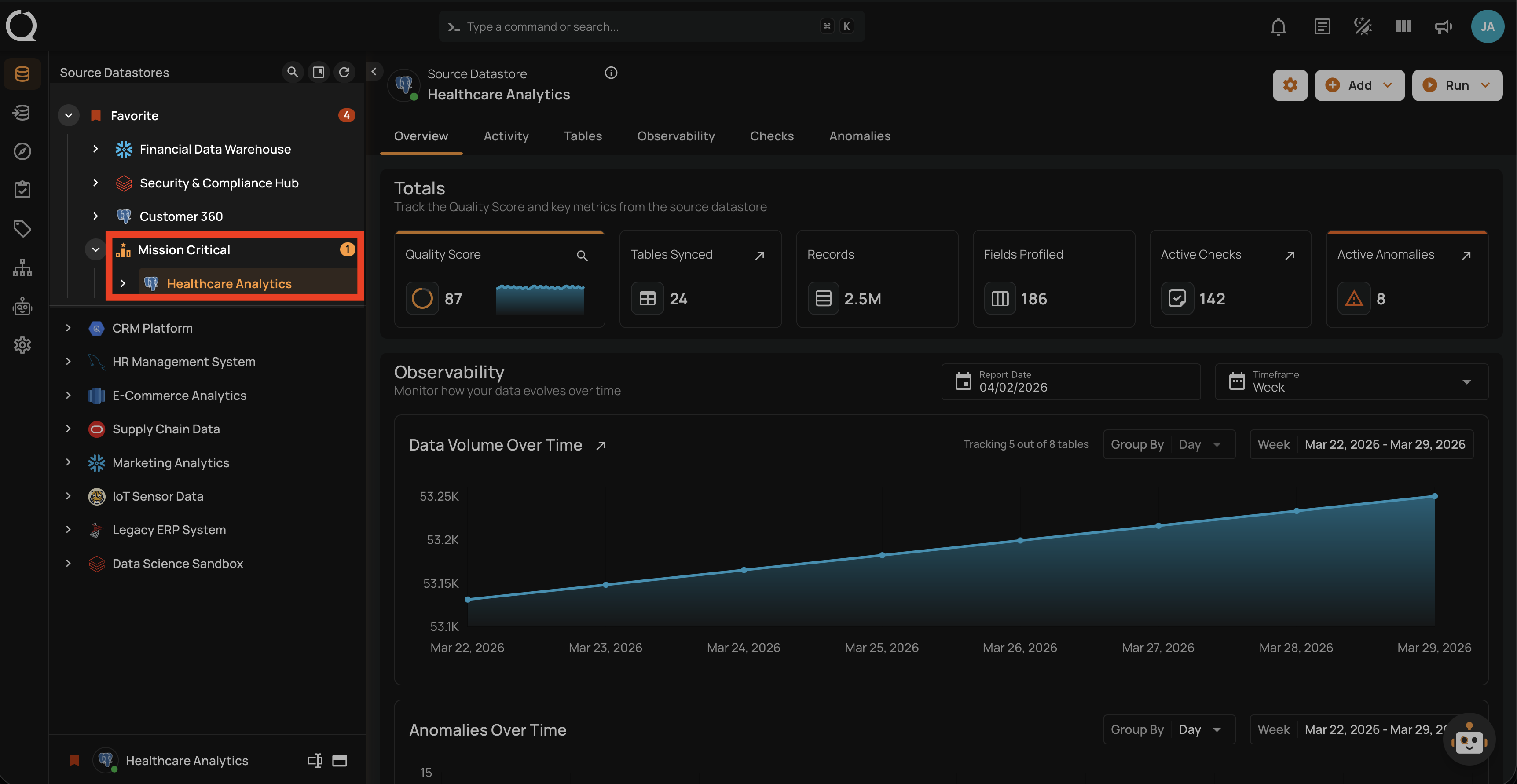
Step 4: Select the group you want to assign the datastore to. The assignment is immediate — there is no confirmation dialog. In this example, the datastore Healthcare Analytics is being assigned to the Mission Critical group.
Info
If the datastore already belongs to a different group, selecting a new group will automatically move it — no need to remove it from the previous group first.
Step 5: The datastore will immediately move under the selected group in the tree view, with the group icon displayed next to the group name.
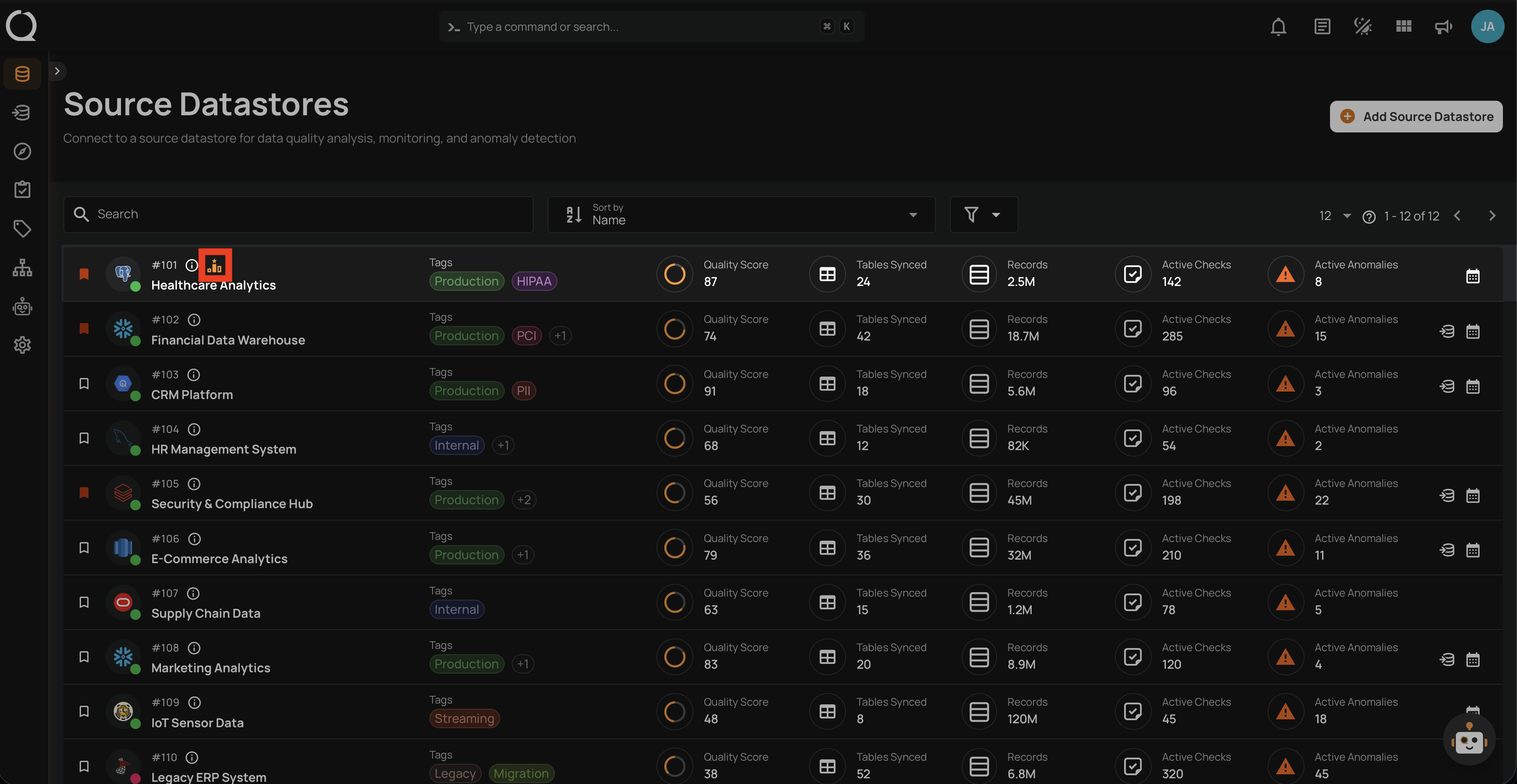
Step 6: The group icon is also visible next to the datastore in the Source Datastores listing page.
Tip
You can also create a new group directly from the dropdown by clicking the Create group button, if you have the Manager role.
Unassign a Datastore from a Group
To unassign a datastore from its current group, see the Unassign a Datastore from a Group documentation.