Link Enrichment on Datastore Creation
When you create a new source datastore, you can optionally link an enrichment datastore during the same flow — without needing to configure it separately afterward. This is the recommended approach, as it ensures scan results and anomalies are persisted from the very first operation.
Permission Required
You need the Member user role and Editor team permission on the datastore to link an enrichment datastore. See the Permissions page for details.
Prerequisites
You must have an enrichment datastore already added before linking it. If you haven't added one yet, see the Add Enrichment Datastore documentation first.
Link Later
If you prefer to skip the enrichment step during creation, you can link an enrichment datastore at any time afterward. See the Link Enrichment Datastore documentation.
Enrichment Settings
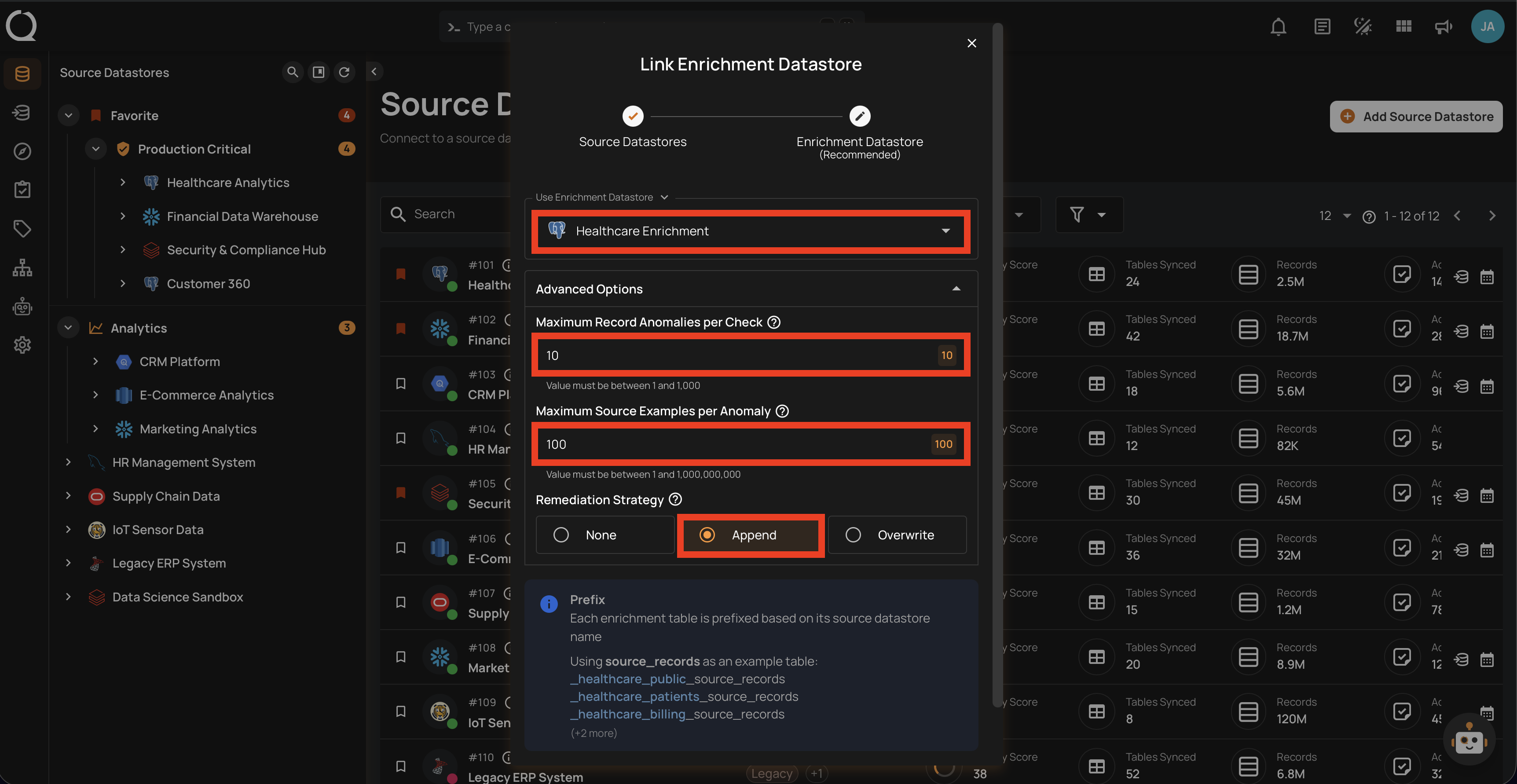
The Link Enrichment Datastore modal contains the following fields that you will configure during the linking process:
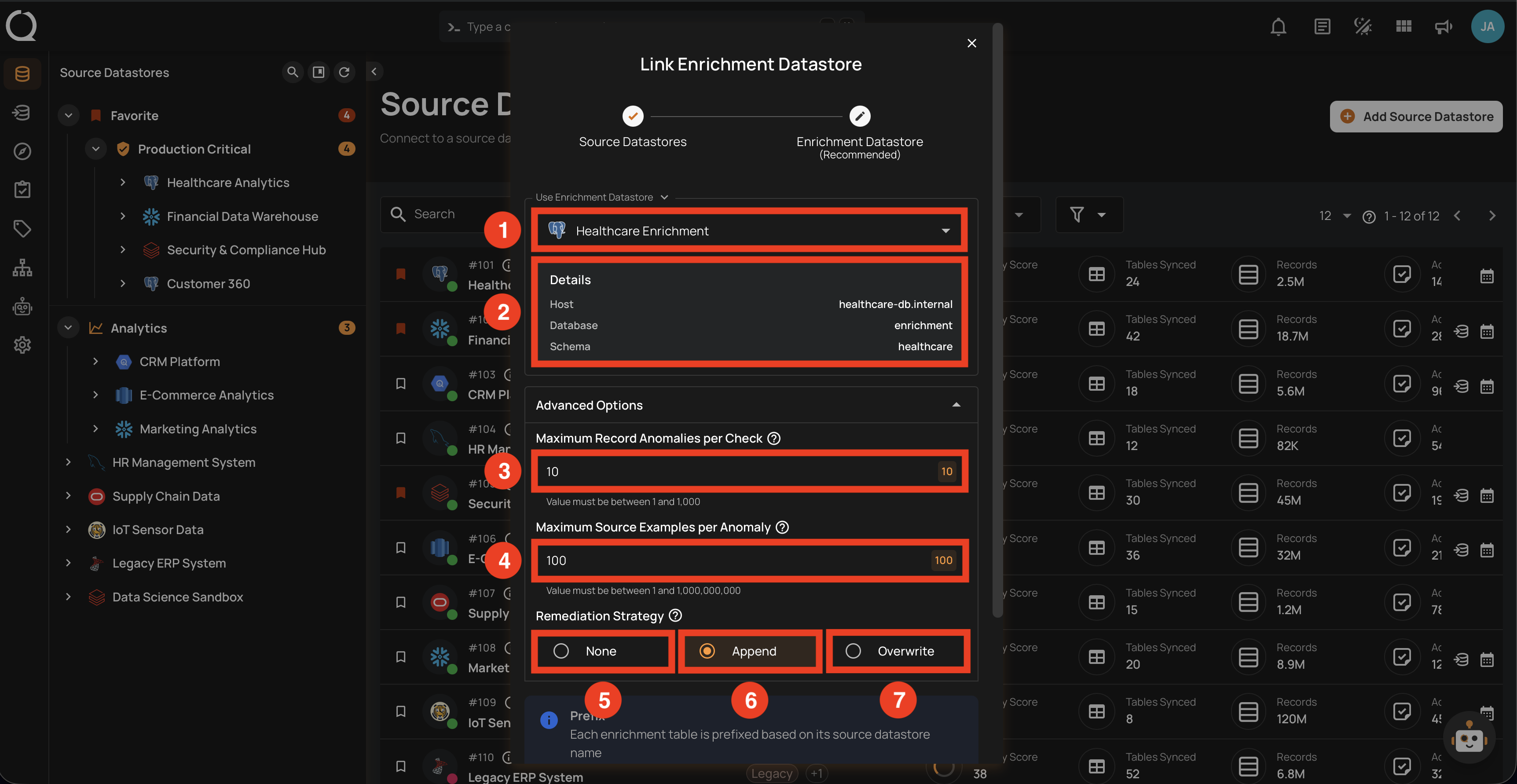
| REF. | FIELD | DEFAULT | RANGE | DESCRIPTION |
|---|---|---|---|---|
| 1 | Enrichment Datastore | — | — | Select an existing enrichment datastore from the dropdown. |
| 2 | Details | — | — | Displays the selected enrichment datastore connection details (host, database, schema). |
| 3 | Maximum Record Anomalies per Check | 10 |
1–1,000 | How many individual anomalies can be created per quality check before they are grouped into one rolled-up anomaly. |
| 4 | Maximum Source Examples per Anomaly | 10 |
1–1,000,000,000 | How many source data rows are stored in the enrichment datastore as examples when a quality check fails. |
| 5 | Remediation Strategy | None |
— | Controls whether and how anomalous source tables are replicated to the enrichment datastore: None — do not replicate (default); Append — append anomalous records after each scan (builds audit trail); Overwrite — replace with latest anomalous records only. |
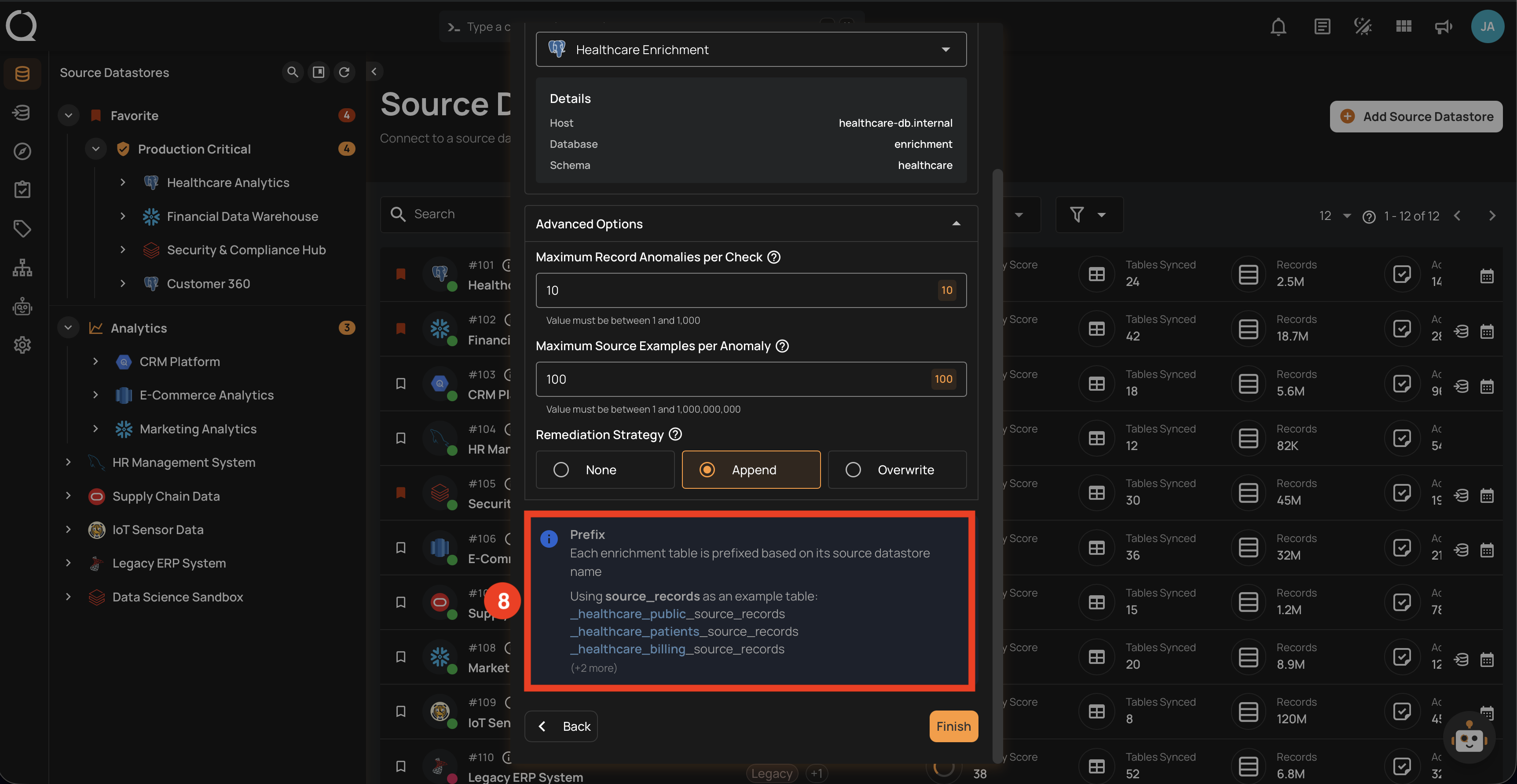
| REF. | FIELD | DEFAULT | RANGE | DESCRIPTION |
|---|---|---|---|---|
| 6 | Prefix | Auto-generated | Max 60 chars | A prefix added to all enrichment table names. Auto-generated from the datastore name, normalized to lowercase with underscores (e.g., _healthcare_analytics). Each source datastore linked to the same enrichment datastore must have a unique prefix to avoid table name conflicts. |
Steps
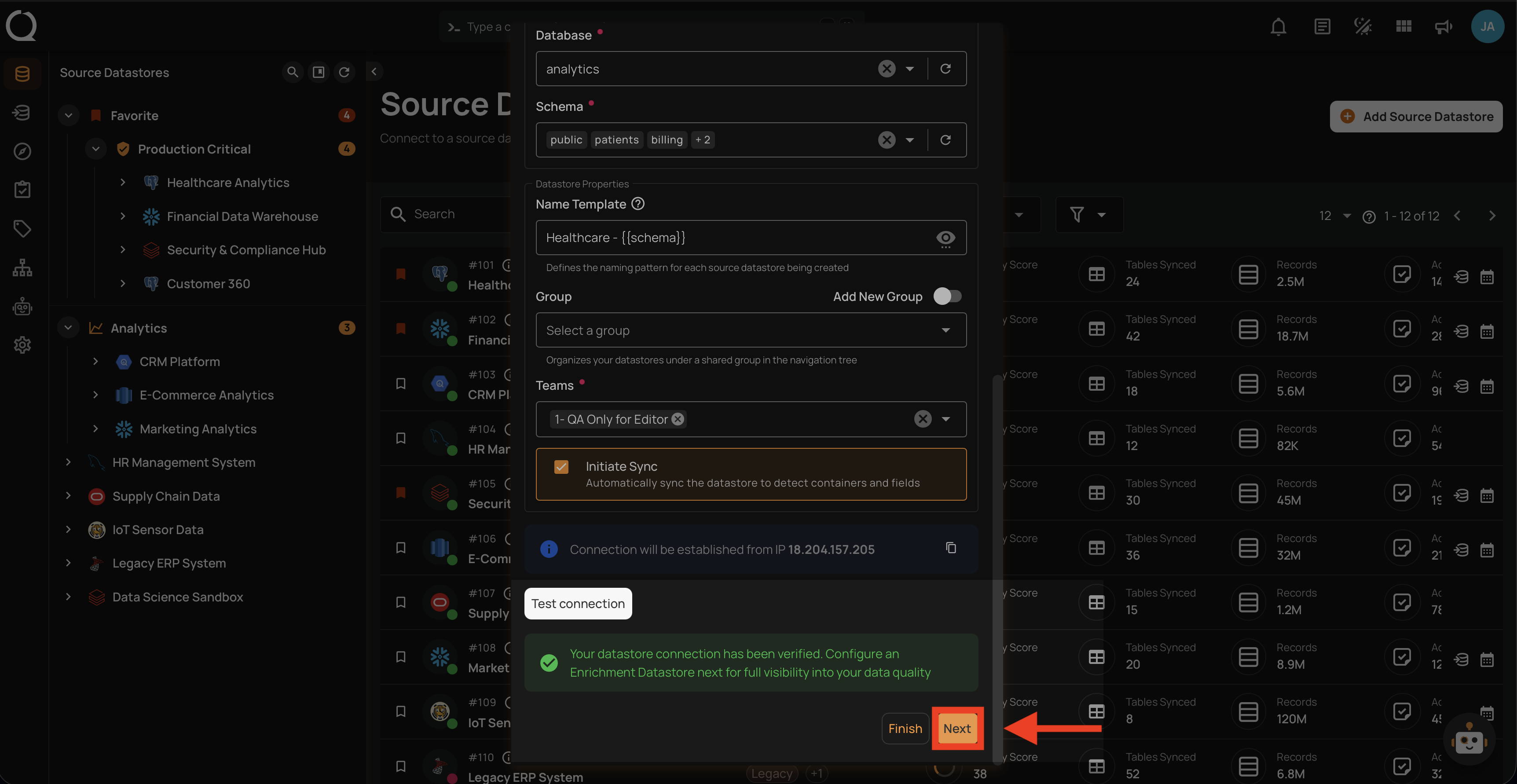
Step 1: After configuring your source datastore and testing the connection successfully, you will see a banner recommending you to configure an enrichment datastore. Click Next to advance to the Link Enrichment Datastore wizard.
Step 2: The Link Enrichment Datastore modal will appear. Select an existing enrichment datastore from the dropdown.
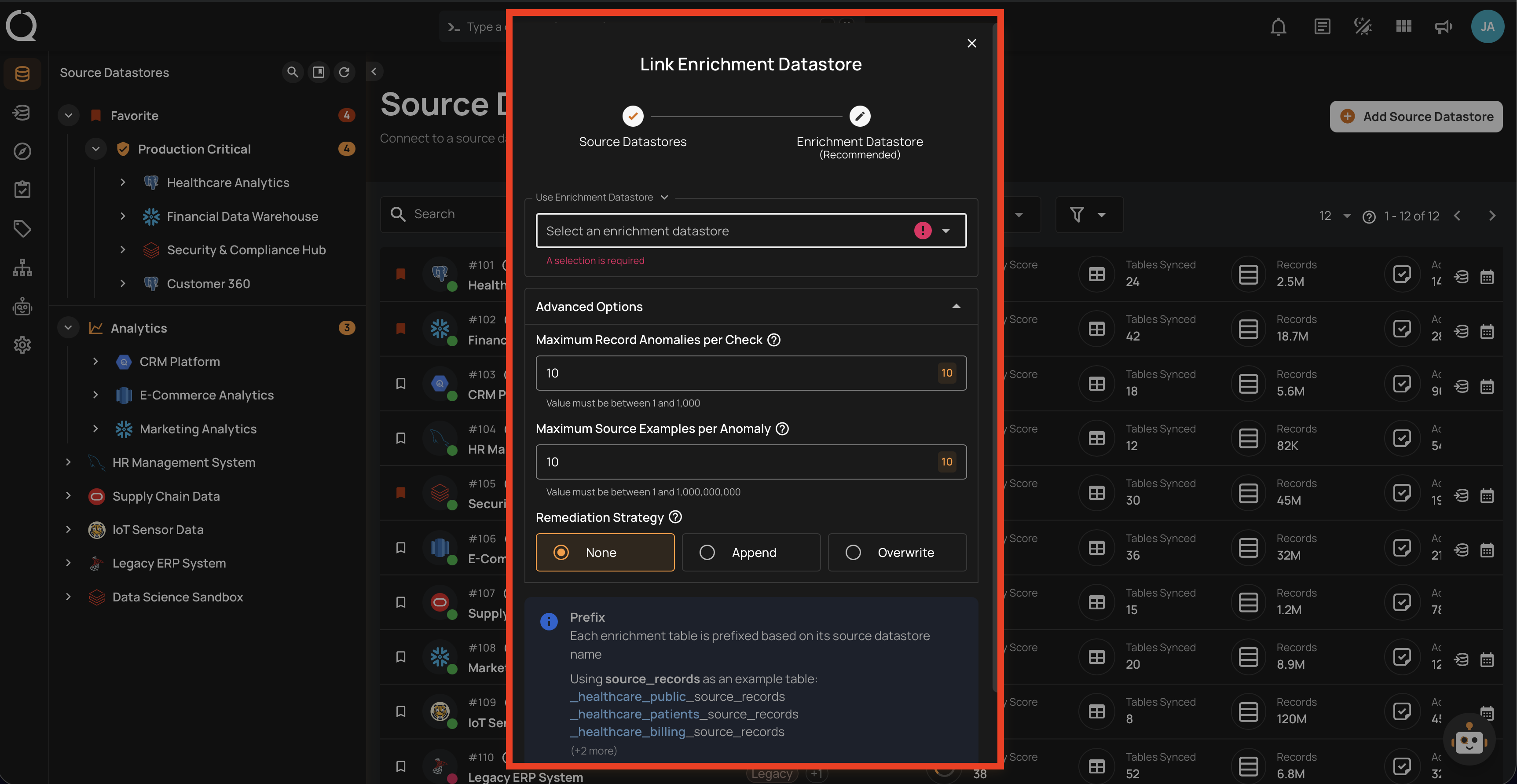
Step 3: Configure the enrichment settings (anomaly thresholds, remediation strategy, and prefix) as described in the Enrichment Settings section above.
Side Effects
Once linked, all future Scan operations will write results to the enrichment datastore. For details on how enrichment works, storage impact, and remediation strategies, see the Enrichment Introduction page.
Step 4: Click Finish to create the source datastore and link it to the enrichment datastore.
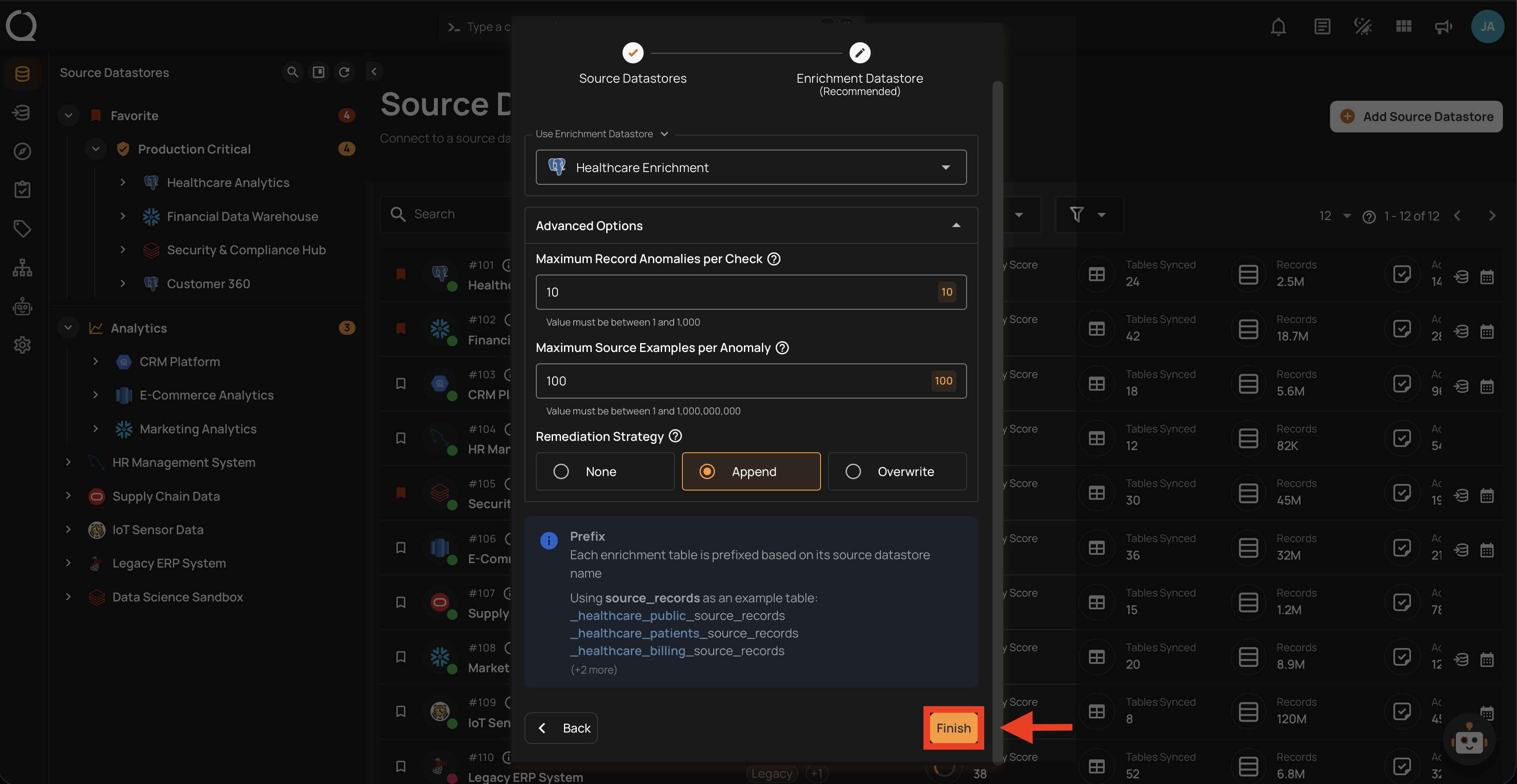
After clicking Finish, a success message will confirm that your datastores have been created and linked. You can then proceed with Sync → Profile → Scan operations.
Manage Enrichment
To modify enrichment settings or unlink the enrichment datastore after creation, see the Link Enrichment Datastore or Unlink Enrichment Datastore documentation.