Adding a New Datastore Using an Existing Connection
This guide walks you through creating a new source datastore by reusing credentials from a connection that already exists, saving time and ensuring consistency.
Connector-Specific Fields
The connection fields vary depending on the connector you select. This page covers the general flow that applies to all connectors. For connector-specific field details, refer to the individual connector page (e.g., PostgreSQL, Snowflake, BigQuery).
Connection Properties
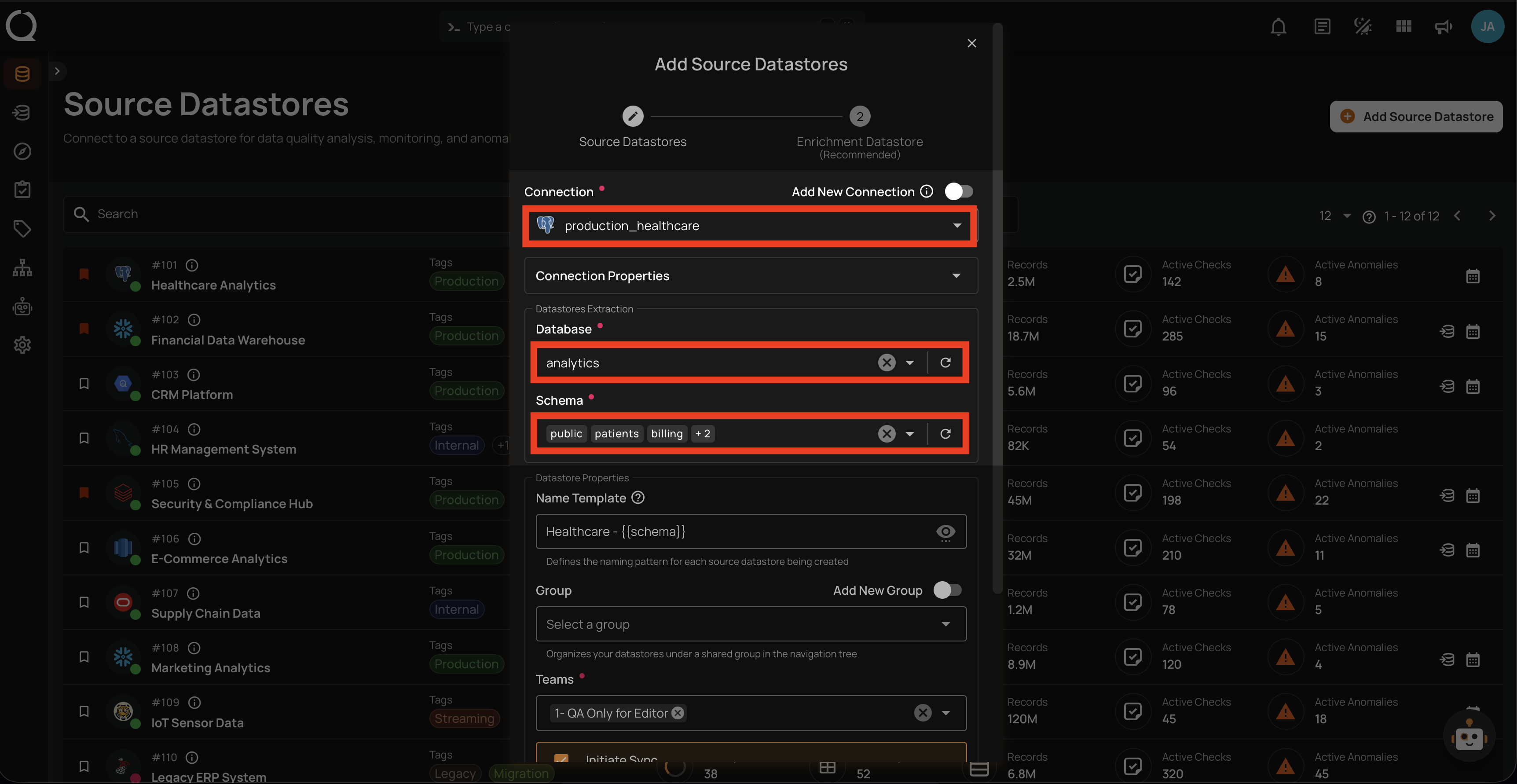
When reusing an existing connection, the Connection Properties section is collapsed by default. The connection details are read-only and cannot be modified — you only need to configure the Datastore Extraction fields (Database, Schema) and the Datastore Properties (Name Template, Group, Teams, Initiate Sync).
Steps
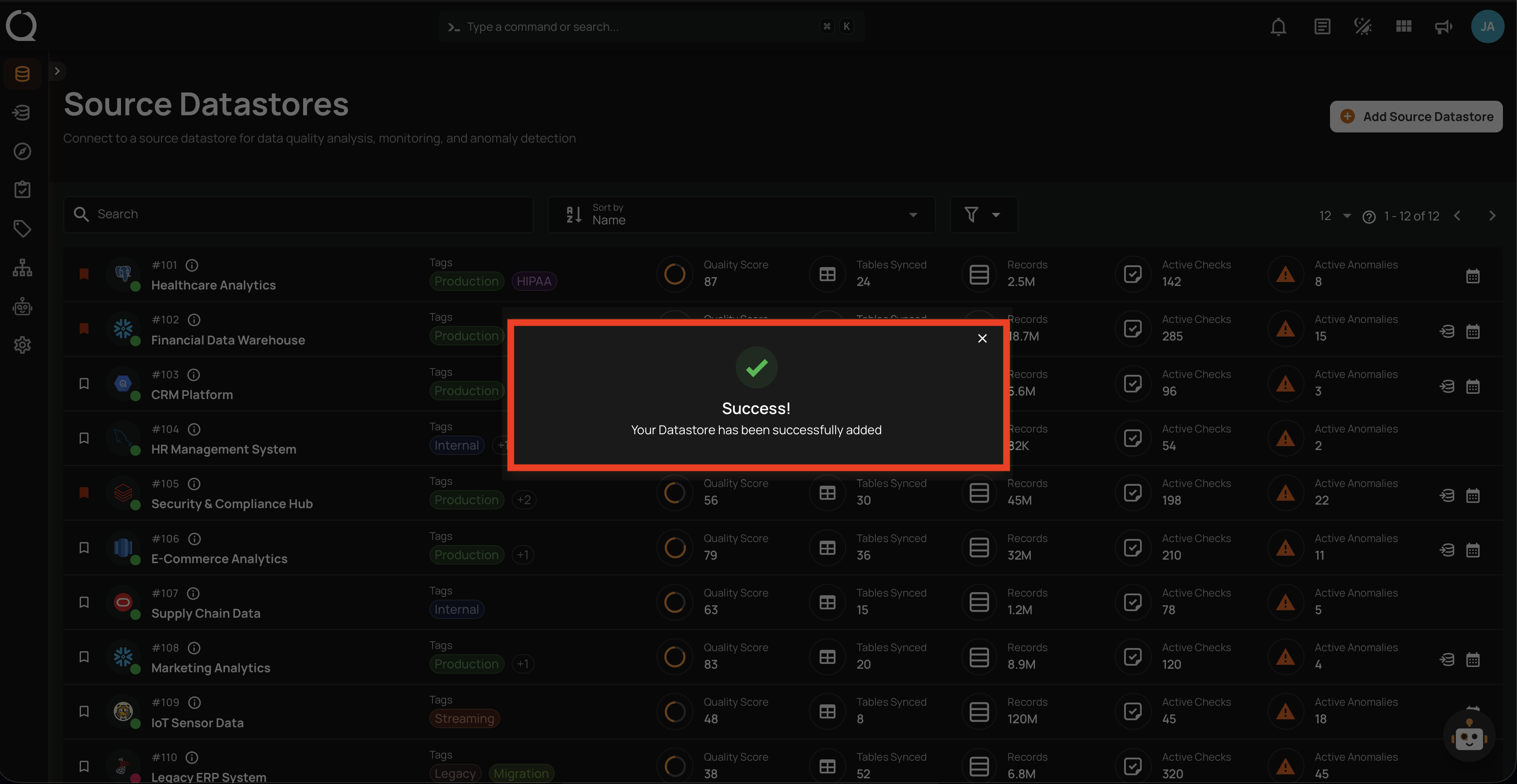
Step 1: Log in to your Qualytics account and click on the Add Source Datastore button located at the top-right corner of the interface.
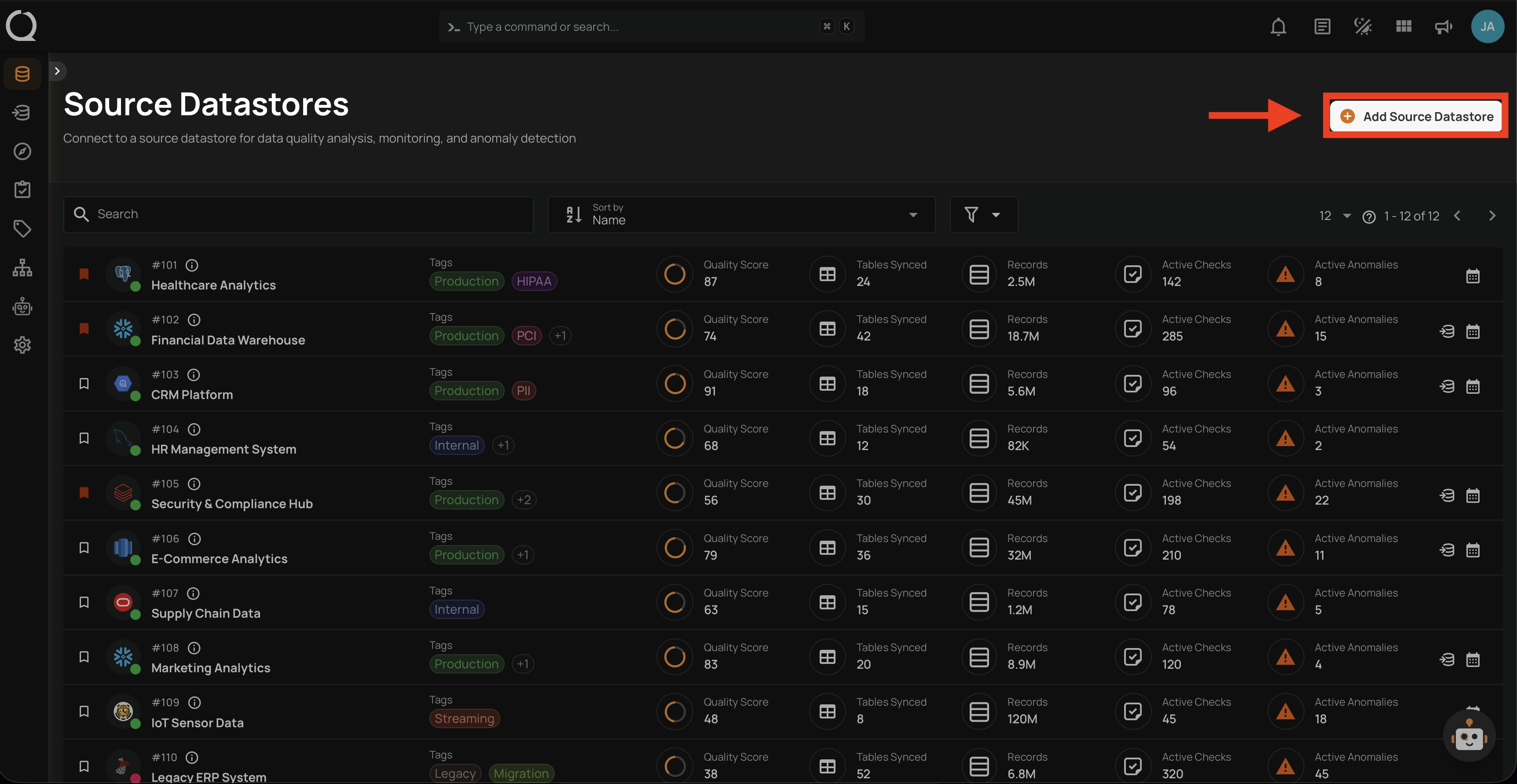
Step 2: A modal window — Add Source Datastores — will appear. Toggle off the Add New Connection option to reuse an existing connection.
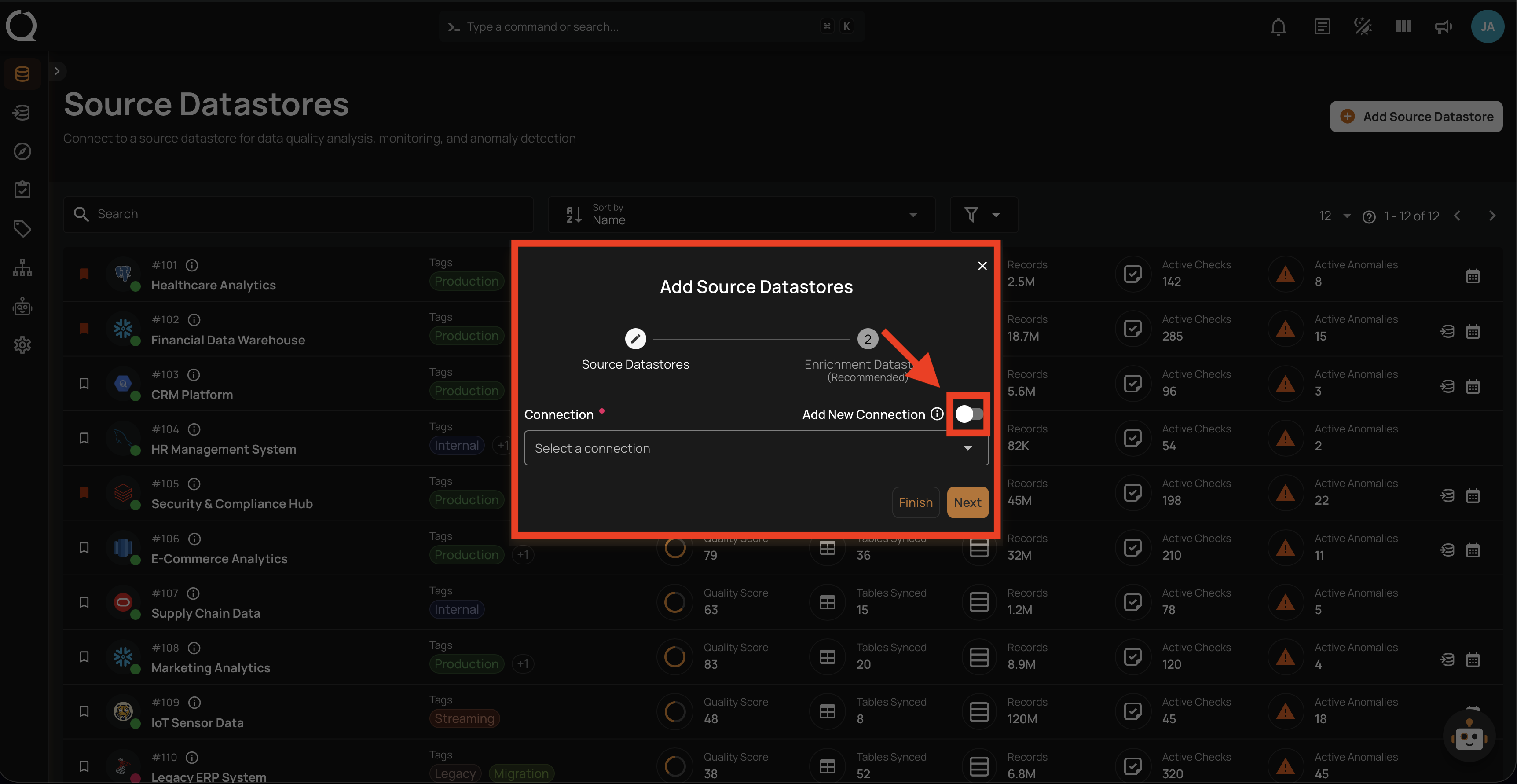
Step 3: Select an existing connection from the dropdown list.
Step 4: After selecting a connection, the form will expand showing the Connection Properties (collapsed), Datastore Extraction fields, and Datastore Properties.
Note
The fields displayed may vary depending on whether the connection is JDBC or DFS. For a detailed breakdown of each field, see the Datastore Properties section.
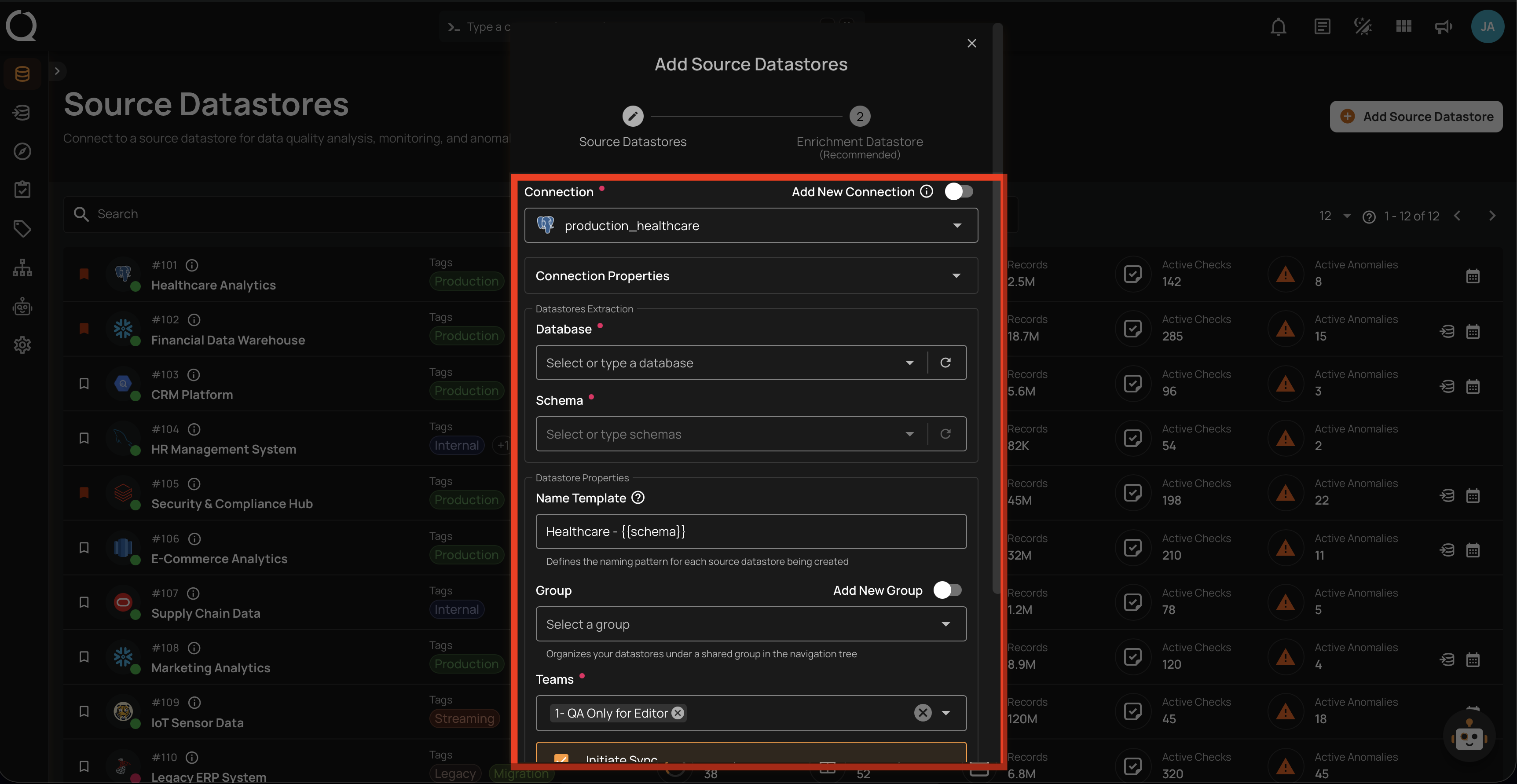
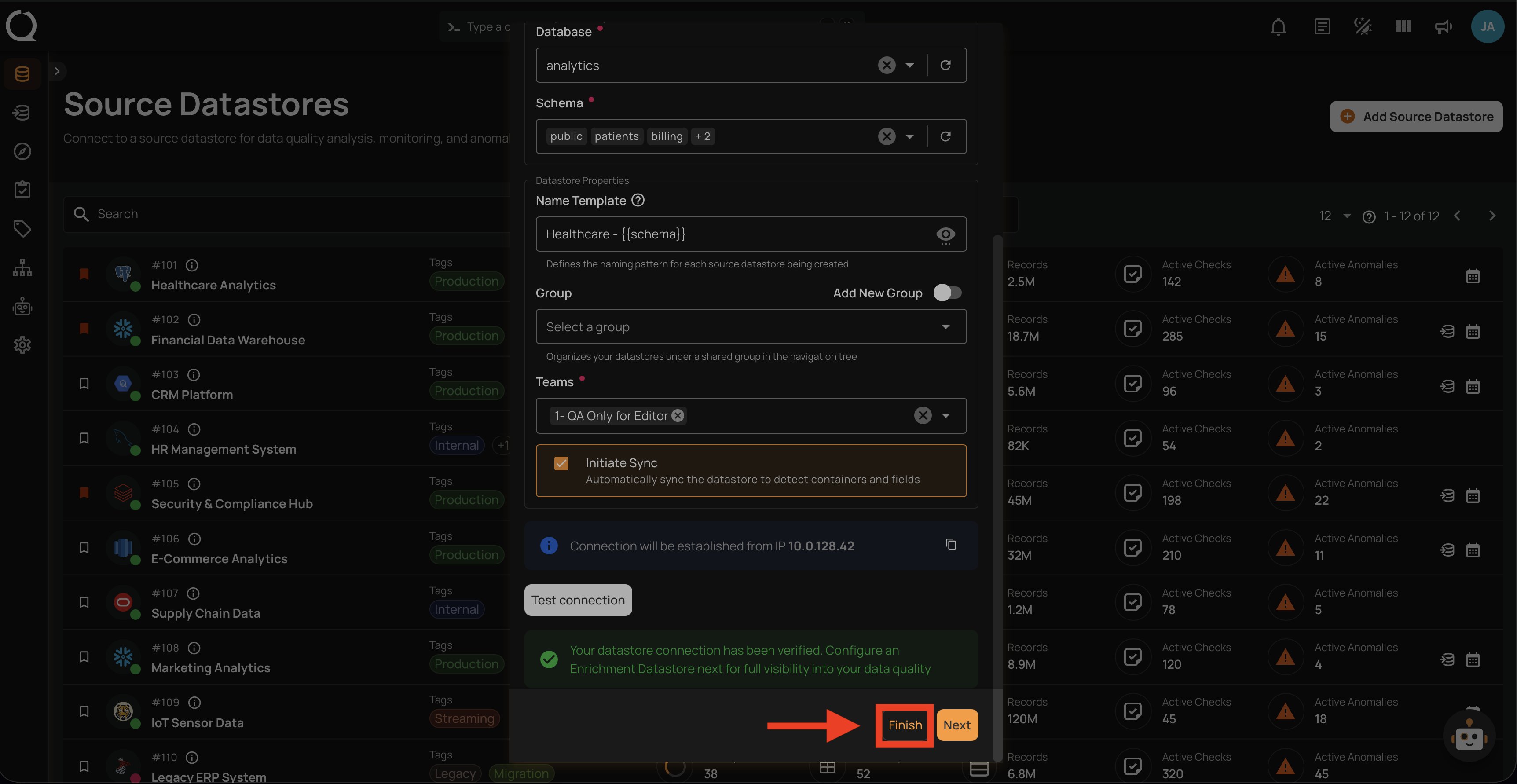
Step 5: Configure the Datastore Extraction fields (Database and Schema) and the Datastore Properties (Name Template, Group, Teams, Initiate Sync) as described in the Datastore Properties section.
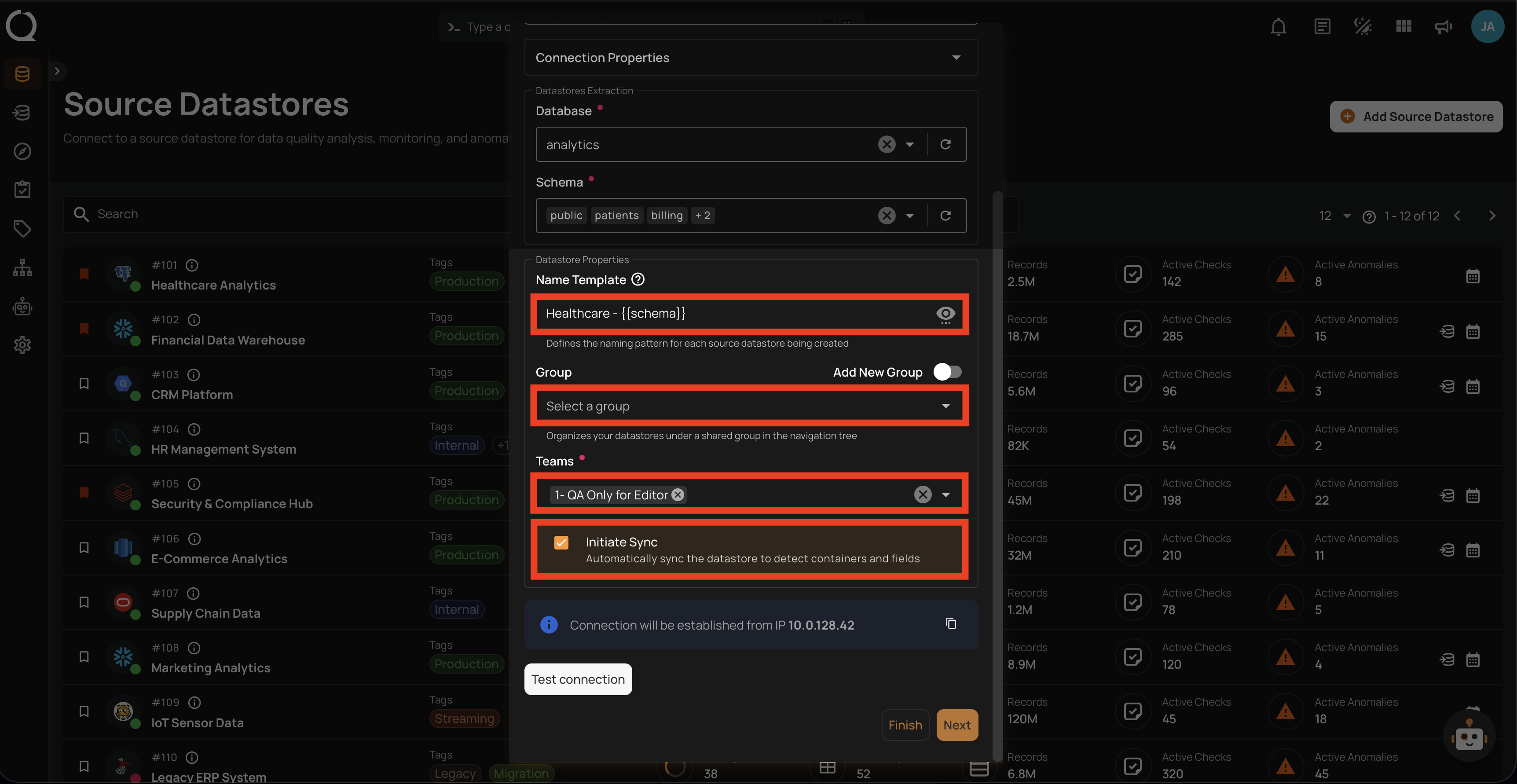
Step 6: Click the Test Connection button to verify the connection. If the credentials are verified, a success message will be displayed.
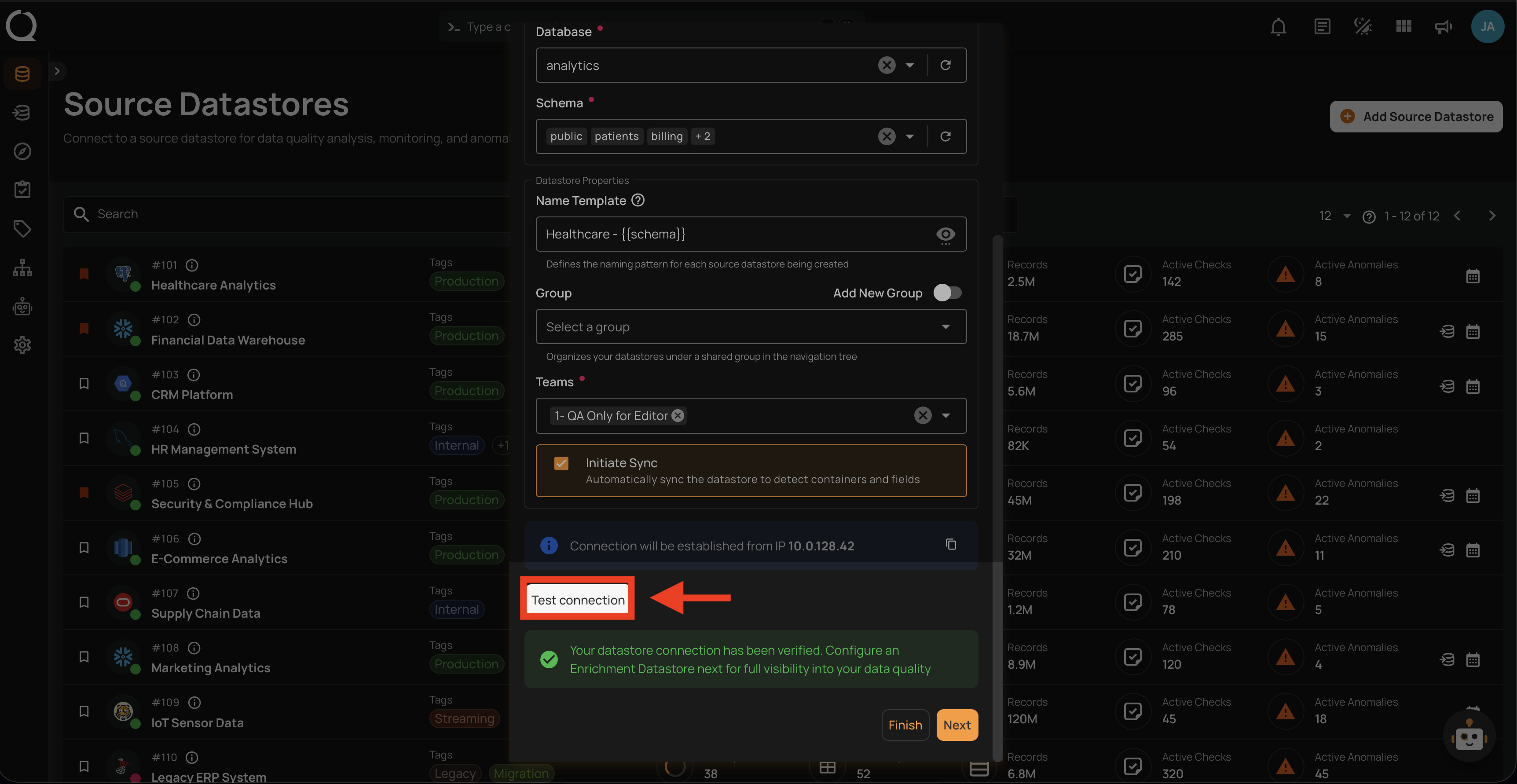
Step 7: Once the connection is verified, click the Finish button to complete the process.
Link an Enrichment Datastore
Before clicking Finish, you can optionally link an enrichment datastore to persist scan results and anomalies from the very first operation. See the Link Enrichment on Datastore Creation documentation.
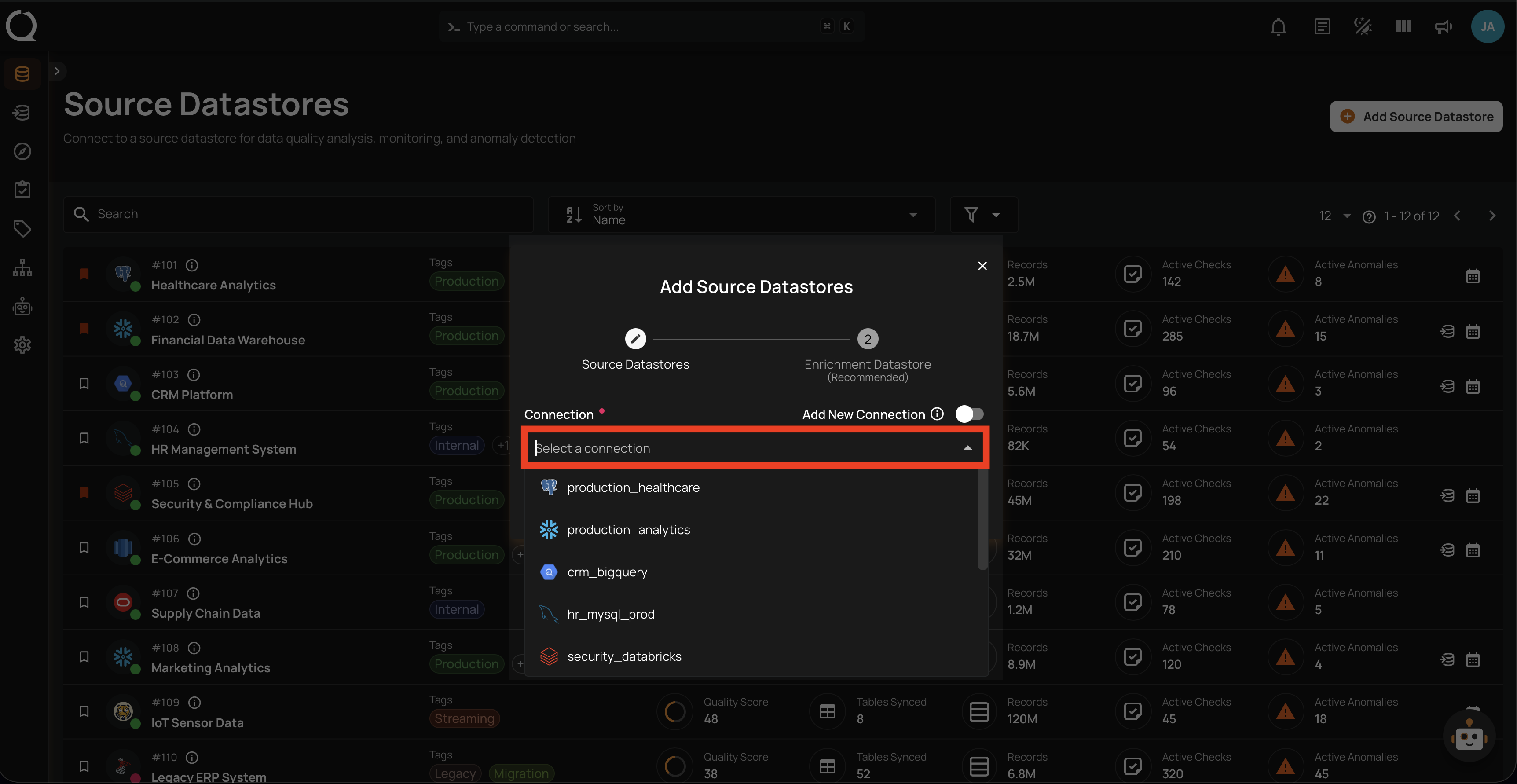
Step 8: A success message will appear indicating that your datastore has been successfully added.