Unmask a Field
Unmasking a field restores its actual values across the platform, making them visible without requiring explicit reveal actions.
Tip
For a detailed explanation of what happens when a field is unmasked, platform behavior changes, and best practices, see Field Masking — Unmasking a Field.
Unmask from the Container View
- Navigate to the container's field listing.
- Click the Masked tab to view masked fields.
- Locate the field you want to unmask.
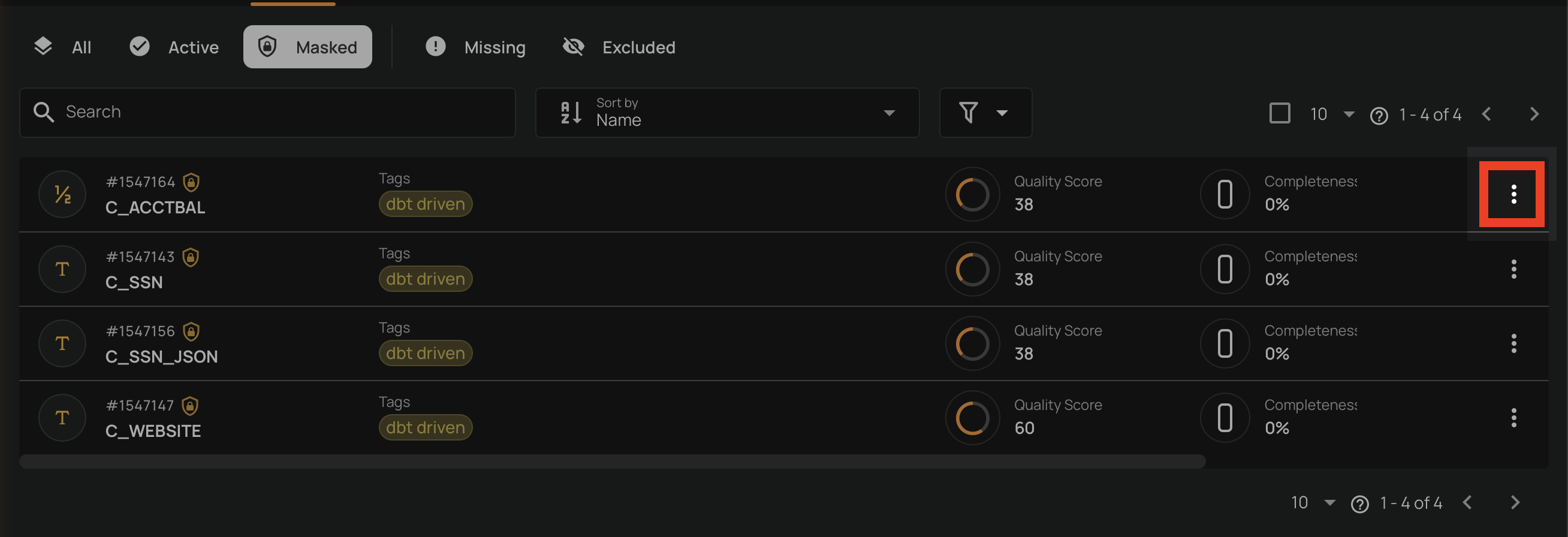
-
Click the vertical ellipsis on the field row.
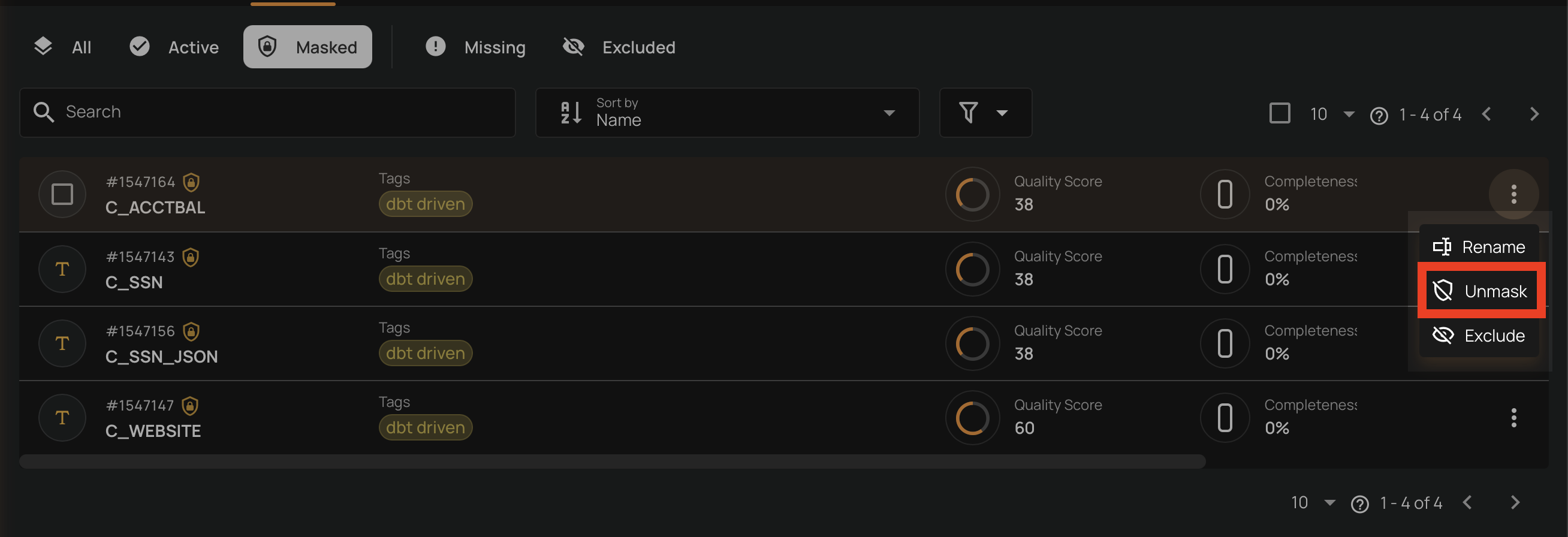
-
Click the Unmask option from the menu.
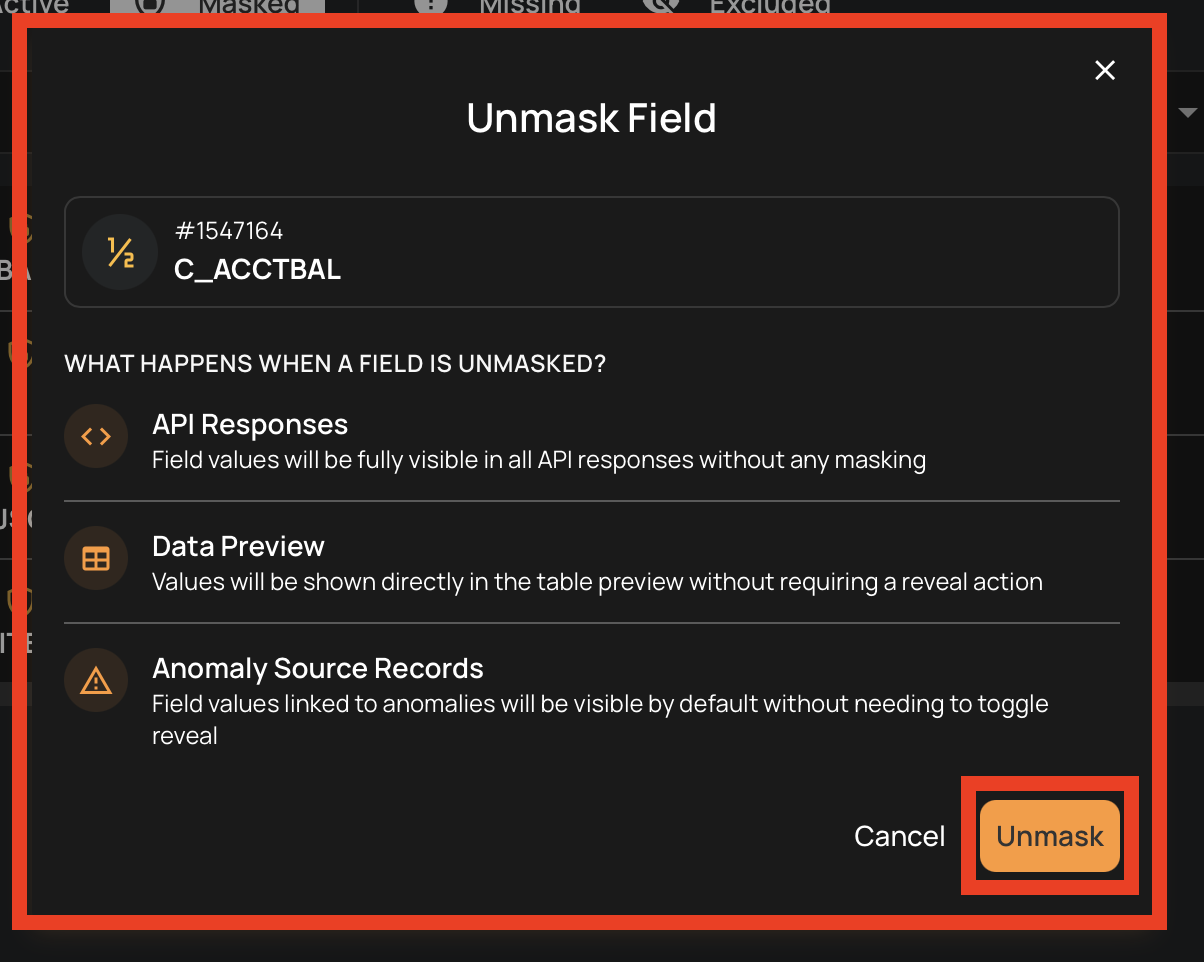
-
Click the Unmask button to confirm the unmasking in the dialog.
Unmask from the Field View
- Navigate to the field's detail page by clicking on the field name in the container's field listing.
-
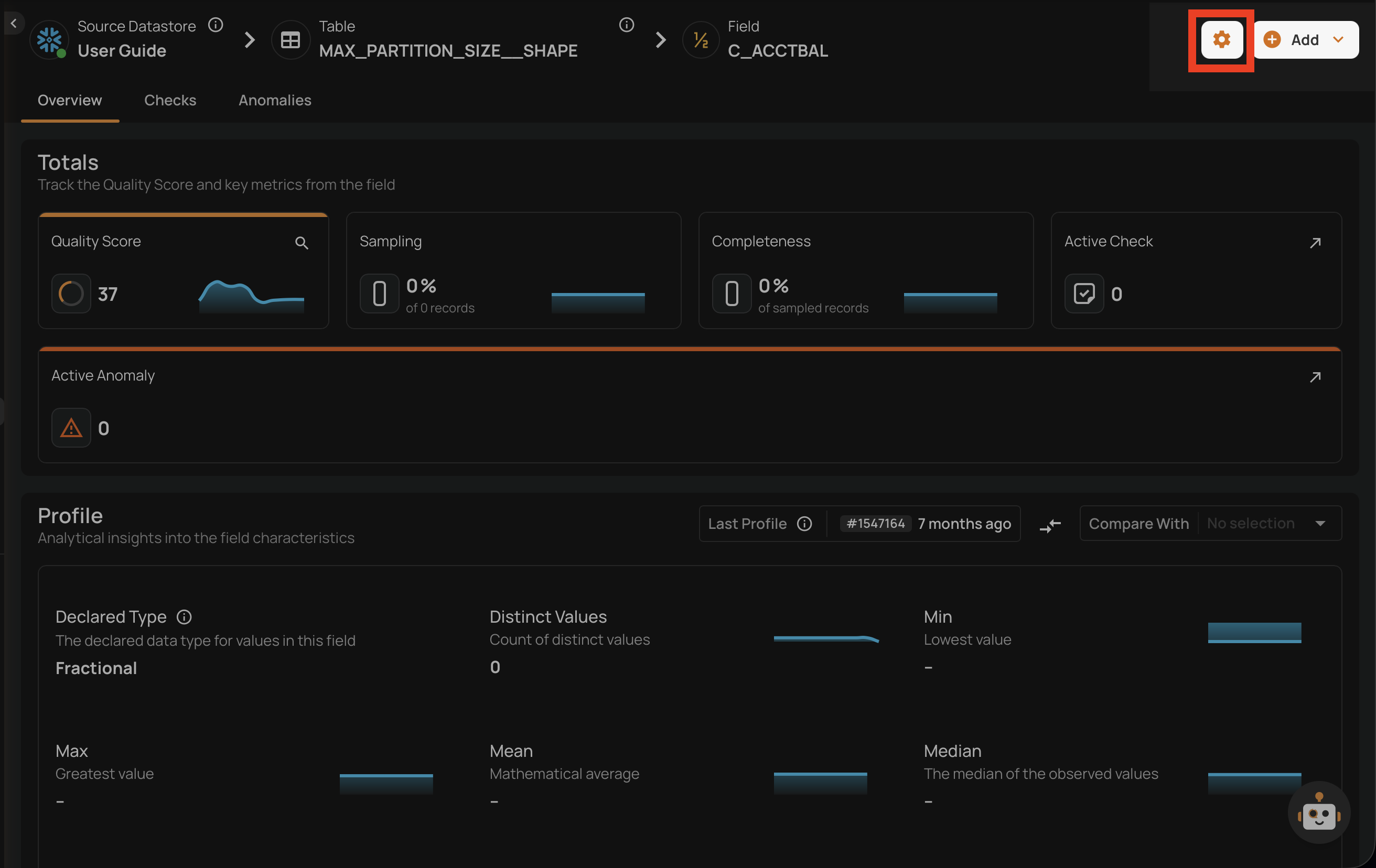
Click the button in the top-right corner of the field page.
-
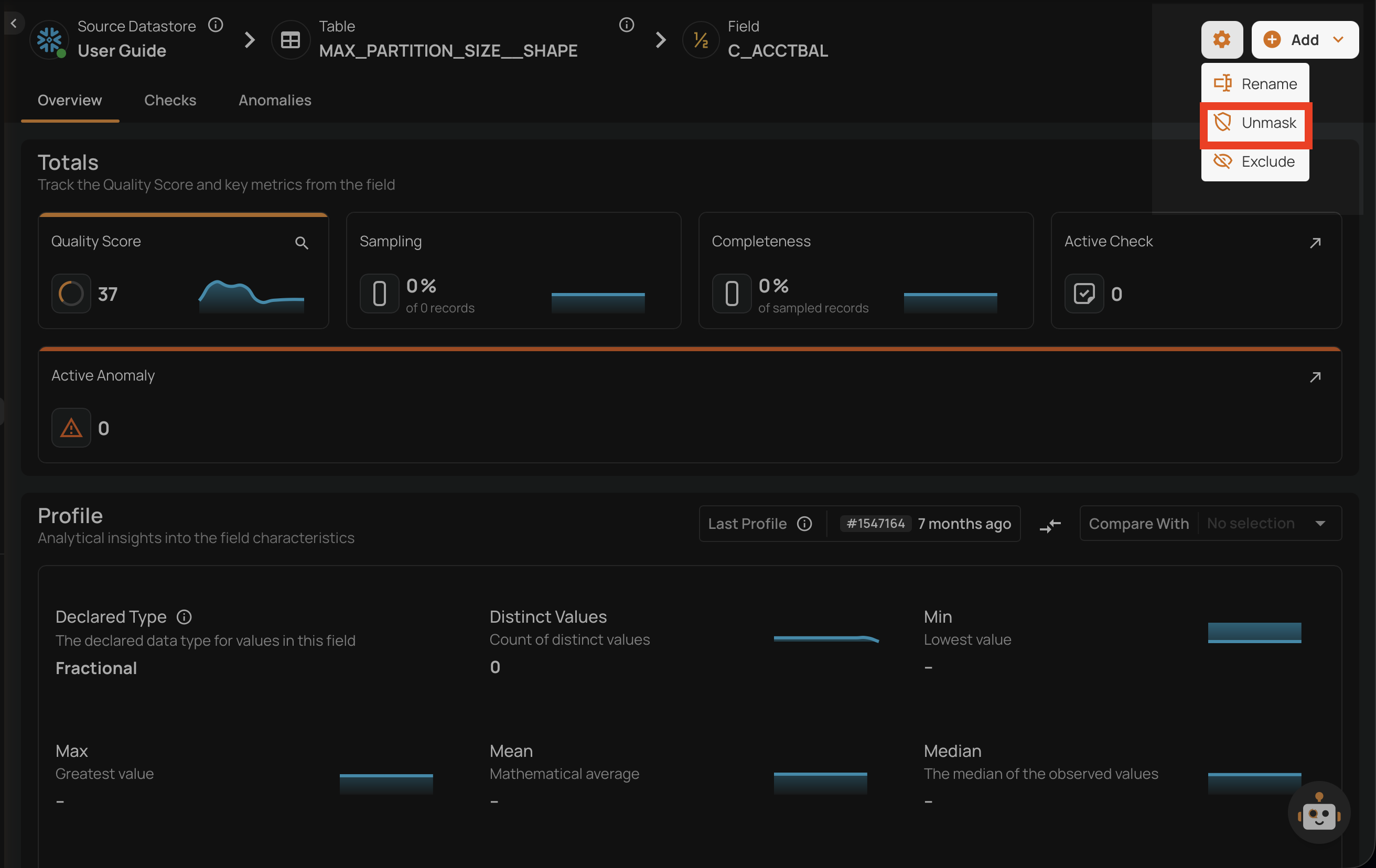
Click the Unmask option from the dropdown menu.
-
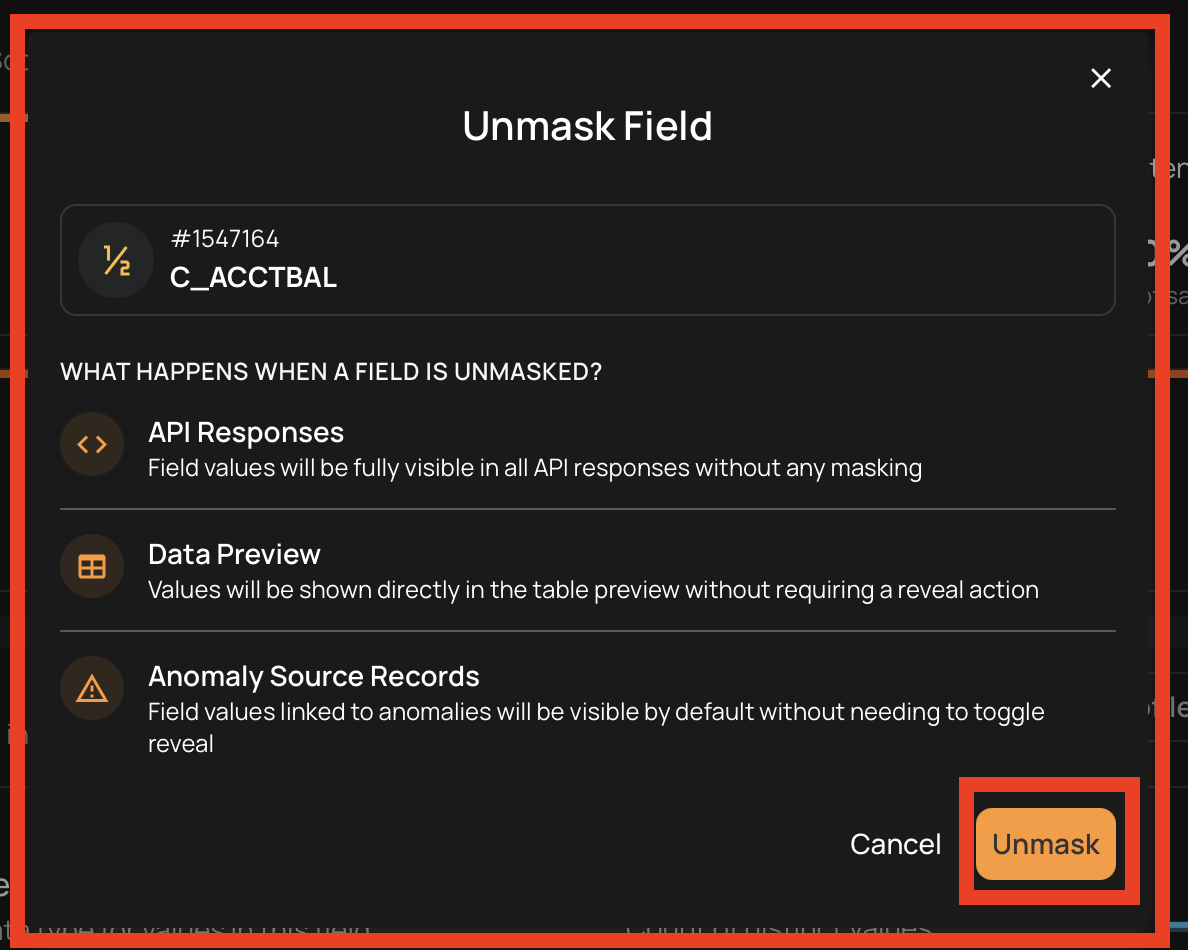
Click the Unmask button to confirm the unmasking in the dialog.
Bulk Unmask
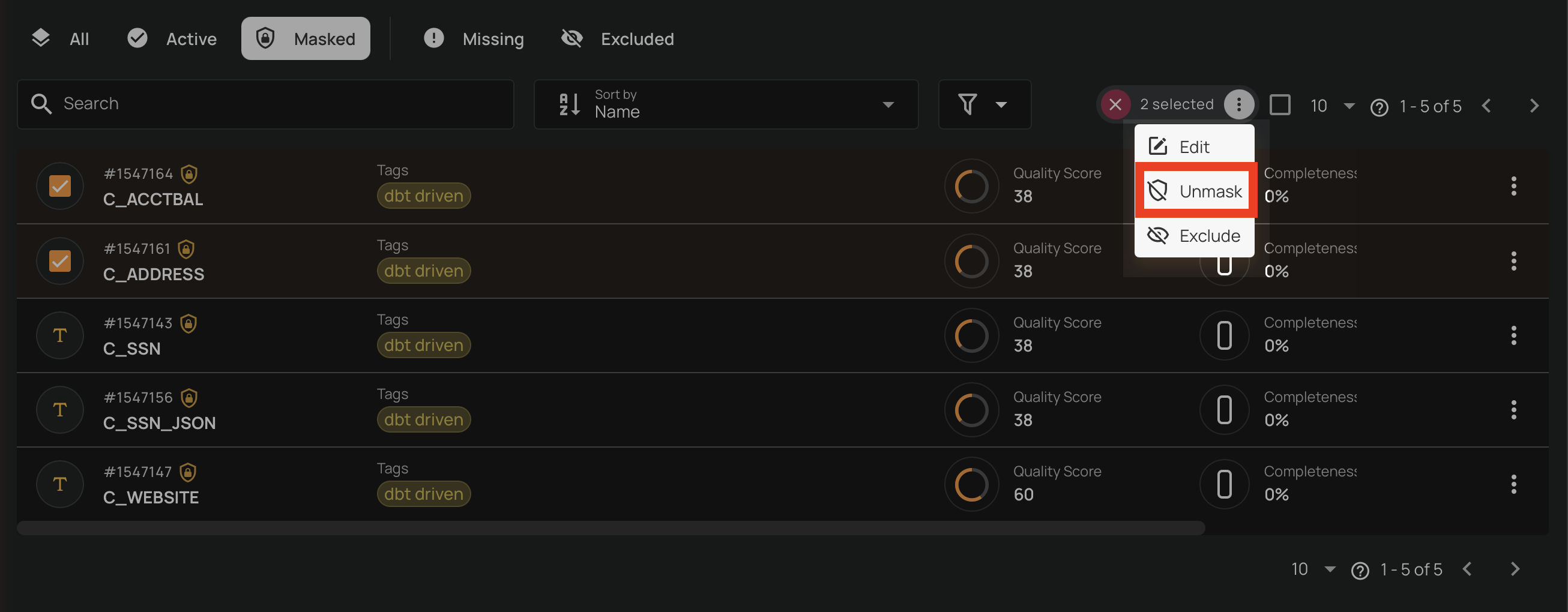
You can unmask multiple fields at once from the container's field listing.
- Navigate to the container's field listing.
- Click the Masked tab to view masked fields.
-
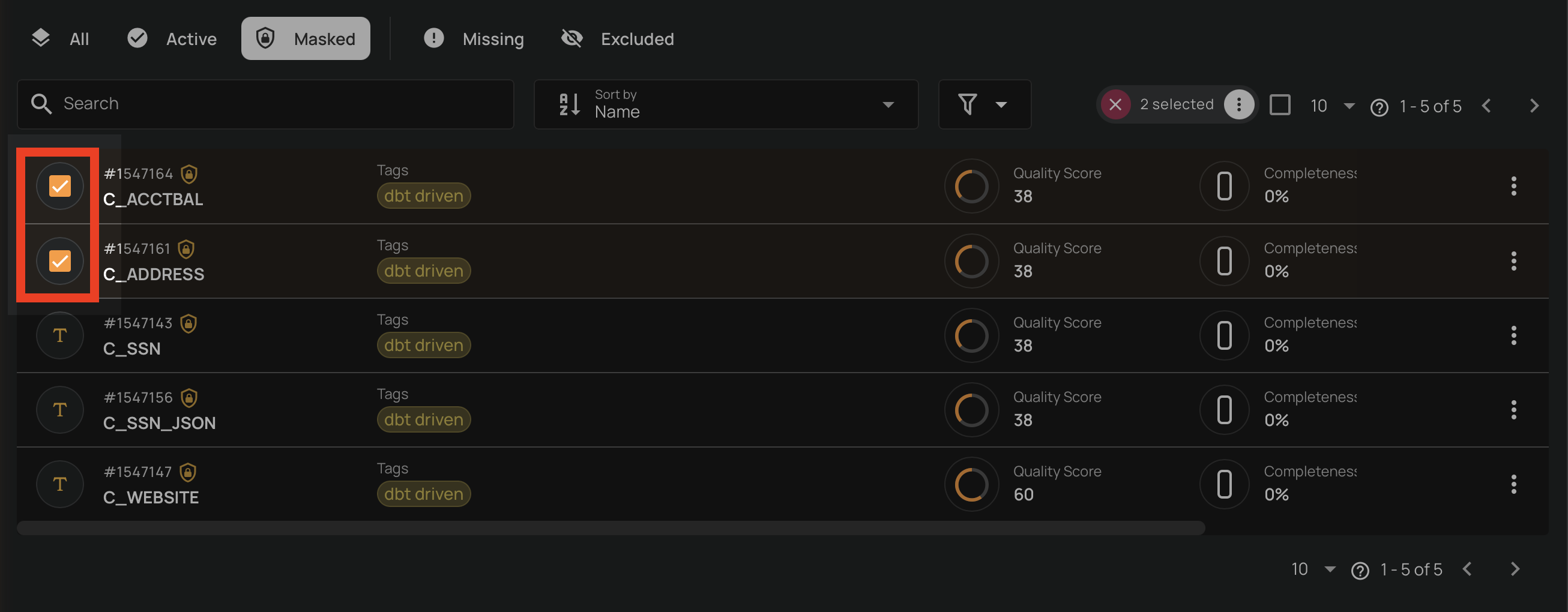
Select the fields you want to unmask by clicking the checkbox on each field row.
-
Click the Unmask action in the selection toolbar that appears at the top.
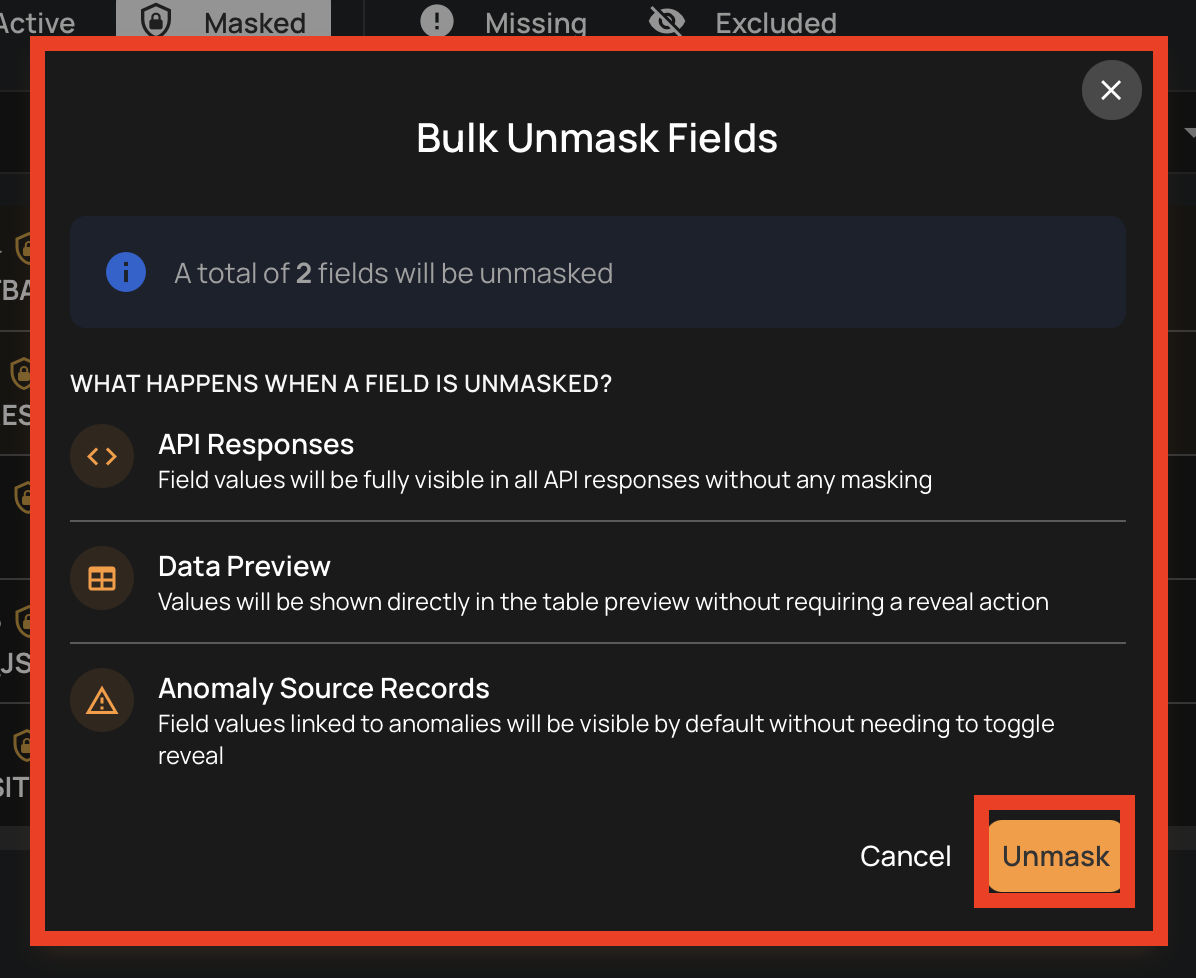
-
Click the Unmask button to confirm the bulk unmasking in the dialog.