Mask a Field
Masking a field hides its actual values across the platform while keeping the field fully operational. This is useful for fields that contain sensitive data (e.g., PII, financial data) that should be protected but still monitored for quality.
Only fields with Active status can be masked. This includes both regular fields and computed fields.
What Happens When a Field is Masked?
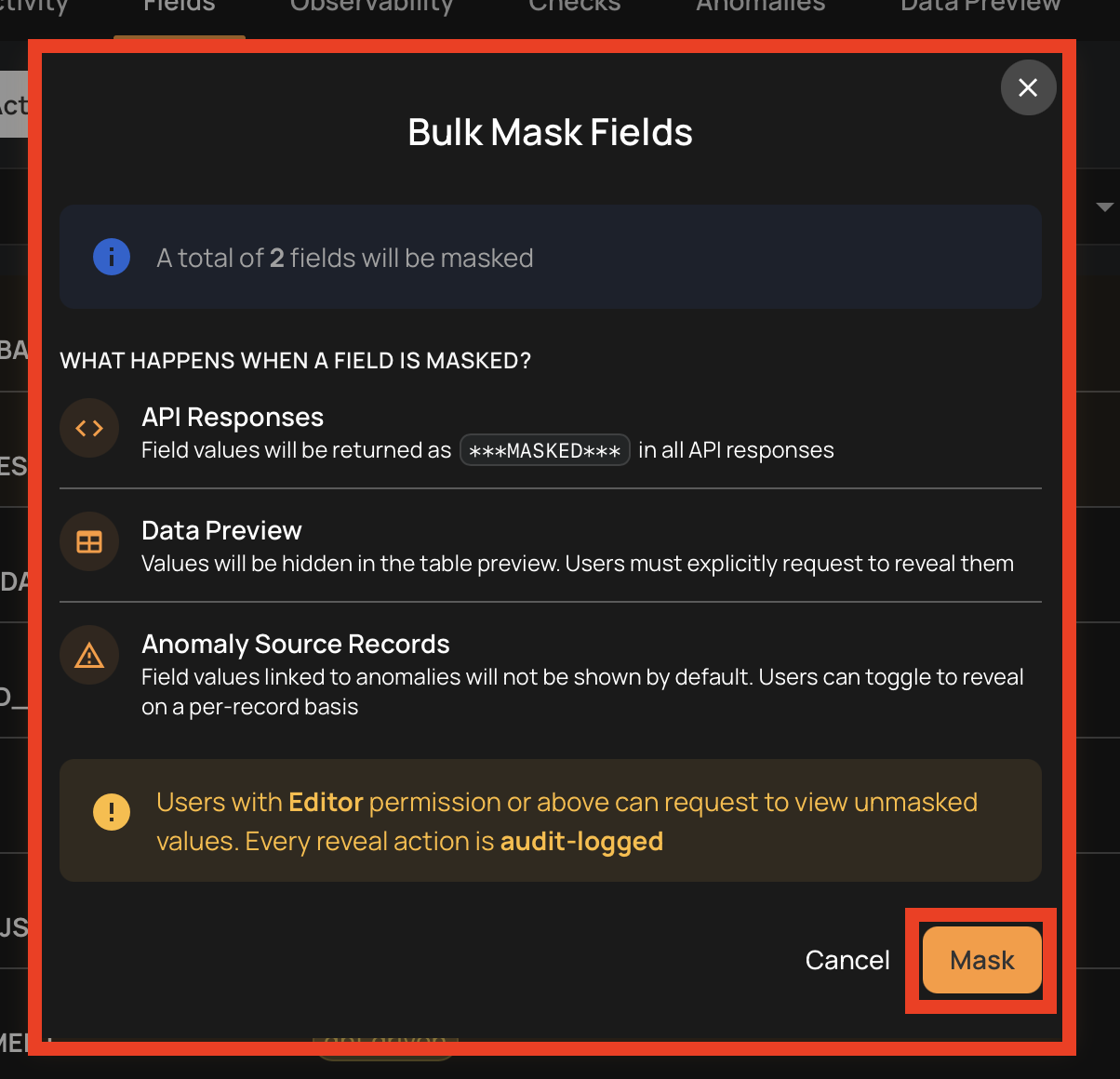
When you mask a field, its actual values are obfuscated everywhere they would otherwise appear. Quality checks, profiling, and scanning all continue to run normally — masking only affects value visibility.
Specifically, obfuscated values appear in the following places:
- Data Preview: Values are hidden in the container preview — users must explicitly reveal them
- Anomaly Source Records: Values are hidden by default — users can toggle reveal per anomaly (all source records for the anomaly are revealed together)
- Field Profile Histograms: Chart values are obfuscated for masked fields in the field profile view
- Anomaly Assertion Context: The values embedded in anomaly check details are unconditionally obfuscated — they cannot be revealed inline
- Export Operation (Field Profiles): Histogram bucket values for masked fields are obfuscated in the
_field_profiles_exportfile written to the enrichment datastore - Materialize Operation: Source record values for masked fields are obfuscated in materialized container snapshots written to the enrichment datastore
- Quality Checks: Continue to run normally — masking does not affect quality monitoring
- Profiling and Scanning: Continue to run normally
Info
Users with Editor permission or above can request to reveal values in the surfaces that support reveal (Data Preview and Anomaly Source Records). Every reveal action is audit-logged for security and compliance purposes.
Where Masking Is Applied
| Surface | Operation that produces it | Reveal available? |
|---|---|---|
| Data Preview | Container read (live query) | Yes — "Show masked values" button |
| Anomaly Source Records | Scan / Dry Run | Yes — per-anomaly reveal toggle (all records revealed together) |
| Field Profile Histograms (UI) | Profile | Yes — via include_masked API parameter |
| Anomaly Assertion Context | Scan / Dry Run | No — unconditionally masked |
| Field Profiles Export | Export Operation | Yes — via include_masked API parameter (not available in the UI) |
| Materialized Snapshots | Materialize Operation | Yes — via include_masked API parameter (not available in the UI) |
Mask a Field from the Container View
- Navigate to the container's field listing.
- Locate the field you want to mask.
-
Click the vertical ellipsis menu (⋮) on the field row.

-
Click the Mask option from the menu.

-
Confirm the masking in the dialog.

Mask a Field from the Field View
You can also mask a field directly from its detail page.
- Navigate to the field's detail page by clicking on the field name in the container's field listing.
-
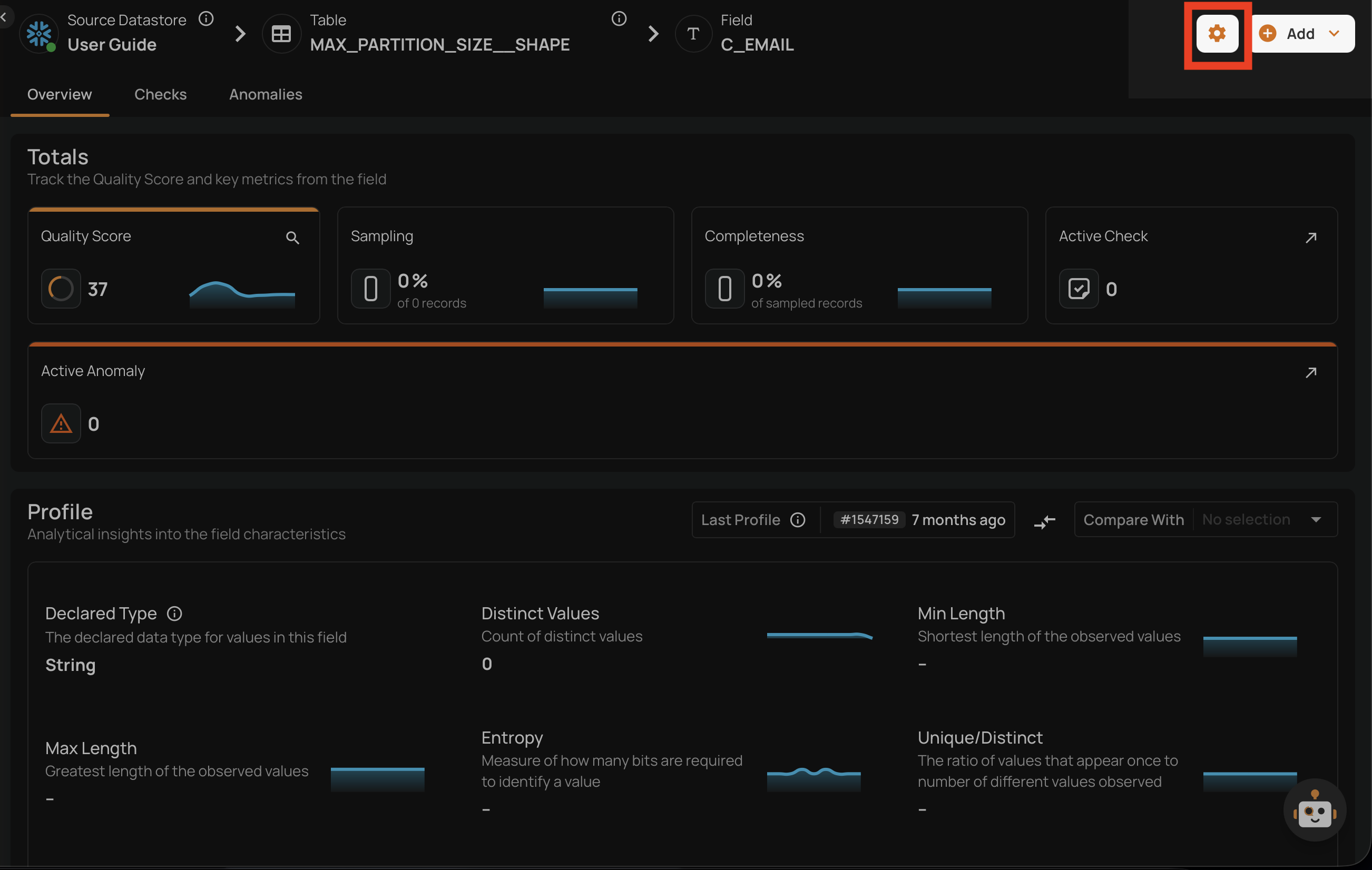
Click the settings icon (gear icon) in the top-right corner of the field page.
-
Click the Mask option from the dropdown menu.

-
Confirm the masking in the dialog.

Bulk Mask
You can mask multiple fields at once from the container's field listing.
- Navigate to the container's field listing.
-
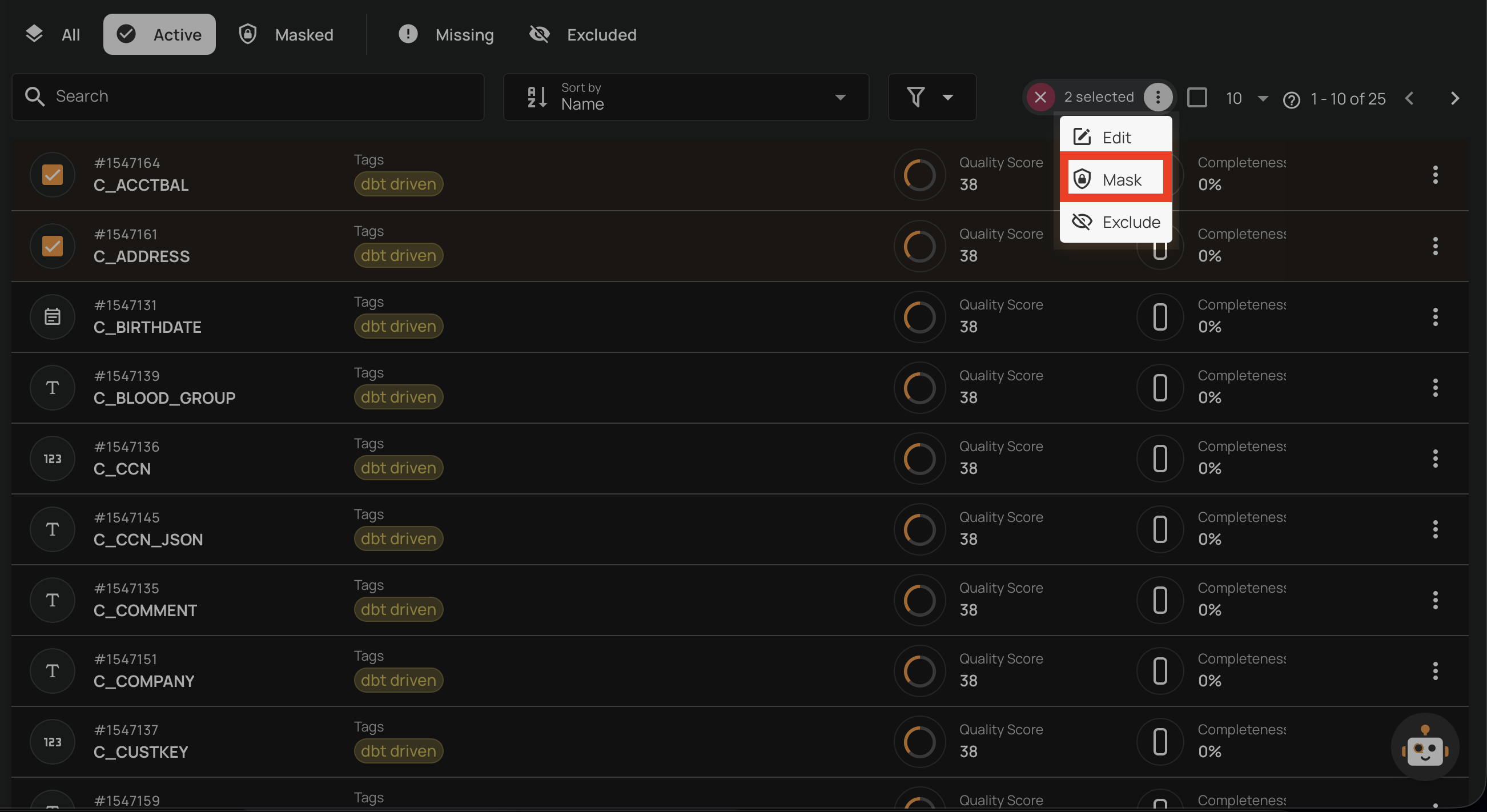
Select the fields you want to mask by clicking the checkbox on each field row.

-
Click the Mask action in the selection toolbar that appears at the top.
-
Confirm the bulk masking in the dialog.
Unmask a Field
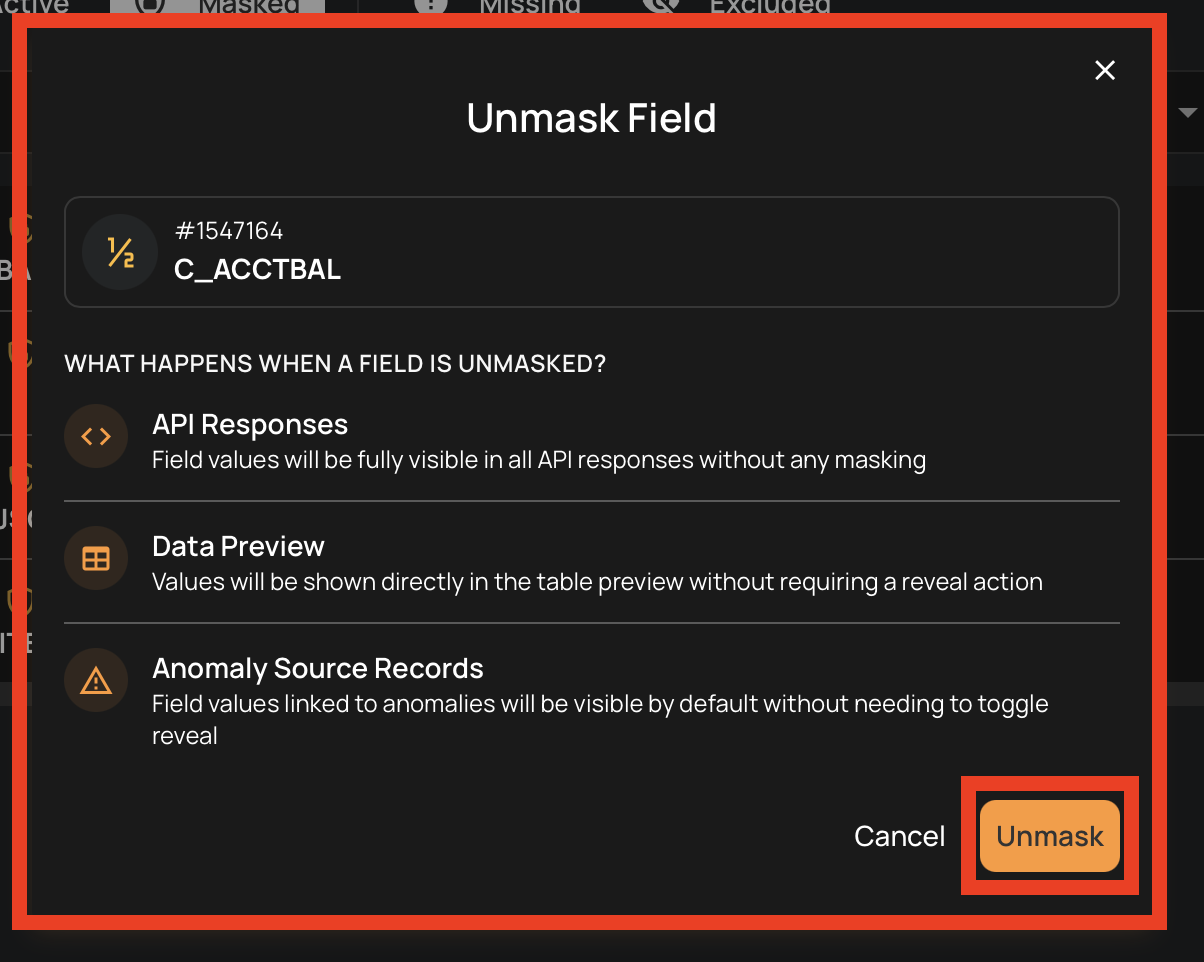
Unmasking a field restores its actual values across the platform, making them visible without requiring explicit reveal actions.
What Happens When a Field is Unmasked?
When you unmask a field:
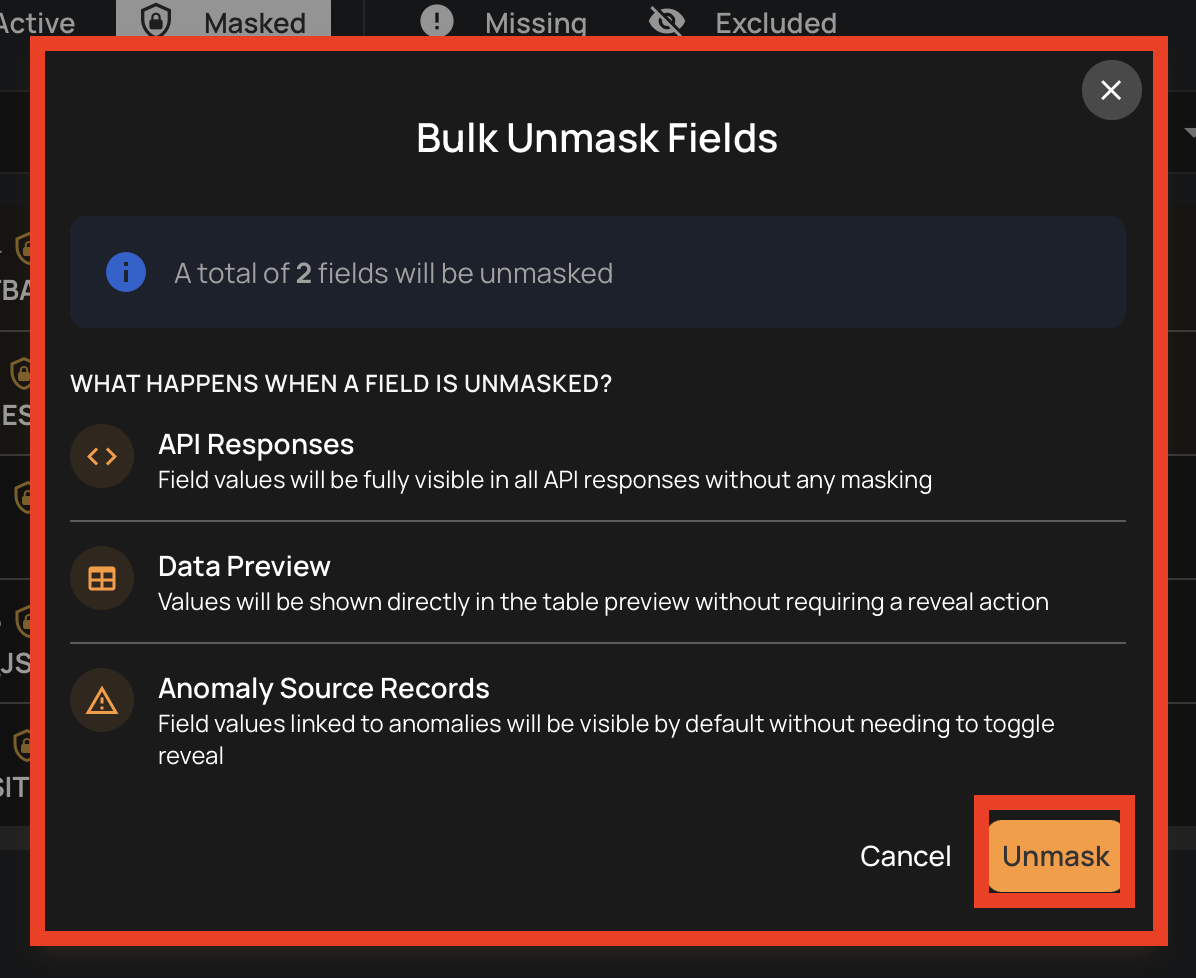
- Data Preview: Values are shown directly without a reveal action
- Anomaly Source Records: Values are visible by default
- Field Profile Histograms: Chart values are shown normally
- Anomaly Assertion Context: Values are visible in anomaly check details
- Future Export and Materialize runs: Values will no longer be masked in new export and materialize outputs — previously written enrichment datastore files are not retroactively updated
Unmask from the Container View
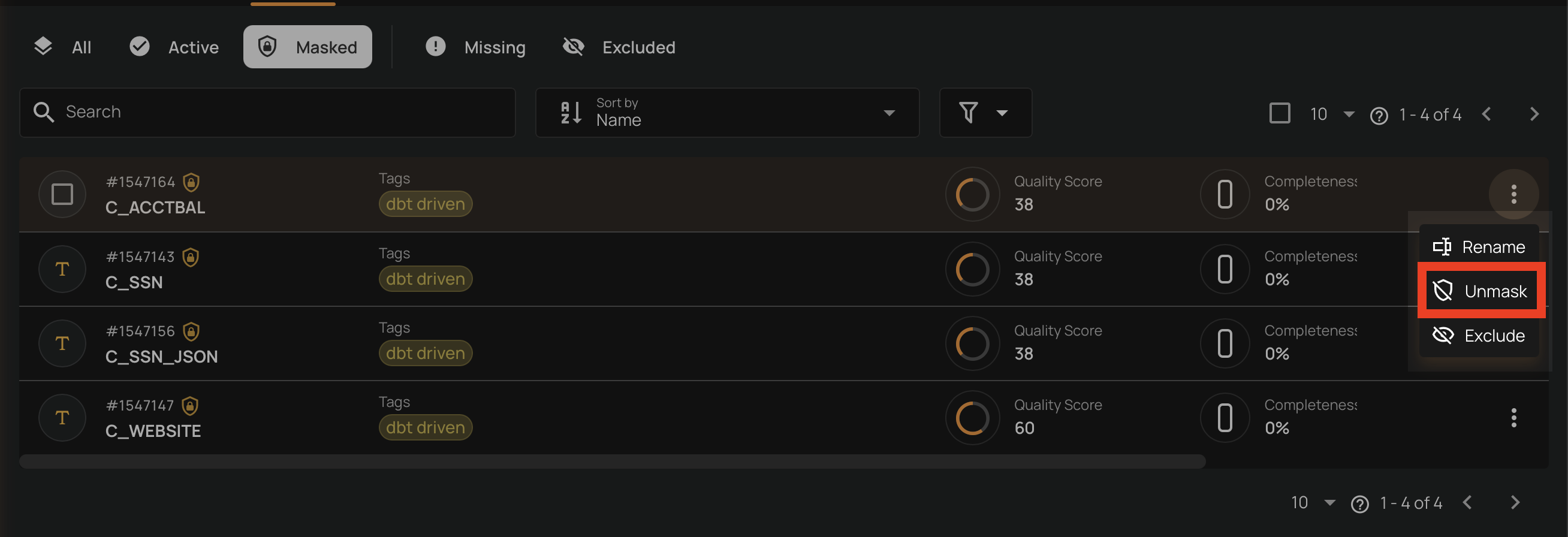
- Navigate to the container's field listing.
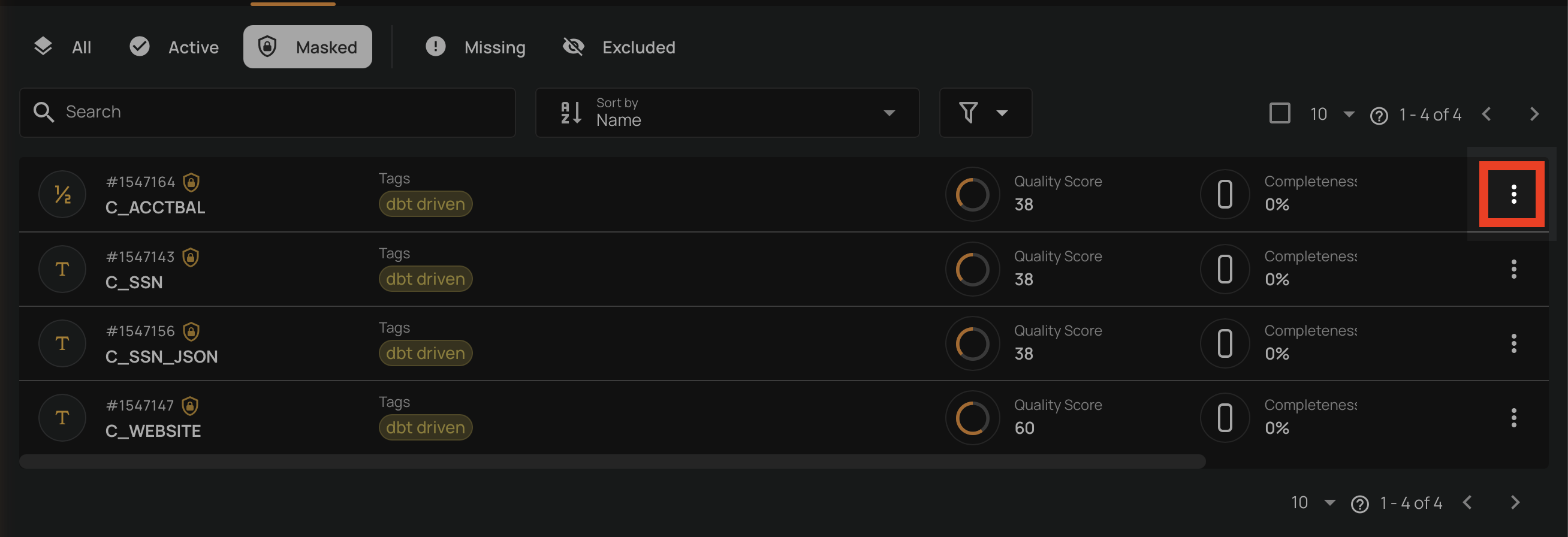
- Click the Masked tab to view masked fields.
- Locate the field you want to unmask.
-
Click the vertical ellipsis menu (⋮) on the field row.
-
Click the Unmask option from the menu.
-
Confirm the unmasking in the dialog.
Unmask from the Field View
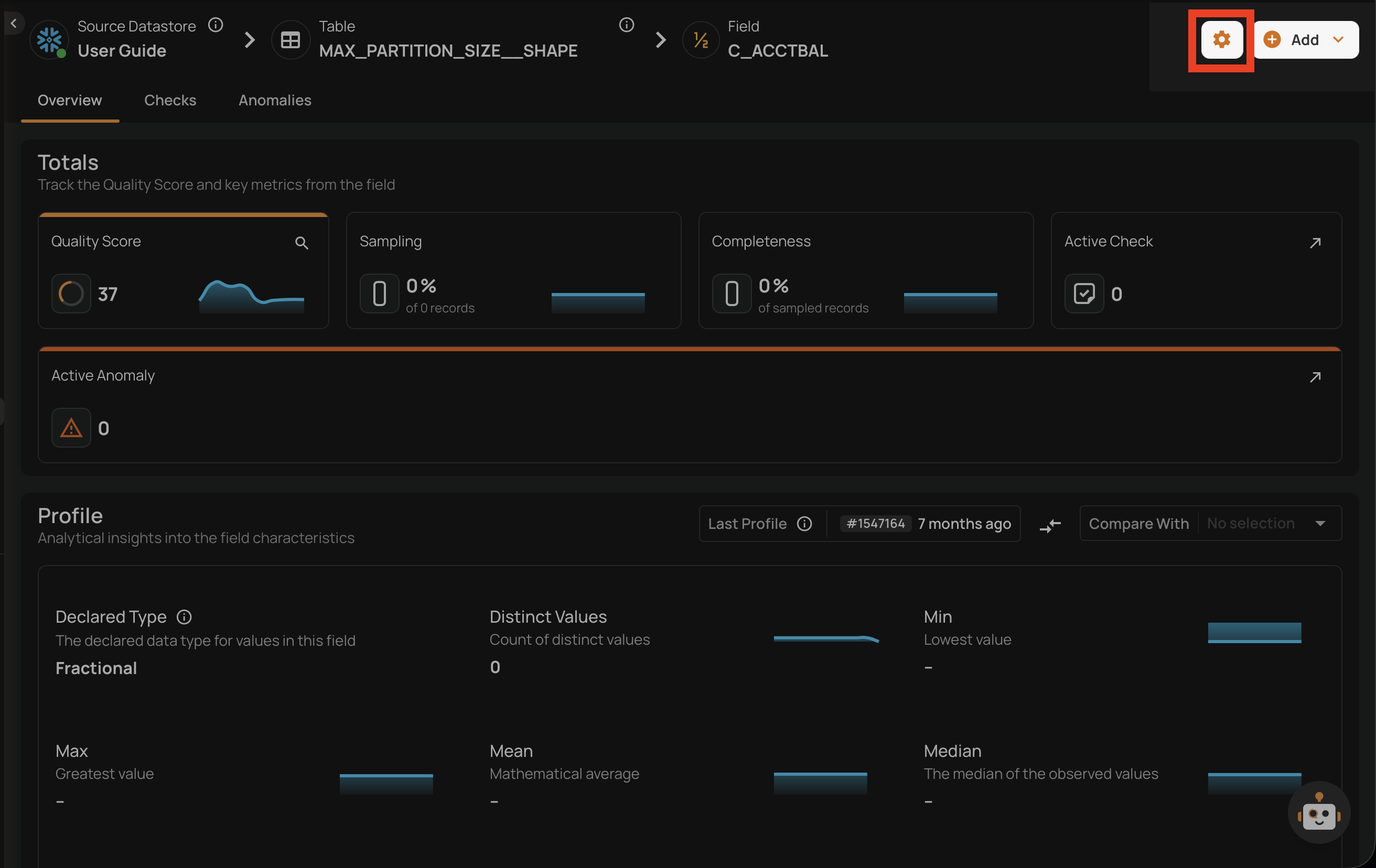
- Navigate to the field's detail page by clicking on the field name in the container's field listing.
-
Click the settings icon (gear icon) in the top-right corner of the field page.
-
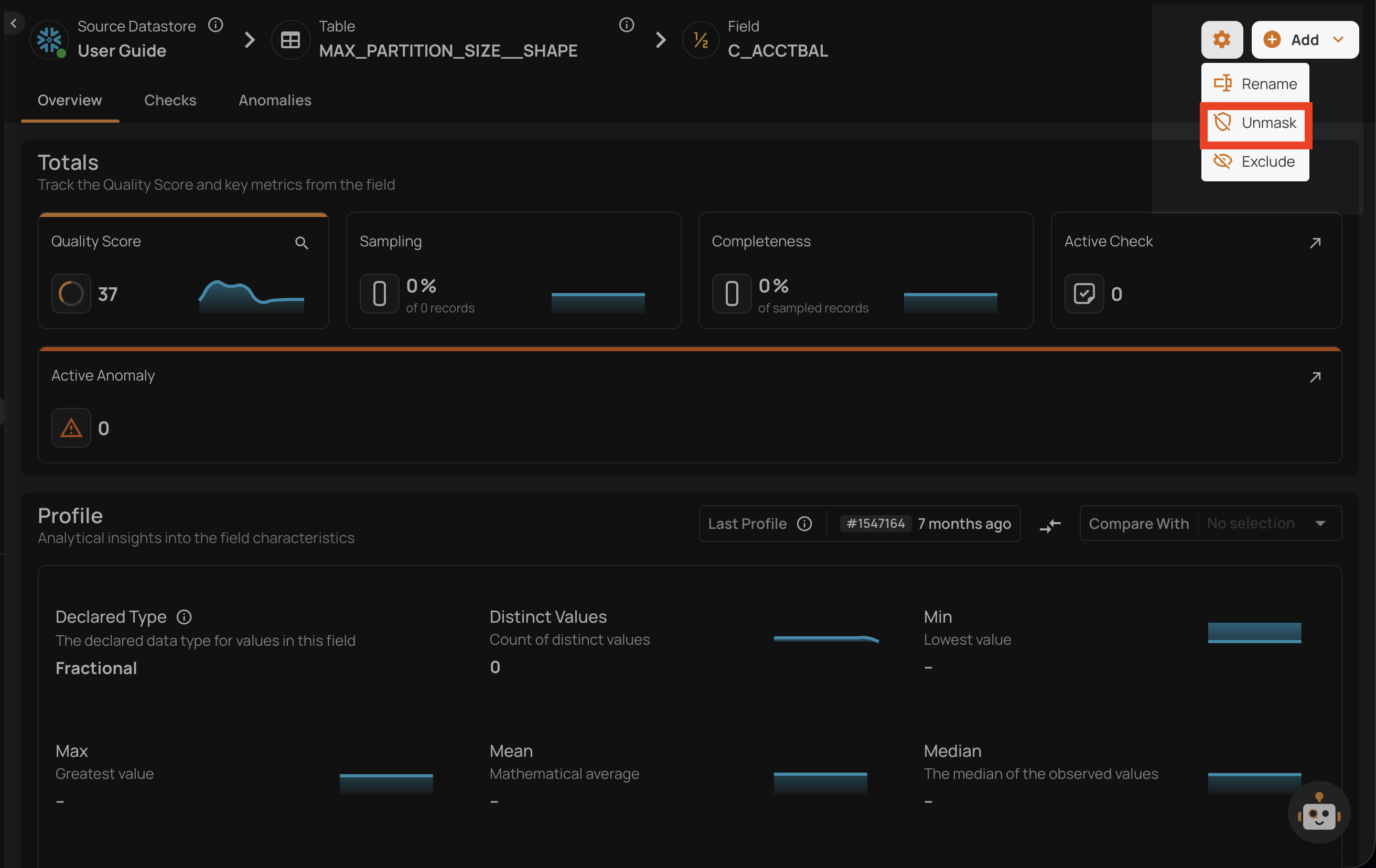
Click the Unmask option from the dropdown menu.
-
Confirm the unmasking in the dialog.

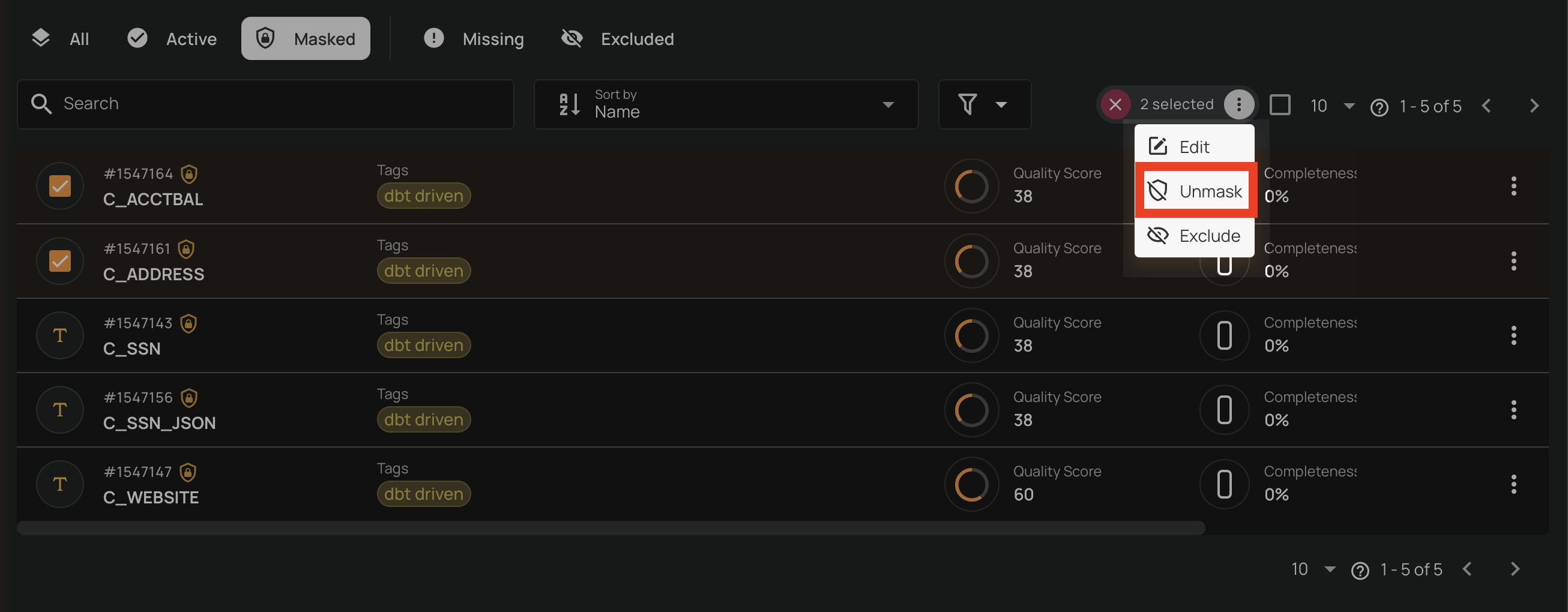
Bulk Unmask
You can unmask multiple fields at once from the container's field listing.
- Navigate to the container's field listing.
- Click the Masked tab to view masked fields.
-
Select the fields you want to unmask by clicking the checkbox on each field row.

-
Click the Unmask action in the selection toolbar that appears at the top.
-
Confirm the bulk unmasking in the dialog.
Revealing Masked Values
Users with Editor permission can temporarily reveal masked values in the surfaces that support inline reveal. Not every surface supports reveal — see the Where Masking Is Applied table above.
Data Preview
In the container's data preview, masked fields display their values as hidden (••••••••). A Show masked values button allows you to reveal the values for the current view.

Anomaly Source Records
In anomaly source records, masked field values are hidden by default. You can toggle the visibility of masked values using the reveal control — toggling it reveals all source records attached to that anomaly at once.

Anomaly Assertion Context
Masked field values that appear in anomaly check details and assertion context are unconditionally masked. There is no inline reveal for this surface — this is by design to ensure that sensitive values are never inadvertently exposed when reviewing anomaly descriptions or sharing anomaly details.
Export and Materialize Outputs
Histogram bucket values in exported field profile files and source record values in materialized container snapshots are written with masking applied by default. To obtain revealed data in these outputs, pass include_masked=true when triggering the operation via the API. This parameter is not available in the UI.
Warning
Every time masked values are revealed, the action is recorded in the masking audit log with the user identity, timestamp, IP address, and the specific fields and resources accessed. Administrators can review these logs from the masking audit log page.
Note
The following fields cannot be masked:
- Excluded fields
- Missing fields
- Already masked fields
- Container identifiers — fields configured as the incremental field or partition field, which the platform uses to organize and track data processing