Edit a Datastore Group
This guide walks you through the steps to edit an existing datastore group — including renaming it or changing its icon.
Note
You need the Manager role to edit datastore groups.
Steps
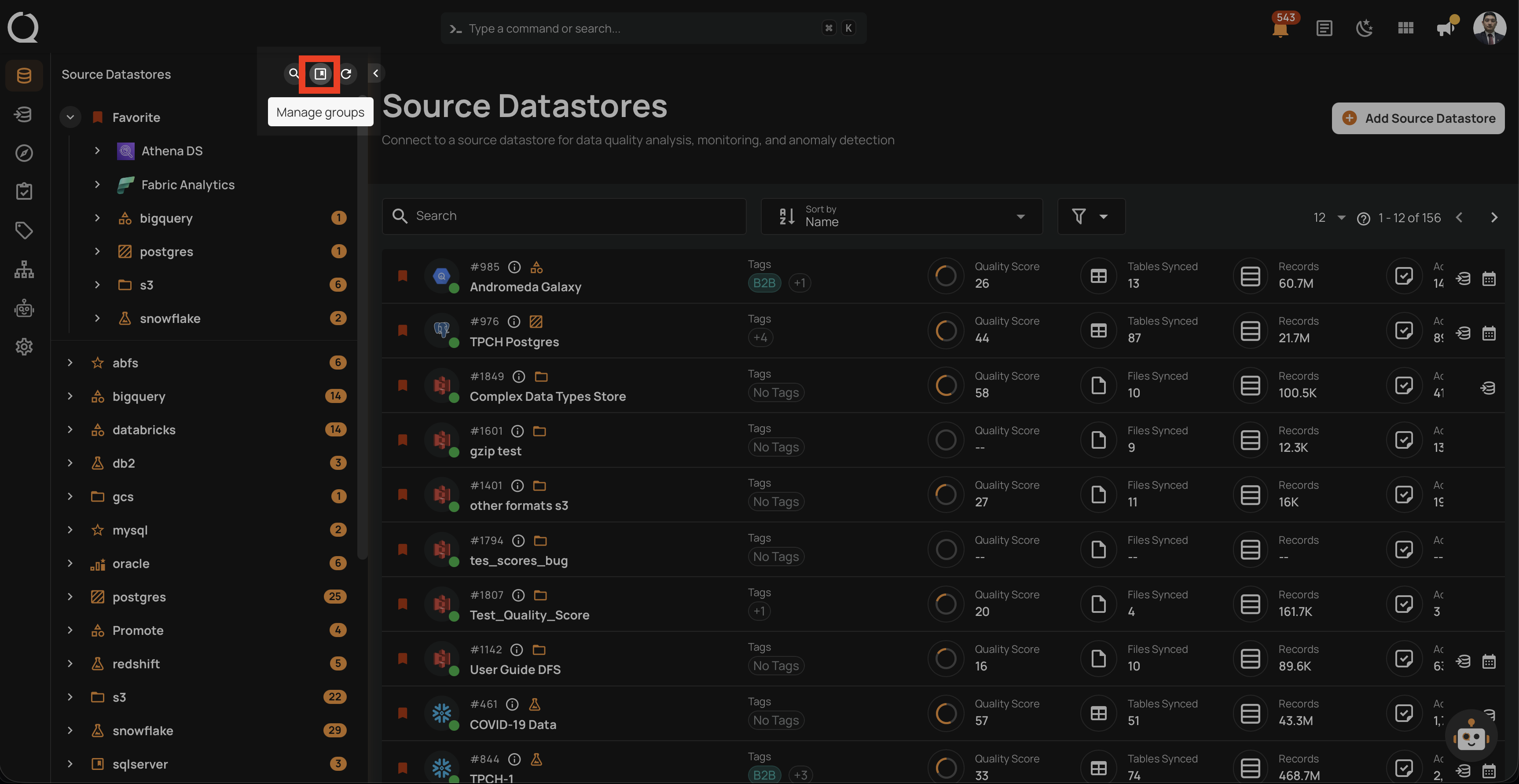
Step 1: Click on the Manage groups button (bookmark icon) in the tree view header.
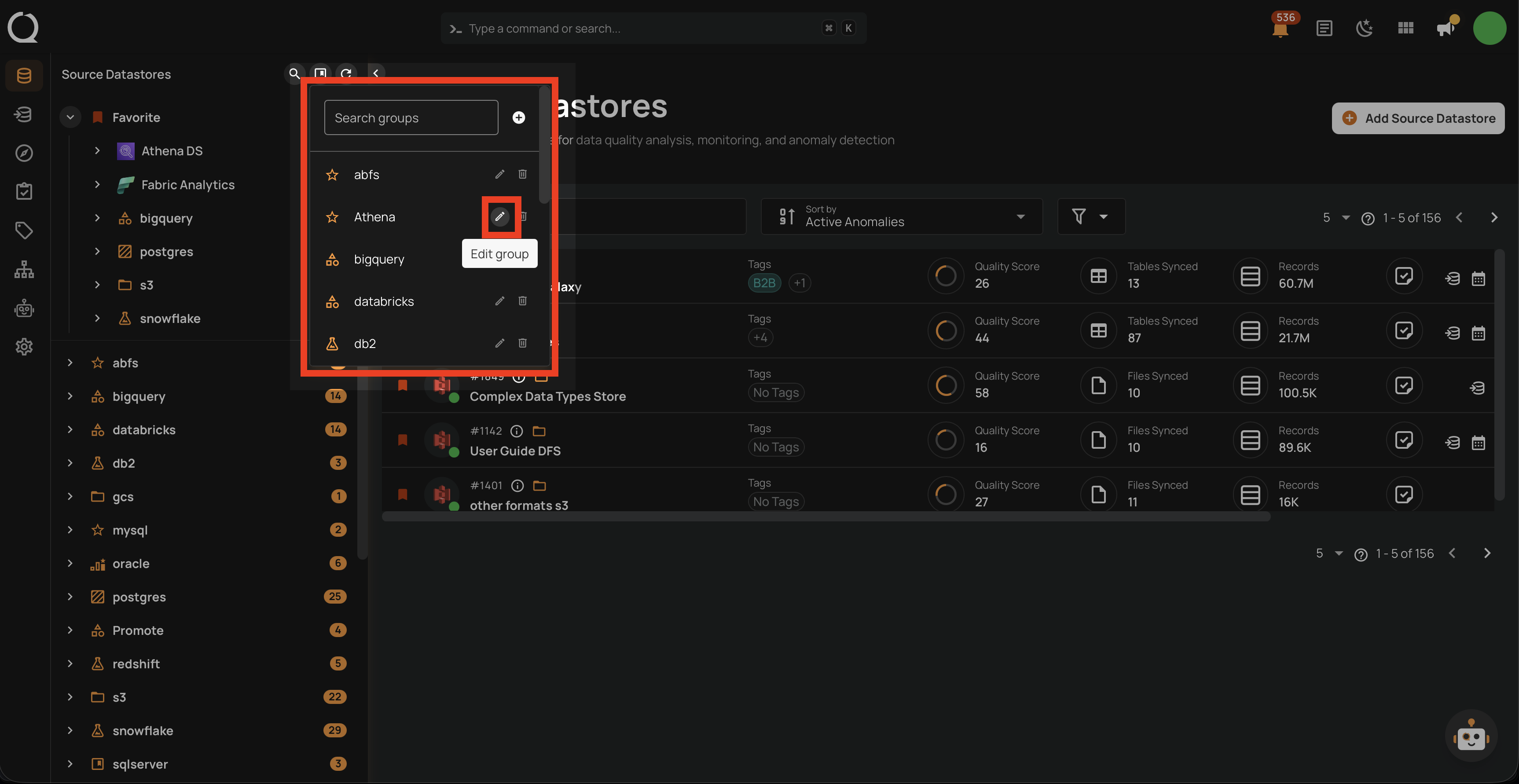
Step 2: In the Manage Groups panel, find the group you want to edit and click the Edit group button (pencil icon).
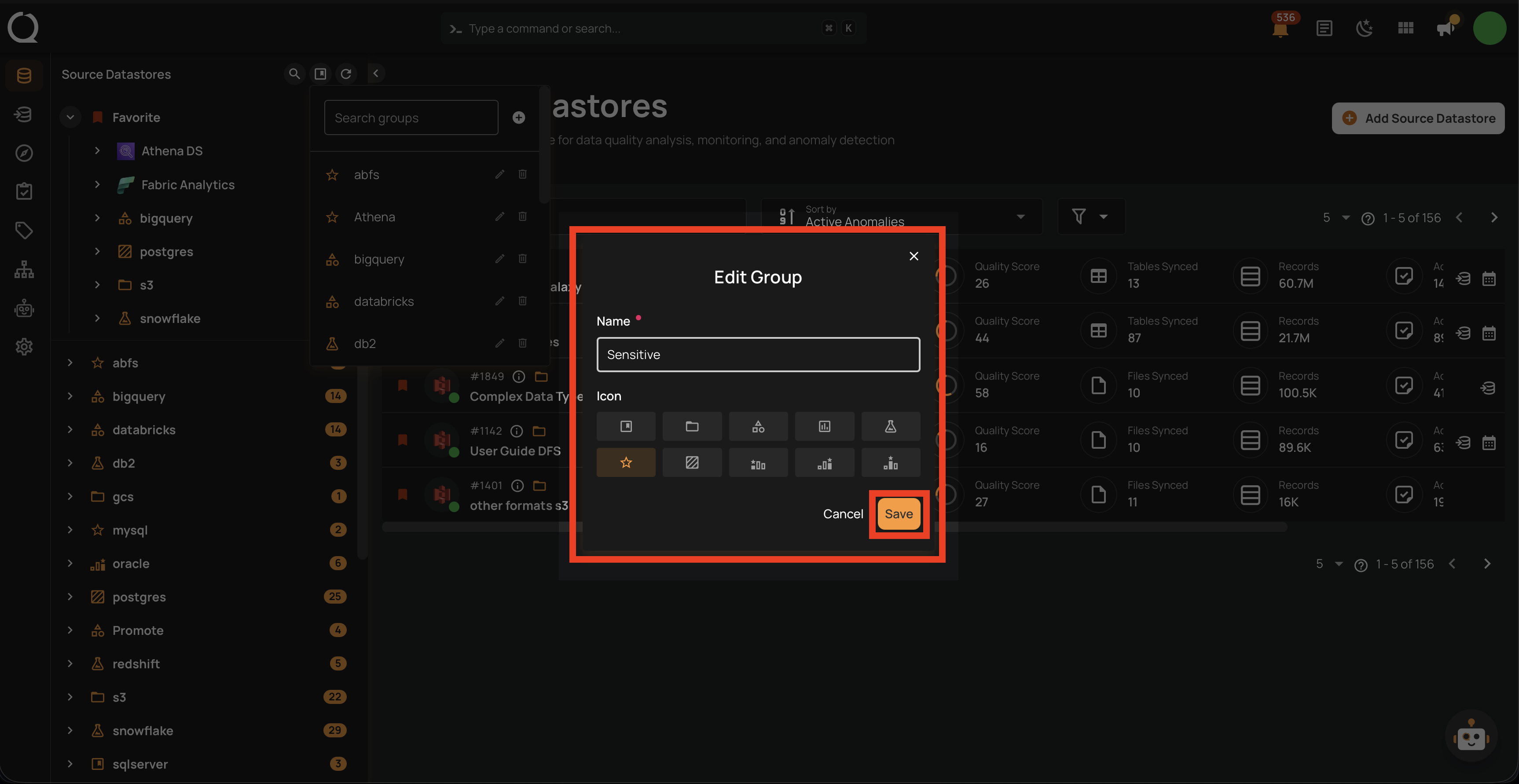
Step 3: A dialog will appear with the group's current name and icon. Update the fields as needed and click Save to apply the changes.
| Field | Description |
|---|---|
| Name | Change the group name (must remain unique, max 100 characters). |
| Icon | Select a different icon for the group. |
Step 4: The updated name and icon will be reflected in the tree view.