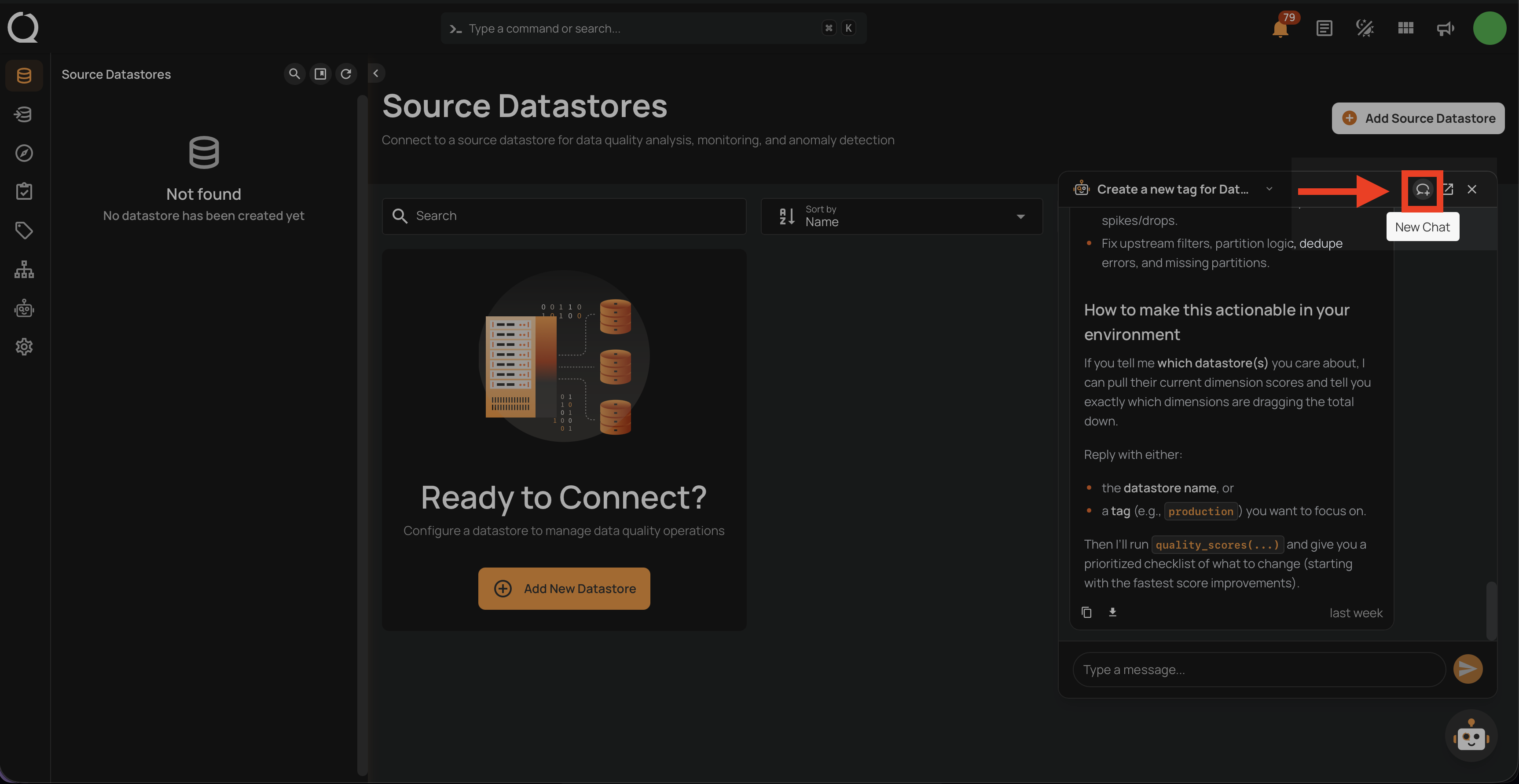
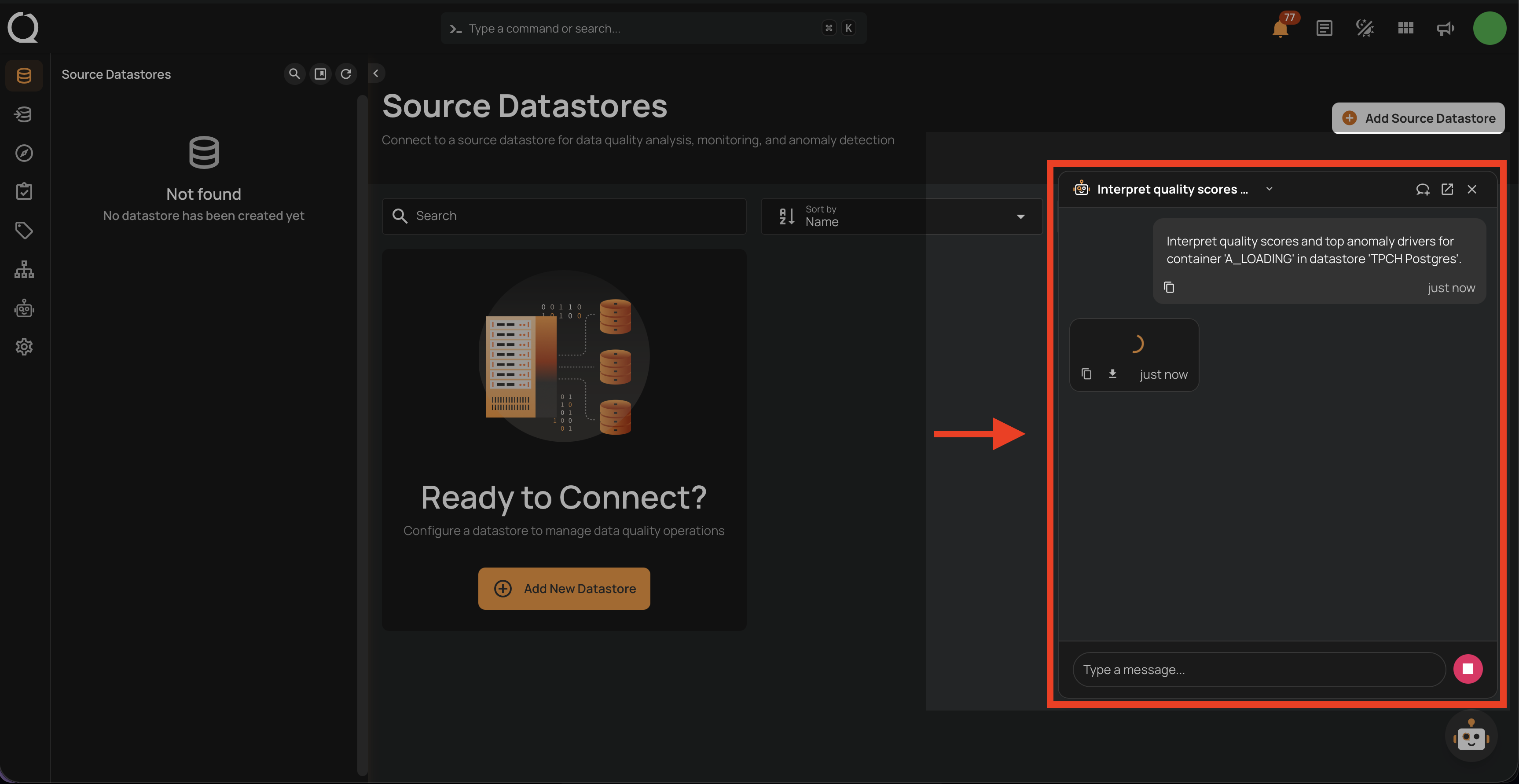
Start a New Conversation
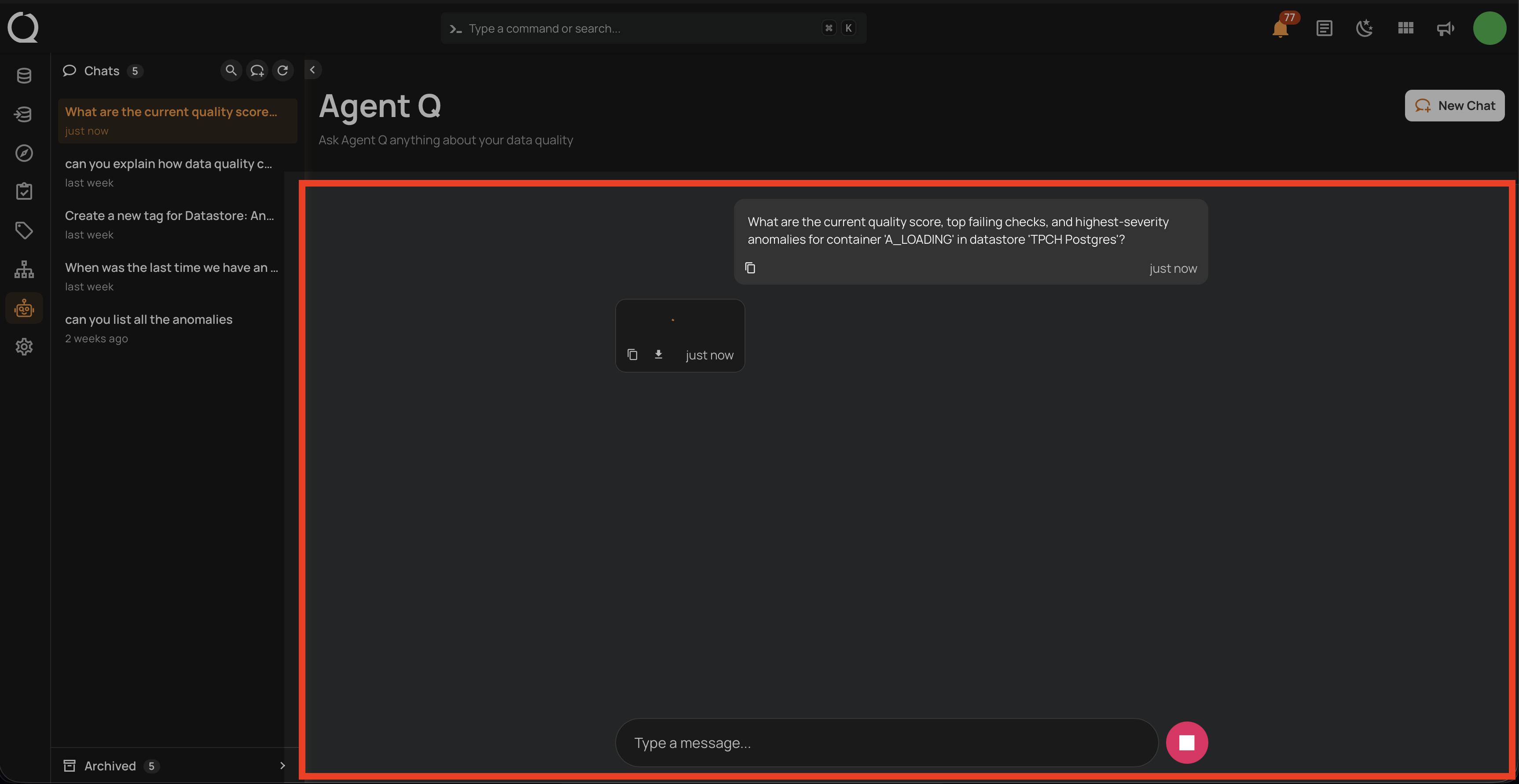
Starting a new conversation clears the current chat and opens the empty state with smart suggestions. The session is not saved until you send your first message — at that point, it is automatically created with an AI-generated title based on your opening prompt. You can change this title at any time from the Rename a Conversation page.
Via Agent Q Page
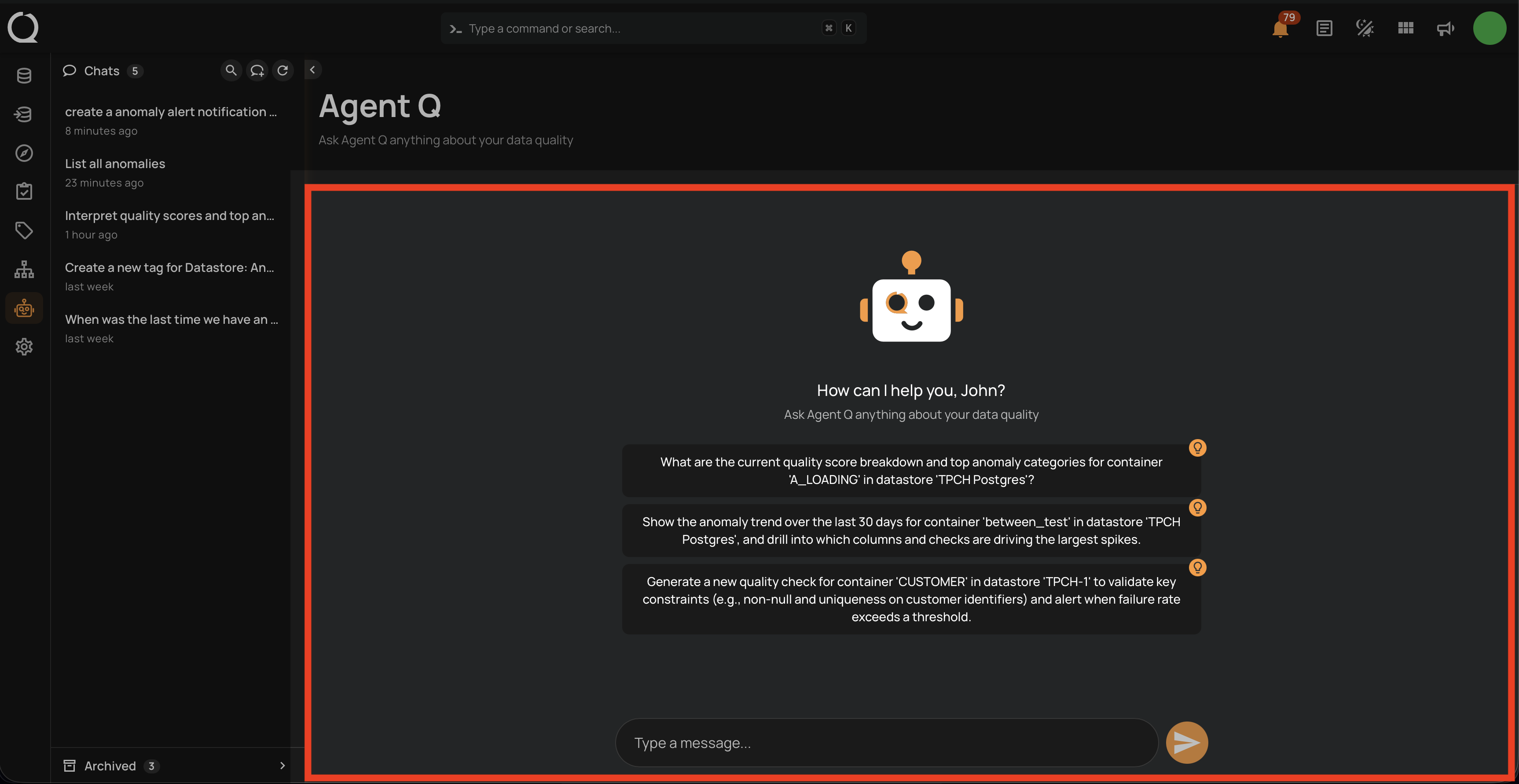
Step 1: Click Agent Q in the left sidebar to open the full-page chat interface. From the empty state, you can start a conversation by typing directly in the chat input at the bottom.
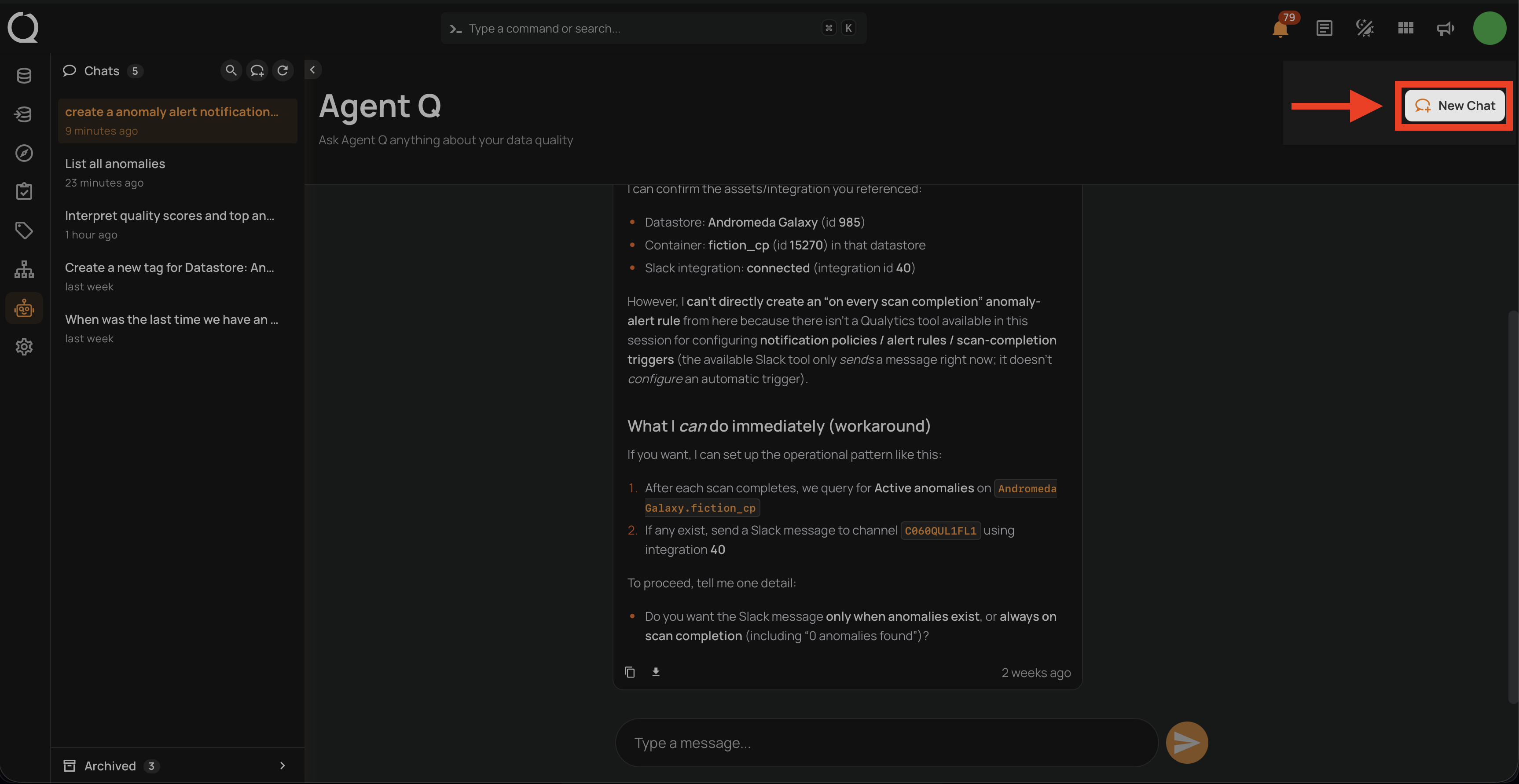
Step 2 (optional): If there is already an active conversation open, click the New Chat button in the top-right corner of the chat area to open a fresh session.
Note
You can also click the New Chat button that appears directly in the sidebar toolbar at the top of the Chats list.
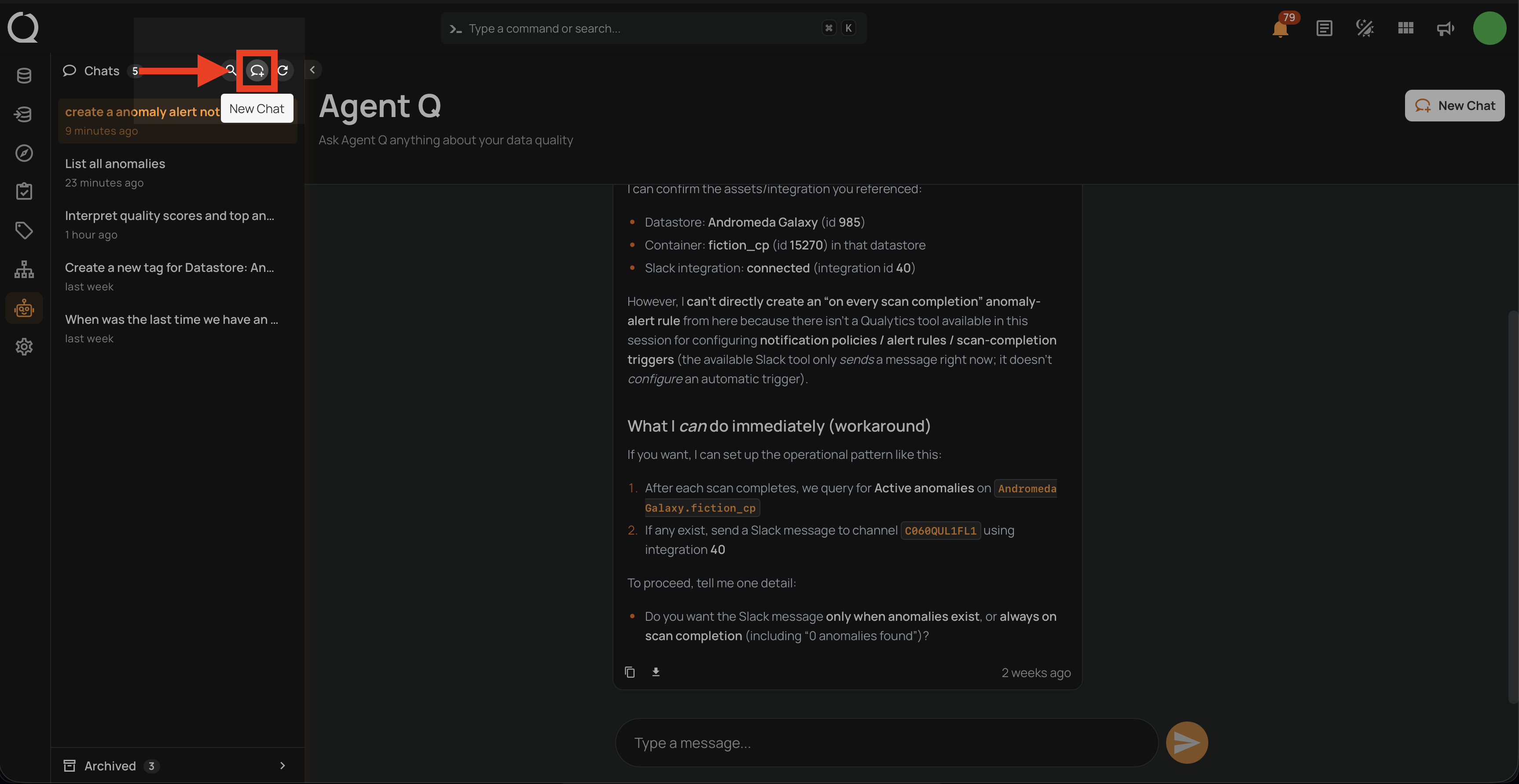
Step 3: A new empty state opens with personalized smart suggestions. Type your message in the input field to start interacting with Agent Q.
Via Floating Chat
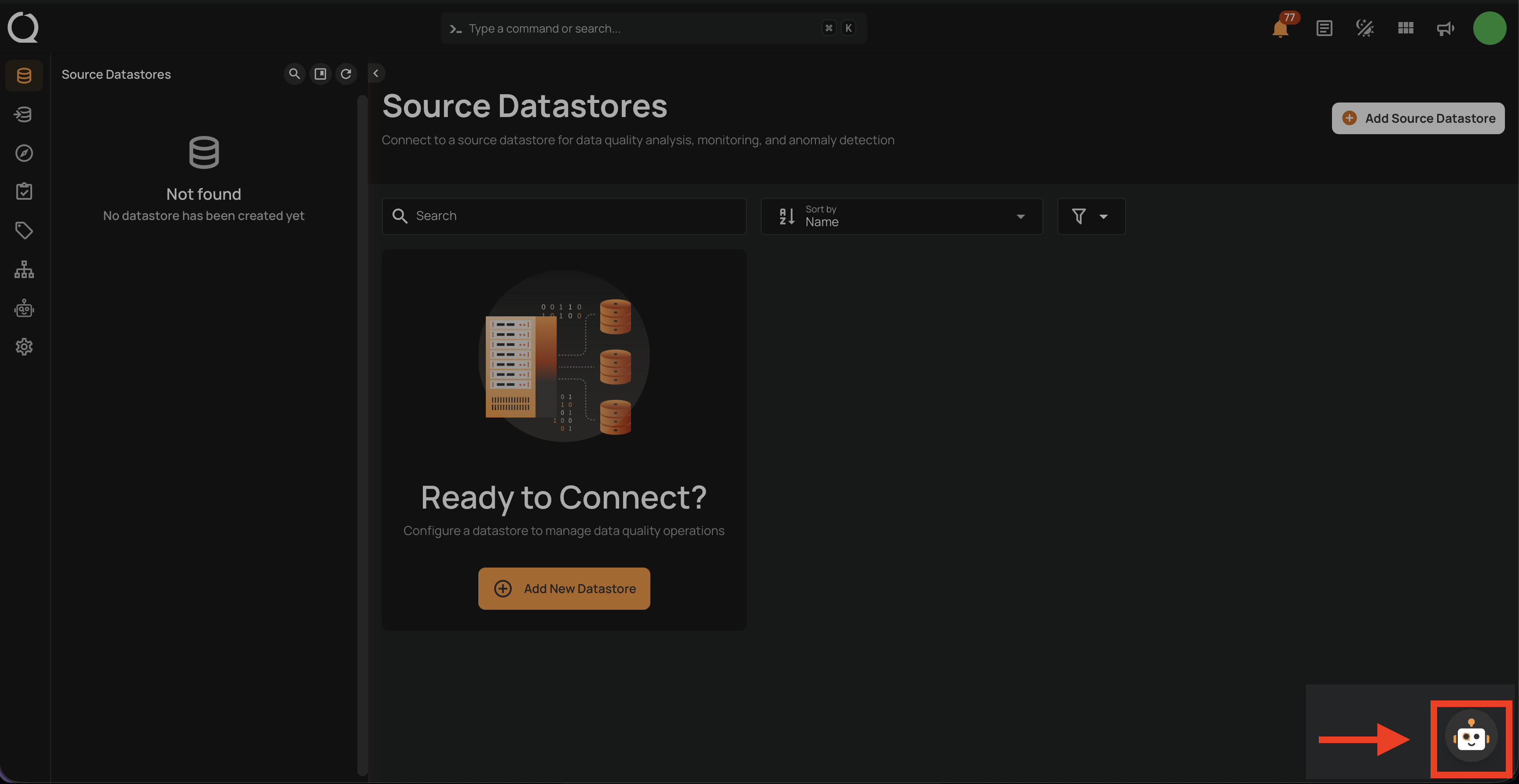
Step 1: On any page in the application, click the Agent Q button in the bottom-right corner to open the floating chat.
Step 2: The floating chat window opens. You can start interacting with Agent Q right away by typing in the input field. When using the floating chat on specific pages, Agent Q automatically detects the context of the page you are on and uses it in the conversation.
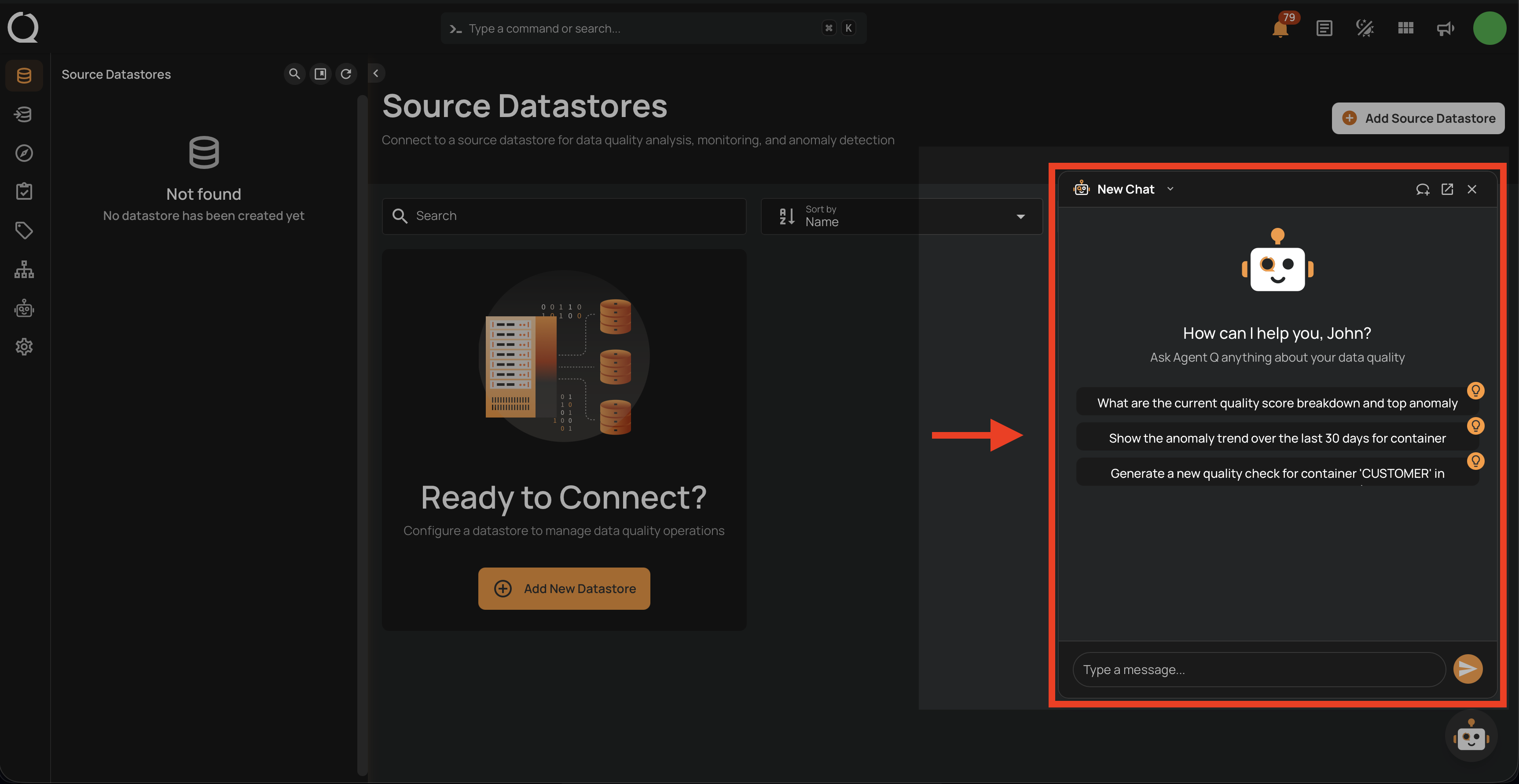
Step 3 (optional): If the floating chat already has an existing conversation in progress, a New Chat button appears in the floating chat header. Click it to open a fresh session.