Resume a Conversation
You can return to any previous session and continue from where you left off. The full conversation history is preserved.
Via Agent Q Page
Step 1: Click Agent Q in the left sidebar to open the full-page chat interface. The Chats list in the sidebar shows all your active conversations.
Info
If you are looking for a specific conversation, you can use Search Conversations to filter by title or message content.
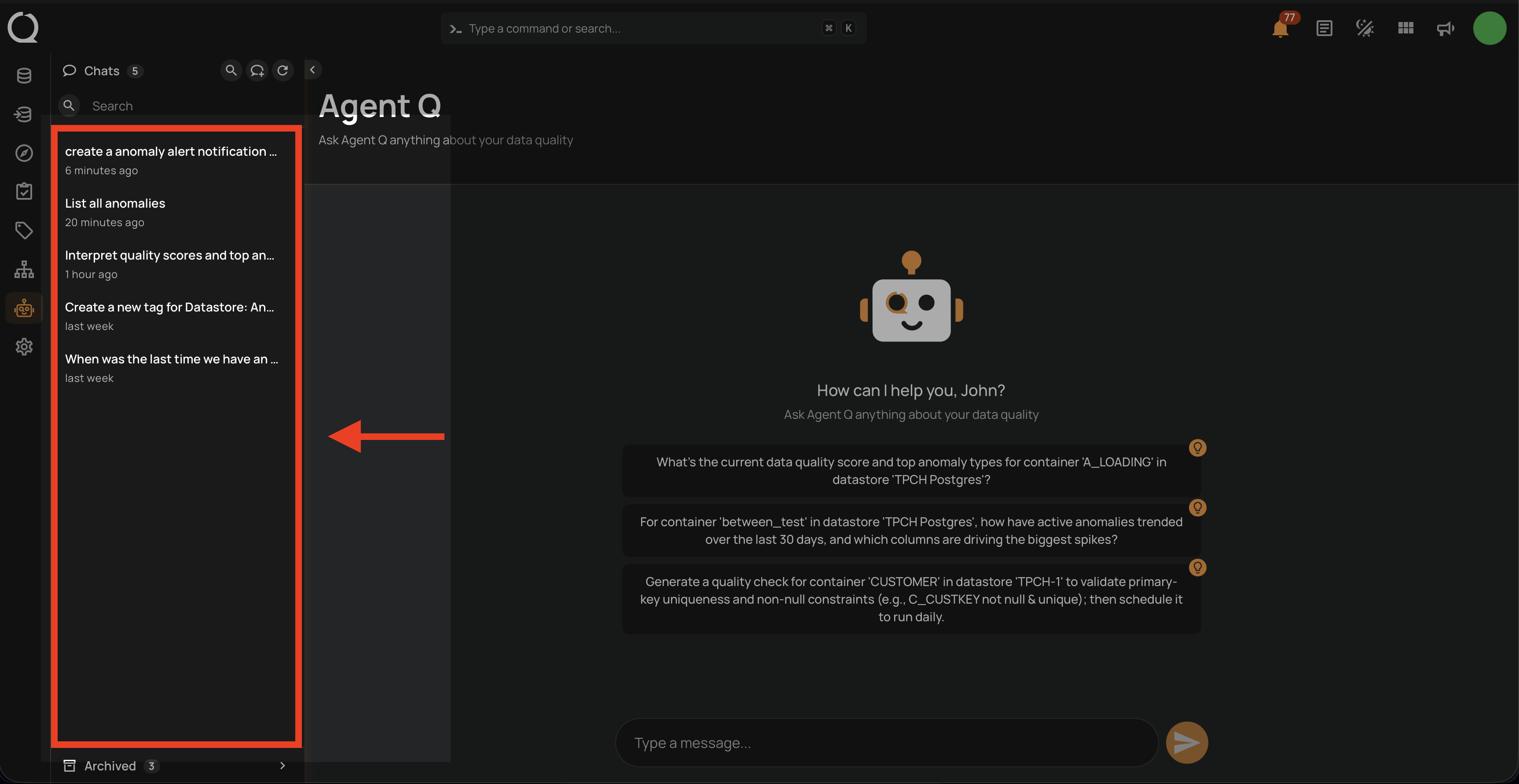
Step 2: Locate the conversation you want to resume in the list.
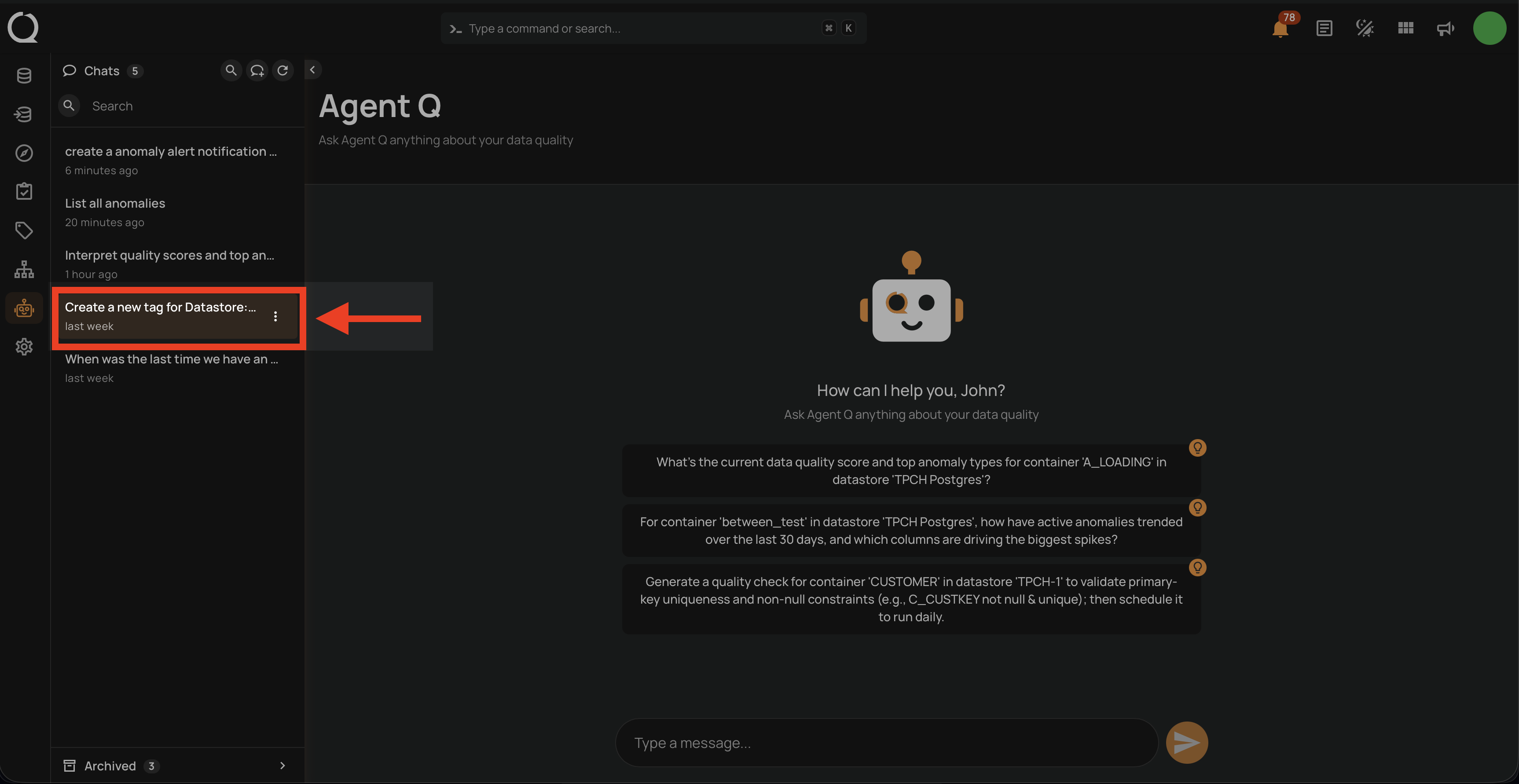
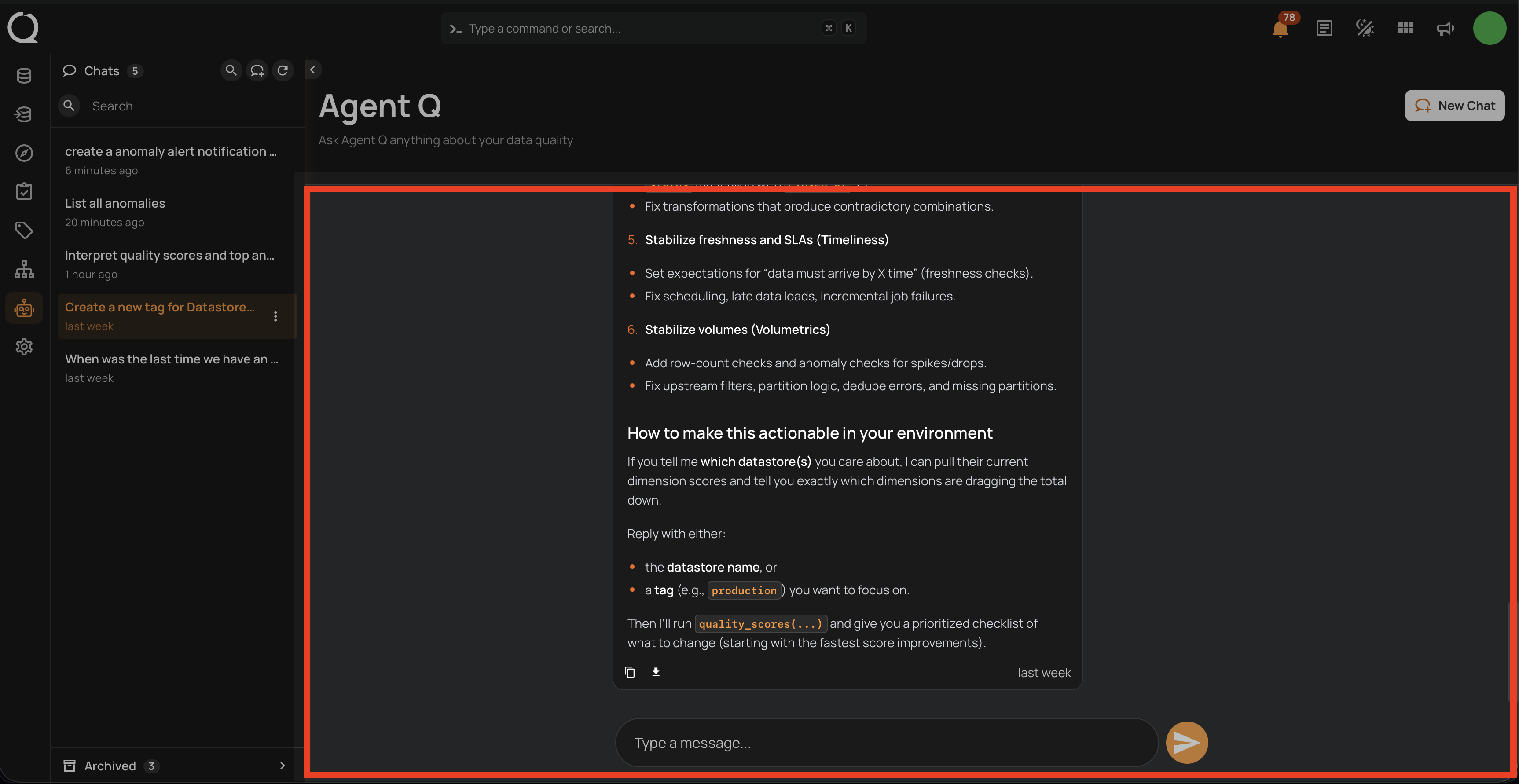
Step 3: Click the conversation to open it. The full message history loads and you can continue the conversation by typing in the input field at the bottom.
Via Floating Chat
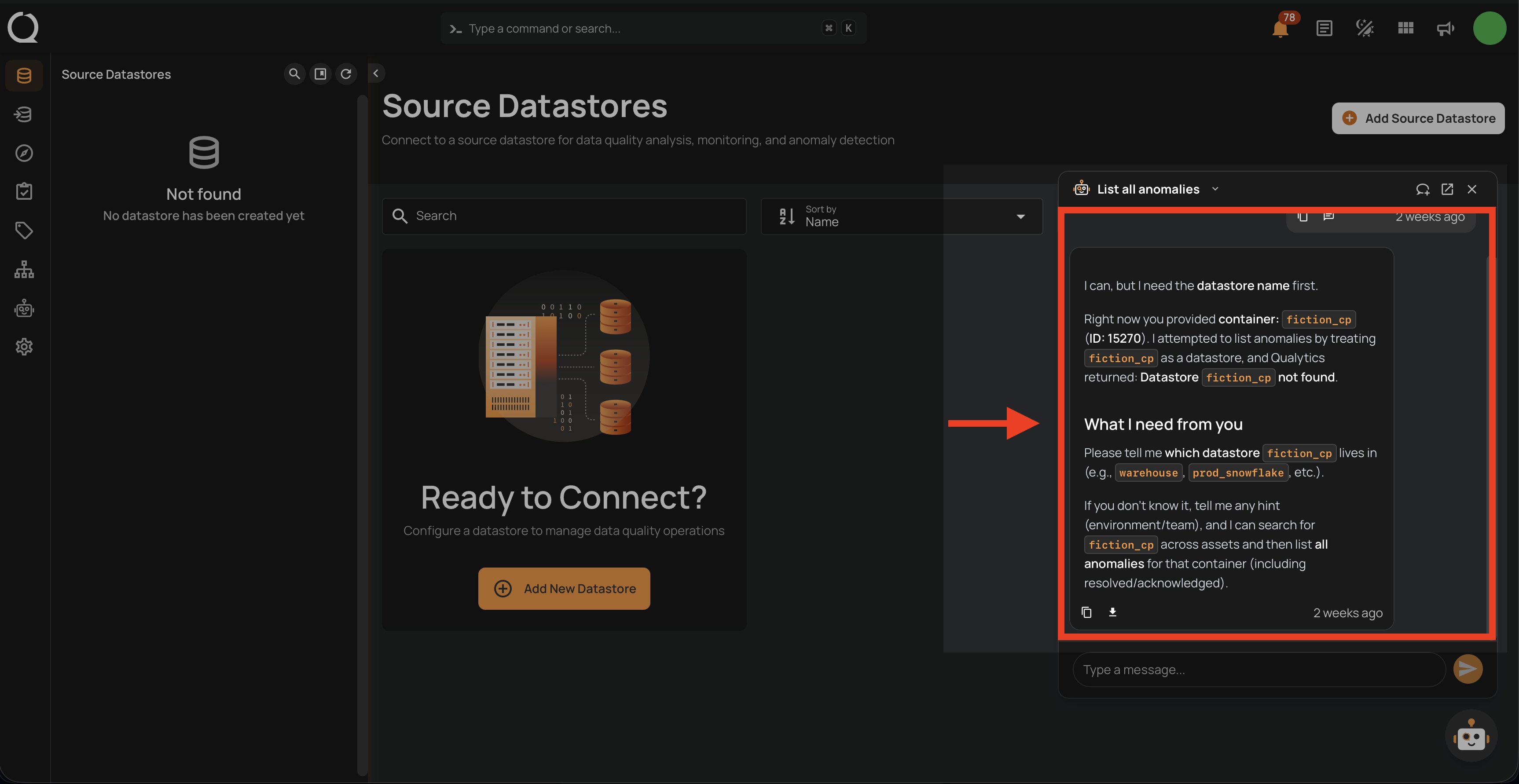
Step 1: Open the floating chat widget by clicking the Agent Q button in the bottom-right corner of any page. Then click the Chat history button in the floating chat header.
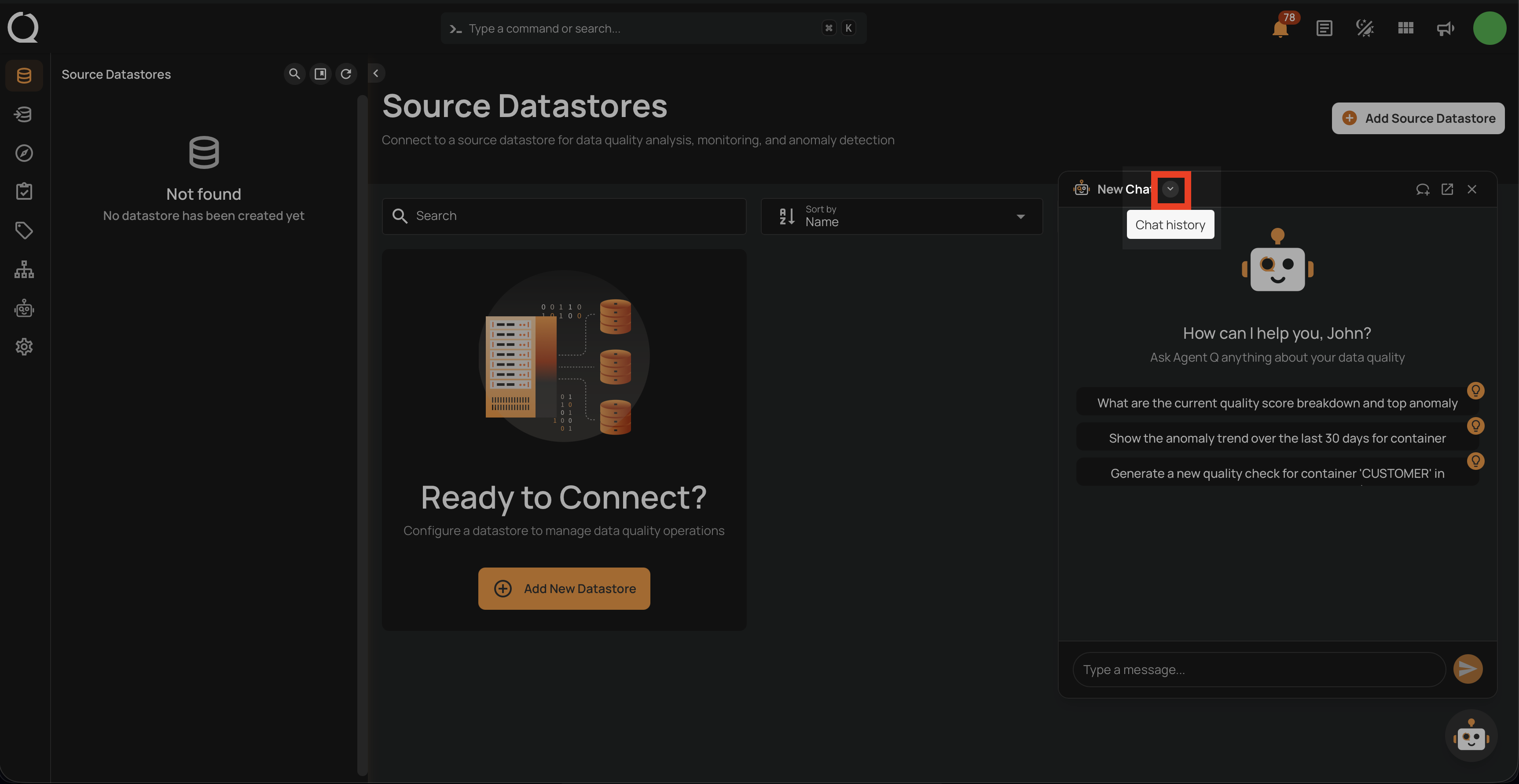
Step 2: A dropdown list of your recent conversations appears. Scroll through the list to find the session you want to resume.
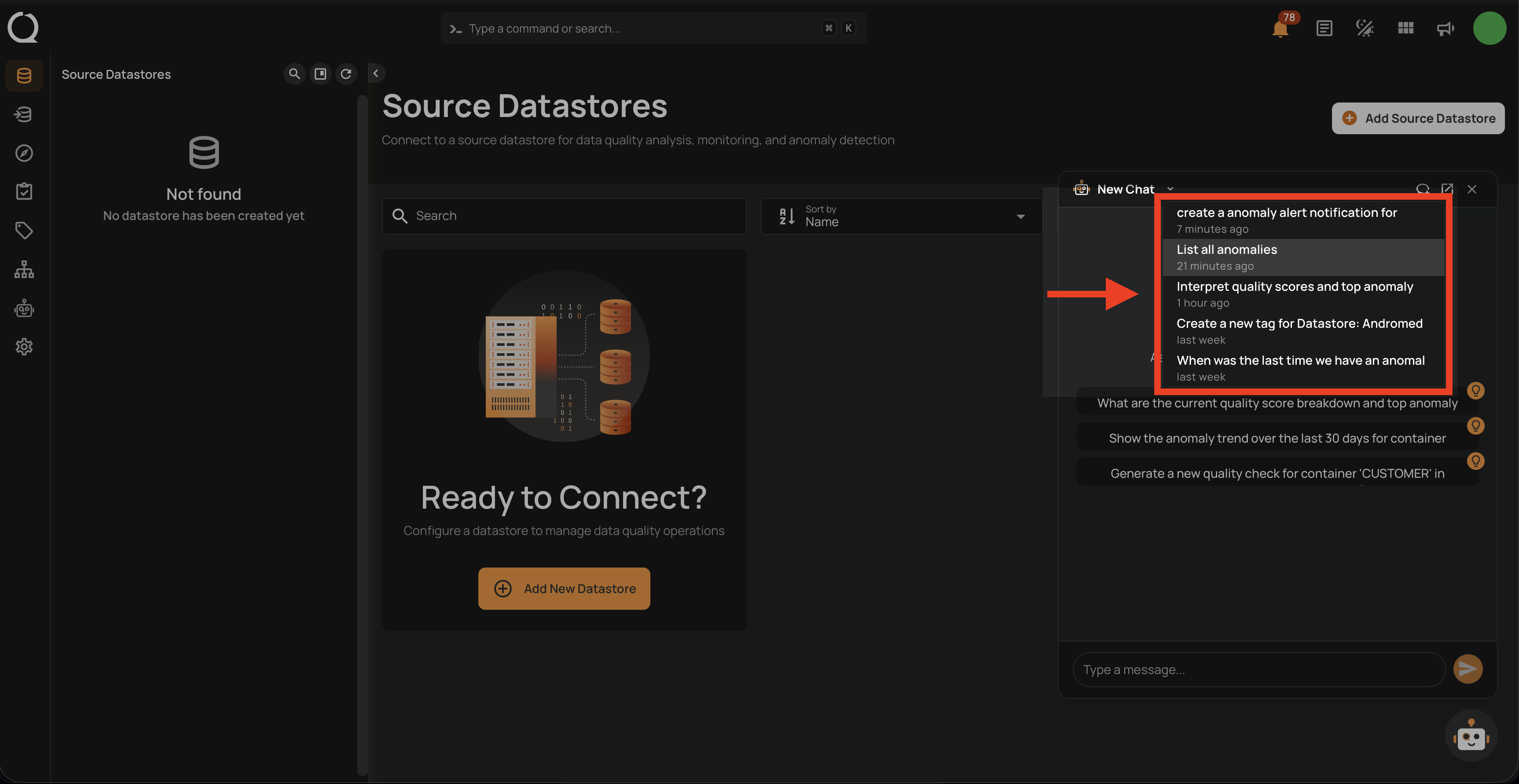
Step 3: Click the conversation to open it. The full message history is displayed and you can continue interacting with Agent Q from where you left off.