Chat Interface Tips
Quick reference for common interface actions in Agent Q.
Refresh the Chat List
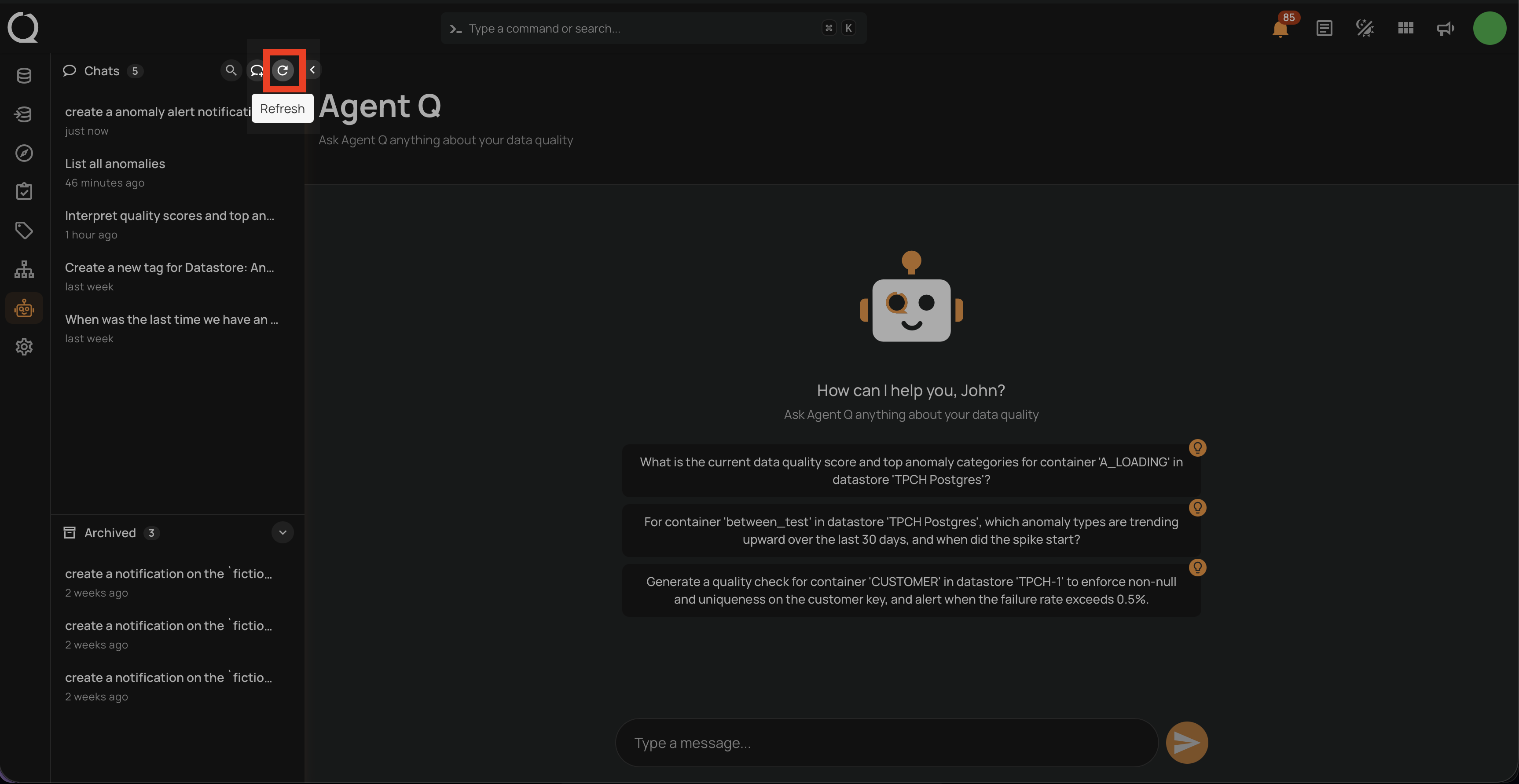
If you don't see a recently created conversation in the sidebar, click the Refresh icon at the top of the Chats list to reload the session list.
Collapse the Chat Sidebar
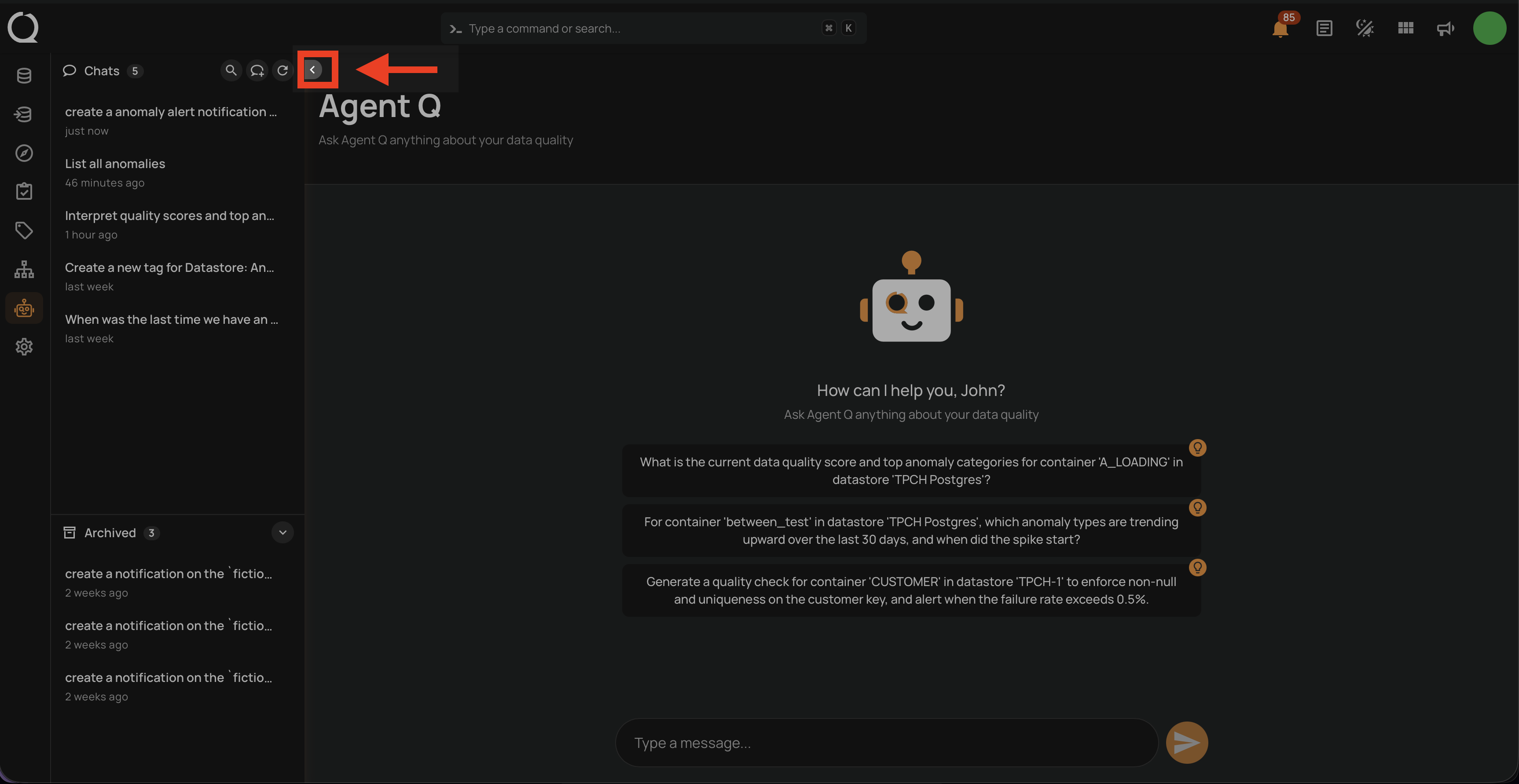
To give more space to the chat area, click the Collapse icon in the sidebar toolbar. The Chats list slides out of view and the chat area expands to fill the full width.
Expand the Chat Sidebar
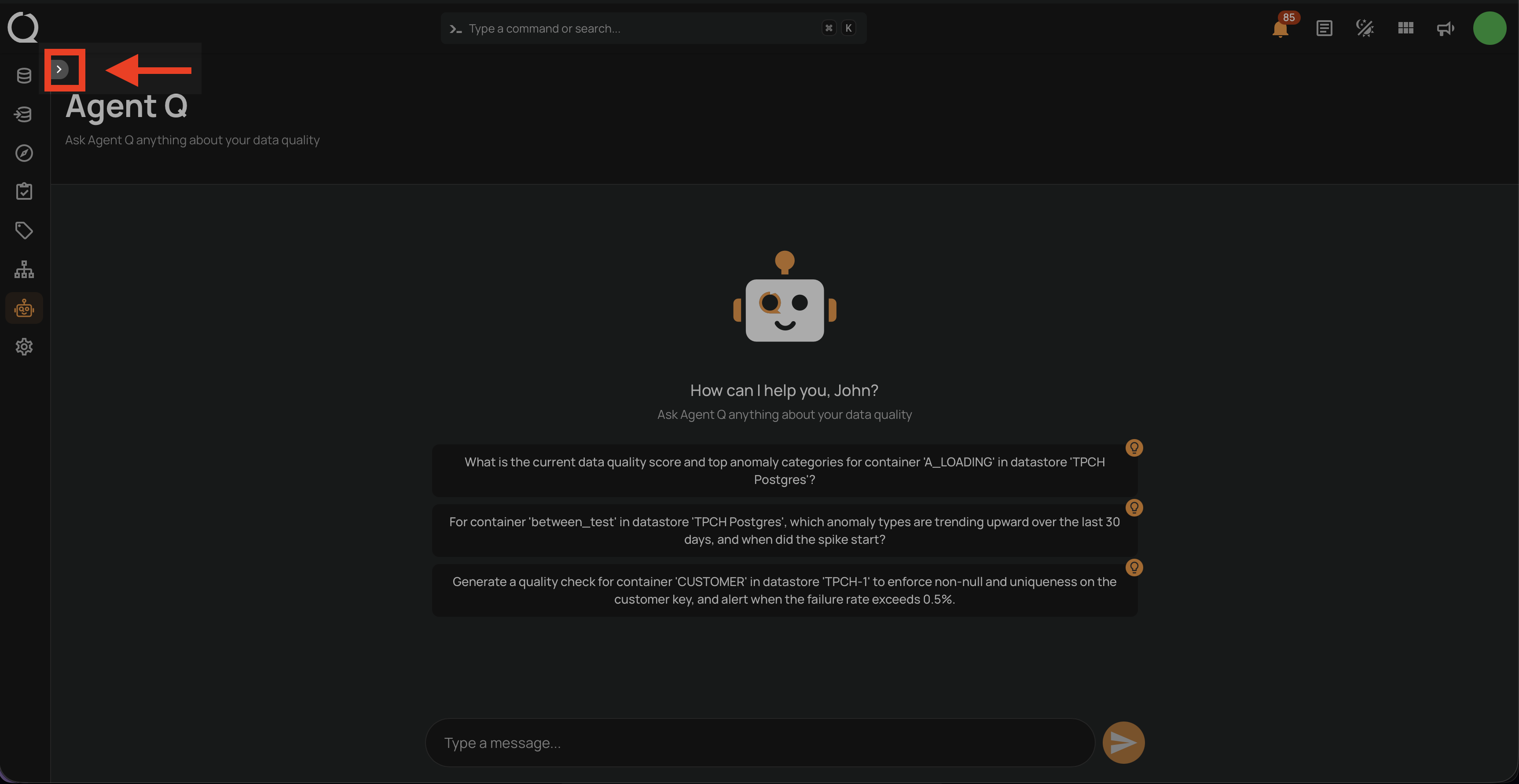
When the sidebar is collapsed, click the Expand icon on the left edge to bring the Chats list back into view.
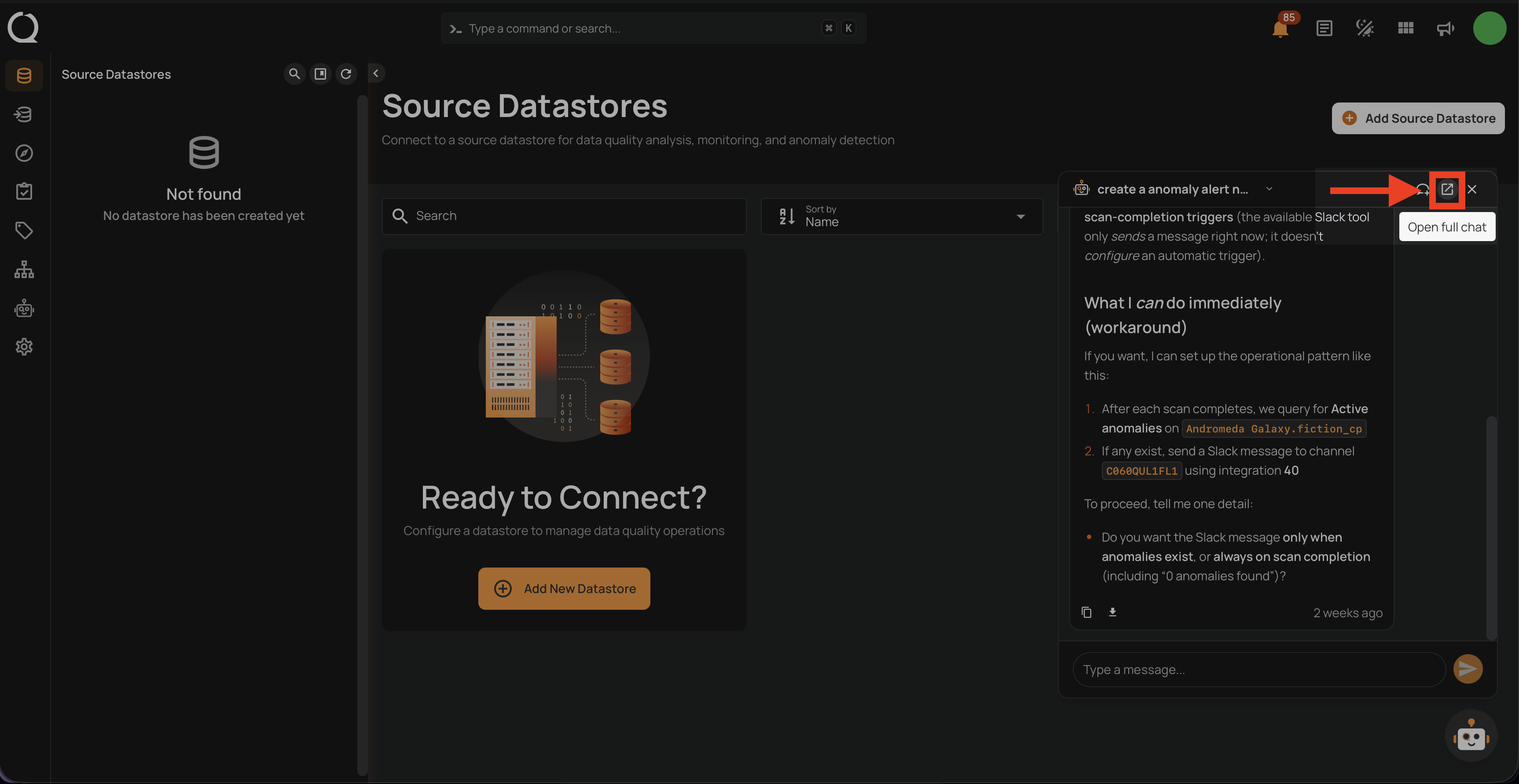
Expand the Floating Chat to Full Page
While using the floating chat widget, click the Open full chat icon in the floating chat header to open the current conversation in the full-page Agent Q view.
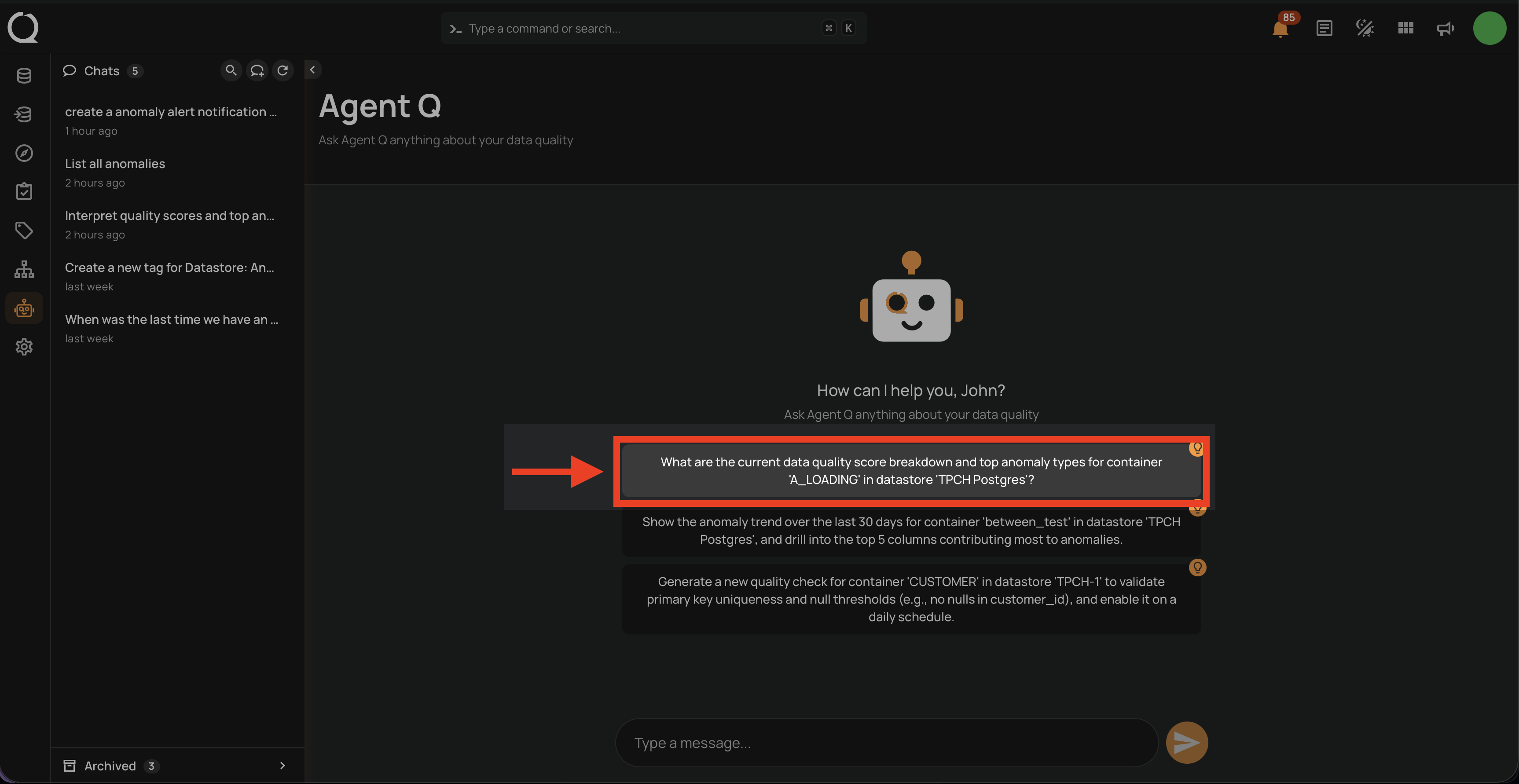
Use Chat Suggestions
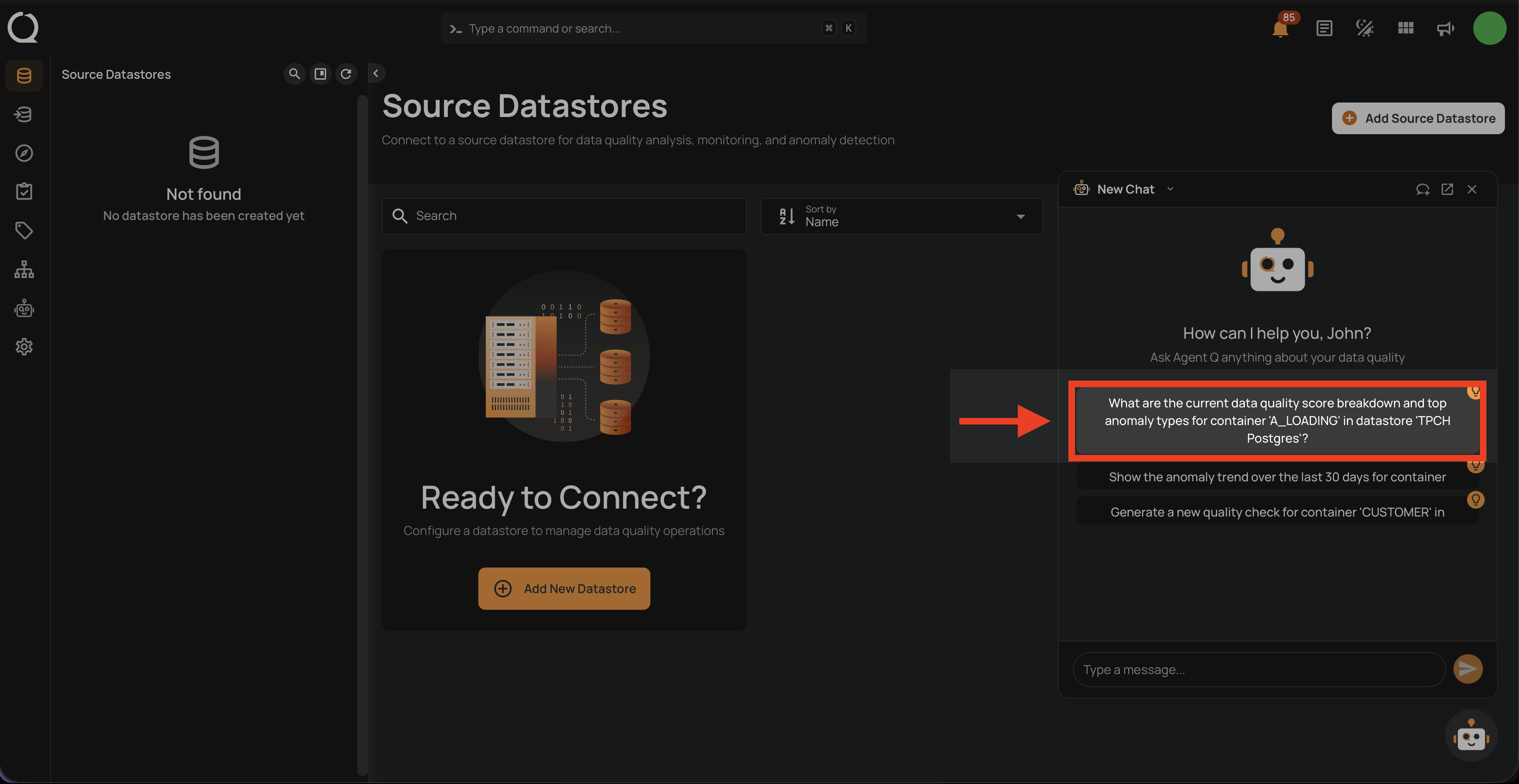
When starting a new conversation, Agent Q displays a set of personalized prompt suggestions based on your data assets and common workflows. Click any suggestion to use it as your opening message — it is inserted into the input field and sent automatically.
This works both in the full-page view and in the floating chat widget.
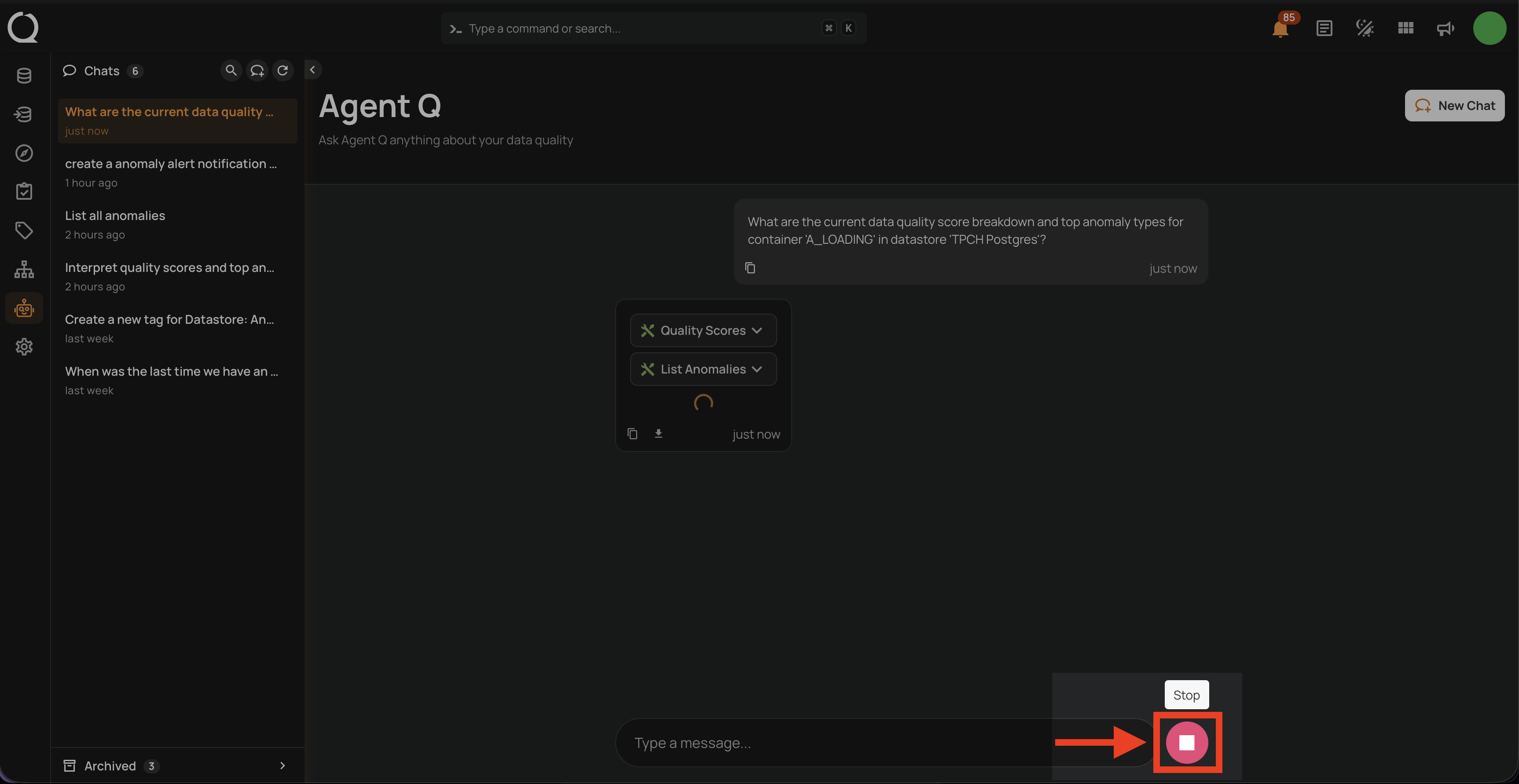
Stop a Response
Click the Stop button (red circle) that appears beside the input box while Agent Q is generating. The response stops immediately, and whatever Agent Q produced so far is preserved as a partial response with a "Stopped" indicator.
Paste Large Content
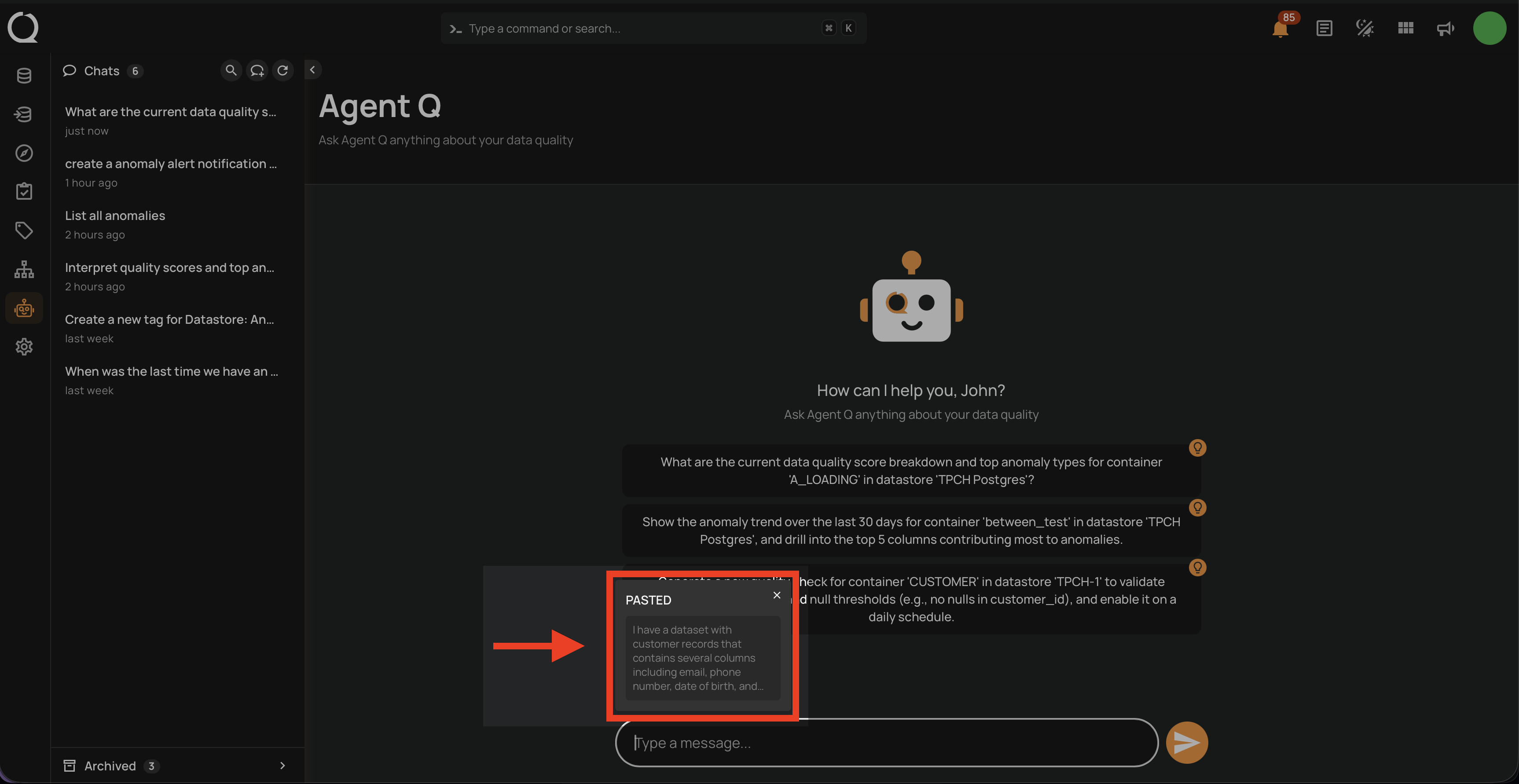
When you paste text of 200 characters or more into the input, Agent Q captures it as an attachment rather than inserting it into the input field. The pasted content appears as a removable panel above the input box labeled PASTED. It is included with your message when you send it, giving Agent Q full context while keeping the input clean.