Add Agent Q Integration
Agent Q requires an LLM (Large Language Model) provider to power its AI capabilities. This guide walks you through the full setup from the moment you log in to Qualytics.
Prerequisites
- A Qualytics account with Manager role or higher to configure the LLM integration.
- An API key from a supported LLM provider.
Note
Only Manager or Admin users can configure the LLM integration. Once configured, all users with Member role or higher can use Agent Q.
Integration
Via Settings
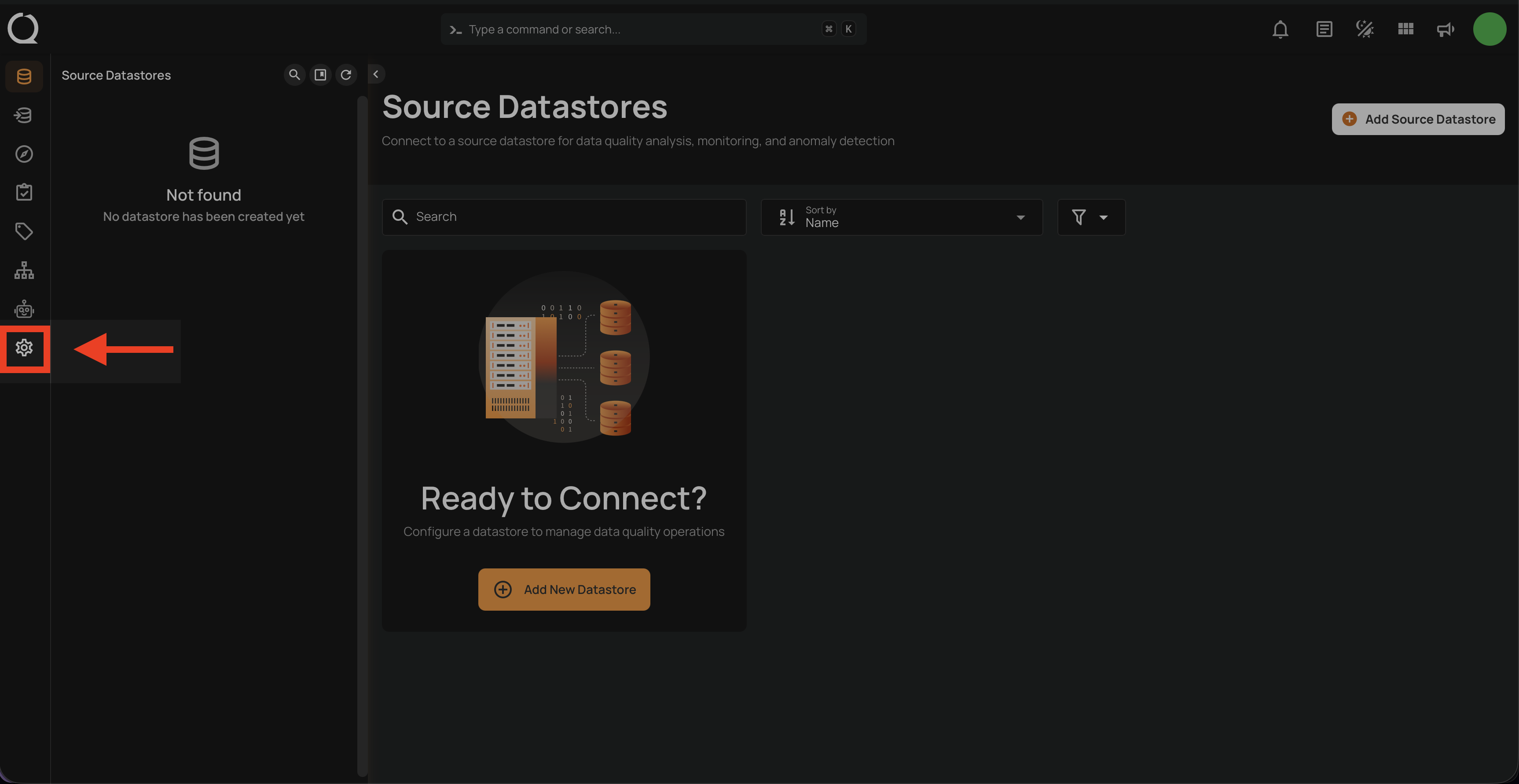
Step 1: After logging in, click the Settings icon (gear) in the bottom-left sidebar.
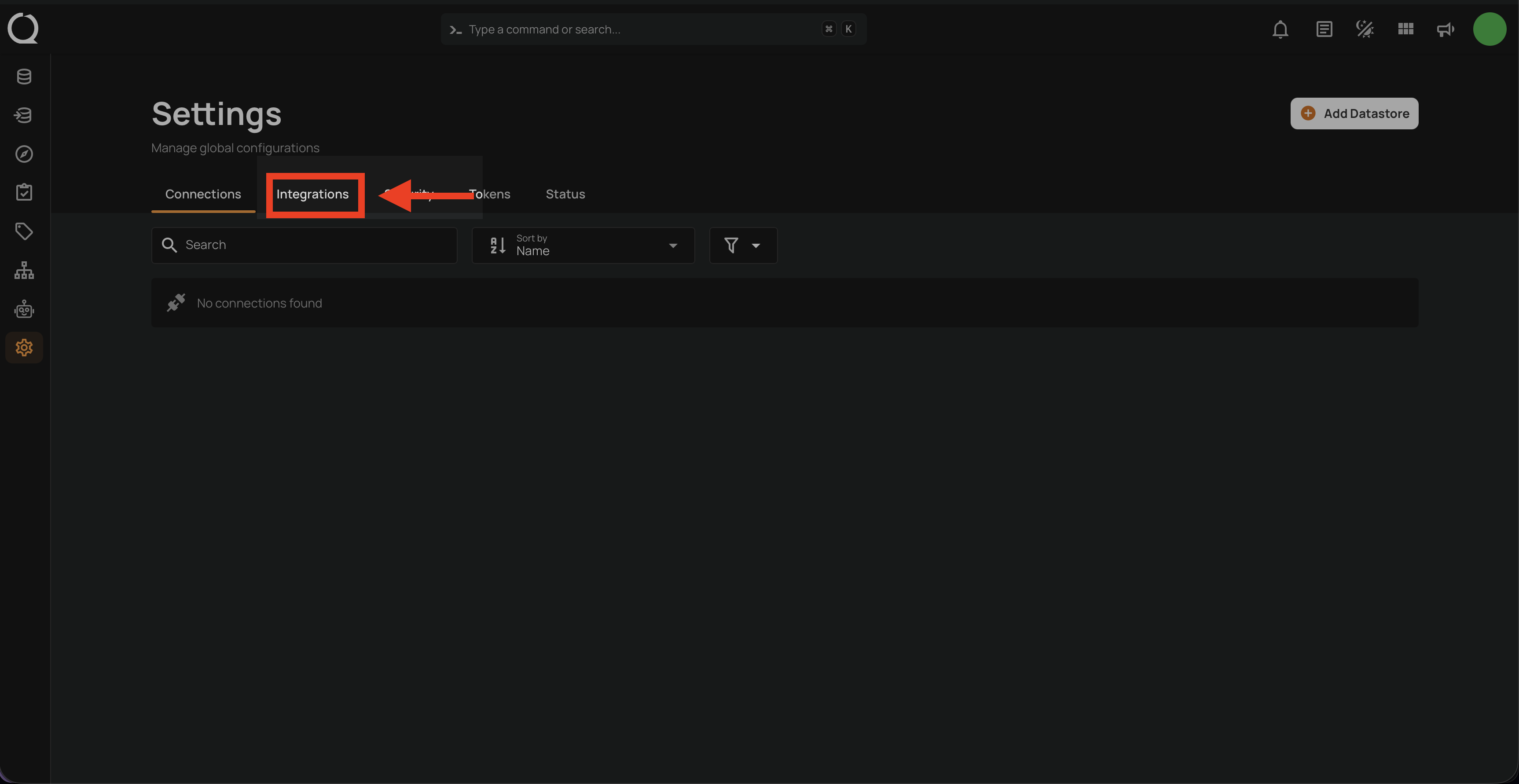
Step 2: The Settings page opens on the Connections tab by default. Click the Integrations tab.
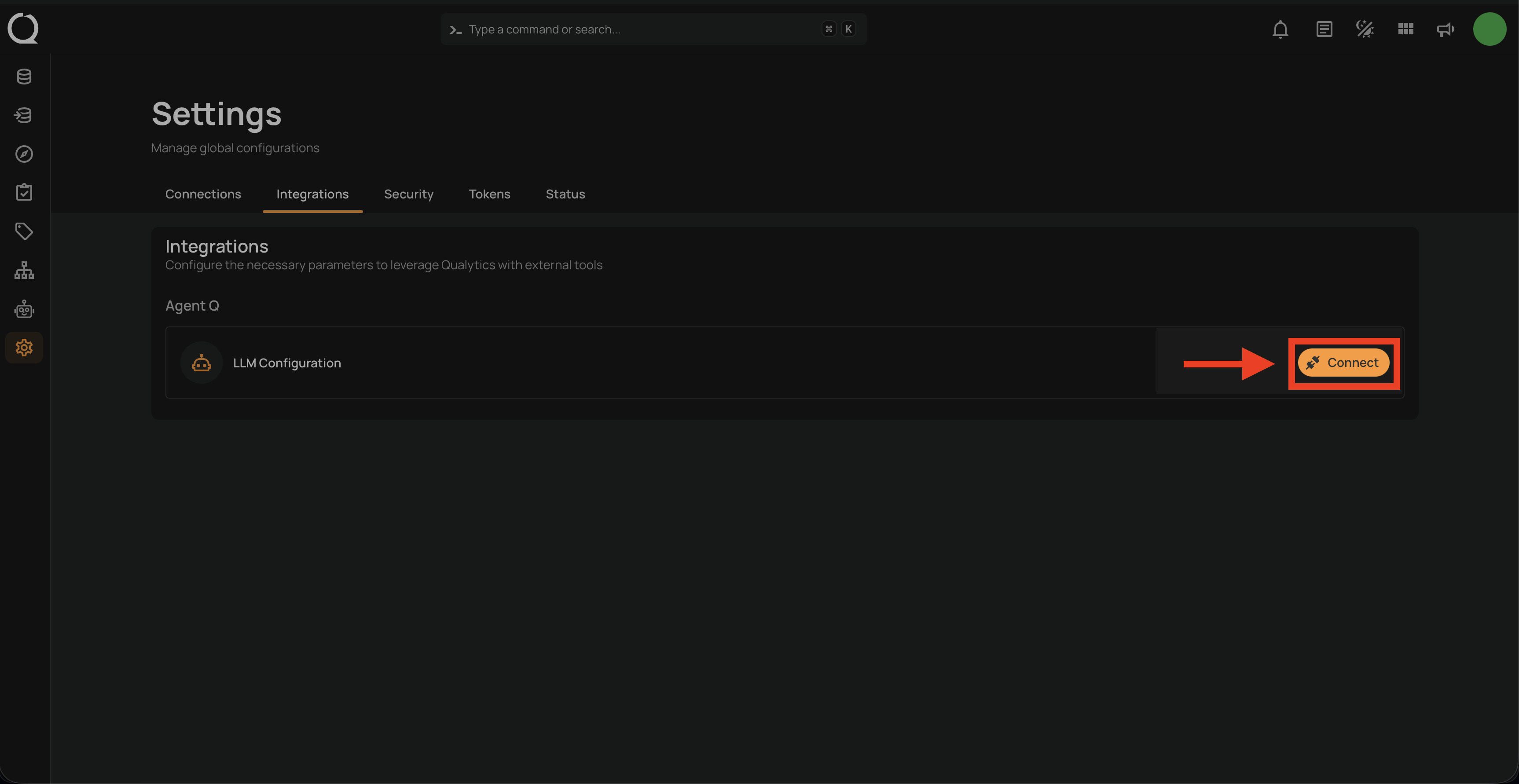
Step 3: Under the Agent Q section, click the Connect button next to LLM Configuration.
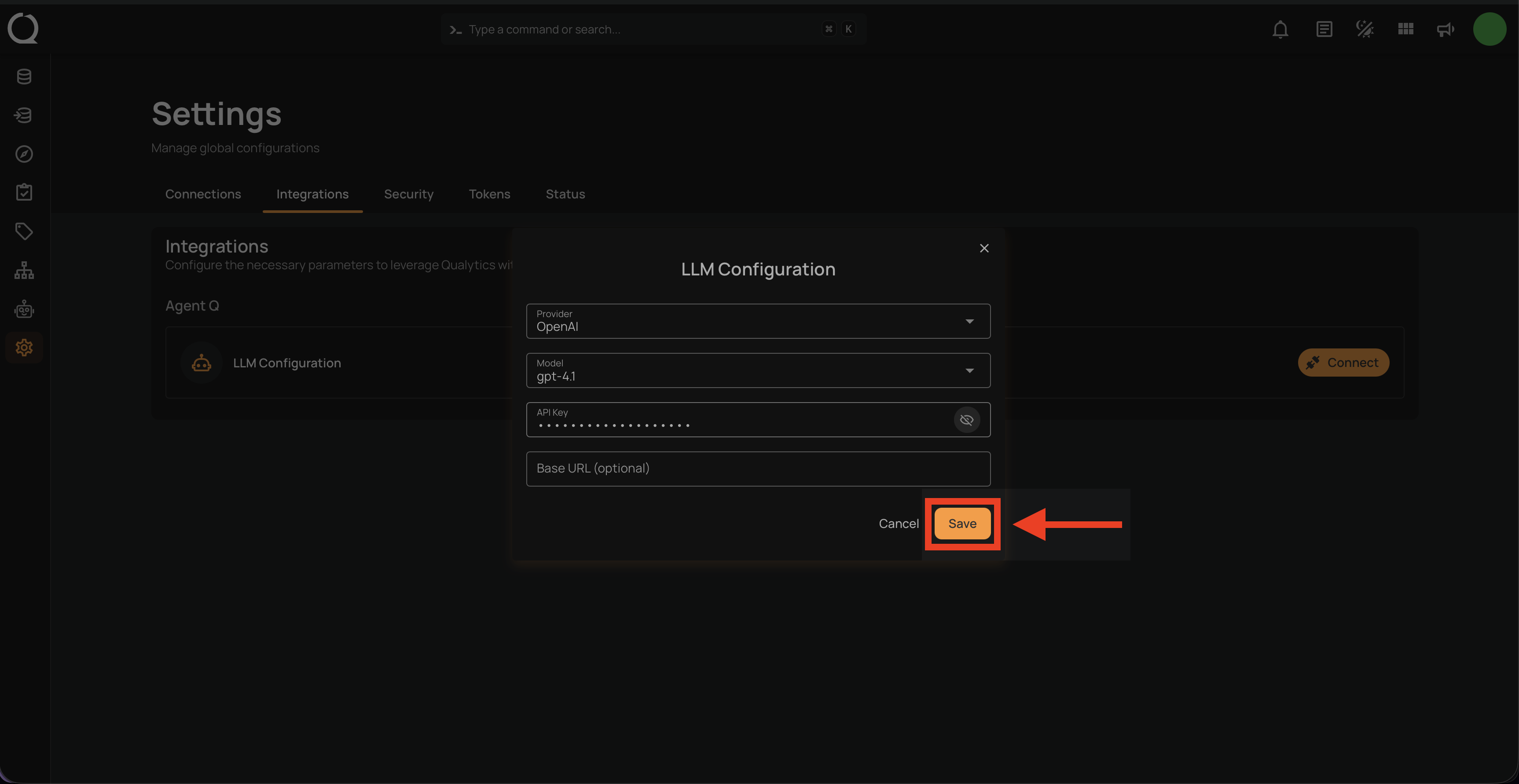
Step 4: The LLM Configuration modal opens. Fill in the fields:
| Field | Description |
|---|---|
| Provider | Select your LLM provider from the list (e.g., OpenAI, Anthropic, Google Gemini). |
| Model | Choose a model available under the selected provider. You can also type a custom model name if your provider supports it. |
| API Key | Enter the API key from your LLM provider. This is stored securely and never returned by the API. |
| Base URL (optional) | Provide a custom endpoint URL for OpenAI-compatible providers (e.g., Ollama, OpenRouter, LiteLLM). Leave blank for standard providers. |
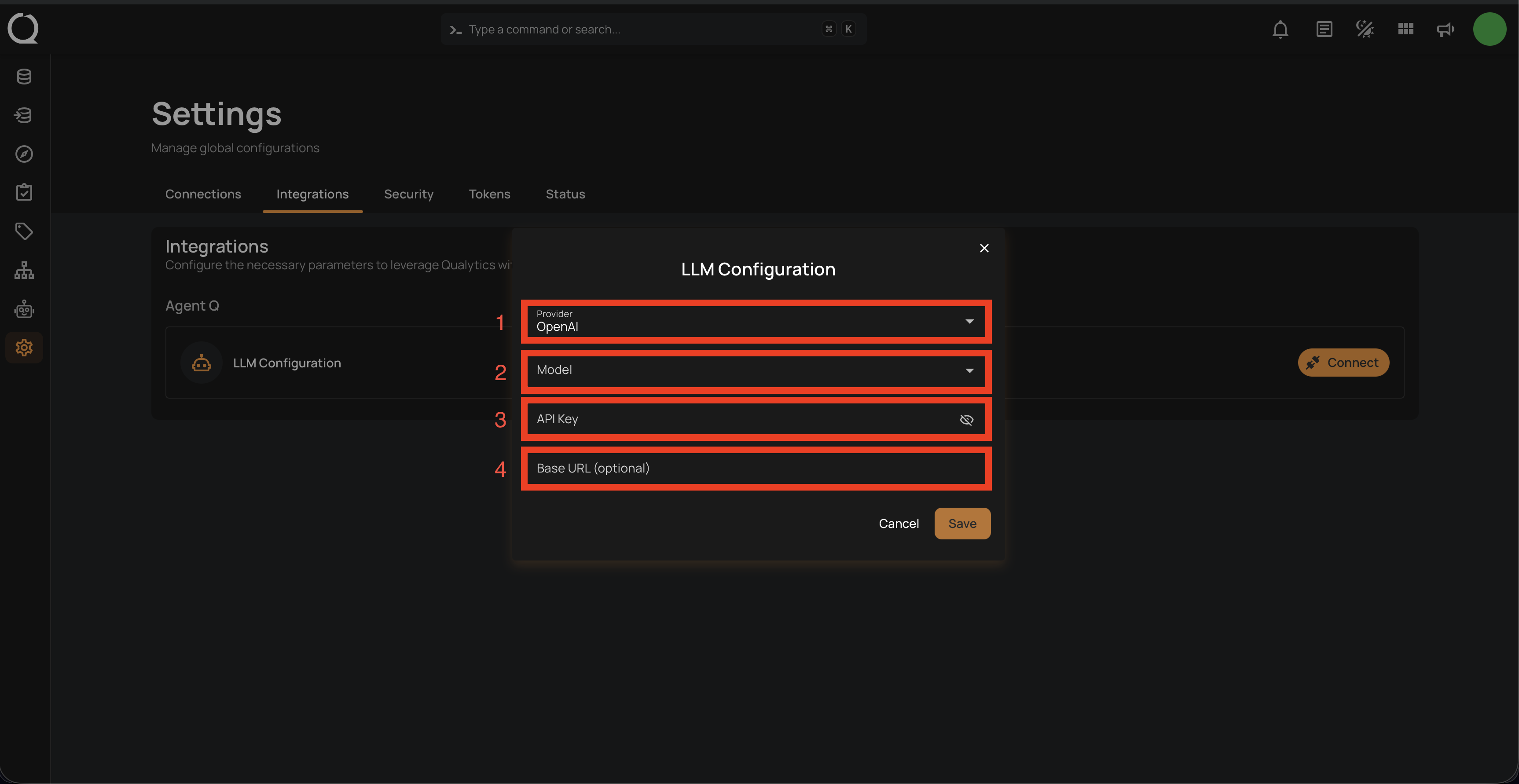
Step 5: Fill in your credentials and click Save to complete the configuration.
Info
When you save, Qualytics automatically validates your API key and tests the connection to the provider. If the key is invalid or the provider is unreachable, you will see an error before the configuration is stored. Qualytics also checks whether your provider supports web search — if it does, Agent Q can optionally search the Qualytics documentation to answer platform-related questions.
Once saved, Agent Q is ready to use. See How to Use Agent Q for next steps.
Via Agent Q Page
Step 1: Click Agent Q in the left sidebar to open the Agent Q page.
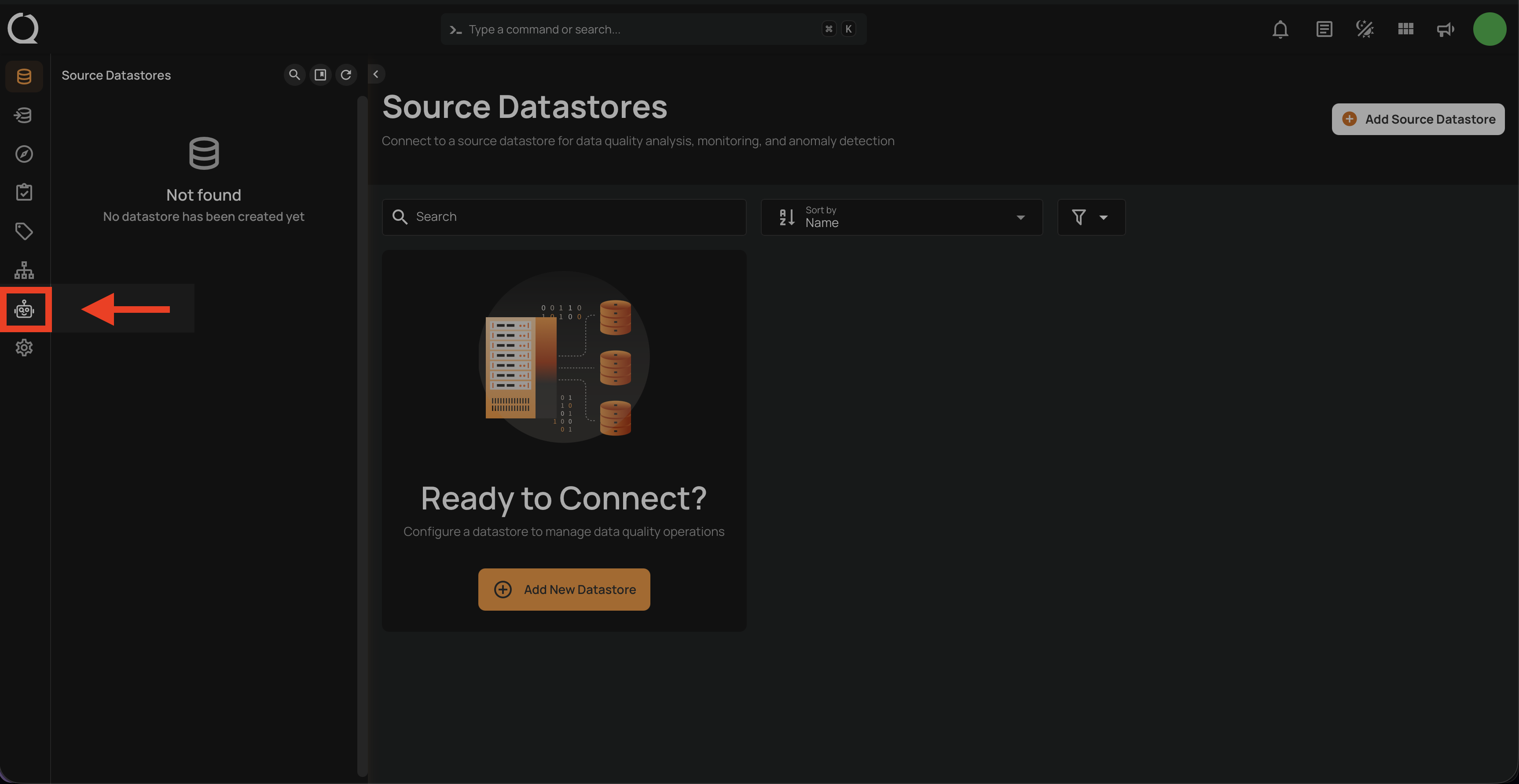
Step 2: Click the Configure LLM button. You will be redirected to Settings > Integrations.
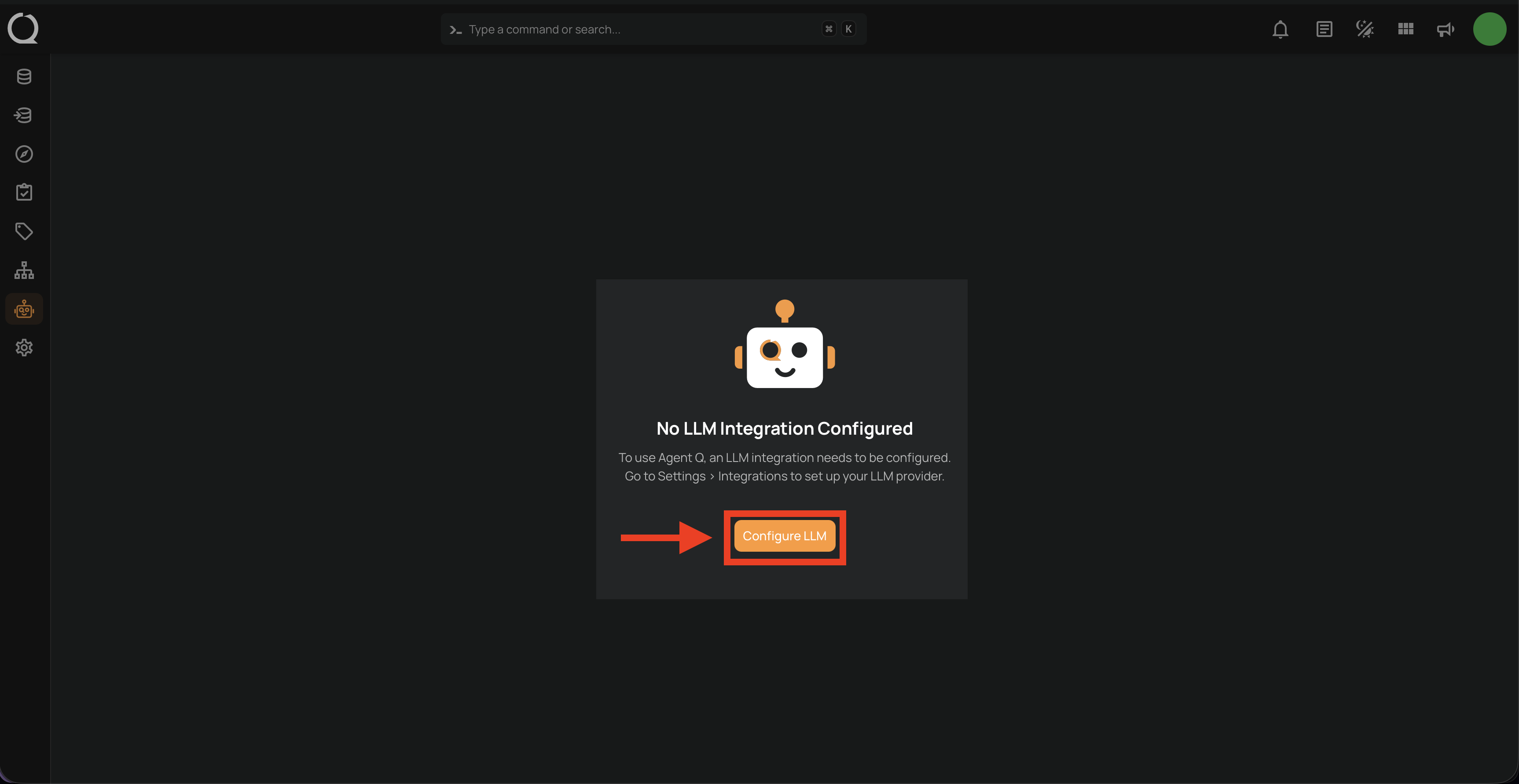
Step 3: Under the Agent Q section, click the Connect button next to LLM Configuration.
Step 4: The LLM Configuration modal opens. Fill in the fields:
| Field | Description |
|---|---|
| Provider | Select your LLM provider from the list (e.g., OpenAI, Anthropic, Google Gemini). |
| Model | Choose a model available under the selected provider. You can also type a custom model name if your provider supports it. |
| API Key | Enter the API key from your LLM provider. This is stored securely and never returned by the API. |
| Base URL (optional) | Provide a custom endpoint URL for OpenAI-compatible providers (e.g., Ollama, OpenRouter, LiteLLM). Leave blank for standard providers. |
Step 5: Fill in your credentials and click Save to complete the configuration.
Once saved, Agent Q is ready to use. See How to Use Agent Q for next steps.
How It Works
The LLM configuration is a single, deployment-wide setting — not per-user. A Manager (or Admin) configures the LLM provider and API key once, and Agent Q becomes available to all users with Member role or higher. There is only one active LLM configuration at a time, shared across the entire deployment.
Supported LLM Providers
| Provider | Example Models |
|---|---|
| OpenAI | gpt-4o, gpt-4-turbo, o1, o3-mini |
| Anthropic | claude-sonnet-4, claude-opus-4, claude-3-5-sonnet |
| Google Gemini | gemini-2.0-flash, gemini-1.5-pro, gemini-1.5-flash |
| Amazon Bedrock | Region-specific model IDs |
| Groq | llama-3.3-70b, llama-3.1-8b, mixtral-8x7b |
| Mistral | mistral-large, mistral-medium, codestral |
| Cohere | command-r-plus, command-r |
| DeepSeek | deepseek-chat, deepseek-coder |
| Ollama | Any locally-hosted model (requires Base URL) |
| OpenRouter | Any model via OpenRouter (requires Base URL) |
| LiteLLM | Any model via LiteLLM proxy (requires Base URL) |
| Perplexity | sonar-pro, sonar |
| Fireworks | Any Fireworks-hosted model |
| GitHub Models | GitHub-hosted models |
| Hugging Face | Inference endpoint models |
| Together AI | Any Together AI model |
| Cerebras | llama-3.3-70b, llama-3.1-8b |
Note
Qualytics does not supply LLM API keys. The Manager or Admin who configures the integration provides the API key and controls the provider choice and associated costs for the deployment.
What's Next?
Want to connect external AI clients like ChatGPT, Claude Desktop, Cursor, or VS Code directly to the Qualytics MCP server? See Connecting External AI Clients for step-by-step setup guides.