View and Track Flow Executions
The Execution tab allows users to view the execution history and current status of a flow. It provides detailed timestamps, status updates, and a comprehensive record of flow executions for efficient tracking and analysis.
Accessing the Execution Tab
Step 1: Click on the Execution tab.
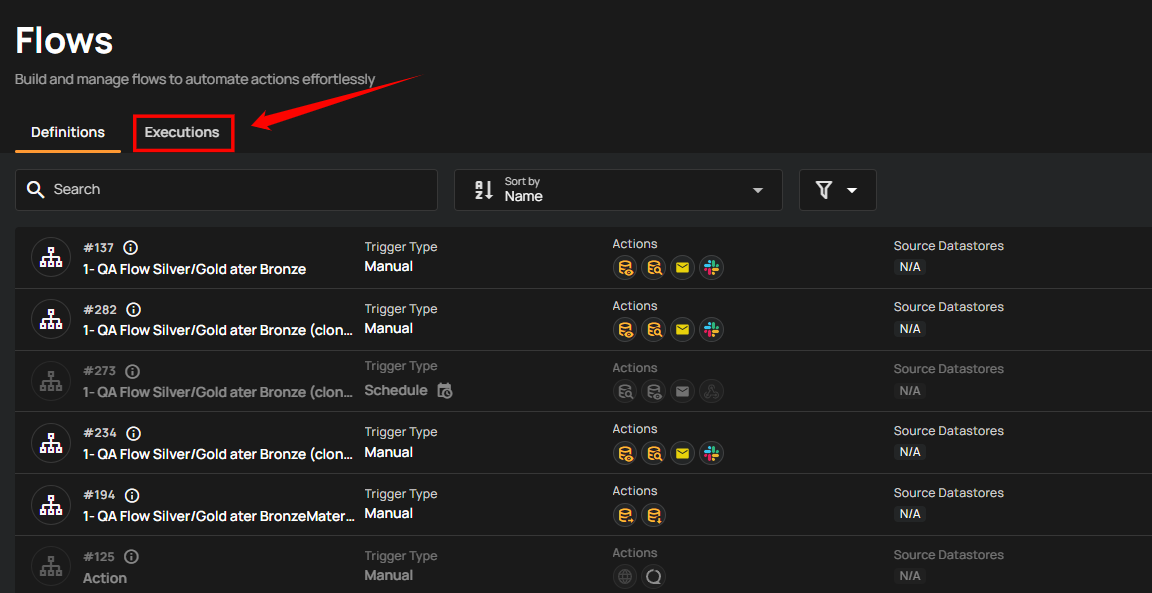
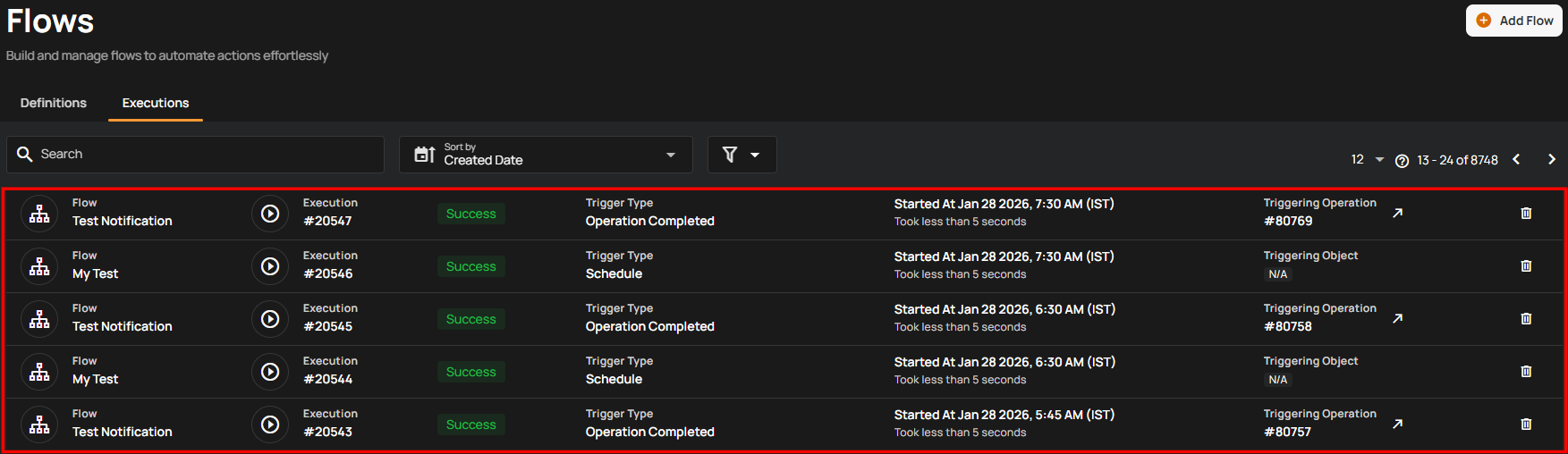
Once clicked, you will be navigated to the Execution tab, where you can view the complete execution history of all created flows.
See a Flow Execution
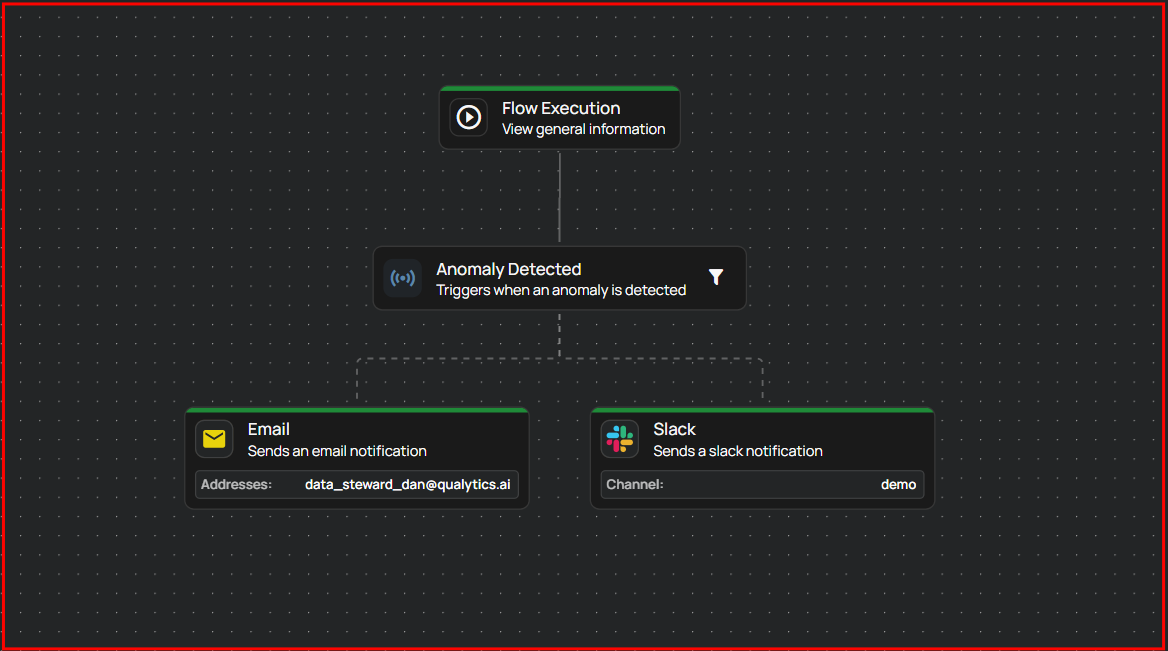
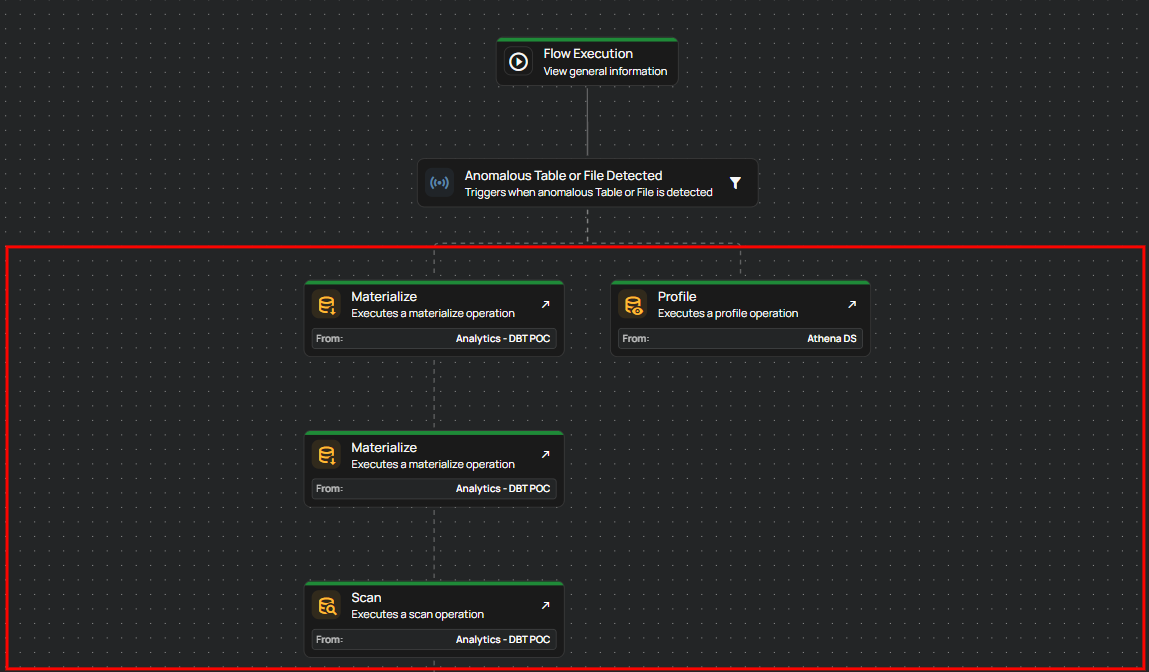
Users can view flow execution in real-time by clicking on the desired flow operation. The page will show detailed operations, but no edits can be made here.
Step 1: Click on the flow operation you want to view.
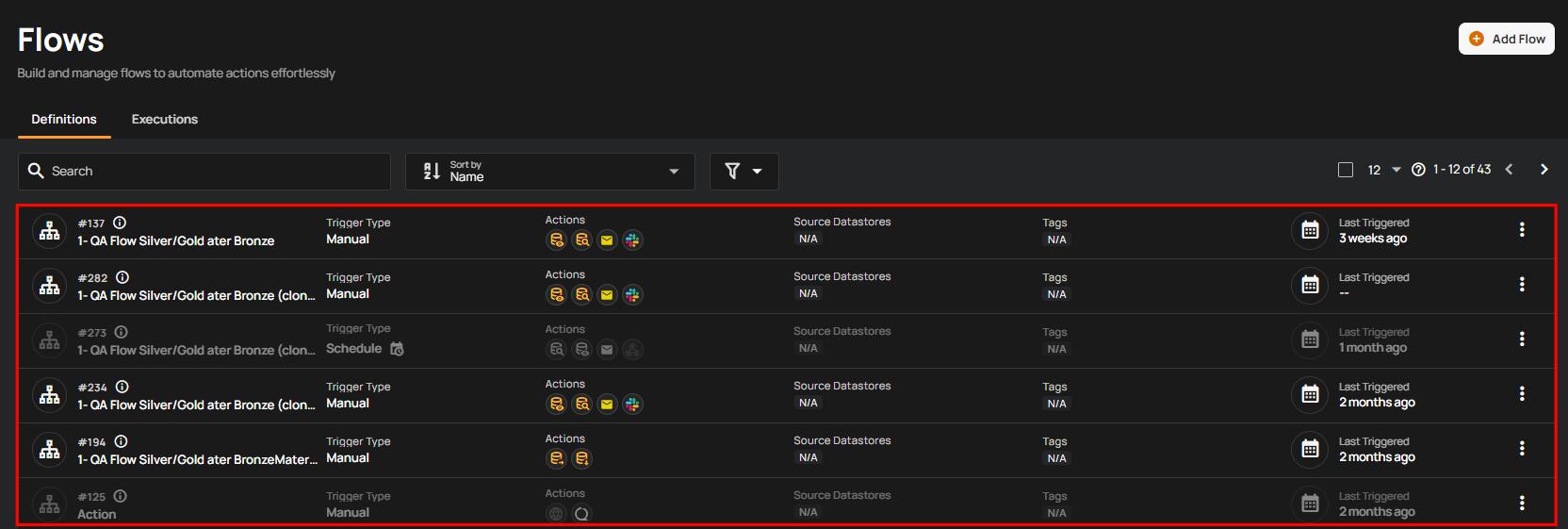
After clicking, you will navigate to the selected flow operation details page. The page displays all operational details in real-time. Please note, this page is view-only, and no edits can be made.
Understanding Flow States
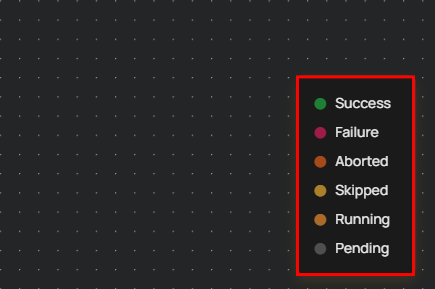
On the bottom-right corner, there is a Legend indicating the possible states of an action, such as:
- Success (Green)
- Failure (Red)
- Aborted (Orange)
- Skipped (Yellow)
- Running (Blue with dotted lines animation)
- Pending (Gray)
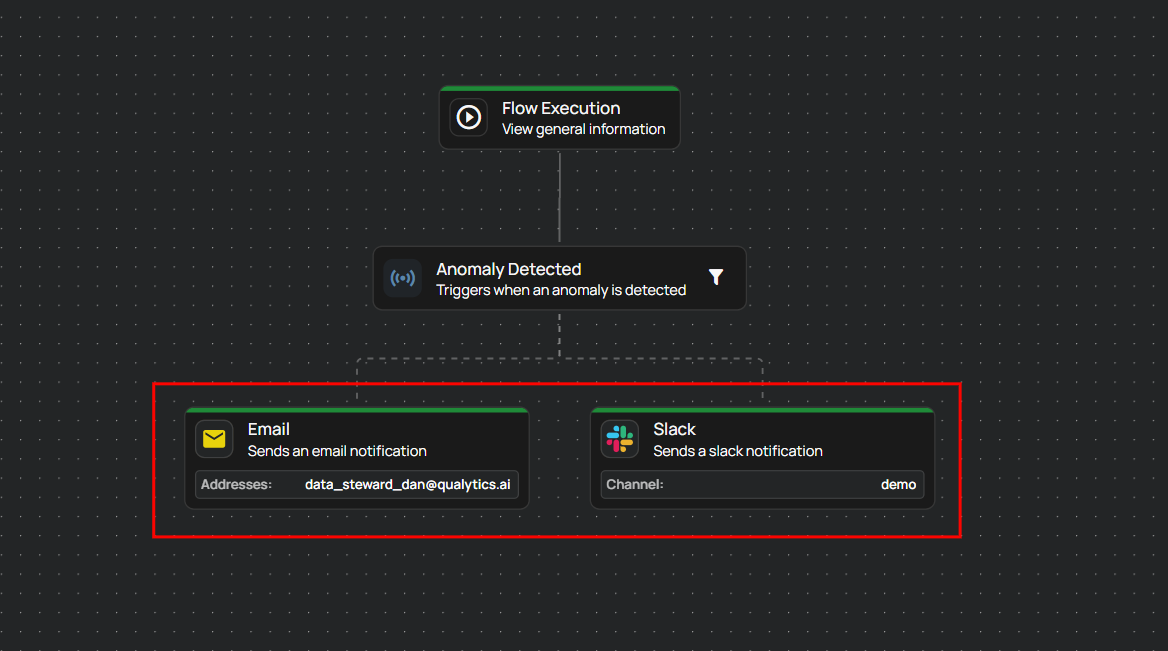
If a step is running, you will see a dot-line animation, signaling that the step is in progress. Once the action completes, the Action box will change its color to reflect the final state.
Accessing Operation Results
To view detailed results of specific operations:
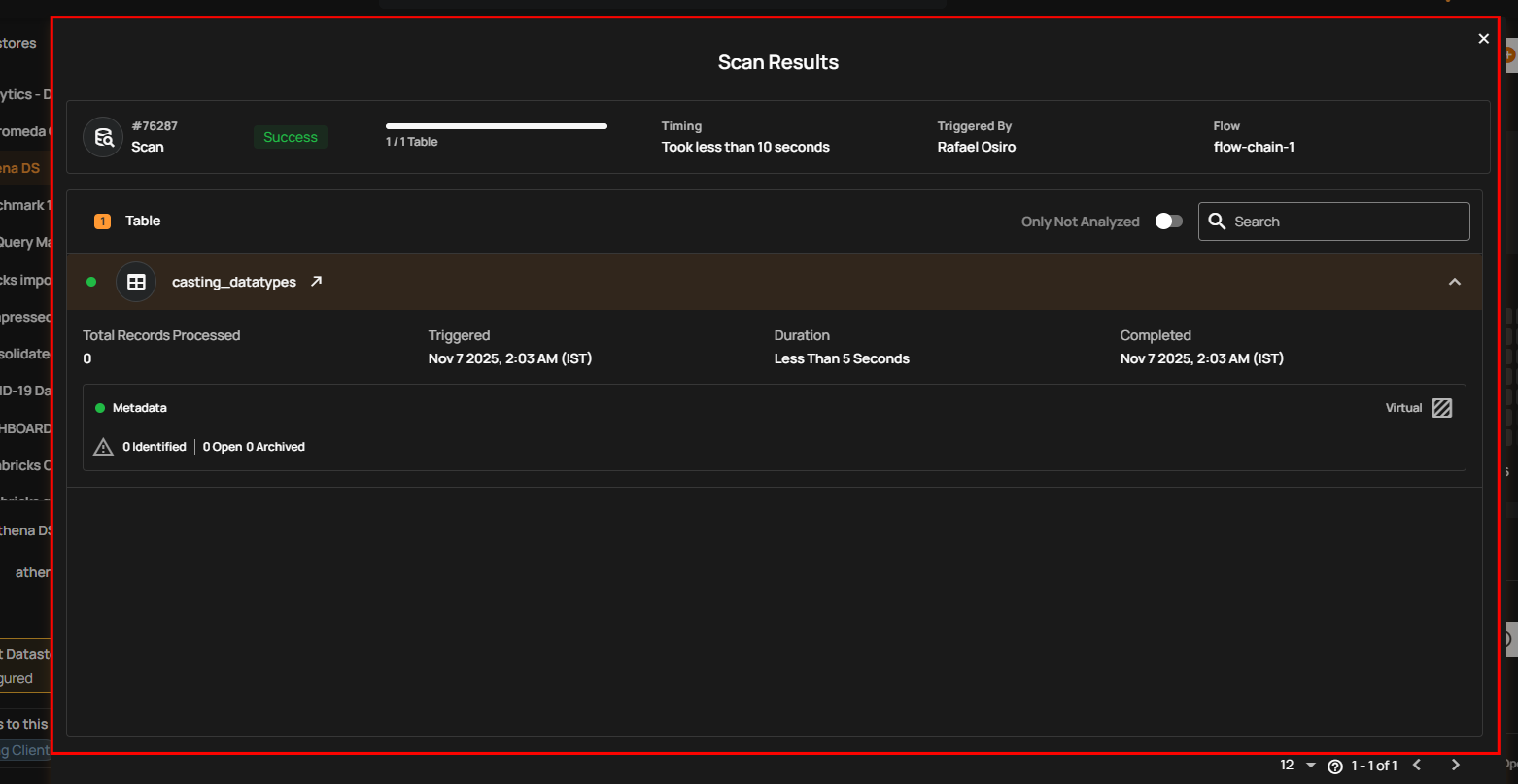
Step 1: Click the Top Right Arrow button within the action operation box.
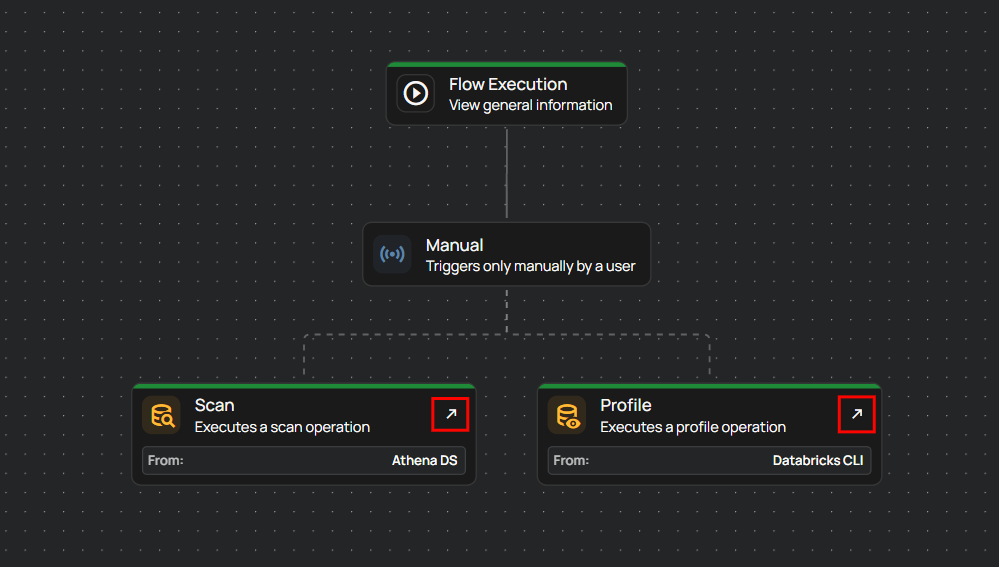
Step 2: You will navigate to the Activity page, where a Result Modal will open, displaying in-depth details of the operation.
View Historical Action Settings
You can also review the exact configuration that was used for each action when the flow executed. This helps you understand how the flow behaved during that run, even if the flow has been edited afterward.
How to View Historical Settings
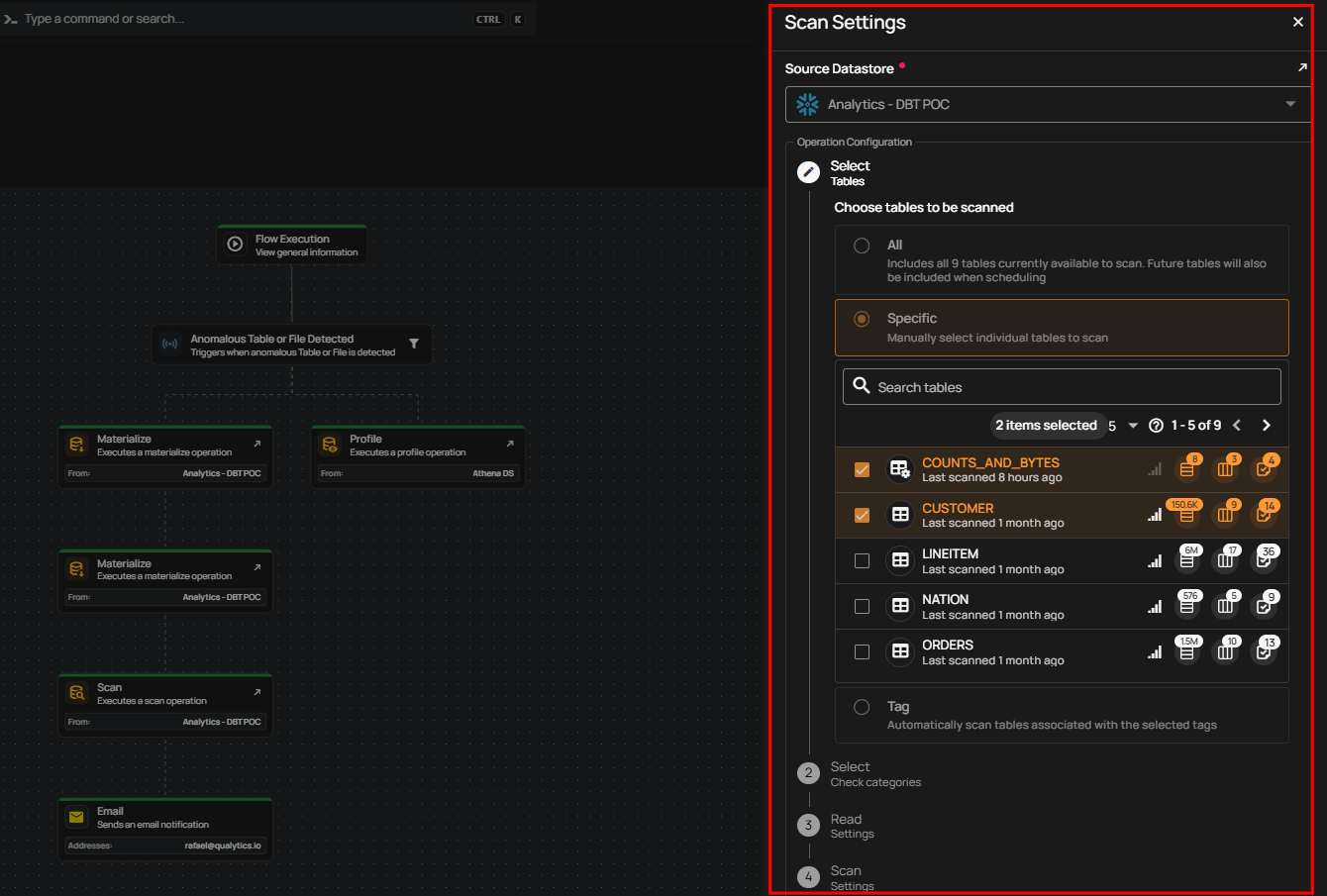
Step 1: Click on any action in the execution graph to view its historical settings.
Step 2: A panel appears on the right side showing the historical configuration for that action.
This panel displays the action’s settings exactly as they were at the moment the flow ran, including selected inputs, parameters, and options.