Microsoft Teams Notification
Warning
Before using Microsoft Teams notifications in Flows, you need to connect the Microsoft Teams integration in Settings > Integrations. See the Microsoft Teams Integration setup guide for instructions.
Microsoft Teams notifications deliver data quality alerts directly into your Teams channels as rich Adaptive Cards. When a Flow trigger fires, Qualytics resolves message variables, builds an Adaptive Card with the configured content, and posts it to the selected channel. Adaptive Cards provide a structured, visually formatted layout that makes it easy for team members to quickly understand the event context — including color-coded operation results — without leaving the Teams interface.
Lifecycle
flowchart TD
    A[Flow Trigger Fires] --> B[Resolve Message Variables]
    B --> C[Build Adaptive Card]
    C --> D[Send to Selected Channel]
    D --> E[Card Appears in Teams]
Configuration
Step 1: Click on Microsoft Teams.
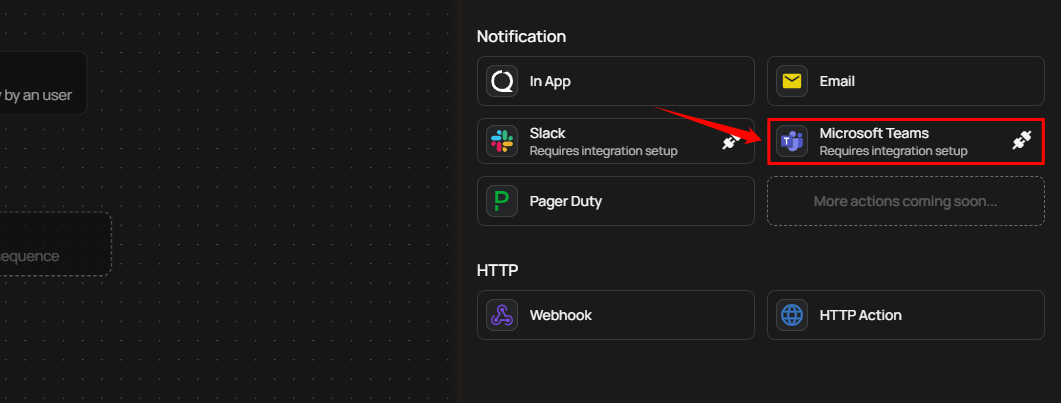
A panel Microsoft Teams Settings will appear on the right-hand side, allowing you to select a channel and configure the notification message.
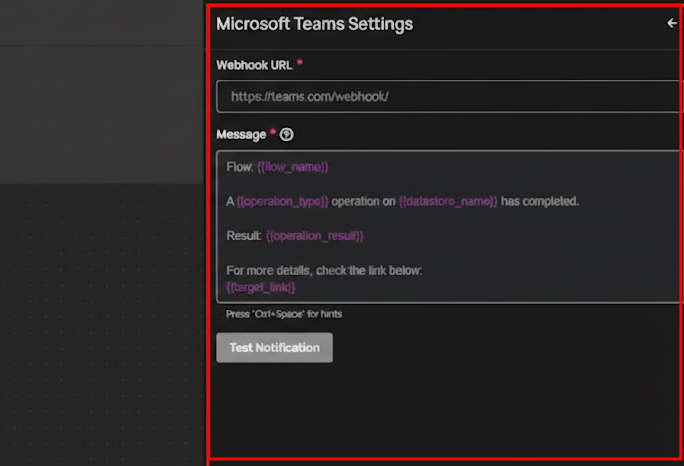
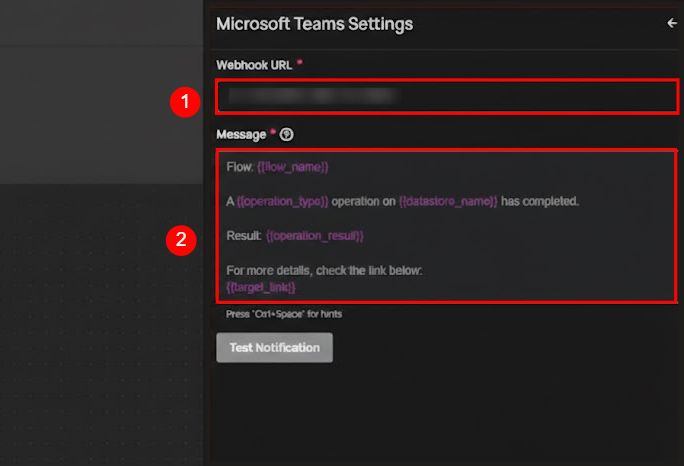
| No. | Field | Description |
|---|---|---|
| 1. | Channel | Select the Teams channel where the notification should be sent. |
| 2. | Message | Text area to customize the notification message content with dynamic placeholders like {{ flow_name }}, {{ operation_type }}, and {{ operation_result }}. |
Tip
Use the autocomplete feature (triggered by Ctrl+Space) to insert variables such as {{ flow_name }}, {{ container_name }}, and {{ datastore_name }}. The autocomplete only suggests variables that are valid for the selected Flow trigger type.
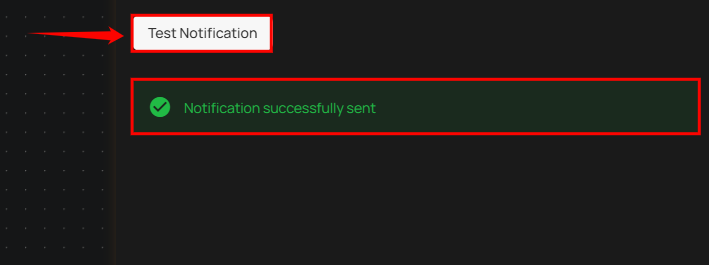
Step 2: Click the "Test Notification" button to send a test message to the selected channel. If the message is successfully sent, you will receive a confirmation notification indicating "Notification successfully sent".
Step 3: Once all fields are configured, click the Save button to finalize the Microsoft Teams notification setup.
Message Variables
Microsoft Teams notifications support the same dynamic tokens as all other notification channels, plus a Teams-specific color token. The available tokens depend on the Flow trigger type:
| Token | Description |
|---|---|
{{ flow_name }} |
Name of the Flow |
{{ datastore_name }} |
Datastore involved in the event |
{{ datastore_link }} |
Link to the datastore |
{{ container_name }} |
Container (table or file) involved |
{{ container_link }} |
Link to the container |
{{ operation_type }} |
Type of operation (Catalog, Profile, Scan) |
{{ operation_result }} |
Result of the operation (Success, Failure) |
{{ operation_result_color__msft_teams }} |
Color code for the operation result (Teams-specific) |
{{ anomaly_message }} |
Description of the detected anomaly |
{{ anomaly_type }} |
Type of anomaly detected |
{{ target_link }} |
Direct link to view the event details |
Warning
Manual and Scheduled Flow trigger types do not support message variables. Notification messages for these triggers must use static text only.
For the complete list of tokens organized by trigger type, see the Message Variables documentation.
Permission
| Operation | Minimum Permission |
|---|---|
| View notification specifications and tokens | Member |
| Configure and save notification | Manager |
| Test notification | Manager |
For the complete list of roles and permissions, see the Security documentation.
Troubleshooting
| Symptom | Possible Cause | Resolution |
|---|---|---|
| No channels available in dropdown | Teams integration not connected | Connect the Microsoft Teams integration in Settings > Integrations > Microsoft Teams before configuring notifications. |
| Test notification fails | Webhook or connector issue | Verify the Teams integration is active and the connector has not been removed from the Teams channel. |
| Notification sent but not visible in Teams | Message posted to a different channel | Verify the selected channel in the notification configuration matches the intended destination. |
| Adaptive Card not rendering properly | Teams client version outdated | Ensure the Teams client is up to date. Adaptive Cards require a minimum Teams client version to render correctly. |
| Message variables showing as raw text | Unsupported token for the trigger type | Ensure the tokens used are valid for the selected Flow trigger type. Use the autocomplete feature (Ctrl+Space) to see available tokens. |