Add PagerDuty Integration
This guide walks you through connecting PagerDuty to Qualytics. Before starting, you'll need a Routing Key (Integration Key) from a PagerDuty service with an Events API v2 integration.
Prerequisites
Creating a PagerDuty Service with Events API v2
If you don't already have a PagerDuty service configured with Events API v2, follow these steps:
Step 1: Log in to your PagerDuty account and navigate to Services from the top navigation menu.
Step 2: Click + New Service to create a new service (or select an existing service where you want to receive Qualytics alerts).
Step 3: Fill in the service details:
- Name: Enter a descriptive name (e.g., Qualytics Data Quality Alerts).
- Escalation Policy: Select or create an escalation policy that determines who gets notified.
Step 4: Under Integrations, search for and select Events API v2, then click Create Service.
Retrieving the Routing Key
Step 1: After the service is created, you'll be redirected to the service's Integrations tab.
Step 2: Locate the Events API v2 integration and copy the Integration Key. This is the Routing Key you'll need for the Qualytics integration.
Tip
You can also find the Integration Key later by navigating to Services > [Your Service] > Integrations > Events API v2.
Navigation to Integration
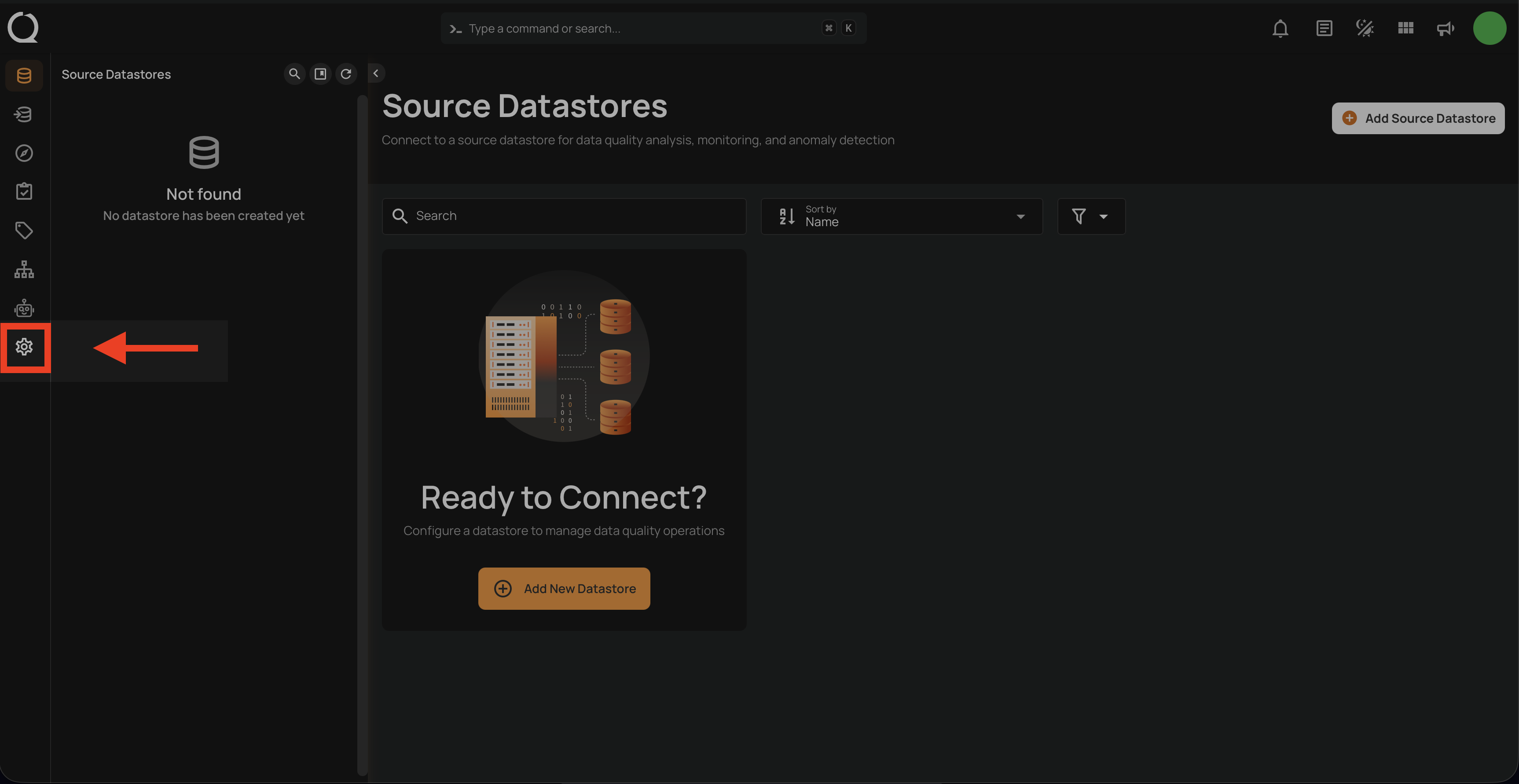
Step 1: Log in to your Qualytics account and click the "Settings" button on the left side panel of the interface.
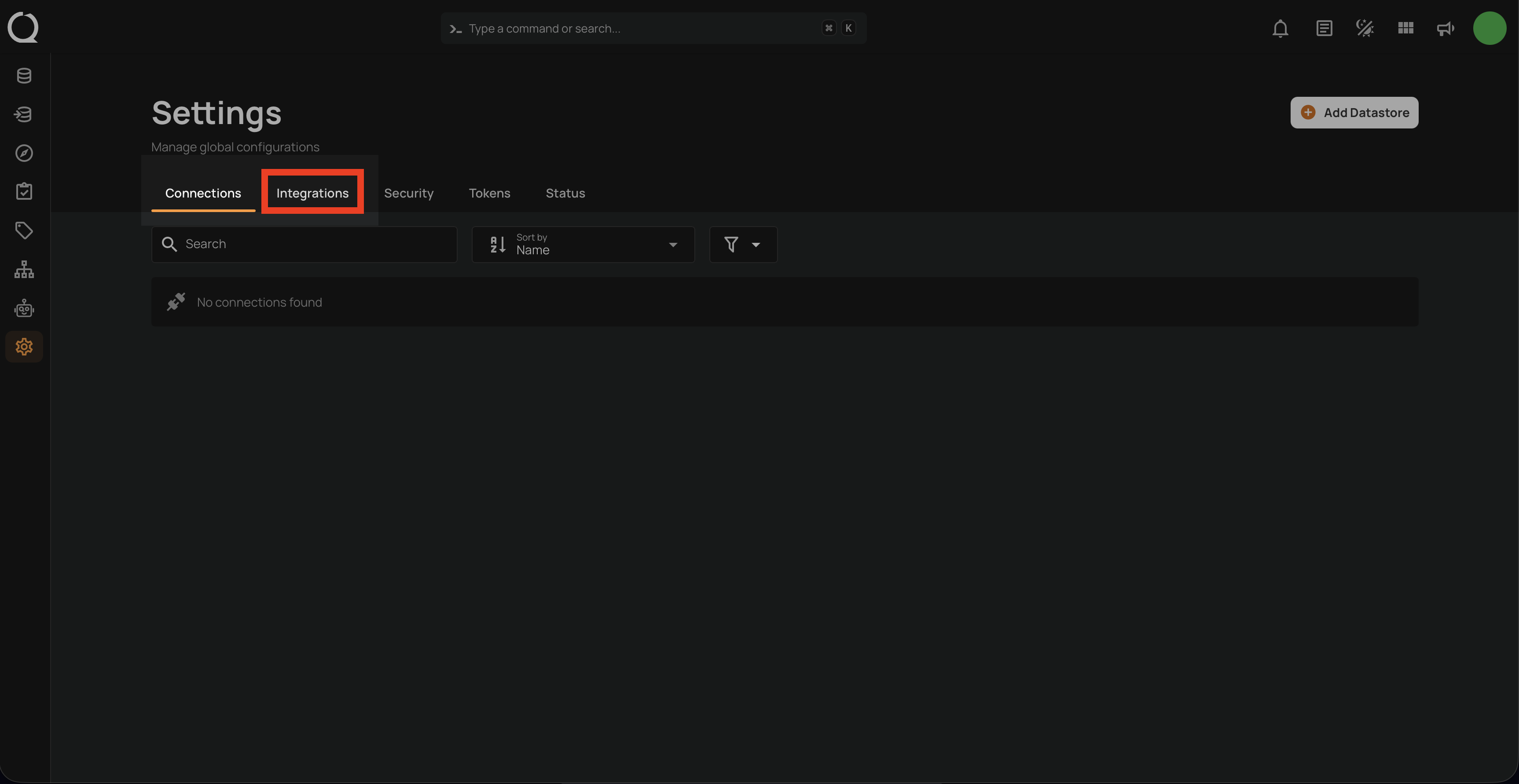
Step 2: By default, Connections tab will open. Click on the Integrations tab.
Connect PagerDuty Integration
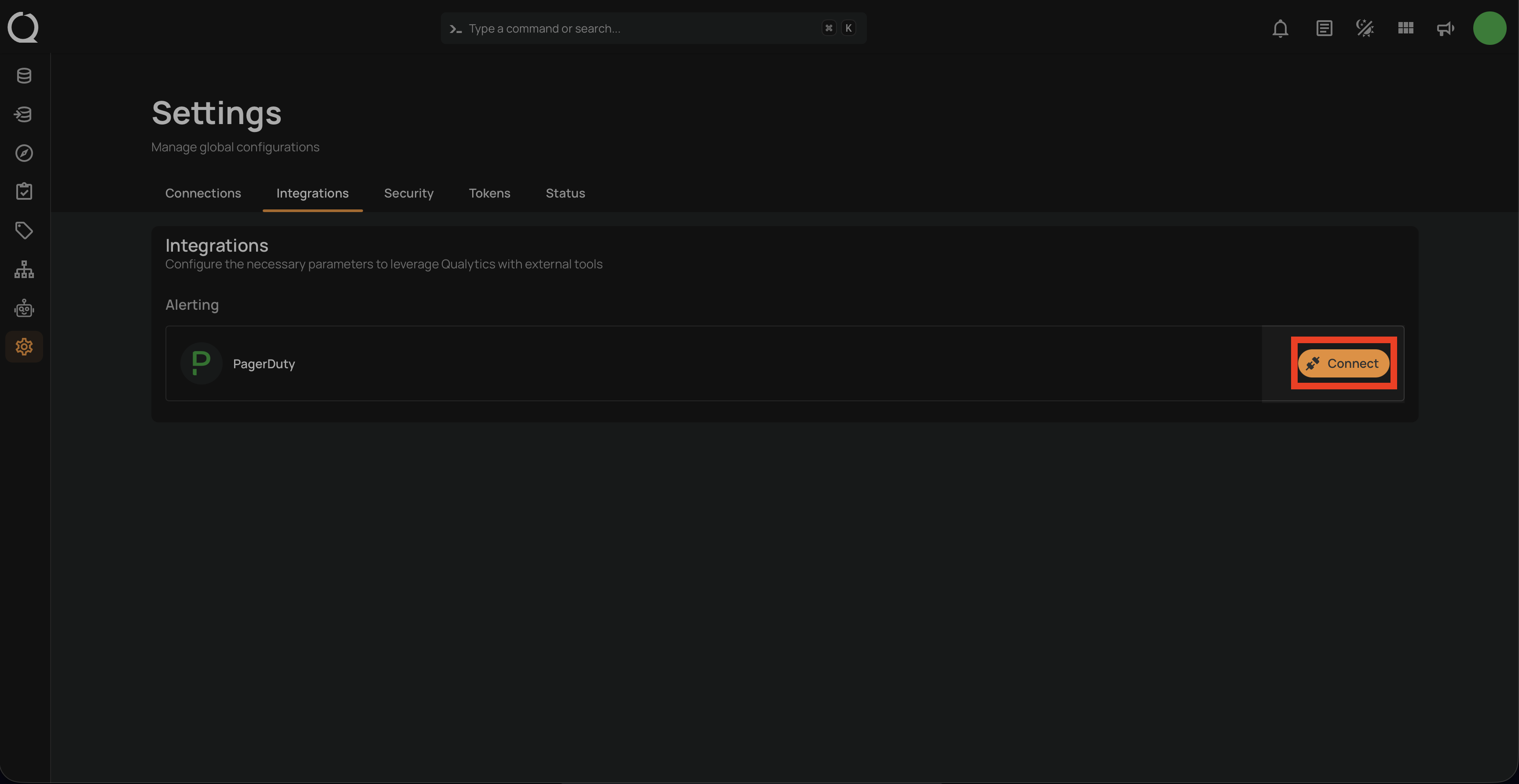
Step 1: Click on the Connect button next to PagerDuty to connect to the PagerDuty Integration.
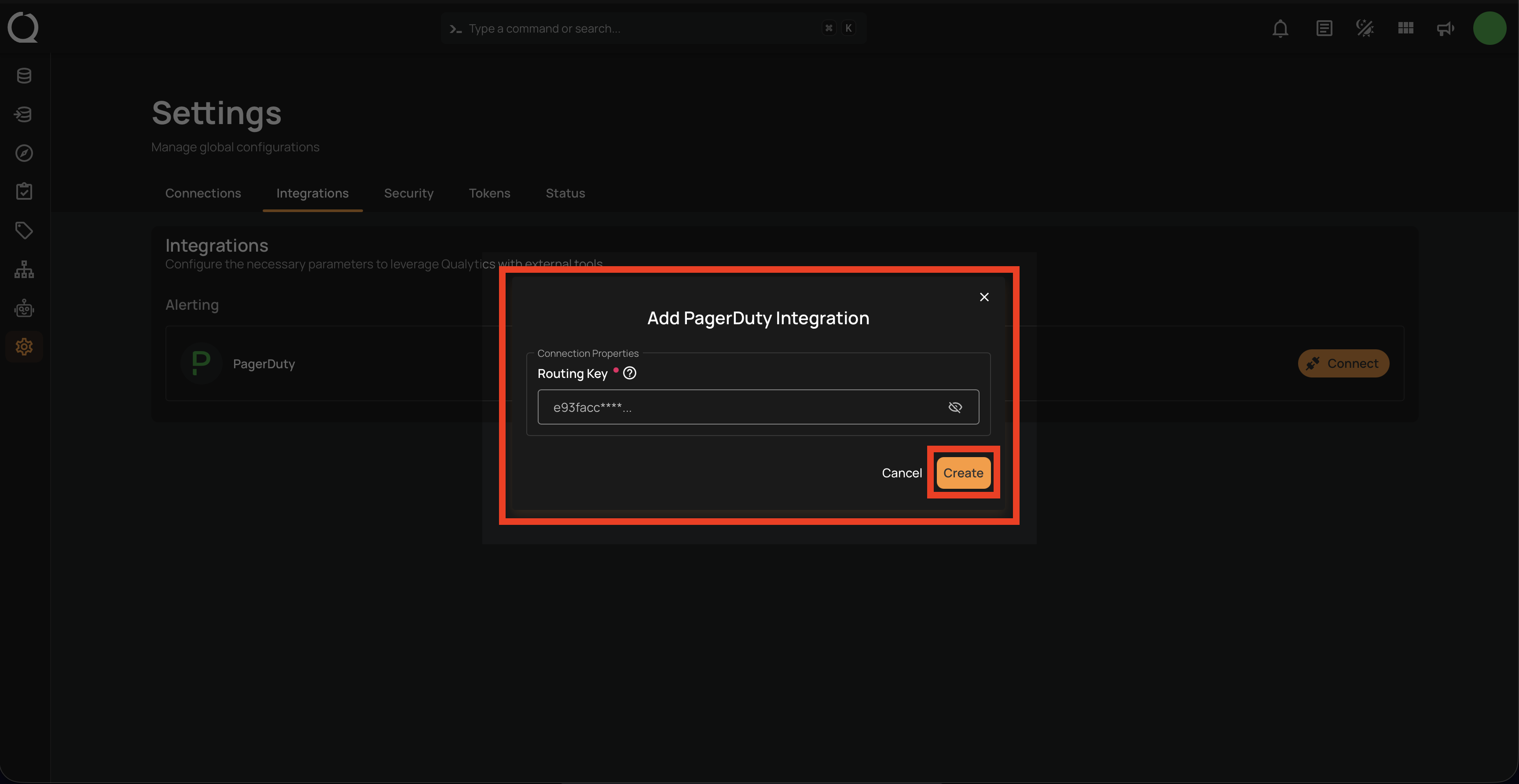
A modal window titled "Add PagerDuty Integration" appears. Fill in the connection properties to connect to PagerDuty.
Step 2: Fill out the required connection property and click the Create button to validate the Routing Key and create the PagerDuty integration.
| No. | Field Name | Description |
|---|---|---|
| 1. | Routing Key | The Integration Key (Routing Key) from your PagerDuty Events API v2 integration. Find it in your PagerDuty service under Integrations > Events API v2. |
Note
Qualytics validates your Routing Key by sending a test change event to PagerDuty. This validation does not create an incident in your PagerDuty service.
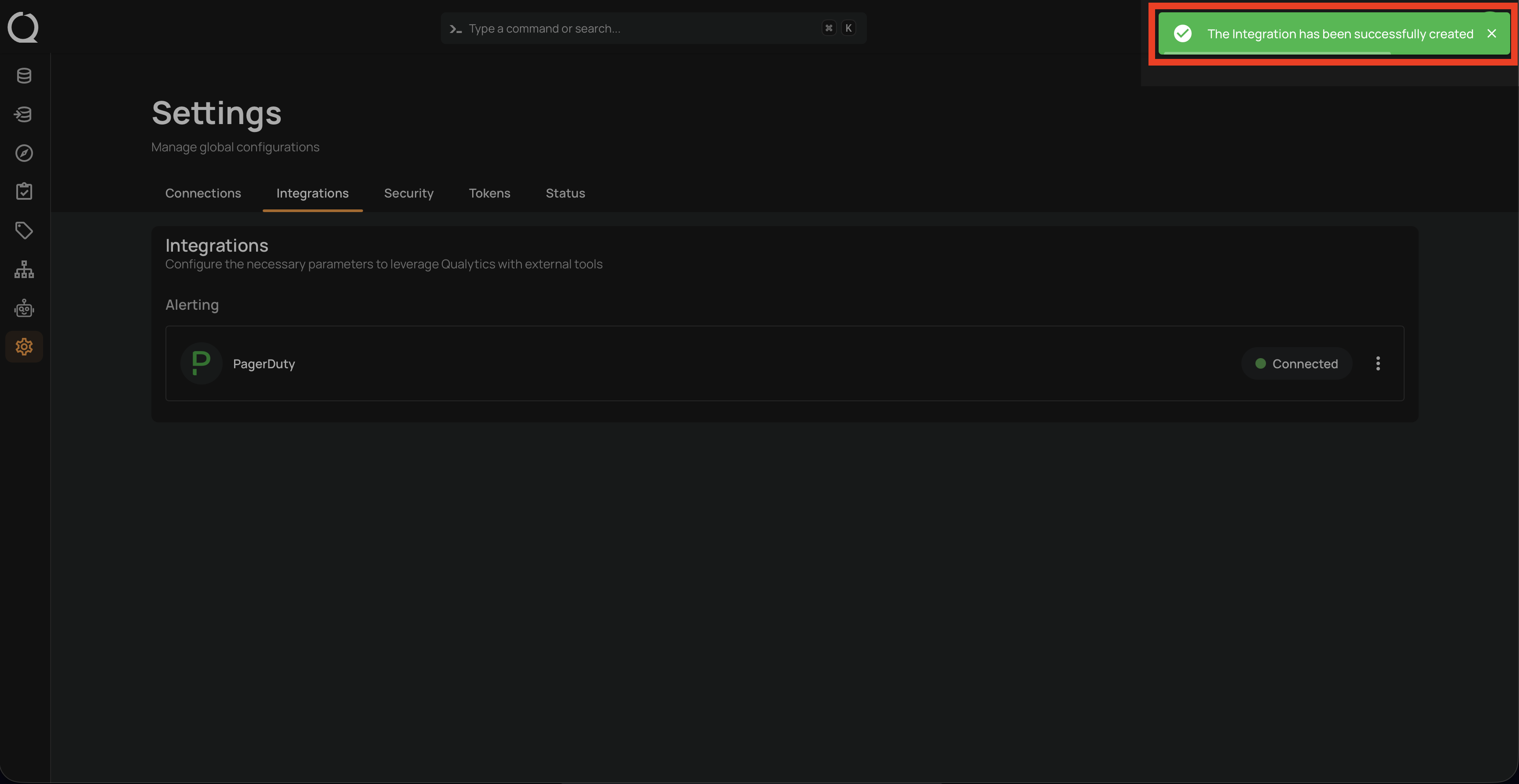
Once the integration is successfully created, a confirmation message will appear on the screen stating, "The Integration has been successfully created."