Link Enrichment
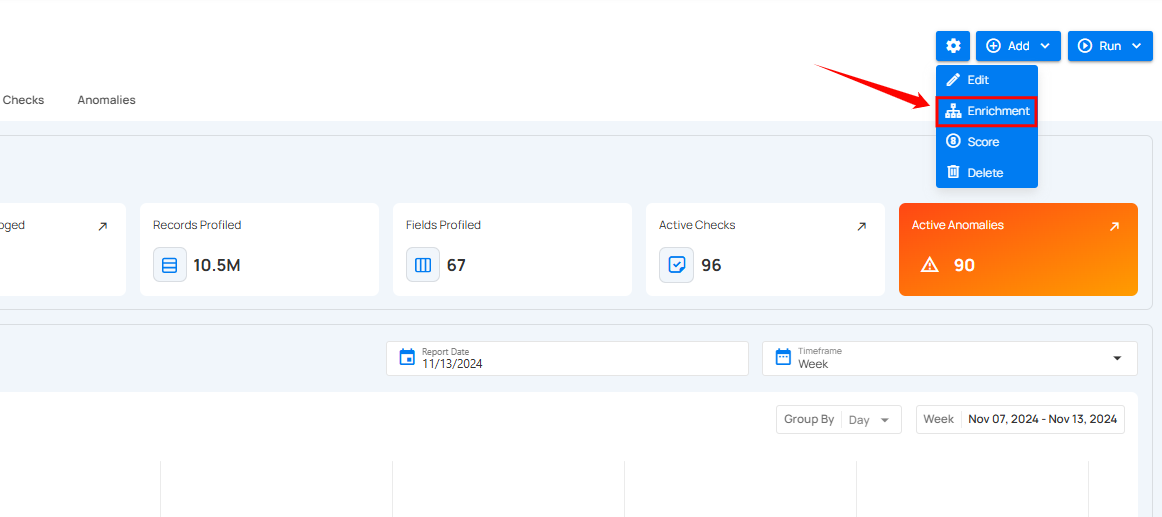
Step 1: Click on the Enrichment from the dropdown list.
A modal window Link Enrichment Datastore will appear, providing you with two options to link an enrichment datastore.
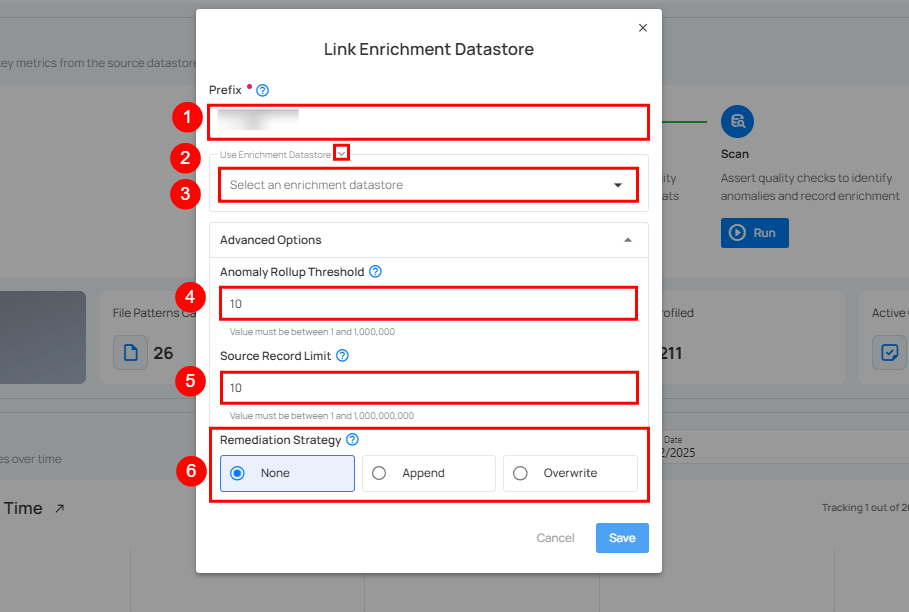
| REF. | FIELDS | ACTIONS |
|---|---|---|
| 1. | Prefix | Add a prefix name to uniquely identify tables/files when Qualytics writes metadata from the source datastore to your enrichment datastore. |
| 2. | Caret Down Button | Click the caret down to select either Use Enrichment Datastore or Add Enrichment Datastore. |
| 3. | Enrichment Datastore | Select an enrichment datastore from the dropdown list. |
| 4. | Maximum Record Anomaly Per Check | Sets the maximum number of anomalies per check before they are merged into one anomaly. Value must be between 1 and 1,000. |
| 5. | Maximum Source Examples Per Anomaly | This setting lets you choose how many source records to keep for each anomaly. When a scan finds an anomaly, only these records are saved and can be downloaded later. For example, if you set the value to 10, you’ll be able to view or download only 10 records per anomaly. If you need more records, increase this value before running the scan. |
| 6. | Remediation Strategy | The Remediation Strategy defines how anomalous source tables are replicated in the enrichment datastore. You can choose None (no replication), Append (append new data), or Overwrite (replace existing data). |
Option I: Link New Enrichment
If the toggle for Add new connection is turned on, then this will prompt you to link a new enrichment datastore from scratch without using existing connection details.
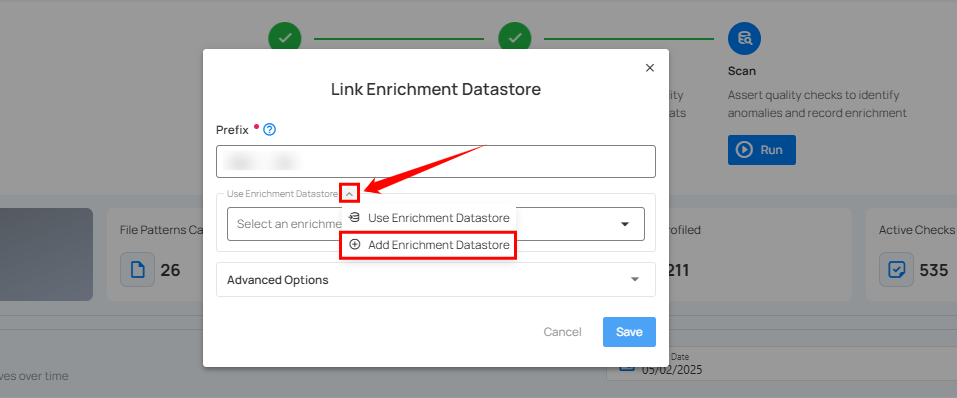
Step 1: Click on the caret button and select Add Enrichment Datastore.
A modal window Link Enrichment Datastore will appear. Enter the following details to create an enrichment datastore with a new connection.
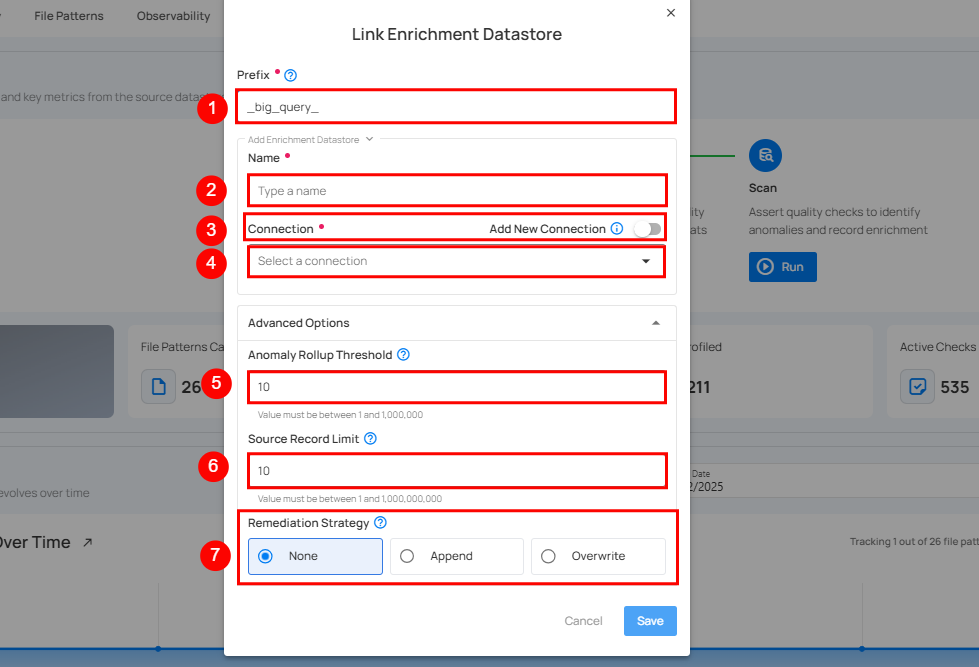
| REF. | FIELDS | ACTIONS |
|---|---|---|
| 1. | Prefix | Add a prefix name to uniquely identify tables/files when Qualytics writes metadata from the source datastore to your enrichment datastore. |
| 2. | Name | Give a name for the enrichment datastore. |
| 3. | Toggle Button for adding new connection | Toggle ON to create a new enrichment from scratch or toggle OFF to reuse credentials from an existing connection. |
| 4. | Connector | Select a datastore connector from the dropdown list. |
| 5. | Maximum Record Anomaly Per Check | Sets the maximum number of anomalies per check before they are merged into one anomaly. Value must be between 1 and 1,000. |
| 6. | Maximum Source Examples Per Anomaly | Choose how many source records are saved for each anomaly. Only the saved records can be downloaded later. For example, if this is set to 10, only 10 source records will be available. |
| 7. | Remediation Strategy | The Remediation Strategy defines how anomalous source tables are replicated in the enrichment datastore. You can choose None (no replication), Append (append new data), or Overwrite (replace existing data). |
Step 2: Add connection details for your selected enrichment datastore connector.
Note
Connection details can vary from datastore to datastore. For illustration, we have demonstrated linking BigQuery as a new enrichment datastore.
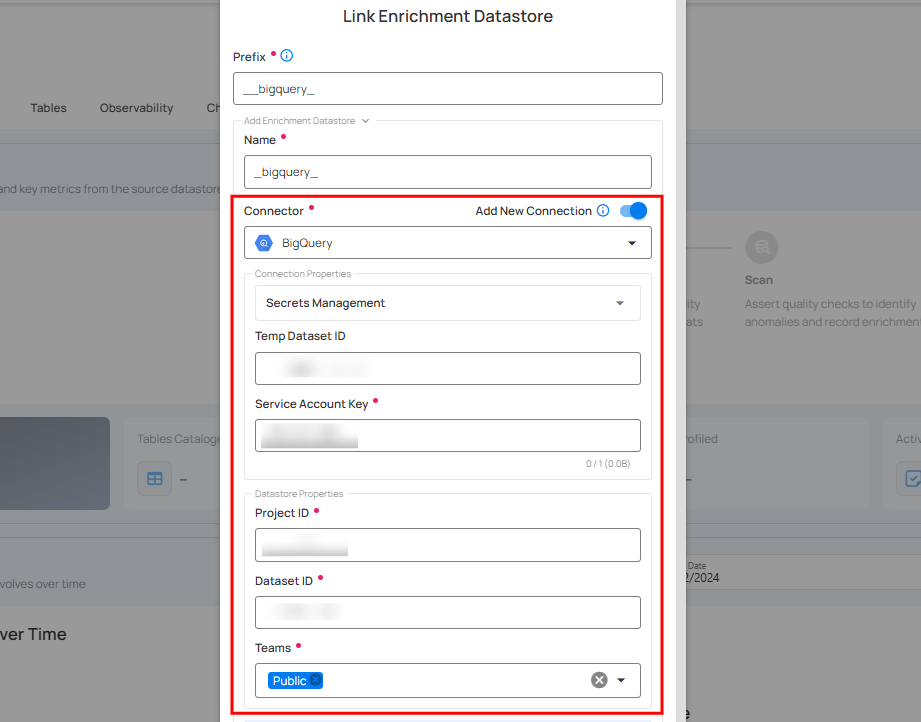
Step 3: After adding the source datastore details, click on the Test Connection button to check and verify its connection.
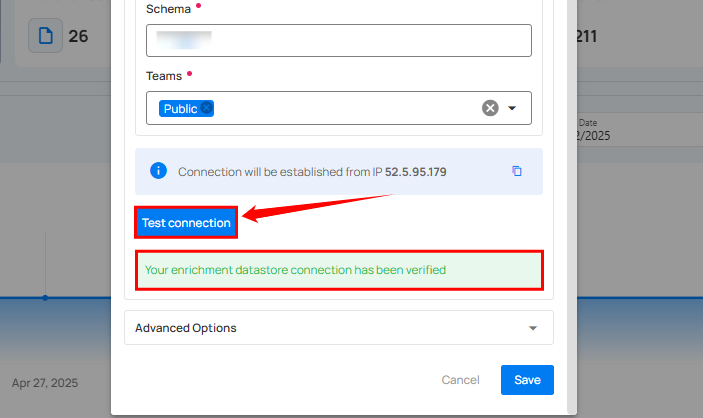
If the credentials and provided details are verified, a success message will be displayed indicating that the connection has been verified.
Step 4: Click on the Save button.
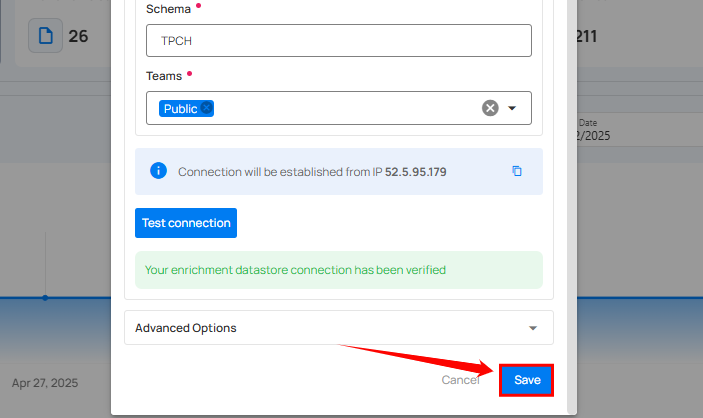
After clicking on the Save button, a success notification appears on the screen showing the action was completed successfully.
Option II: Link Existing Connection
If the Use an existing enrichment datastore option is selected from the dropdown menu, you will be prompted to link the enrichment datastore using existing connection details.
Step 1: Click on the caret button and select Use Enrichment Datastore.
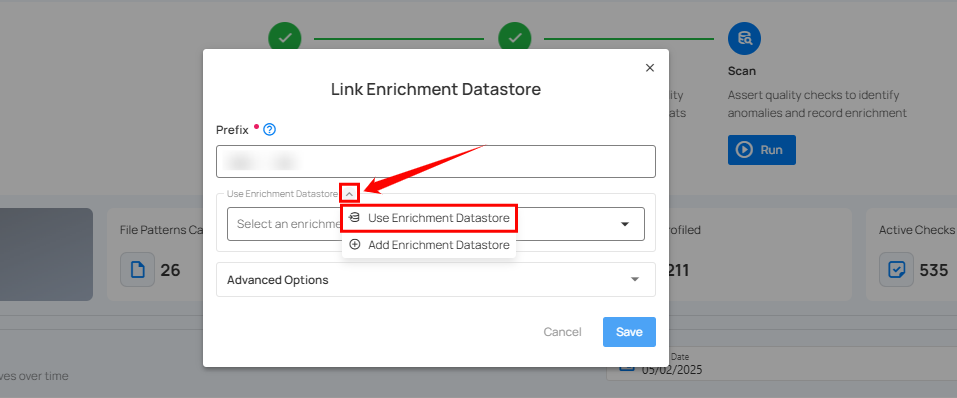
Step 2: A modal window Link Enrichment Datastore will appear. Add a prefix name and select an existing enrichment datastore from the dropdown list.
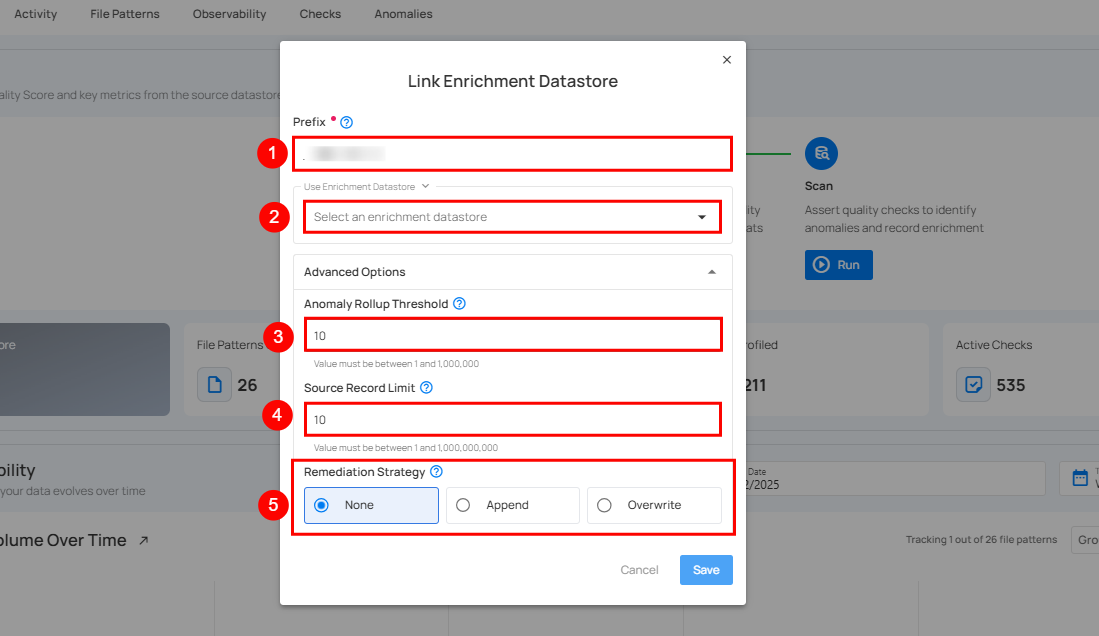
| REF. | FIELDS | ACTIONS |
|---|---|---|
| 1. | Prefix | Add a prefix name to uniquely identify tables/files when Qualytics writes metadata from the source datastore to your enrichment datastore. |
| 2. | Enrichment Datastore | Select an enrichment datastore from the dropdown list. |
| 3. | Maximum Record Anomalies per Check | Sets the maximum number of anomalies per check before they are merged into one anomaly. Value must be between 1 and 1,000. |
| 4. | Maximum Source Examples per Anomaly | Sets how many source records are kept per anomaly during a scan. For example, if this is set to 10, only 10 records per anomaly will be saved or downloaded. Increase this value before running the scan to access more records. |
| 5. | Remediation Strategy | The Remediation Strategy defines how anomalous source tables are replicated in the enrichment datastore. You can choose None (no replication), Append (append new data), or Overwrite (replace existing data). |
Step 3: View and check the connection details of the enrichment datastore and click on the Save button.
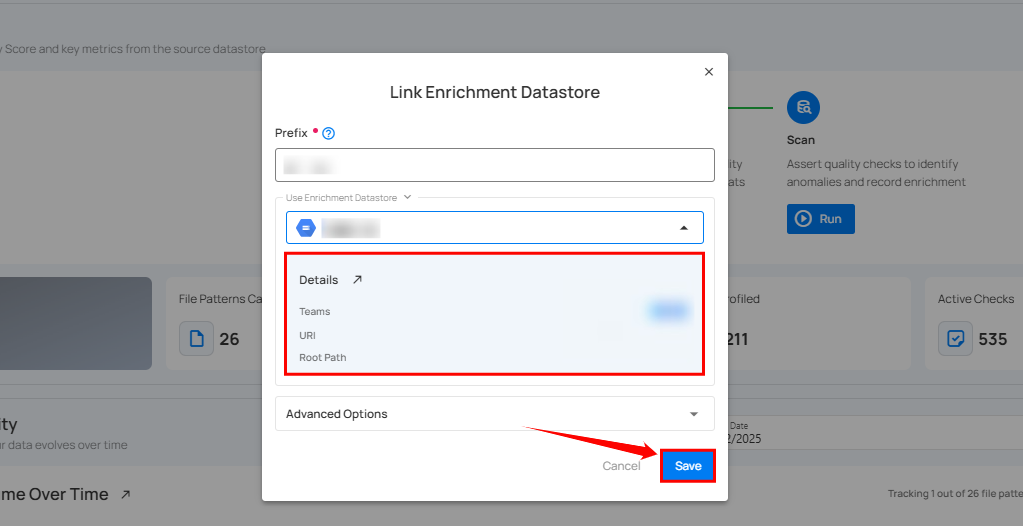
After clicking on the Save button, a success notification appears on the screen showing the action was completed successfully.
Endpoint (Patch)
/api/datastores/{datastore-id}/enrichment/{enrichment-id} (patch)