Create a Service Account
Service Accounts allow automated or shared systems to securely interact with Qualytics without depending on individual user credentials. They must be created by Administrators and can be managed through both the Qualytics UI and API.
Note
Only users with the Administrator role can create and manage Service Accounts. For detailed information about permissions, refer to the Teams Permissions documentation.
Let’s get started 🚀
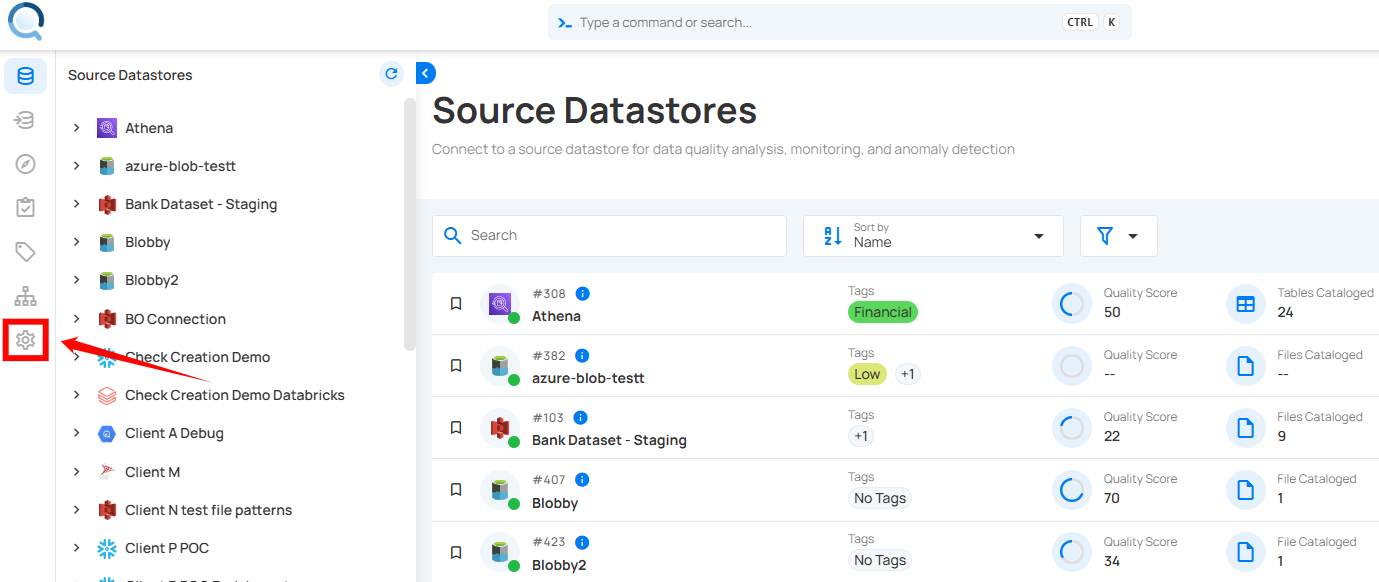
Step 1: Log in to your Qualytics account and click the Settings button on the left side panel of the interface.
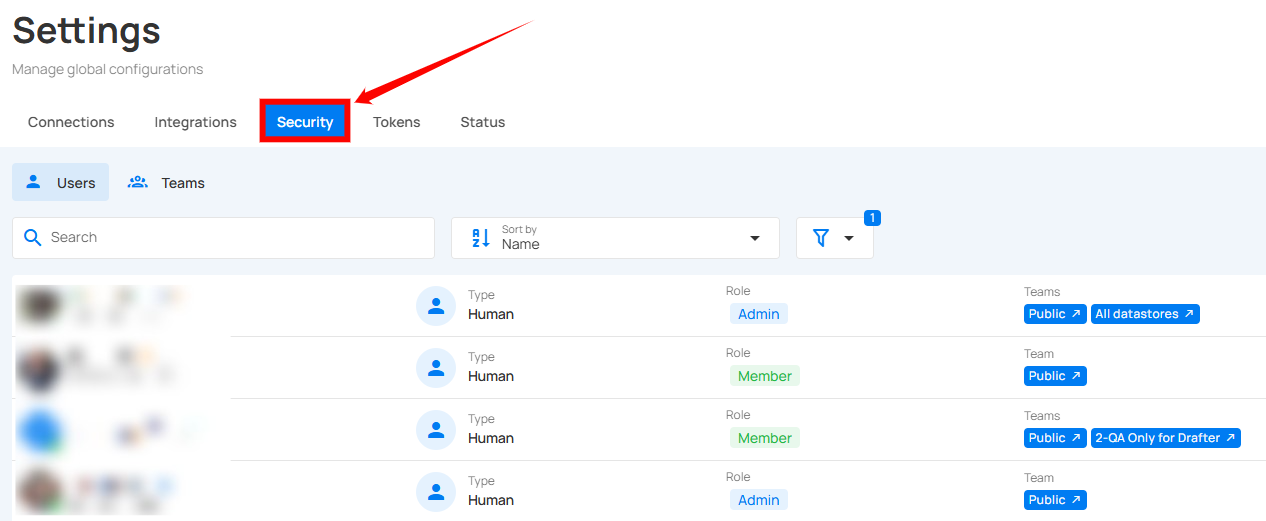
Step 2: By default, you will be navigated to the Connections section. Click on the Security tab.
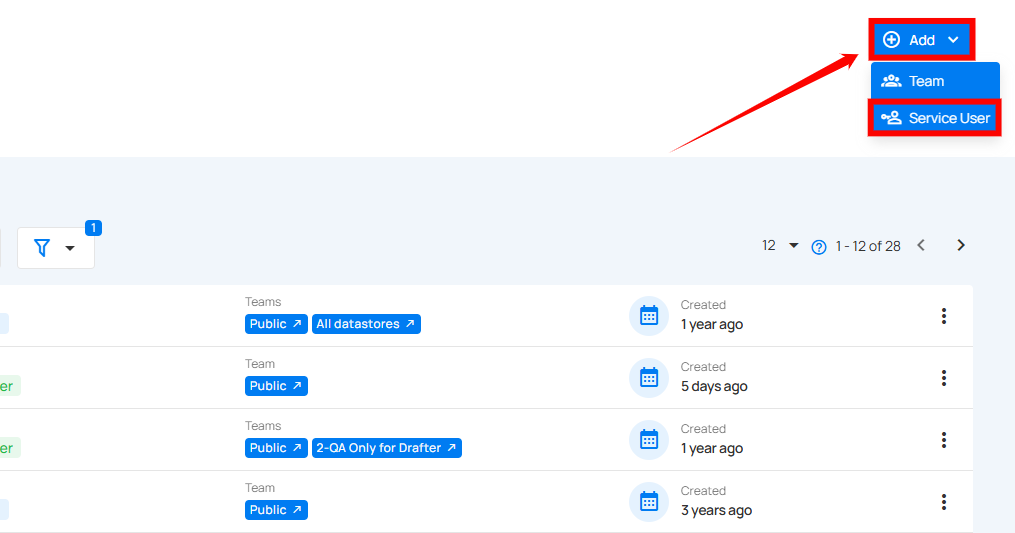
Step 3: Click on the Add button located in the top right corner and select the Service User button.
A modal window will appear with a two-step wizard to create the service account and generate its token.
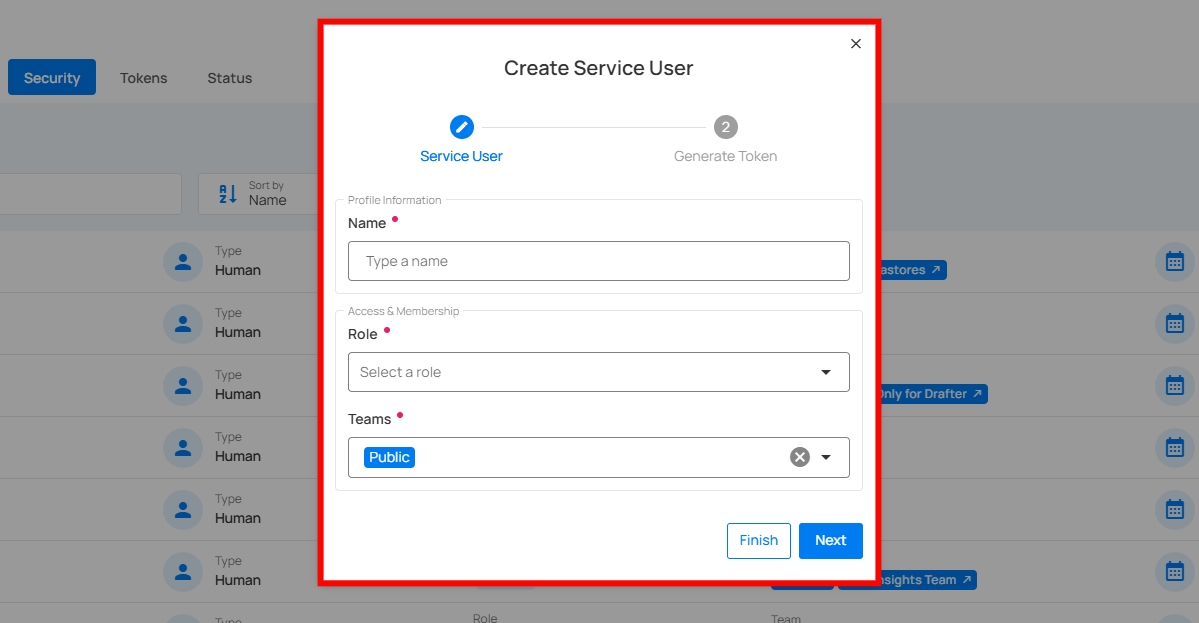
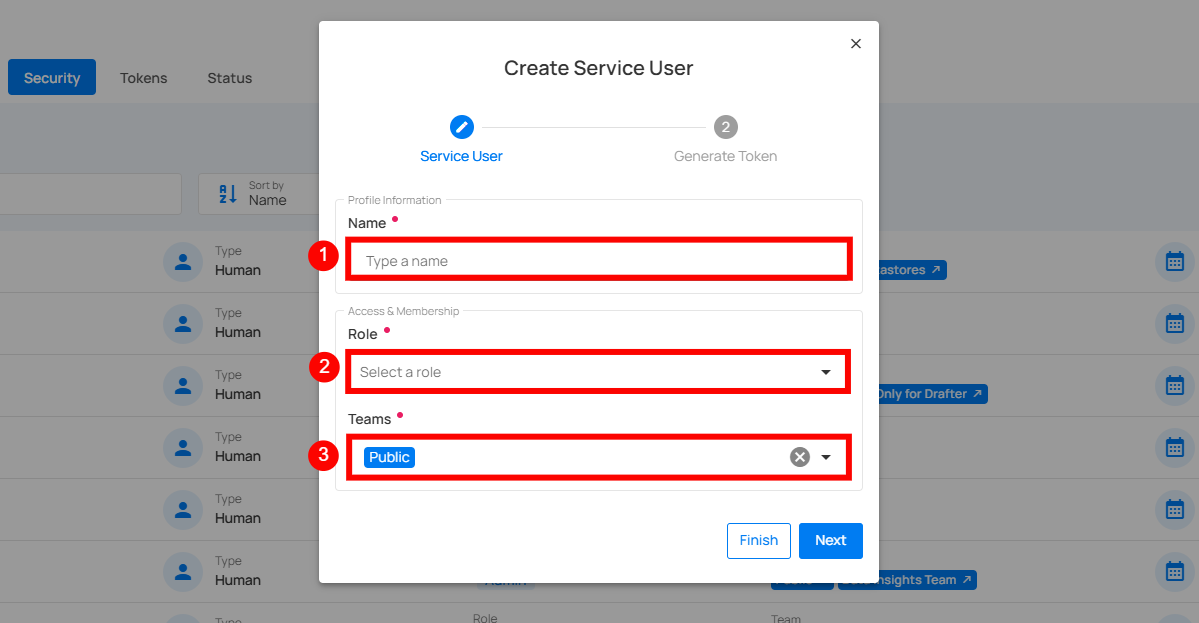
Step 4: Enter the following values in the service user form:
| No. | Field | Description | Required |
|---|---|---|---|
| 1 | Name | Provide a descriptive name for the service account (e.g., "Pipeline Automation", "Alation Sync", "API Access") – this will be used as the service account ID. | Yes |
| 2 | Role | Choose the role for the service account (Admin, Manager, Editor, or Member) based on the permissions needed. Start with the least privileged role. | Yes |
| 3 | Teams | Select the teams the service account should belong to. The Public team is automatically included. | Optional |
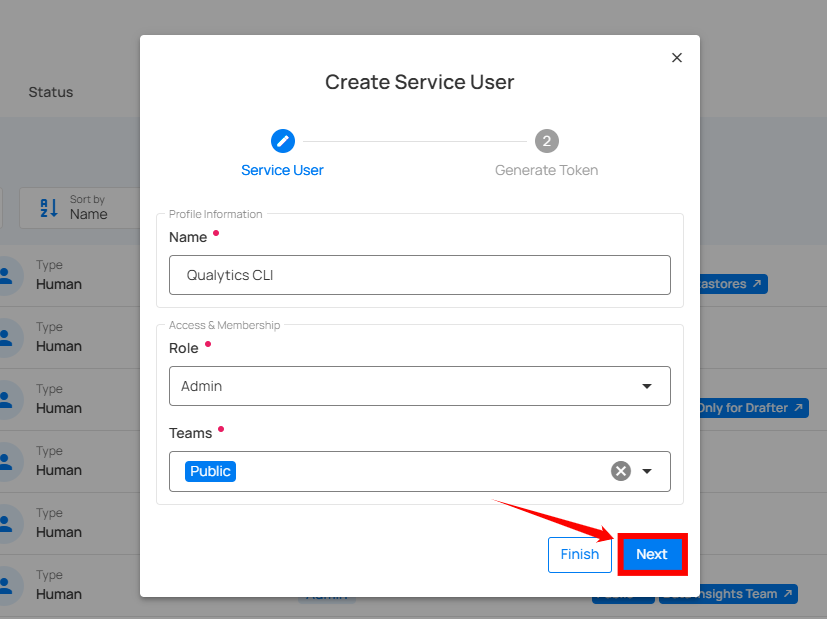
Step 5: After entering the service user information, click on the Next button.
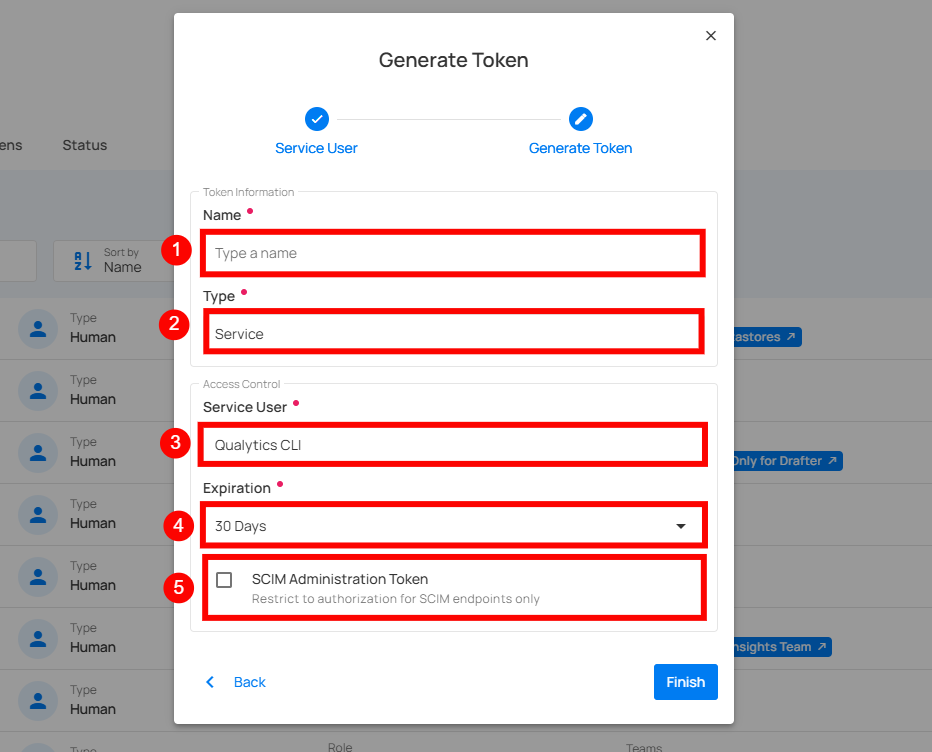
Step 6: In the second step, complete the token generation form:
| No. | Field | Description | Required |
|---|---|---|---|
| 1 | Name | Descriptive name for the token (e.g., "pipeline-production", "api-access-prod"). Token names must be unique per service account. | Yes |
| 2 | Expiration | Select the expiration period from dropdown: 30 days, 60 days, 90 days, 1 year, or Never. For production tokens, 1 year with a rotation plan is recommended. | Yes |
| 3 | Type | Automatically set to "Service" (pre-filled and non-editable). | N/A |
| 4 | Service User | Automatically populated with the service user created in Step 4 (pre-filled and non-editable). | N/A |
| 5 | SCIM Administration Token | Check this box if the token should be restricted to SCIM endpoints only. | Optional |
Step 7: After entering the token details, click on the Finish button.
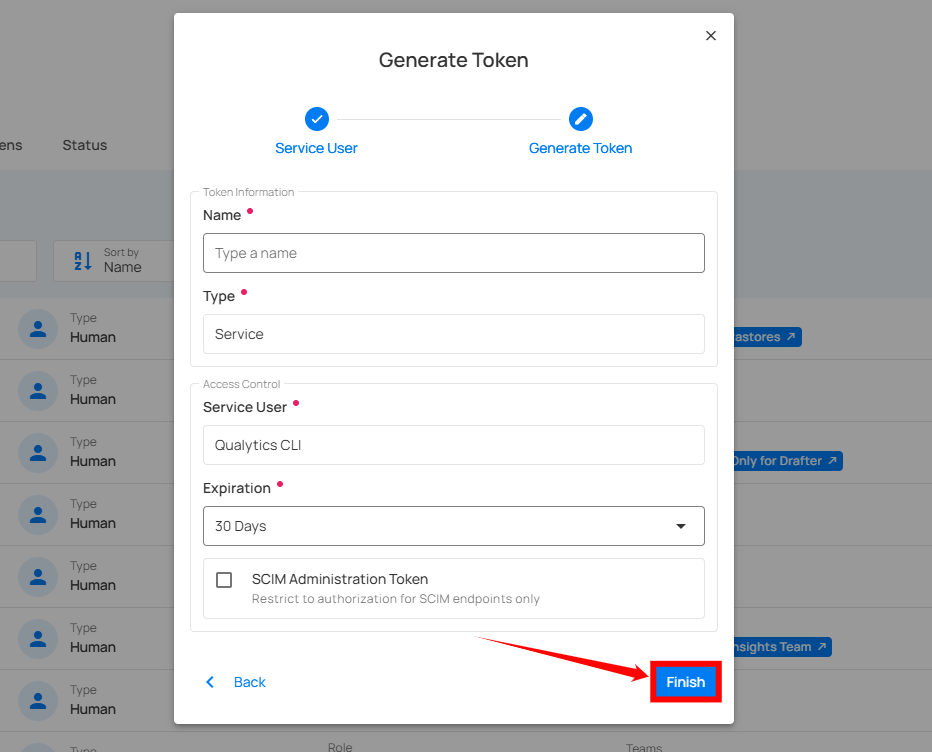
Your service account and token have been successfully created.
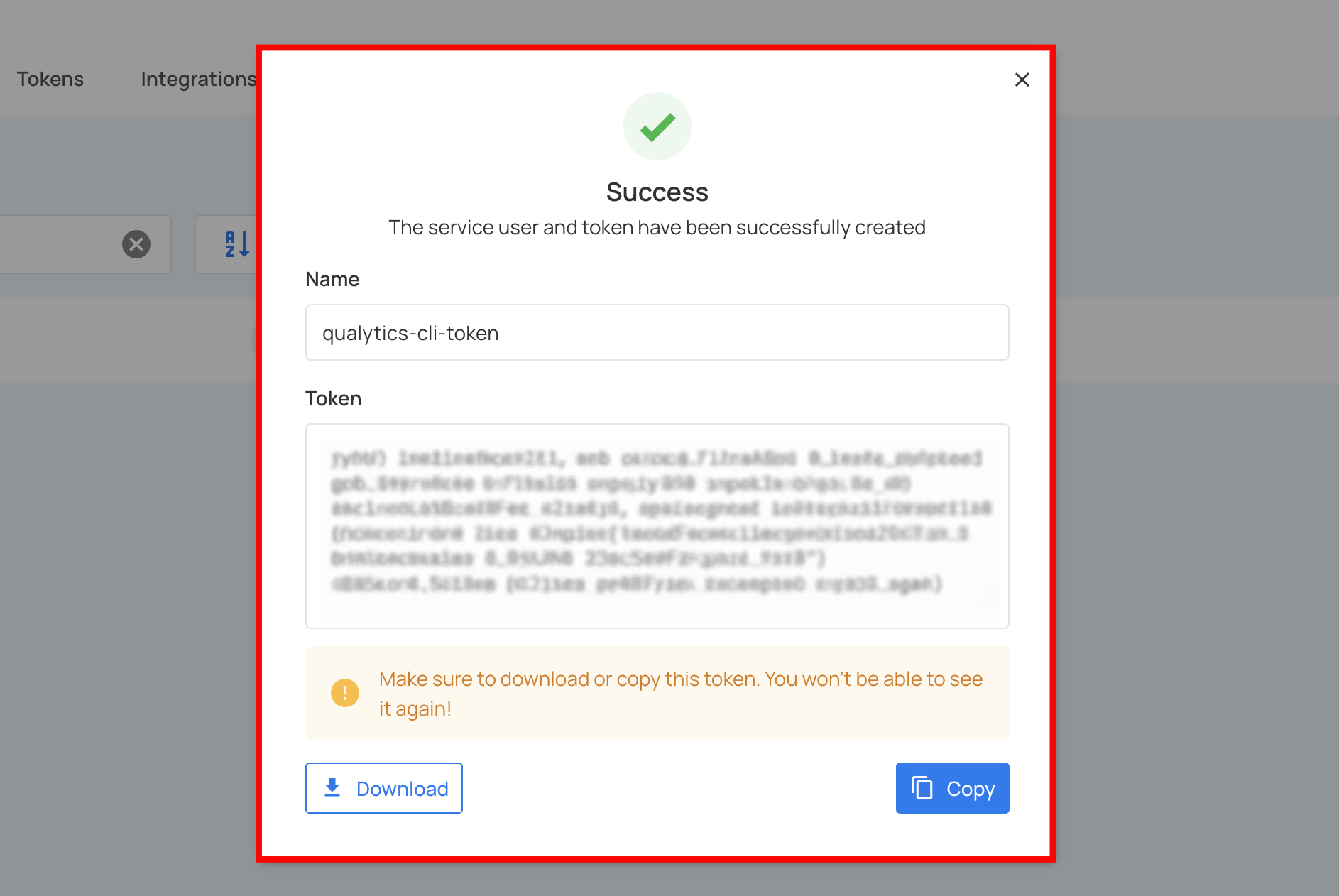
Warning
Make sure to copy or download the token right away. Once you navigate away from this page, you won’t be able to see it again.
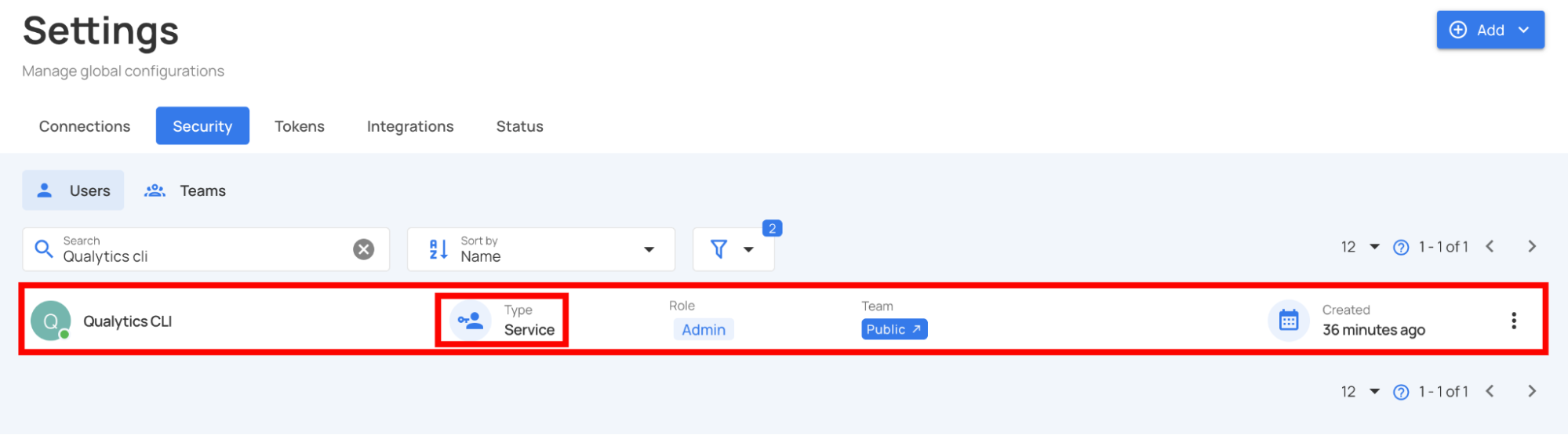
You will see the newly created service account in the users list with a "Service" badge.
API Reference
For administrators who prefer API-based management or need to automate service account creation, Qualytics provides comprehensive API endpoints.
Creating a Service Account via API
Endpoint:
Request Body:
Response: