Flows
Flows in Qualytics help you automate everyday data tasks so you don’t have to do them manually. Each Flow is a chain of connected steps that runs automatically — it starts when something happens (like a data scan finishing) and then performs one or more actions, such as sending a notification or running another check. This makes your work faster, more consistent, and less prone to errors, keeping your data processes running smoothly even when you’re not monitoring them.
Why You Need Flows
Modern data pipelines involve dozens of repetitive steps — from scanning data and profiling tables to alerting the right people when something breaks. Doing all this manually can be time-consuming and prone to errors.
Flows automate this entire process by:
- Reducing manual work: Automatically run follow-up operations when specific events occur.
- Maintaining consistency: Ensure all datastores follow the same workflow and rules.
- Improving response time: Notify teams instantly about scan results or detected anomalies.
- Centralizing control: Manage triggers and actions from one place instead of multiple scripts or manual tasks.
How Flows Work
Every Flow in Qualytics is made up of three key parts that work together to automate your process:
Flow Node
Defines the name, purpose, and activation state of your Flow.
This is where you decide whether the Flow is active or paused.
Trigger Node
Decides when your Flow starts.
Triggers can be:
- Operation-based: Starts after a Sync, Profile, or Scan completes.
- Anomaly-based: Starts when Qualytics detects data issues.
- Manual: Starts only when you trigger it yourself.
Action Node(s)
Controls what happens next once the trigger fires.
Actions can:
- Run operations like Scan or Export.
- Send alerts via Email, Slack, Teams, or PagerDuty.
- Call external systems using webhooks or API requests.
Each Flow runs in order — from Trigger → Action(s) — and you can track its progress or results in the Execution tab.
Example
Imagine you manage a retail company’s product database that gets updated every night.
You can create a Flow like this:
- Trigger: When a Sync Operation Completes on your datastore.
- Action 1: Automatically run a Profile to detect schema or data type changes.
- Action 2: Run a Scan to check for anomalies in product prices or availability.
- Action 3: Send a Slack Notification to your team if anomalies are detected.
This setup ensures every new data load is automatically checked, issues are flagged instantly, and your team can respond right away — without any manual effort.
Navigation to Flows
Step 1: Log in to your Qualytics account and click on Flows on the left side panel of the interface.
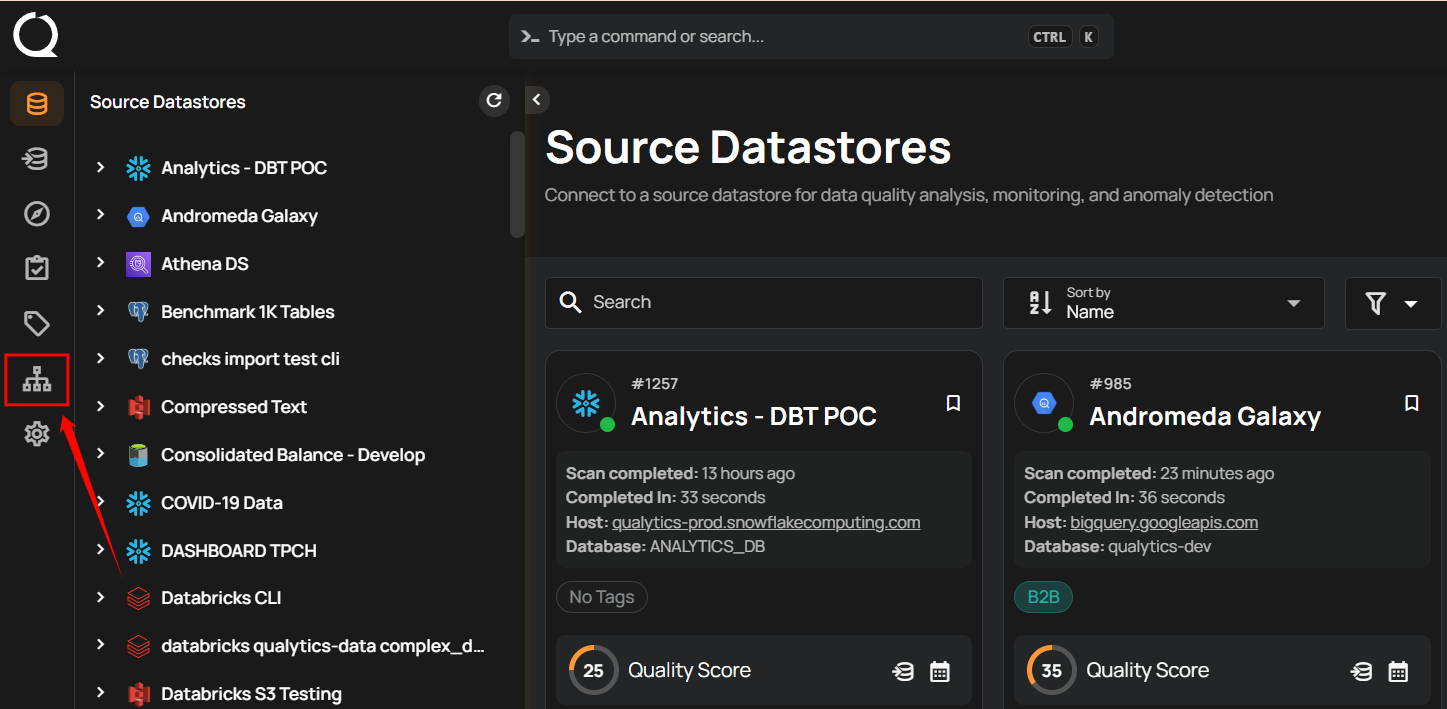
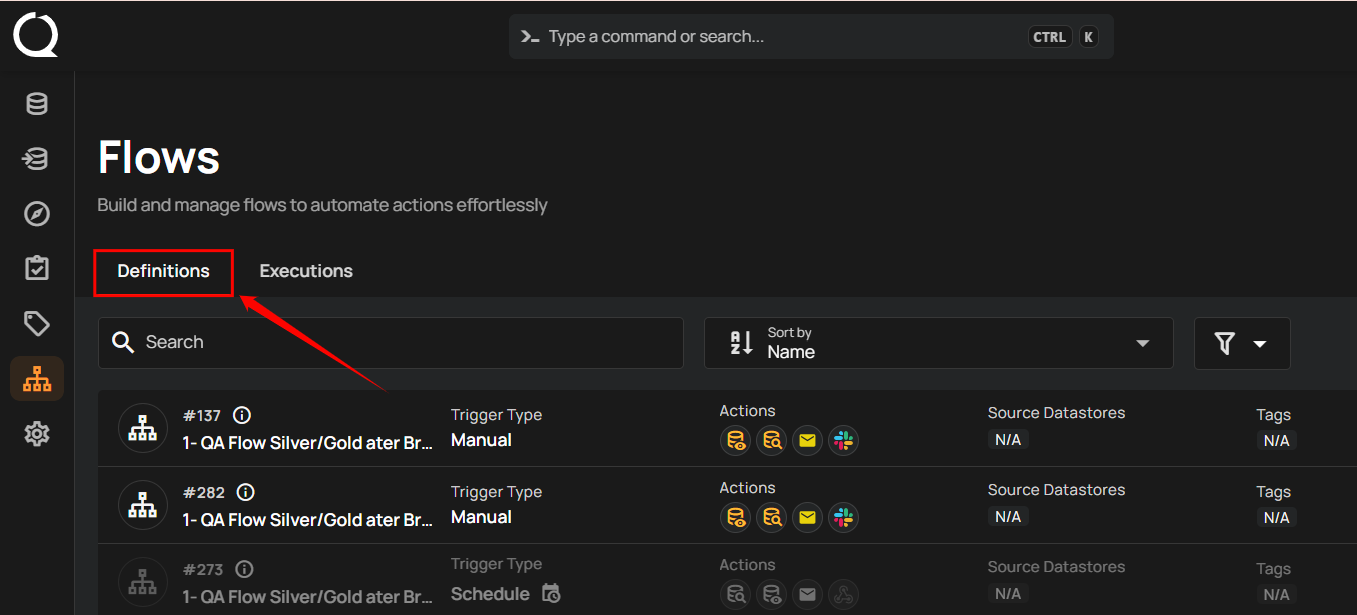
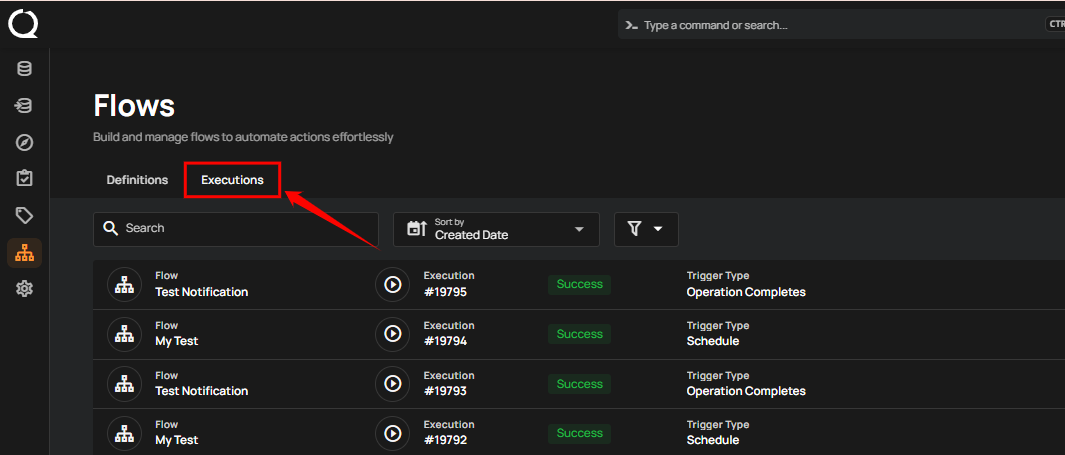
You will navigate to the Flows interface, where you can add and manage flows. At the top, you will see two tabs:
- Definitions: Displays a list of all flows along with details like triggers, actions, tags, and the last triggered time.
- Executions: Provides the execution history of flows, including their status and timestamps.
Add Flow
Allows users to create a new Flow, starting with default nodes to define triggers and actions.
Step 1: Click on the Add Flow button from the top right corner.
Note
For more detailed information, review the add flow documentation.
Flow Node
Defines the core of a Flow, including its name, description, and activation status.
Step 1: Click on the Flow node.
Note
For more detailed information, review the flow entry documentation.
Trigger Node
Determines when the Flow should start, based on events, conditions, or manual activation.
Step 1: After completing the "Flow" node setup, users can click on the "Trigger" node.
Note
For more detailed information, review the trigger node documentation.
Actions Node
Actions define the specific steps the system will execute after a flow is triggered. They allow users to automate tasks, send notifications, or interact with external systems.
Note
For more detailed information, review the action node overview documentation.
View and Track Flow Execution
Once a flow is added, it will be visible in the Definitions tab, where you can view all the created flows.
Note
For more detailed information, review the view and track flow execution documentation.
Execution Tab
Execution tab allows users to view the execution history and current status of a flow. It provides detailed timestamps, status updates, and a comprehensive record of flow executions for efficient tracking and analysis.
Note
For more detailed information, review the execution tab documentation.